
The photo is fine. One part of it isn't.
Most of the time "redacting a photo" isn't about the whole image — it's about one detail inside an otherwise shareable photo. An account number visible under a paperclip. A child's face in an otherwise-great group shot. A house number in the background of a photo you're posting from vacation.
The instinct is to crop it out, or open the photo in whatever editor is nearest and paint over it by hand. Both work, sometimes. Neither is built for the job, and both have the same failure mode: they're manual, which means they're only as thorough as the person doing them remembered to be. A crop that misses a reflection in a window. A paint-over that leaves a one-pixel sliver of a digit at the edge of the brush stroke. Nobody checks their own redaction against a magnifying glass before hitting send.
Safe Share — a tool built into Pluto Photos — exists because "redact a photo" turns out to have three different shapes depending on who's doing it and why. This post is about those three shapes, and the two things any of them get wrong if you do them by hand: the thing you didn't notice needed hiding, and the metadata riding along in the file that nobody was looking at in the first place.
Professionals sending documents: hide the field, not the page
If your job involves photographing or scanning documents — a lawyer sharing evidence, a bookkeeper forwarding a statement, a contractor sending a signed estimate — you run into the same problem constantly: the document is fine to share, and one field on it isn't. An account number. A case number. A client's signature. Redacting the whole page defeats the purpose of sending it; redacting nothing is a mistake with a paper trail.
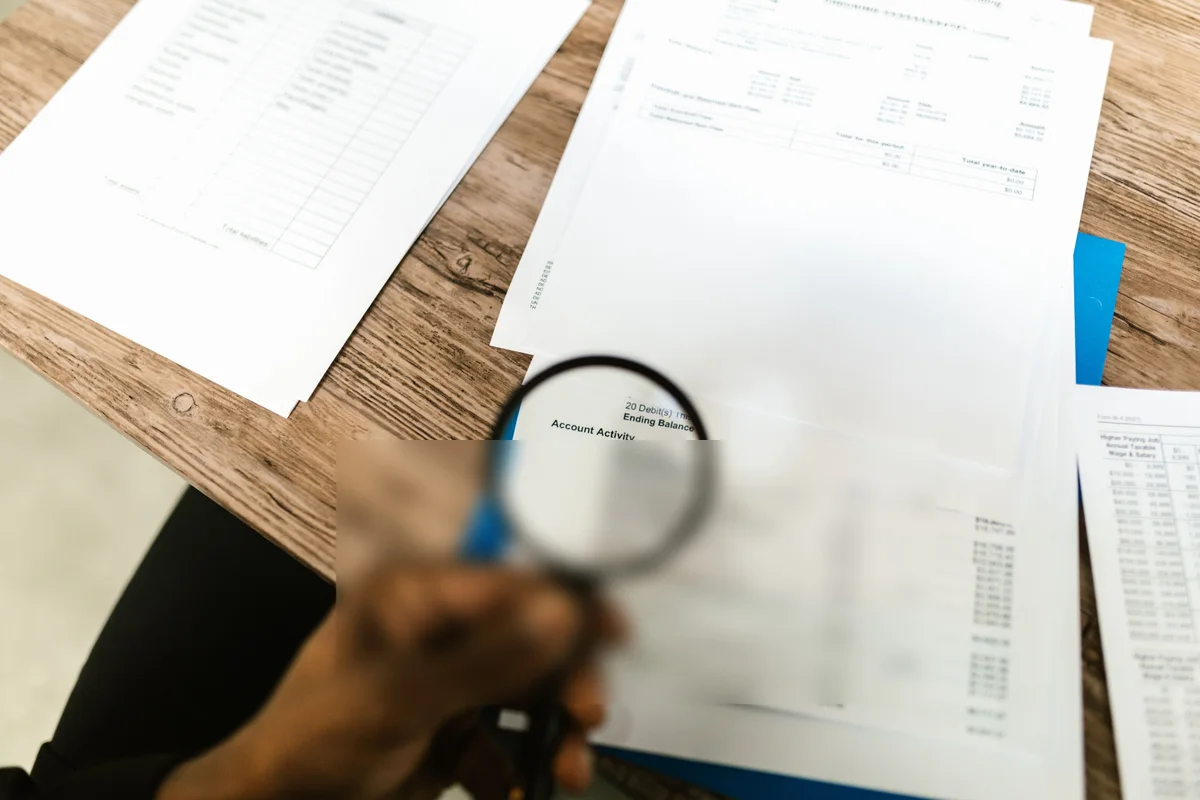
Safe Share runs an on-device OCR pass over the photo and offers every line of printed text it finds as its own toggle — hide the account number, leave the letterhead. But real documents don't cooperate with OCR as often as you'd hope: text behind glass, a low-contrast photocopy, a signature, or — as in the photo above — a paragraph small enough and soft-focus enough that the detector reasonably declines to guess at it. That's what Draw a region to hide is for. Drag a box over anything, whether or not a detector found it, and it redacts alongside everything else.
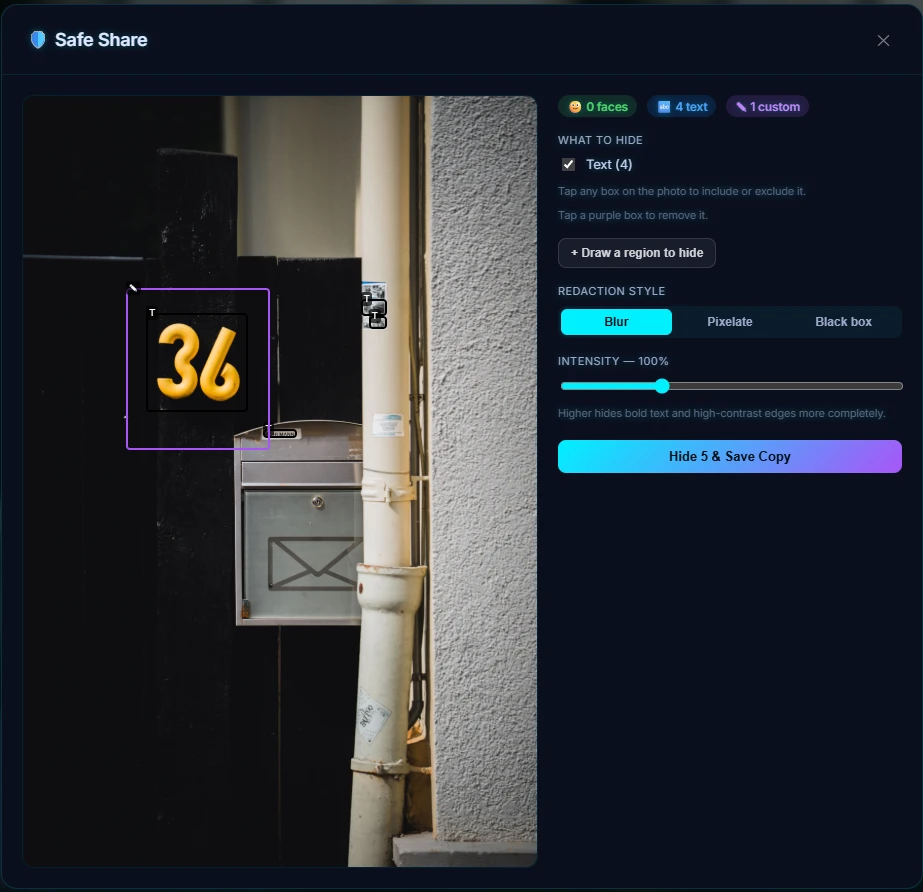
That combination — automatic detection for the obvious stuff, a manual box for everything else — is the difference between a redaction tool and a blur brush. A blur brush trusts you to notice everything. This trusts the detector for what it's good at and gives you the rest.
Real estate and client-facing work: what's visible isn't always what's relevant
Property photos, listing paperwork, before-and-after shots for a client file — a lot of professional photography ends up including things that were never meant to be the subject. A "sold" sign with a seller's phone number on it. A piece of mail left on a counter in a listing photo. An address on a package in a moving-day shot. None of it is sensitive in the way a legal document is, but it's still information you didn't mean to hand out to everyone who scrolls past the listing.
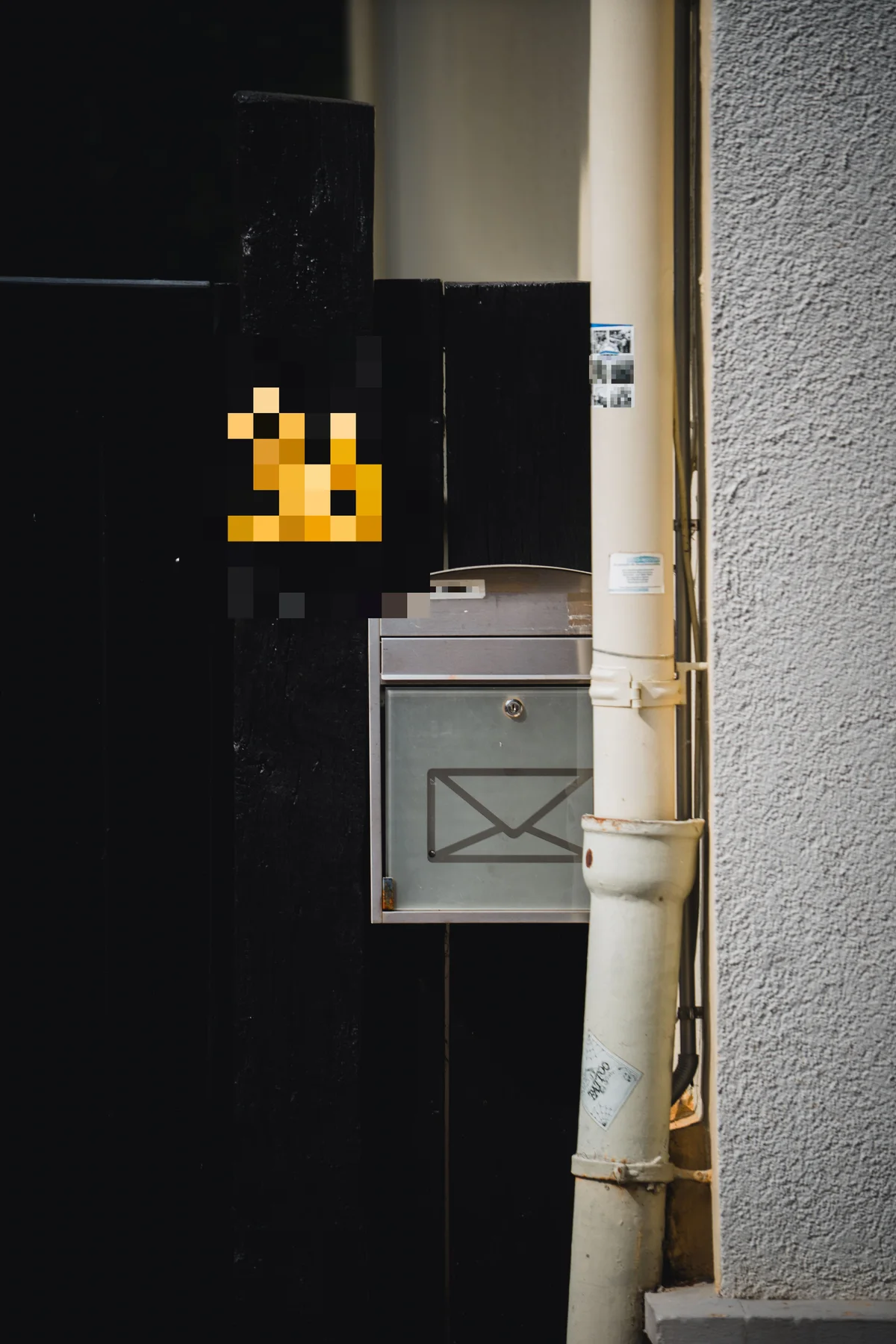
This is a good example of the same detection gap as documents, from the opposite direction: Safe Share's OCR read the mailbox nameplate without any trouble, because it's flat printed text — but the house number here is a moulded plastic numeral, lit at an angle, and a scene-text model reasonably doesn't recognise a piece of hardware as text. One dragged box covered it. The lesson generalises: printed text is the easy 80%, and the last 20% — plates, embossed numbers, a name on a package — is exactly the part worth double-checking rather than assuming the detector caught it.
It's also a good example of a size problem redaction tools don't always account for: a bold, high-contrast numeral like this one is bigger and simpler than the faces or text lines a default blur or pixelate strength is tuned around, so it can survive a default-strength pass as a recognisable shape rather than a genuinely obscured one. Safe Share's intensity slider exists for exactly that case — pixelated here at a strength that leaves it a block of colour, not a "36."
Kids' faces: the photo you actually want to keep sharing
The most common reason people reach for something like this has nothing to do with documents. It's a birthday party, a school play, a cousin's kids at a family reunion — a photo that's genuinely worth sharing, except it has four children's faces in it and you'd rather those faces weren't searchable by anyone who isn't already in your contacts.
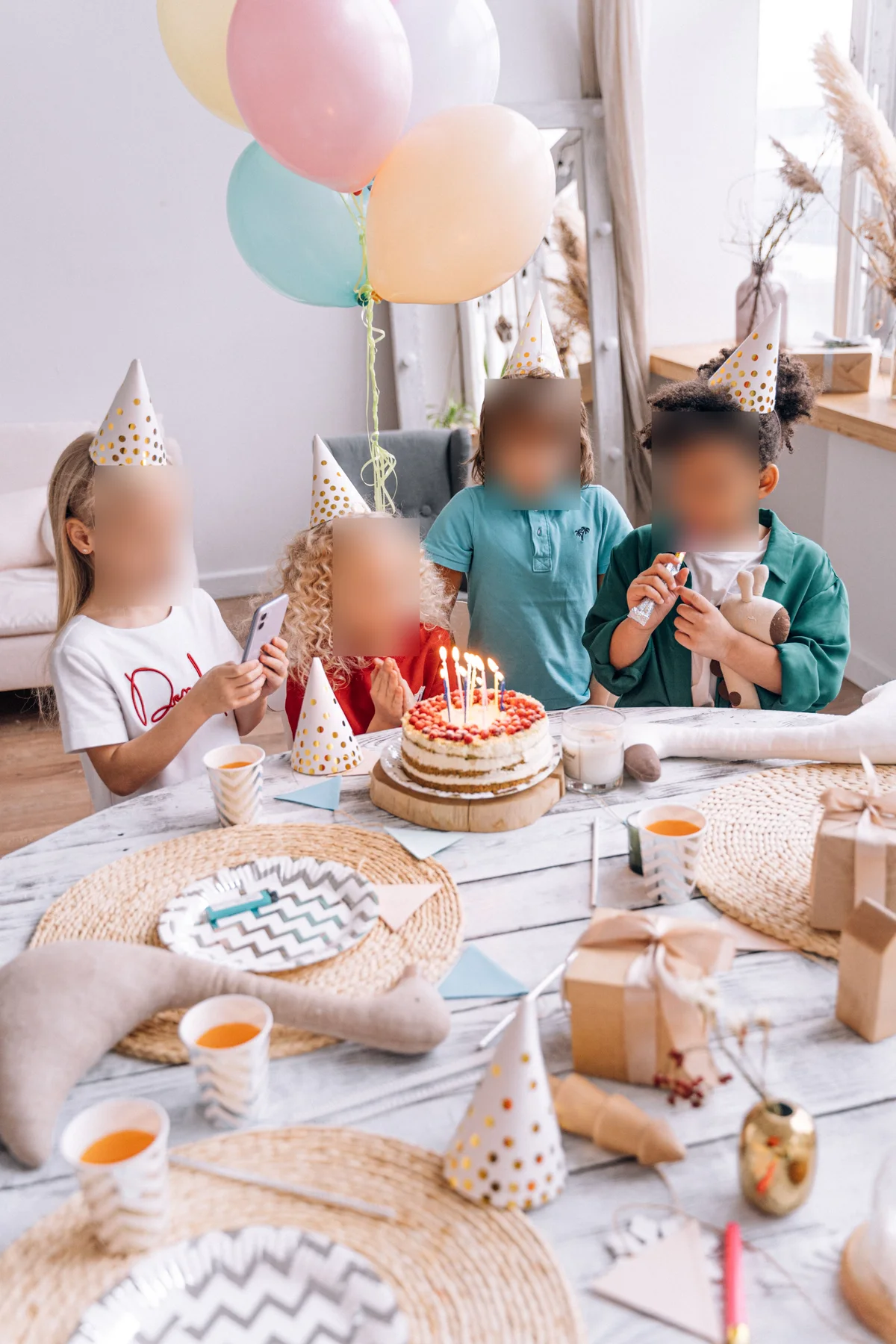
Safe Share finds every face in the photo the moment it opens — in testing, that's every child in a group shot, not just the one facing the camera — and blurs them with one click, no cropping the cake out of frame or losing the composition to get there. Faces default to on for exactly this reason: a face is rarely something you meant to leave in when the whole point was to share the party, not the people at it.
Each face is still its own toggle. If one of the four kids in that photo is yours and the other three aren't, hide three and leave one — the box for each face turns on and off independently, so "blur everyone except my own kid" is a couple of taps, not a separate pass.
The part a crop or a paint-over never fixes: the file itself
Everything above is about pixels — what's visible in the photo. There's a second layer that a manual redaction never touches, because it isn't visible at all: the file's EXIF and GPS metadata. A phone photo carries the exact GPS coordinates it was taken at, the device model, and the timestamp, all riding along in the file whether or not you painted over anything in it. Crop the license plate out in an image editor and export a "cleaned" JPEG, and depending on the editor, that metadata often survives the crop untouched — the photo is edited, the file still knows exactly where and when it was taken.
Every photo Safe Share redacts is exported as a fresh copy with that metadata stripped, not just the pixels you selected. That's not a setting to remember to turn on; it's what "Hide & Save Copy" does every time, precisely because it's the part of redacting a photo that's easiest to forget because there's nothing on screen reminding you it exists.
What this looks like in Pluto Photos
Right-click any photo and choose Safe Share. It analyses the photo immediately — faces, then printed text — and shows every result as a box on the image, faces on by default and text off. Toggle individual boxes, use the category checkboxes to select all faces or all text at once, or click Draw a region to hide to add a box of your own anywhere on the photo. Pick blur, pixelate, or a solid block, and Hide & Save Copy exports a new file with everything selected redacted and the metadata stripped — your original is never touched.
It runs entirely on-device: face detection, OCR, and the redaction itself all happen on your own CPU, with nothing uploaded anywhere. Read more about Safe Share, or download Pluto Photos — it's included with a Pro licence.