
The jobs that got hard
The video editor has handled a holiday reel comfortably for a while now. Multi-clip timelines, transitions, colour grading, text, audio, watermarks, picture-in-picture. All of it worked, and for a five-minute cut it was genuinely pleasant.
Then people started doing bigger things with it, and a specific set of problems showed up again and again:
- Two cameras at a wedding, and no practical way to cut between them.
- A twenty-minute timeline where the same six-clip intro had to be rebuilt every time it changed.
- Three versions of a cut for a client, living in three separate project files that slowly drifted apart.
- An external drive that got unplugged, and a project that came back as a wall of black rectangles.
None of those are exotic. They are just what happens when a project stops being short. This release is about all four.
Multicam: your angles line themselves up
Select the clips from each camera, group them as a multicam source, and Pluto Photos listens to the audio on each one and works out how far apart they start. You do not clap, you do not line up a waveform by eye, and you do not type an offset.
It works because two cameras recording the same room record the same transients, the same door closing, the same laugh, the same first note. The editor builds a loudness envelope for each angle and slides them against each other until those spikes agree, then refines the answer down to sample resolution around that match.
It also tells you how confident it is. If two angles have no audio in common, one camera was in another room, one recorded silence, you get a low-confidence warning rather than a wrong offset presented as fact. The manual drag-to-align control is still there for exactly that case.
Once a group is synced, you get an angle grid. Play the timeline, click an angle (or press its number key), and the cut lands at the playhead. Keep clicking as it plays and you are cutting the sequence live, the way a vision mixer works. Up to 16 angles per group; the live grid decodes eight at a time and tells you when there are more.
Nested sequences
Select a run of clips and collapse them into one. The nest behaves like a single clip on the parent timeline, trim it, move it, fade it, grade it, and double-click to open it and edit its contents. Change something inside, and every place that nest is used changes with it.
Nests can contain nests, up to four levels deep. That cap is deliberate rather than arbitrary: past that, a project becomes something you cannot reason about, and every level multiplies the work of rendering it.
The obvious use is a title sequence or a recurring intro. The less obvious one is grading: collapse an entire scene into a nest and apply one colour treatment to the whole thing, rather than copying the same settings onto forty clips and then hunting for the one you missed.
Several sequences in one project
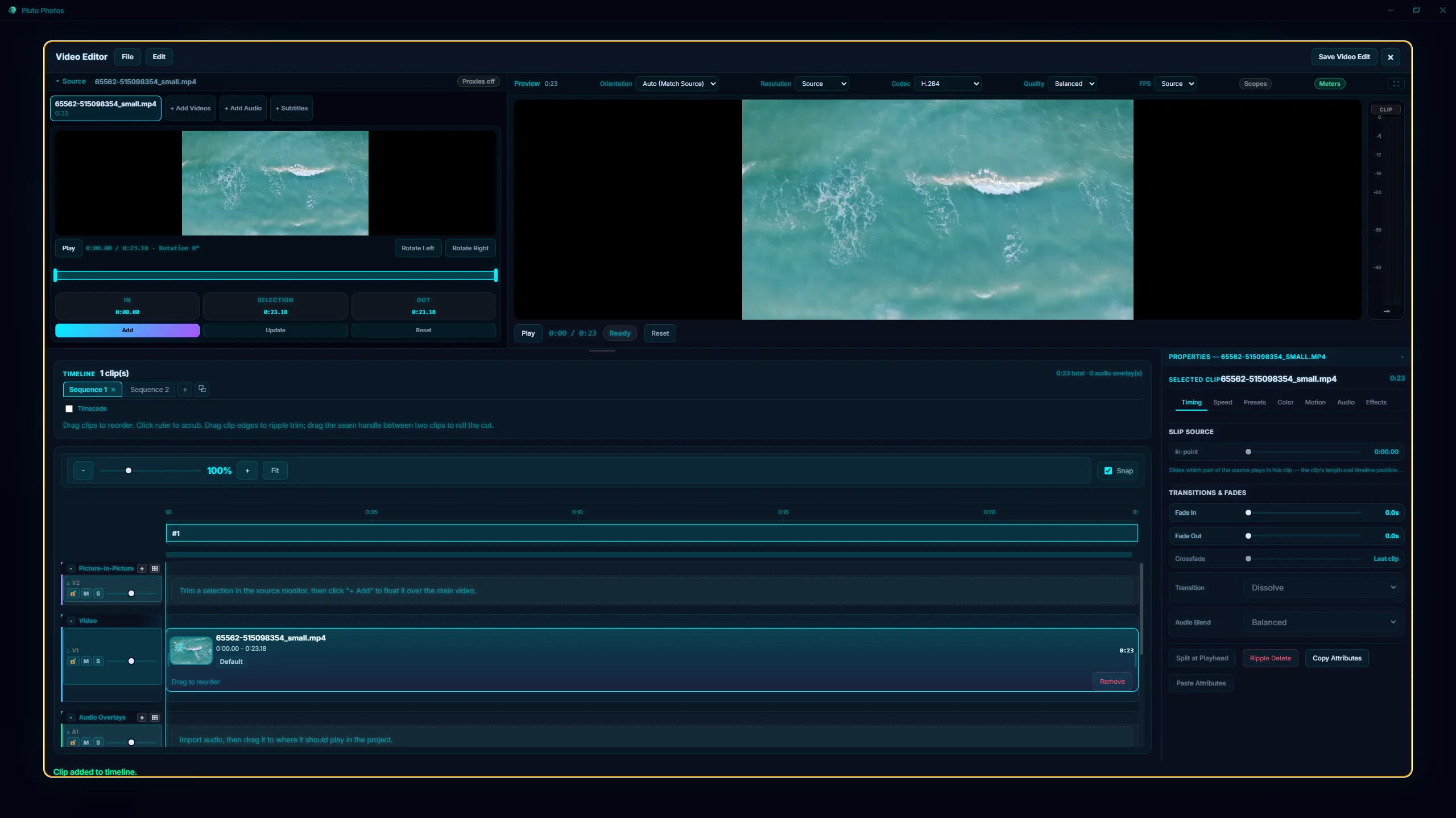
A project file now holds as many sequences as you want, shown as tabs above the timeline. Reel 1, reel 2, a 60-second cutdown, the version the client asked for on Tuesday. All in one file, all sharing the same imported media, each with its own undo history.
Sharing the media pool is the point. Importing footage once and cutting it four ways is a completely different experience from maintaining four project files that each think they own a copy.
Keyframe curves you draw yourself
Animation used to offer five easing presets. It now offers a curve editor: drag the handles on any keyframe and shape the acceleration by hand, exactly as you would expect. The presets are still there, still the default, and old projects open with their easing untouched.
The graph shows every animated property against time, so you can see a move overshoot instead of guessing why it feels wrong.
Media relink
This is the least glamorous feature here and probably the one that saves the most work.
If your footage moves, a different drive, a reorganised folder, a card copied somewhere new, the project opens with a clear banner naming what it cannot find, instead of failing silently. Point at one of the missing files, and Pluto Photos matches the rest by filename in that folder and reconnects everything at once.
Nothing about your edit is touched. Cuts, trims, transitions, grades, keyframes, effects, a relink is a path swap and nothing more. It reaches inside nested sequences and multicam angles too, which matters, because a partial relink is the dangerous kind: the timeline looks recovered and then the export fails.
Proxies, quietly
Import anything above about 2560px on its longest edge and the editor starts building a smaller working copy in the background. Playback uses the proxy; export always uses your original footage. There is nothing to turn on and nothing to manage, if FFmpeg cannot do it on your machine, it simply does not happen and everything still works.
Broadcast timecode
The ruler and playhead can display real SMPTE timecode, drop-frame included, with a start time you choose. If you are working to notes that say 01:14:22:07, the timeline can now say the same thing.
Your work is not locked in here
Any sequence can be exported as an EDL or a Final Cut XML at any time. That is not a feature about other software; it is a promise about yours. An edit you made in Pluto Photos is a structured description of your decisions, and you can take it with you.
Getting it
All of this is in v2.4.10, on Windows, macOS and Linux. Existing projects open exactly as they were, a project saved by an older version loads as a single sequence, with its tracks and lane settings derived from the layout you saved it with.
Download the update, or read the full release notes.