
Your Library in Your Pocket. On Your Hardware.
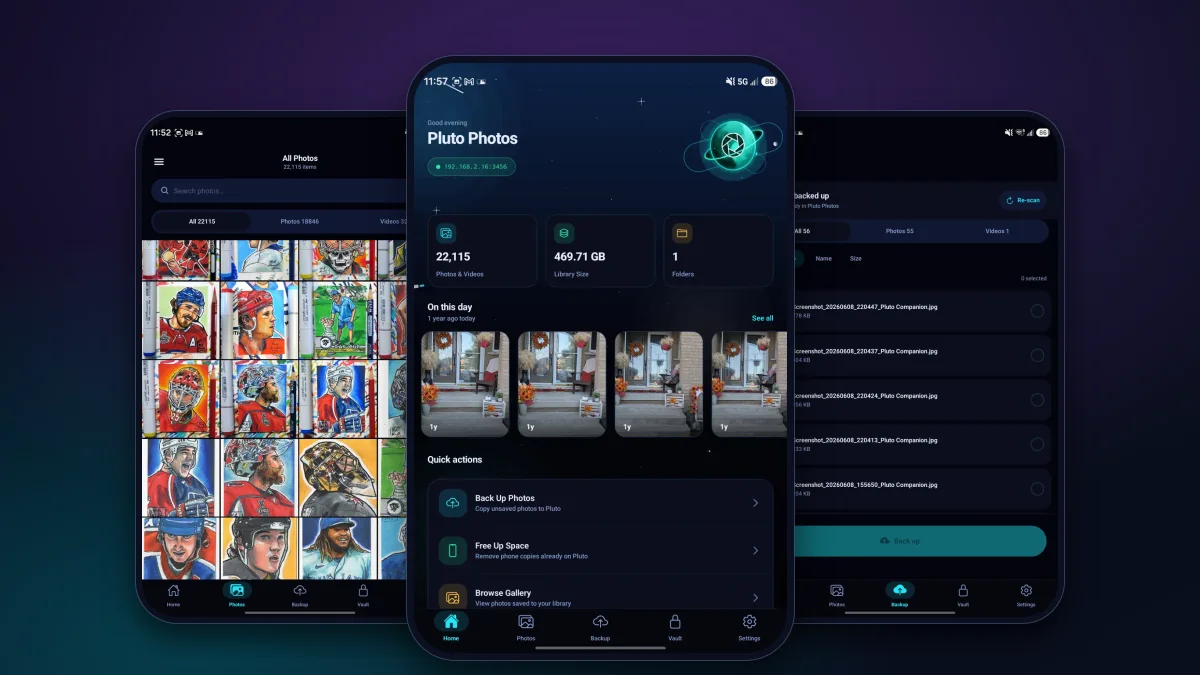
Pluto Companion is the Android app for your Pluto Photos library. Browse and search everything you own from your phone, back up your camera roll straight to your own computer, and keep private photos behind your phone's screen lock: with no cloud account and no storage fees.

- $0To install it and browse your whole library
- $5/moAdds backup, the vault and the other tools
- 0Third-party servers that ever hold your photos
- AndroidPhones and tablets. No iPhone version yet
Your whole library, searchable
Every photo and video on your computer, on your phone, not a synced subset. Filter by All, Photos or Videos, search by name, or describe the picture.
Backup with no cloud in the middle
Your camera roll goes straight to your own computer, over your home network, or over the internet once you switch on remote access. No account, no storage plan, no third-party server.
Free up space without crossing your fingers
A photo is only offered for deletion after your computer has proven, against the file on disk, that it holds a matching copy.
A vault behind your phone's own lock
Private photos leave the main gallery and sit behind your fingerprint, face unlock, PIN or pattern, and lock again when you leave the app.
On This Day, from your own photos
Memories from this date in past years, built on the phone from your library. Nothing about them leaves your network.
Looks like your desktop
The same six themes as the desktop app, plus Auto, in the same 14 languages.
Your Whole Library, in Your Pocket
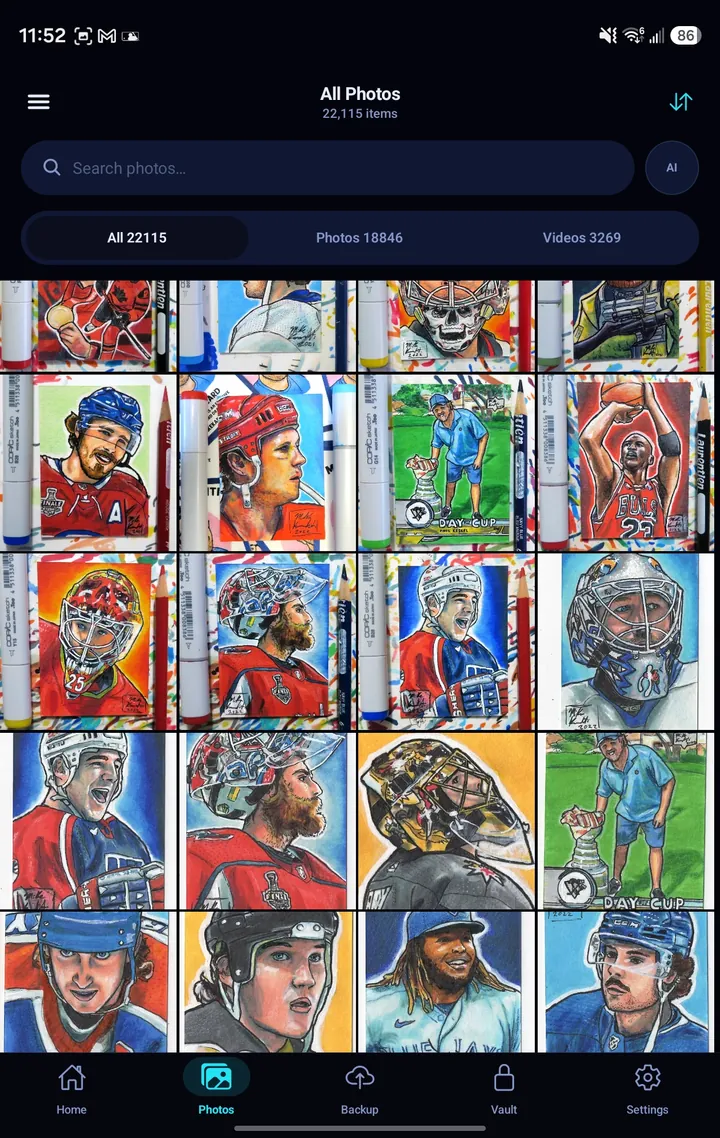
The Photos tab is your desktop library on your phone: every photo and video, with All / Photos / Videos filters, sorting and a search bar. The screenshot is a real 22,115-item library, the phone loads it a page of thumbnails at a time, so its size doesn't slow anything down.
Type a filename to find a photo, or tap AI and describe it, "dog on a beach", "birthday cake", and your computer's on-device model does the looking. (AI search uses the Pro search feature in Pluto Photos on your computer.) Open a photo full screen, swipe through the rest, and see its camera details, where it was taken and who is in it. Long-press to select several and act on them together.
Browsing is free. You never need a subscription to look at your own photos.
A Home Screen That Shows Where Things Stand
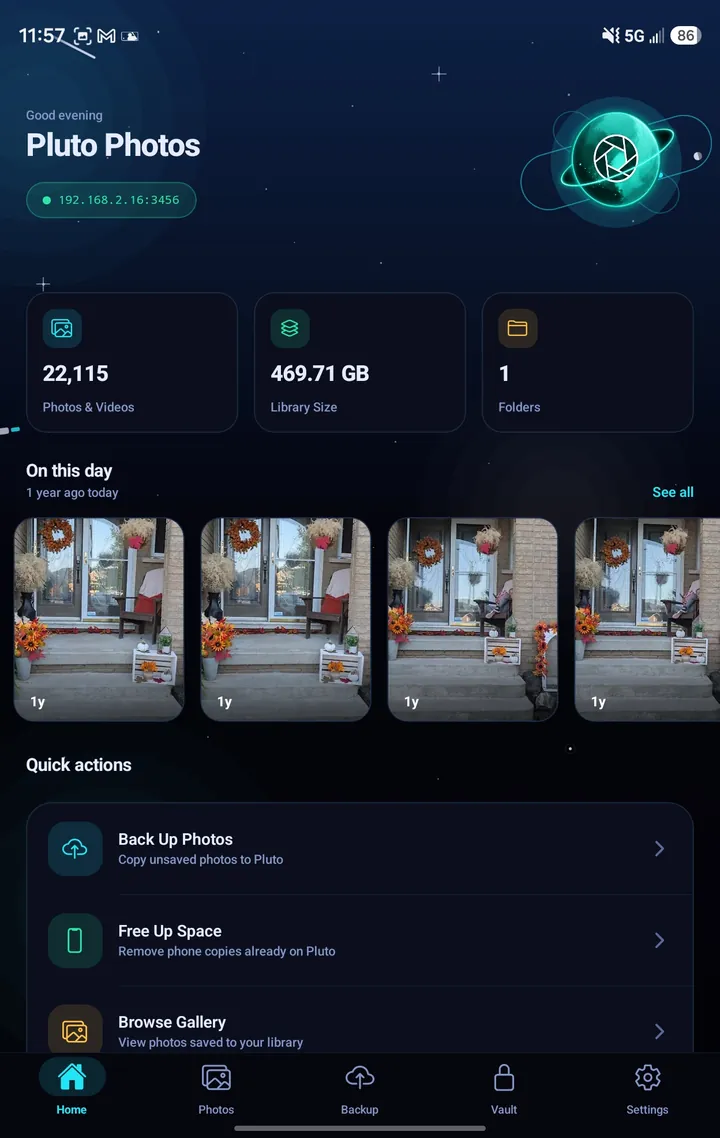
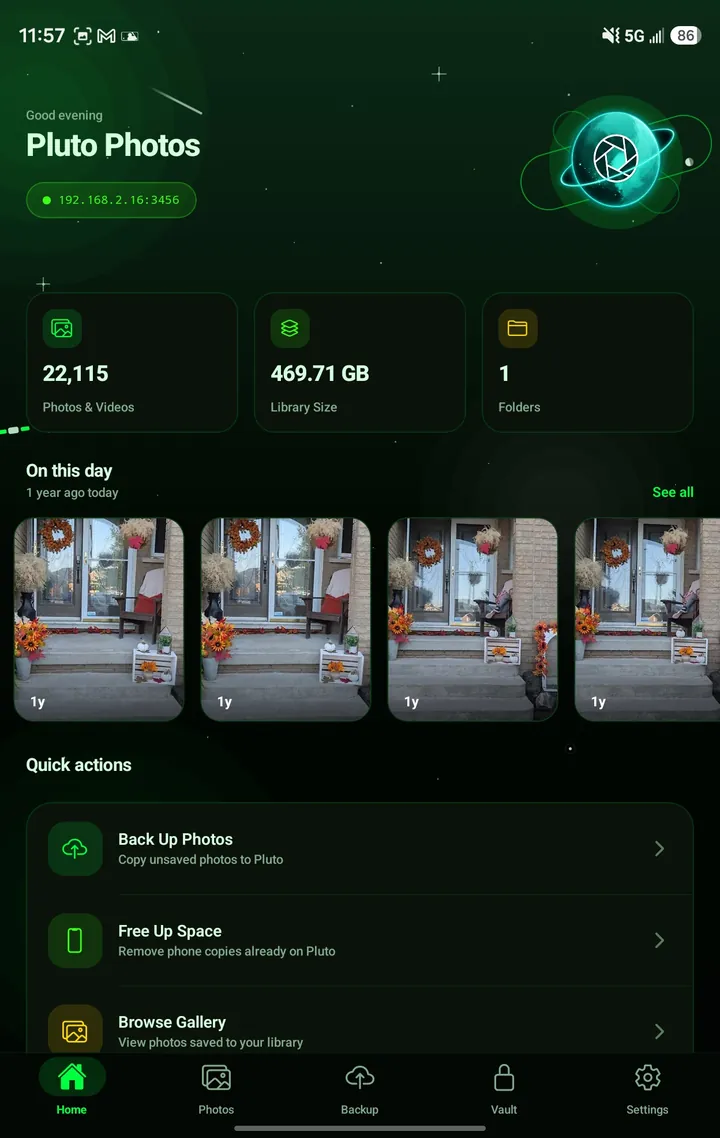
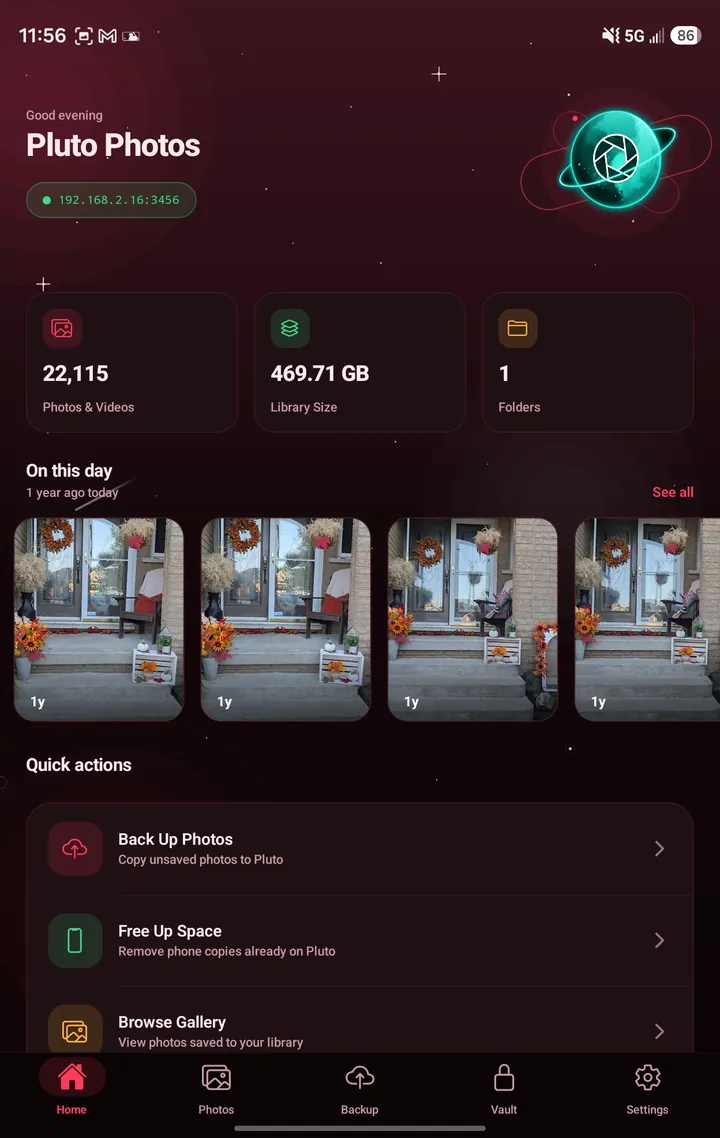
Open the app and Home tells you what you have: how many photos and videos are in your library, how big it is, and which computer you're connected to (the green pill is its address on your network).
On This Day brings back photos from this date in past years, and Quick actions put the things you do most, back up, free up space, browse, one tap away. Turn on notifications and you also get a daily memory. It's made on the phone from your own library, so the notification never touches a server.
Back Up to Your Own Computer. Never to the Cloud.
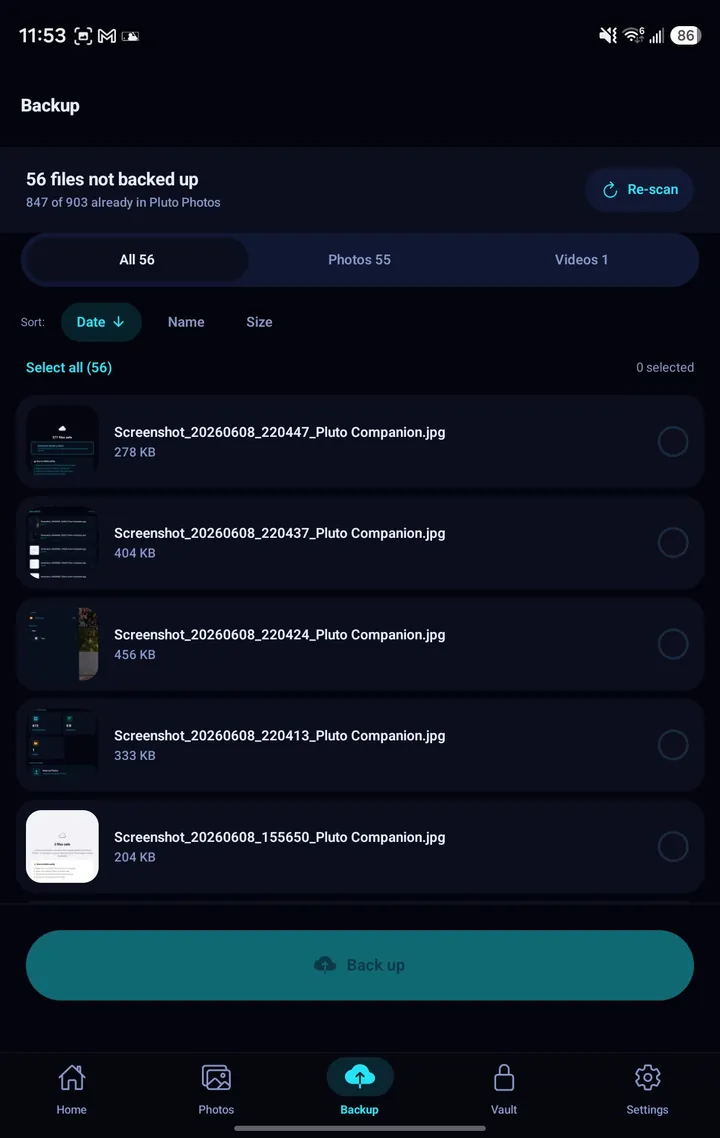
Pluto Companion compares your camera roll with your desktop library and lists only what your computer doesn't have yet: in the screenshot, 56 files not backed up and 847 of 903 already safe. Choose what to send (or Select all), tap Back up, and the files go straight to your computer: over your home network, or over the internet once you've switched on remote access.
- Pick your albums. Back up Camera without WhatsApp or Downloads.
- Skip what you don't want, screenshots for one, with backup rules.
- Turn on auto-backup and the app quietly catches up in the background whenever the phone is on Wi-Fi. It only ever uses Wi-Fi, so it never spends your mobile data.
- Back up by hand from anywhere. For a big backlog or a long video, open the Backup tab and let it run. It keeps going with the screen off. Away from home it works through remote access, and if you're on mobile data the app asks before it starts.
- Nothing piles up twice. Files your computer already has are recognised by name and size and skipped, and a dropped connection is retried automatically.
Your computer needs to be on, with Pluto Photos running, and reachable. Backup is part of the $5/month add-on.
Free Up Space: Only After Your Computer Proves It Has the Photo
Most phone-cleaning tools say "it's in the cloud, trust us." Free Up Space checks. Before it offers to delete a single photo, it asks your computer to confirm, against the file on disk, not a database entry, that the photo is really there: same name, same size, same content fingerprint. A photo it can't prove stays on your phone.
That covers the two ordinary ways a record outlives its file. Unplug the drive your library lives on, or delete the photo on the desktop, and the photo is not offered. You review what it found and confirm, and Settings keeps a receipt of exactly what each run removed.
A Vault That Uses Your Phone's Own Lock
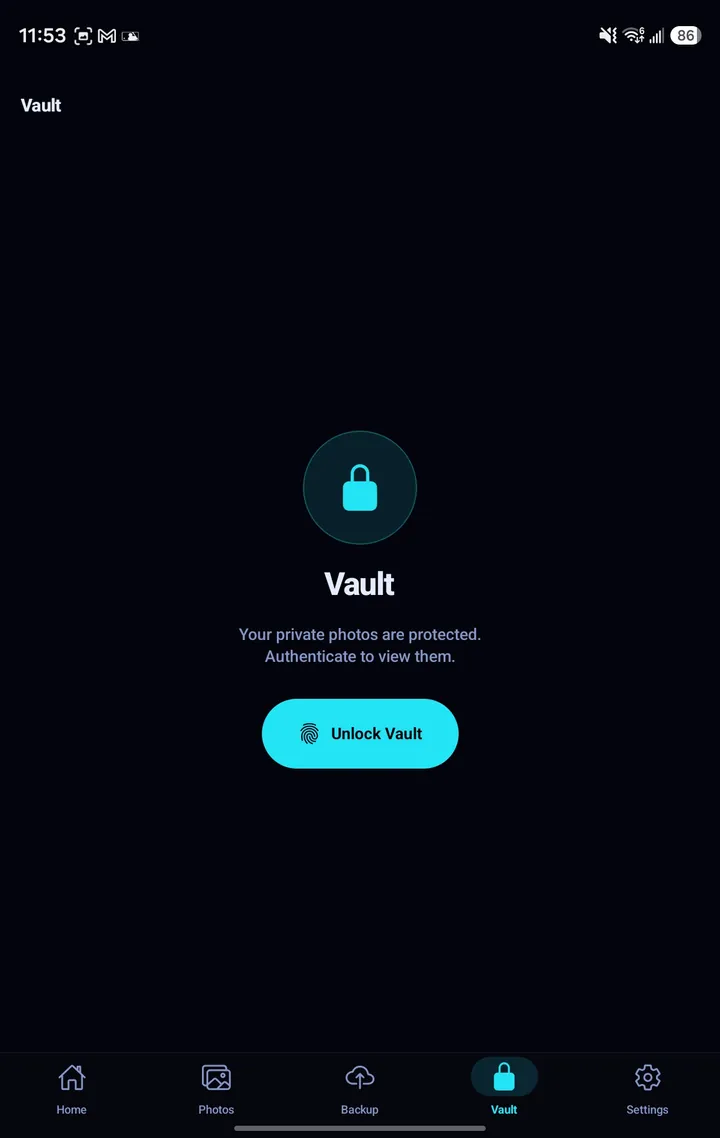
Long-press any photo in Photos and choose Move to Vault. It leaves the main gallery and sits behind Unlock Vault, which asks for whatever your phone already uses, fingerprint, face unlock, PIN or pattern. The Vault locks again when you leave the app, so it isn't sitting open in the recent-apps screen.
It needs a screen lock on the phone (there would be nothing to protect it with otherwise), and anything you take out of the Vault returns to the main gallery. The Vault is part of the $5/month add-on.
Six Themes, Fourteen Languages
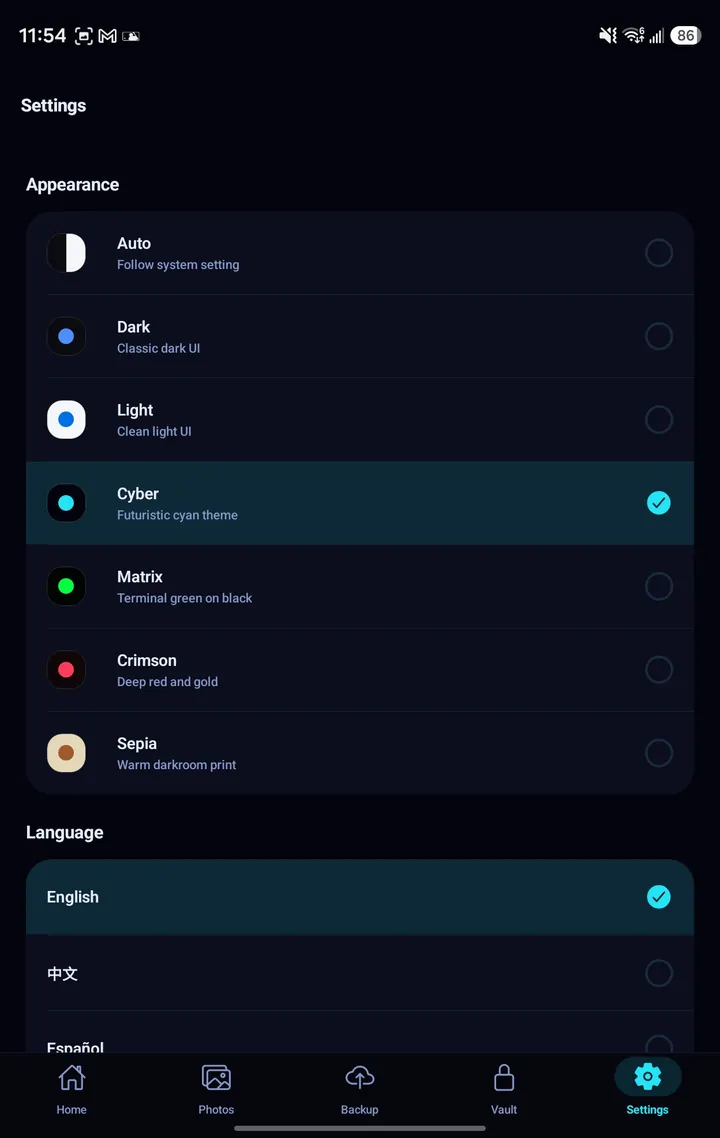
Pick Auto to follow your phone, or match your desktop with Dark, Light, Cyber, Matrix, Crimson or Sepia, the same six themes, by the same names. The app is translated into the same 14 languages as the desktop, including right-to-left Arabic.
The Rest of Your Library, in the App
- People: browse by the faces your computer has already found, and open a person to see all their photos.
- Map: see where your photos and videos were taken.
- Duplicates: review groups of near-identical photos, keep the best, delete the rest. Deleted photos go to your desktop's Recently Deleted, so a mistake is recoverable.
- Offline photos: save albums to the phone and view them with no connection at all.
- Share to Pluto: from any app's share sheet, send photos and videos into your library.
People, Map, Duplicates and AI search are powered by the matching Pro features of Pluto Photos on your computer, so they need those features there. All of these except AI search are part of the $5/month add-on.
Set Up in a Couple of Minutes
- Install Pluto Photos on your computer, Windows, macOS or Linux, and leave it running. Browsing works with the free version; backup and the other add-on tools need Pluto Photos Pro on that computer. Download it here.
- On the desktop, open Admin → Mobile Companion and click Show Pairing QR Code.
- Install Pluto Companion on your Android phone from Google Play, join the same Wi-Fi as your computer, and scan the code.
That's the whole setup. The QR code is single-use, pairing is encrypted end to end, and from then on the phone finds your computer on its own.
Away From Home
On your home network the app talks to your computer directly. Away from home it reaches the same computer over the internet, and there is nothing to set up on your router: switch on Use my phone away from home in the desktop app and Pluto opens the door itself, checks that it works, and shows you the result. The connection stays encrypted from your phone to your computer, and only phones you've paired can get in. Once it's on, browsing, searching and backing up by hand work from anywhere; automatic background backup still waits for Wi-Fi. If you only ever use the app at home, leave it off.
Either way, Pluto Photos has to be running on your computer to reach your desktop library. Your phone's own gallery, editing and sharing, and anything you've saved for offline viewing, work without it.
Private by Design
- Encrypted. Every connection to your computer is HTTPS. Your computer makes its own certificate, and the app records its fingerprint when you pair and refuses anything else afterwards, a machine pretending to be your computer is turned away, even on the same address.
- No cloud storage. Photos go between your phone and your computer, never to a Pluto server to be kept. Away from home, if your connection can't be reached directly, an encrypted relay passes the traffic through; it can't read or store it. Apart from your computer, the app contacts our licence server (to check your subscription is active), OpenStreetMap's tile servers while the Map screen is open, and Google's ML Kit for the QR scanner: none of which receive your photos. The privacy policy lists each one.
- One key per phone. Each paired phone has its own token. Revoke any of them from the desktop (Admin → Mobile Companion) or in the app (Settings → Paired devices).
- PIN-gated pairing. A PIN you set on the desktop stops a stranger pairing a phone of their own, and repeated wrong guesses lock their address out.
- No advertising, analytics or crash-reporting service, and no remote push. The "On This Day" notification is generated on the phone.
Free to Browse. $5 a Month for the Rest.
| Free | $5/month | |
|---|---|---|
| Browse and search your whole library | ✓ | ✓ |
| Home screen and On This Day memories | ✓ | ✓ |
| Six themes, 14 languages | ✓ | ✓ |
| Back up your camera roll | : | ✓ |
| Free Up Space | : | ✓ |
| Vault | : | ✓ |
| Offline photos | : | ✓ |
| People, Map and Duplicates | , | ✓ |
| Share to Pluto from other apps | : | ✓ |
The subscription is separate from the desktop app, which has a free tier and a one-time Pro price, see pricing. You subscribe on this website, then sign in on the phone with the same email (it sends a 6-digit code to prove the address is yours). There's no in-app purchase, and you can cancel anytime.
Frequently Asked Questions
Is there an iPhone version?
Not yet. Pluto Companion is Android-only for now. An iPhone can still browse your library through the Companion Browser, which needs nothing installed: open the address your desktop shows in any browser on your Wi-Fi (a Pro feature).
Do I need a cloud account?
No. There is no cloud account and no cloud storage. Your phone pairs with your computer by scanning a QR code, and your photos only ever go to that computer. The app does contact our licence server to check your subscription, and OpenStreetMap for map tiles while the Map screen is open, but neither receives your photos.
Where do my photos go when I back up?
To your own computer, into the library Pluto Photos manages there. At home that's over your own network; away from home it goes over the internet straight to your computer, once you've switched on remote access. Either way the transfer is secured with TLS (HTTPS) encryption and certificate pinning: when you pair, the app records your computer's own certificate and refuses to talk to anything else, so a lookalike machine on the network can't pose as your computer. Your photos are never copied to a Pluto server or any other cloud.
Does my computer have to be on?
Only for the parts that involve your computer. Pluto Photos has to be running there to browse your desktop library, back up, or reach it from away from home. Everything on the phone itself works without it: browse your phone's own gallery and albums, edit and share your photos, and view anything you've saved for offline viewing: no computer, Wi-Fi or connection needed.
Is it free?
Installing the app and browsing and searching your library is free. Backup, Free Up Space, the Vault, Offline photos, People, Map, Duplicates and Share to Pluto are part of the $5/month subscription, which you can cancel anytime. Pluto Photos on your computer is separate, with a free tier and a one-time Pro price.
Can I use it away from home?
Yes: switch on one setting in the desktop app, with no router setup. The remote access guide explains it. Once it's on you can browse, search and back up by hand from anywhere (automatic background backup still waits for Wi-Fi). With it off, the app works on your home network.
Could Free Up Space delete a photo that is not backed up?
It only offers photos your computer has confirmed, file by file, against what is actually on disk. Anything it can't prove stays on the phone, and a receipt in Settings lists exactly what each run removed.
Get Pluto Companion
Free to install and browse. Pair it with Pluto Photos on your computer and your whole library is in your pocket. Backup and the add-on tools need Pluto Photos Pro on that computer.
Need the desktop app first? Download Free →