
The files everyone tries to delete
Unzip a Google Photos Takeout export and you get something like this:
IMG_20190812_143302.jpg
IMG_20190812_143302.jpg.json
IMG_20190812_143303.jpg
IMG_20190812_143303.jpg.json
Half the files are JSON. On a 60,000-photo export that is 60,000 files that look like clutter, and the near-universal first instinct is to select them all and delete them.
Do not. Those files contain the only surviving copy of information that is not in your photos.
What is actually inside one
Open one in a text editor and you will find something along these lines:
{
  "title": "IMG_20190812_143302.jpg",
  "photoTakenTime": {
    "timestamp": "1565620382",
    "formatted": "Aug 12, 2019, 2:33:02 PM UTC"
  },
  "creationTime": { "timestamp": "1565702118" },
  "geoData": {
    "latitude": 43.6532,
    "longitude": -79.3832,
    "altitude": 76.0
  },
  "people": [ { "name": "..." } ],
  "description": "",
  "favorited": true
}
The fields that matter, in order of how much you will regret losing them:
photoTakenTime: when the photo was actually taken, as a Unix timestamp. This is the important one.
geoData: where it was taken. Sometimes present when the photo's own EXIF GPS is not, because Google inferred or preserved it separately.
creationTime: when it was uploaded to Google Photos. Not the same thing as when it was taken, and confusing the two is how an entire archive ends up dated to the week you first installed the app.
favorited, description, album membership, the annotations you added over the years.
Why Google exports it this way
The obvious question is why the date is not simply written into the photo file itself, where every other program would find it.
Two reasons. First, not every format has a standard place to put it, a PNG or a WebP has nowhere as universally-read as JPEG's EXIF. Second, and more importantly, a lot of this information was never in the photo. It lived in Google's database: your album structure, your favourites, your descriptions, and in many cases a corrected date. Google exports what it has, in a format that can hold all of it, in a file beside the original.
That is a defensible engineering decision and a terrible user experience, and both things are true at once.
What goes wrong if you ignore them
Your operating system does not read these files. Neither do most photo apps. So a Takeout export imported naively is dated by whatever the importer can see, which is usually the file's modification time, and the file's modification time is the moment you unzipped the archive.
The result is a library where every photo from 2008 to 2026 claims to have been taken last Tuesday. Chronological browsing is gone. Year-based folders are gone. "What did we do that summer" is gone. This is the single most common thing that goes wrong when leaving Google Photos, and it has its own longer write-up because it catches so many people.
Worse, it is not obviously recoverable later if you deleted the JSON files, because at that point the original date genuinely does not exist anywhere any more.
The naming is inconsistent, and that is a real problem
If you want to match sidecars to photos yourself, be warned that the pairing rules are messier than the example above suggests. Real exports contain all of these:
IMG_1234.jpg+IMG_1234.jpg.json: the straightforward case.IMG_1234.jpg+IMG_1234.json: extension dropped.- Long filenames where the JSON name is truncated at a fixed length, so the sidecar's name is a prefix of the photo's.
- Duplicates within one album folder as
IMG_1234(1).jpg, whose sidecar isIMG_1234.jpg(1).json: the counter moves to a different place. - Live Photos and motion stills, where a
.MP4and a.HEICshare one sidecar. - Edited versions suffixed
-edited, which have no sidecar of their own and must inherit the original's.
Any tool that claims to handle Takeout needs to handle all six. A naive "strip the extension and add .json" matcher silently misses a meaningful percentage of a large export, and silence is the problem. You do not find out until you notice a few thousand photos in the wrong year.
What to do with them
Keep them until the import is verified. Do not delete a single JSON file until you have imported the export into something that read them, and you have spot-checked photos from several different years and confirmed the dates are right.
Import with a tool that reads sidecars, rather than dragging the folder into a viewer that does not. This is the entire difference between a successful migration and starting over.
Then archive, do not delete. Once the dates are in your library, the sidecars have done their job, but they are small text files, and keeping the original Takeout ZIPs somewhere is cheap insurance against discovering a problem in six months.
Checking it worked
After importing, three quick checks catch almost every failure:
- Sort the whole library oldest-first. The first photo should be genuinely old, not a screenshot from this year.
- Pick a year you remember clearly and confirm the photos in it belong there.
- Look at how many photos landed in "unknown date" or in the current month. A large cluster in the current month means the sidecars were not read.
In Pluto Photos
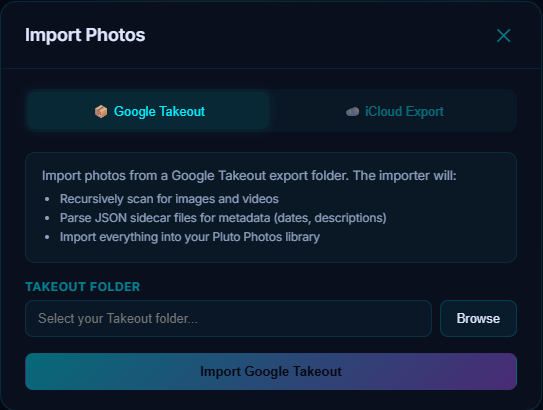
The Google Takeout organizer in Pluto Photos reads the sidecar JSON during import and writes the original capture time and GPS into your library, so the export lands in chronological order instead of collapsing to the day you unzipped it. It handles all six of the naming shapes above, including the three that trip most importers: truncated sidecar filenames, the relocated (1) counter, and -edited copies that have no sidecar of their own and inherit the original's (in every language Google localises that suffix into). Where a truncated name could genuinely describe two different photos, it deliberately records no date rather than guessing, a wrong date looks answered forever, while a missing one can still be repaired later.
If you are earlier in the process, the Google Photos migration guide covers requesting the export itself, and the Google Photos alternative page is an honest look at what you gain and what you give up by leaving. Download Pluto Photos, the free tier will happily import one album folder so you can confirm the dates come through before committing the whole export.