The Best Local AI Photo Editor in 2026
By The Pluto Photos Team · Published · Updated · 16 min read
Most "AI photo editors" upload your photos to a server. Here are the few that genuinely run on your own machine, and a full tour of what the winner does.
Why "local AI" actually matters
Almost every AI photo editor marketed in 2026 — Fotor, Pixlr, Photoroom, Canva AI, Adobe's generative tools — sends your images to a remote server. Your photos sit in someone else's bucket, get processed, and a result comes back. That's fine for a meme. It's not fine for family photos, client work, medical scans, ID documents, or anything you'd hesitate to email to a stranger.
There's a practical cost too. Cloud AI means an account, a connection, a queue, a credit balance, and a per-image fee that never stops. Local AI means you own the tool.
A genuinely local AI photo editor has three properties:
- The model ships with the app, or downloads once and stays on disk — it is not called over an API
- No internet connection is required at any point, including the first launch after install
- Your images never leave your machine — not to a server, not to a "temporary" cache, not for "quality improvement"
Test #2 is the one that separates the marketing from the software. Pull the network cable, restart the app, and try the AI button. Most "AI photo editors" fail immediately. That's the list this article is about.
How to check whether an editor is really local
Before you trust anyone's claim — including ours — here is a five-minute test you can run on any app:
- Turn off Wi-Fi and unplug Ethernet. Not airplane mode on a laptop with a second radio — actually disconnect.
- Quit the app completely and reopen it. Many editors cache a login for a session and only fail on relaunch.
- Run the AI feature. Background removal, generative fill, upscale, whatever it advertises.
- Check the install size. Real on-device models are big. A "local AI" editor with a 40 MB installer and no separate model download is calling somebody's API.
- Read the privacy policy for the words "process", "transmit" and "sub-processor". A cloud tool has to disclose it somewhere.
An app that passes all five is genuinely local. An app that fails step 3 was renting you an API the whole time.
1. Pluto Photos — best overall local AI photo editor in 2026
Pluto Photos is a photo library manager with a Photoshop-class editor, a multi-clip video editor and a stack of on-device AI models built into it. Everything below runs on your own machine. There is no account, no per-image fee, and no connection required after install.
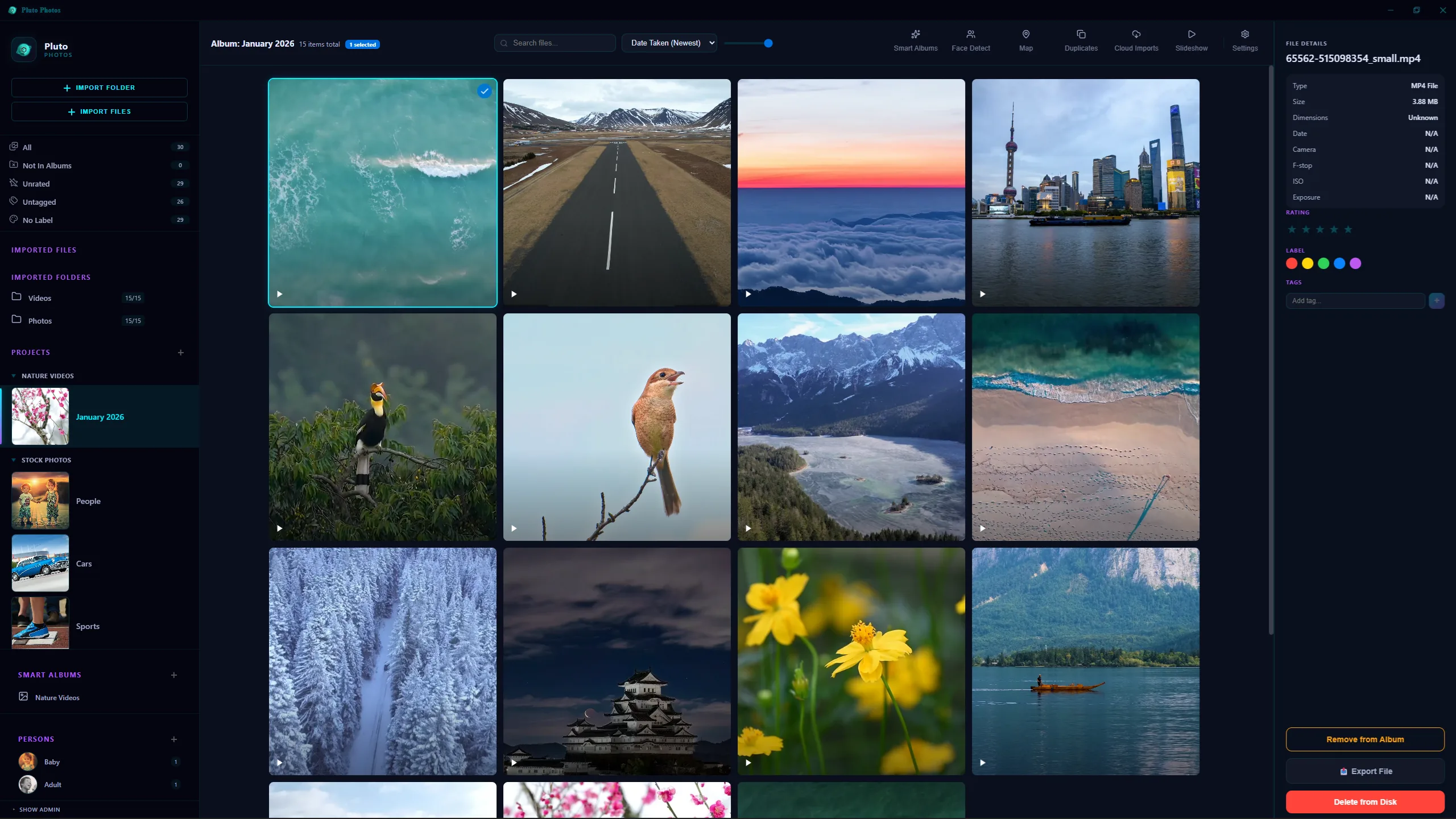
The library. Photos and videos in one grid, with albums, smart albums, people and places down the left.
It is also the only tool on this list that is a library manager first. GIMP, Affinity and Topaz all open one file at a time. That matters more than it sounds: the AI features here operate on your whole collection, not on whatever you happened to drag onto the canvas.
The models, and where each one runs
The Windows installer and the Debian package fetch these during setup, with a progress window. The macOS .dmg and the Linux AppImage have no install step, so they pull the model files quietly in the background on first launch — give a new machine a few minutes before the AI tools are ready. After that, the app never needs the network again.
None of it requires a GPU. Object removal will use one if you have it (DirectML on Windows, Core ML on Apple Silicon) and falls back to CPU if you don't.
Erase anything — and the shadow it cast
This is the feature that separates 2026 tools from 2024 ones. Click an object and an on-device segmentation model outlines it for you, or switch to brush mode and paint over anything — a crowd, a power line, a bin, a timestamp, a photobomber.
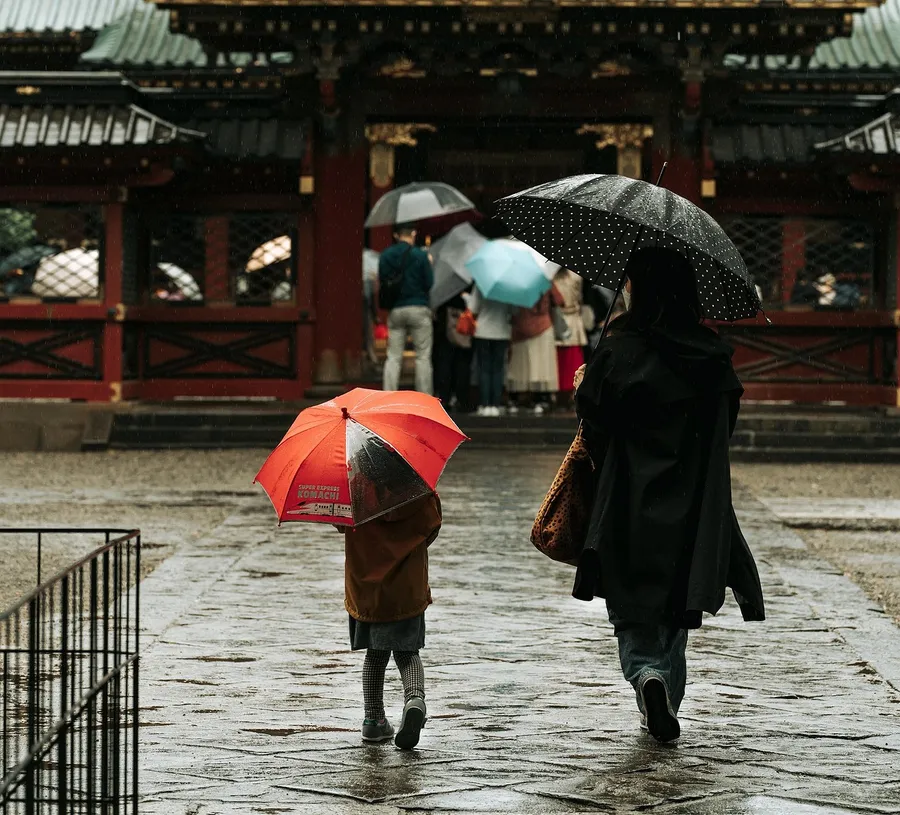
Before. The hand is the thing to remove — and it has a soft shadow under the wrist.
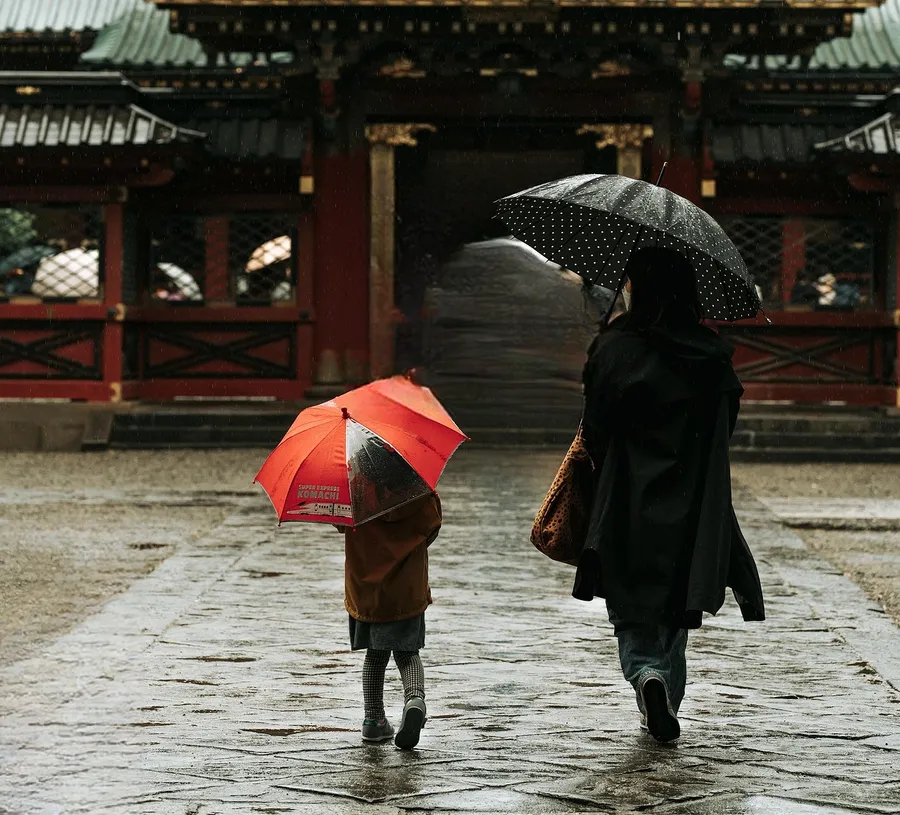
After. Not a blur, not a clone-stamp patch: the wood grain continues, the bowl rim is reconstructed, and the shadow under the wrist went with the hand.
The generative model here was fine-tuned specifically for removal rather than borrowed from a general-purpose image generator, and it is effect-aware — it works out what the object was doing to the scene and repairs that too. In practice that means the shadow, the reflection and the faint halo around the outline go with the object, without you having to carefully paint over a shadow you'd rather not think about.
It is a one-time ~2.6 GB download, verified against a published checksum and cached on your machine. After that it runs offline forever: no credits, no per-image fee, no "you have 3 generations left this month". A typical removal takes around twenty seconds on a mid-range GPU.
More on object removal →
Cut out a subject in one click
Hit Remove Background and the subject is isolated on transparency in a couple of seconds, ready to export as a PNG. A restore brush paints back anything the model trimmed too eagerly.
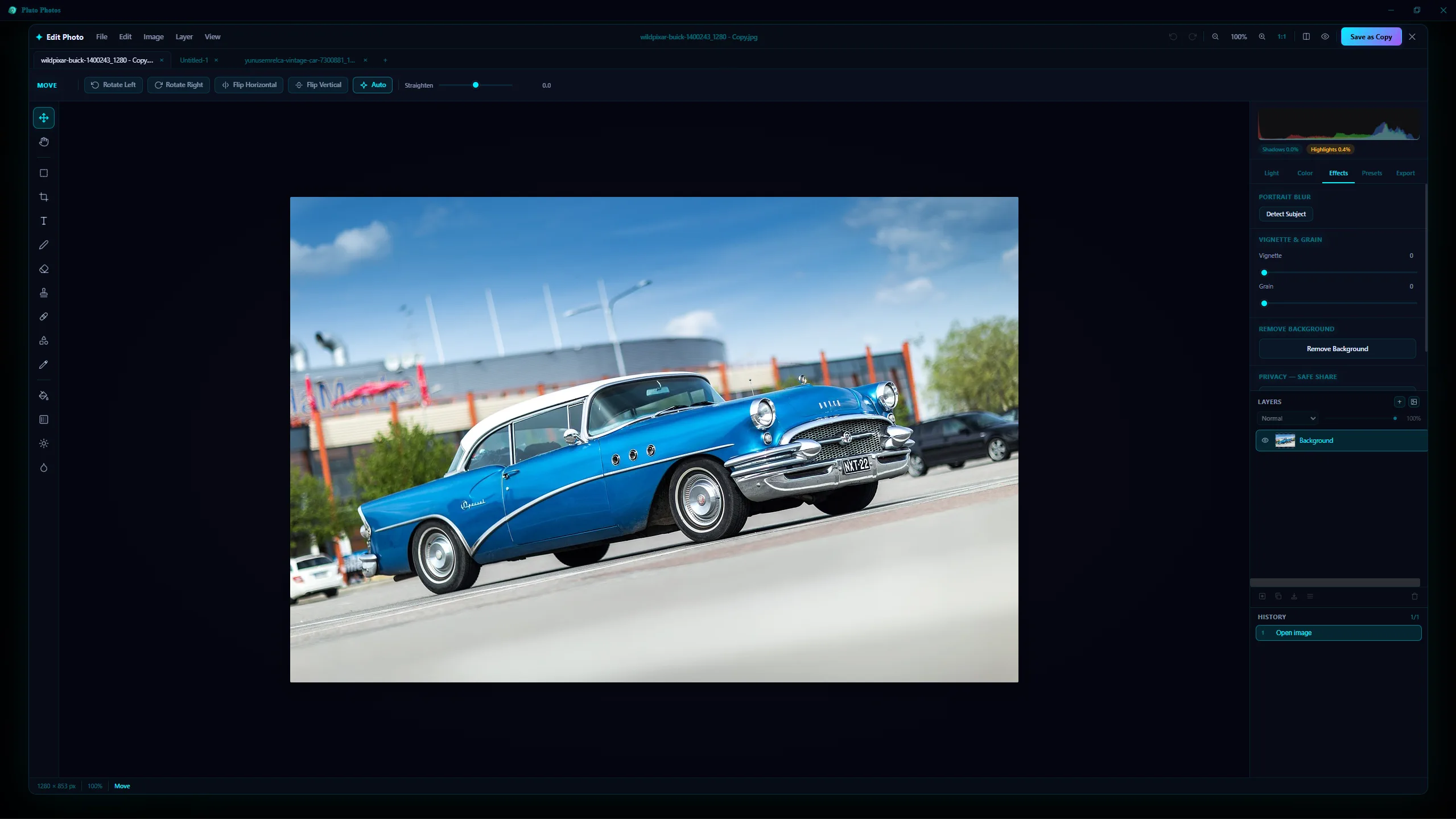
Before — the original photo open in the editor.
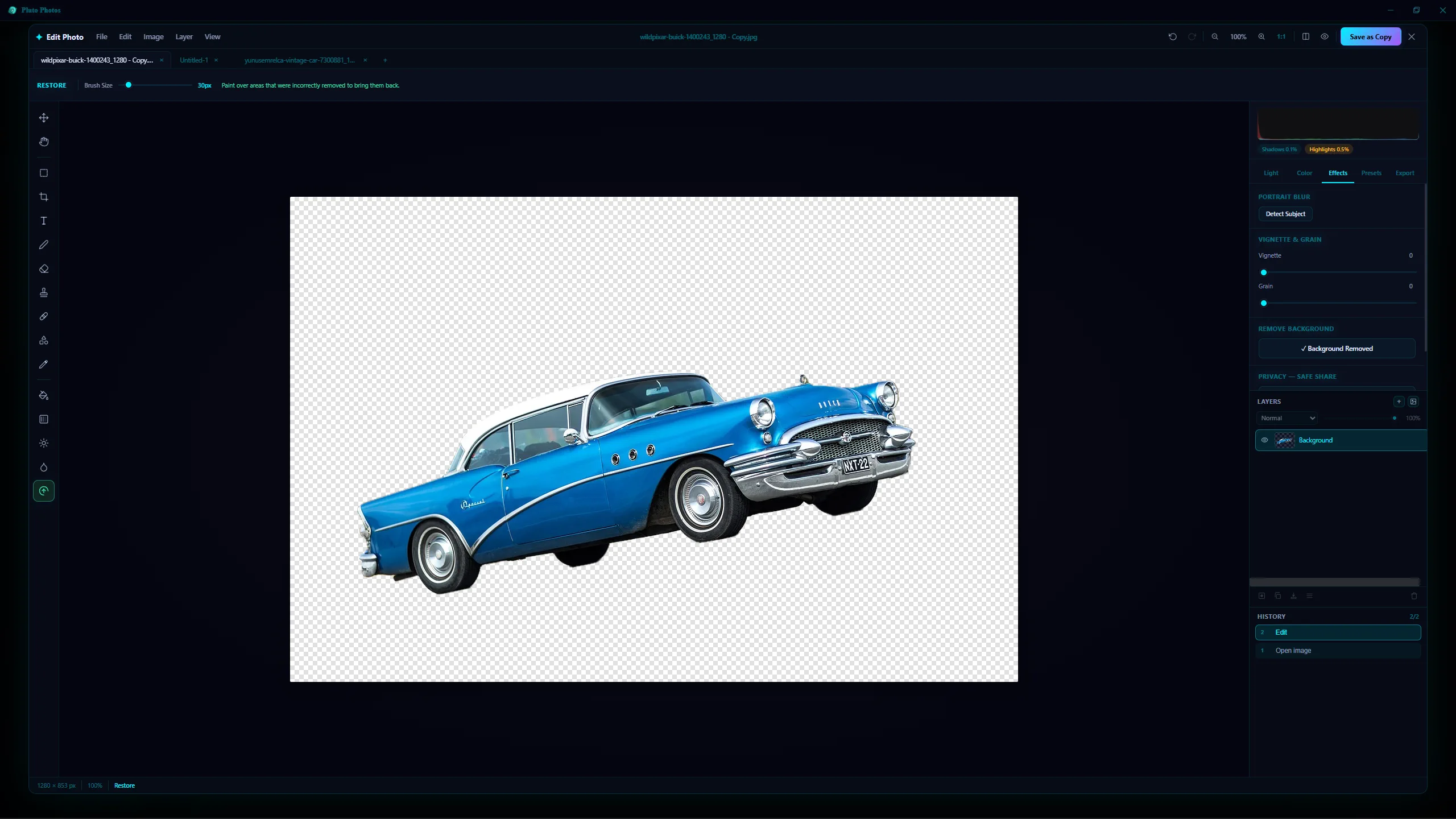
After — one click, on-device, straight out to a transparent PNG. No upload, no watermark, no "HD version" upsell.
Because the editor has real layers, a cutout is a starting point rather than an end. Strip several photos, paste each subject into one document as its own layer, arrange them, add styled text, and you have a finished poster or thumbnail without leaving your library.
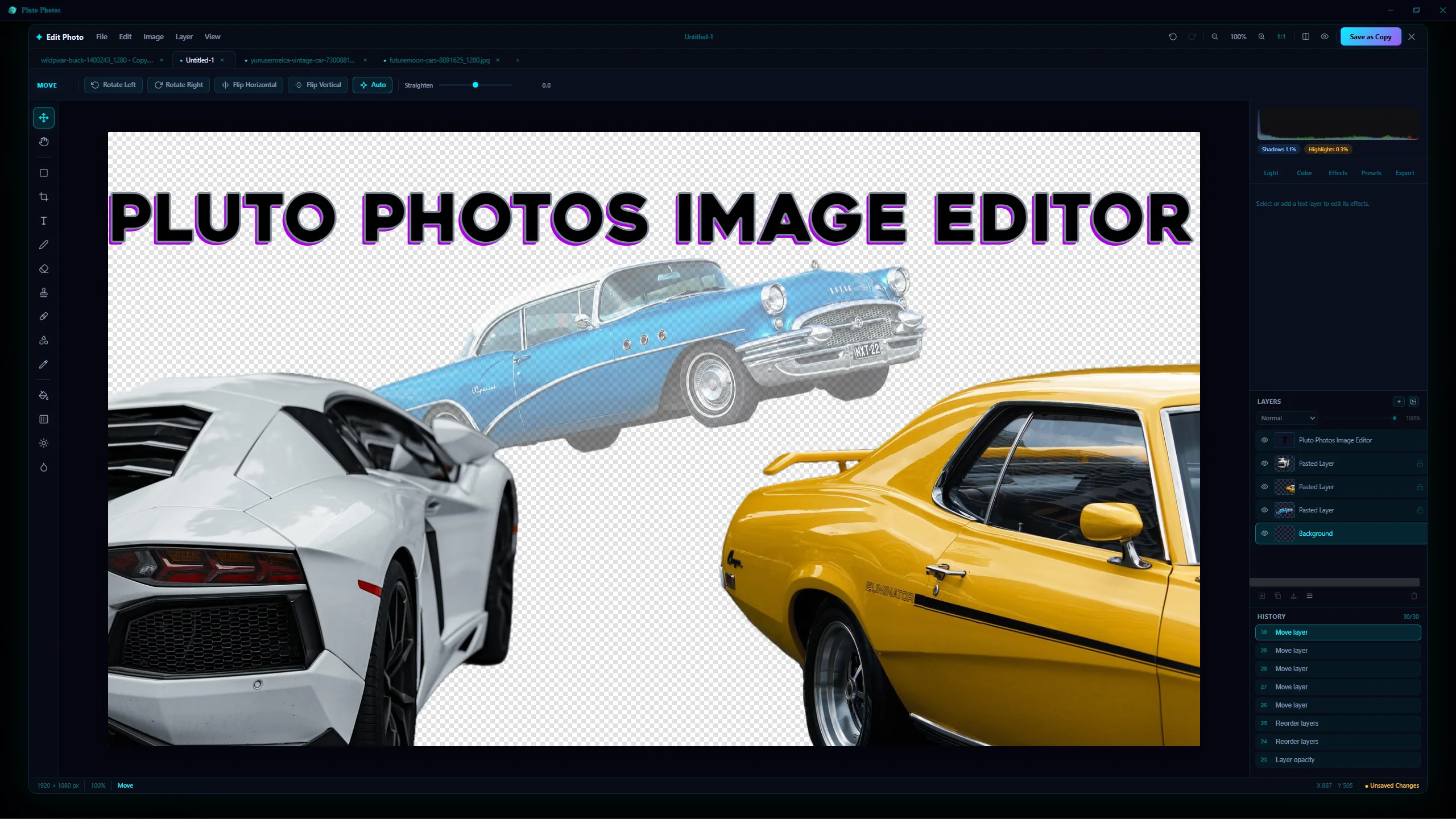
Three cutouts and a text layer in one document. Note the tabs along the top — each open photo is its own document, and you can copy a layer between them.
More on background removal →
Portrait blur, without a portrait lens
Portrait Blur detects the subject on-device and blurs the background behind it — four presets (Soft, Natural, Studio, Dramatic) plus manual control over blur amount, edge feather, background focus and subject protection.
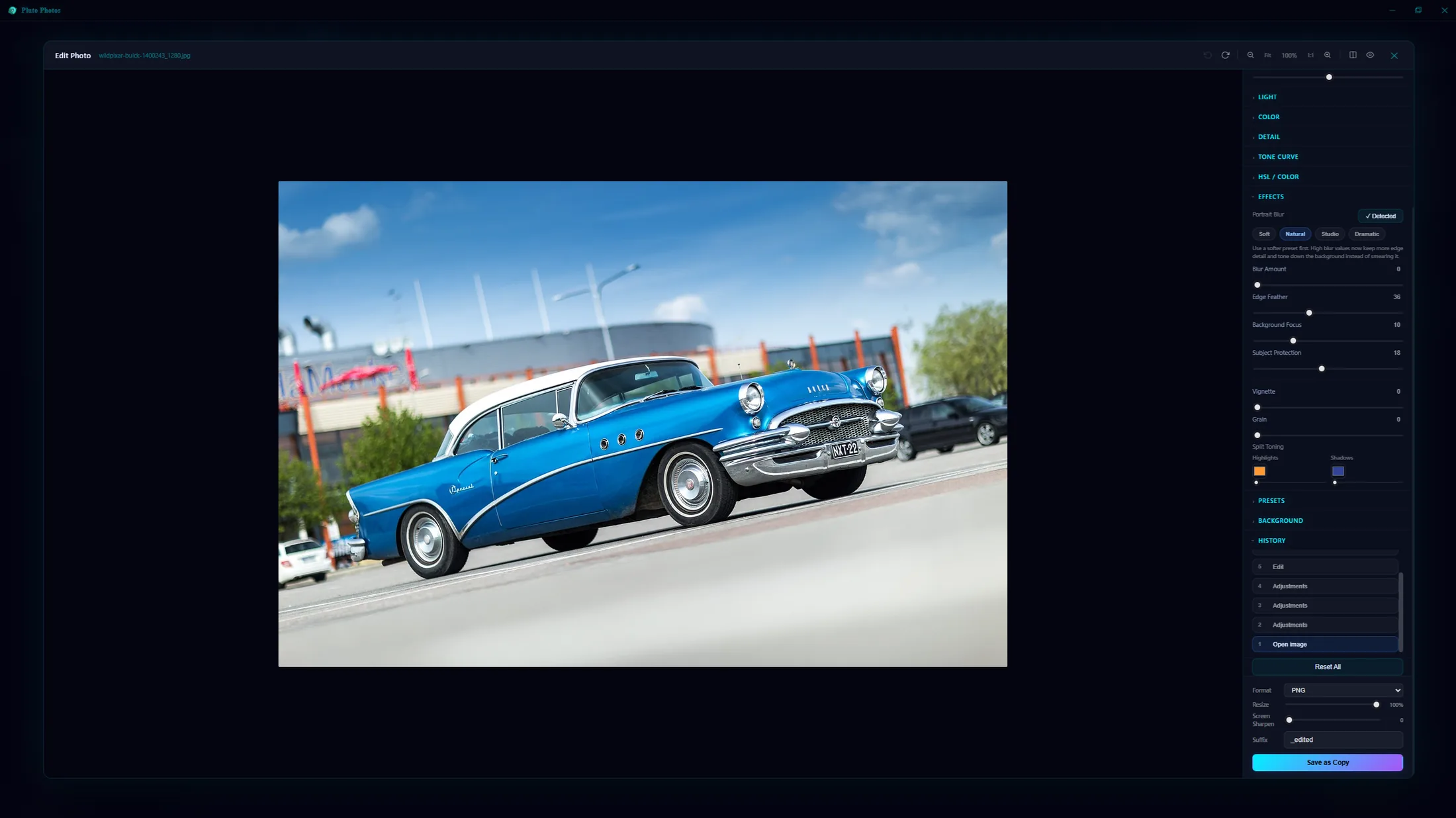
Before — everything in focus, the flat look of a phone snapshot.
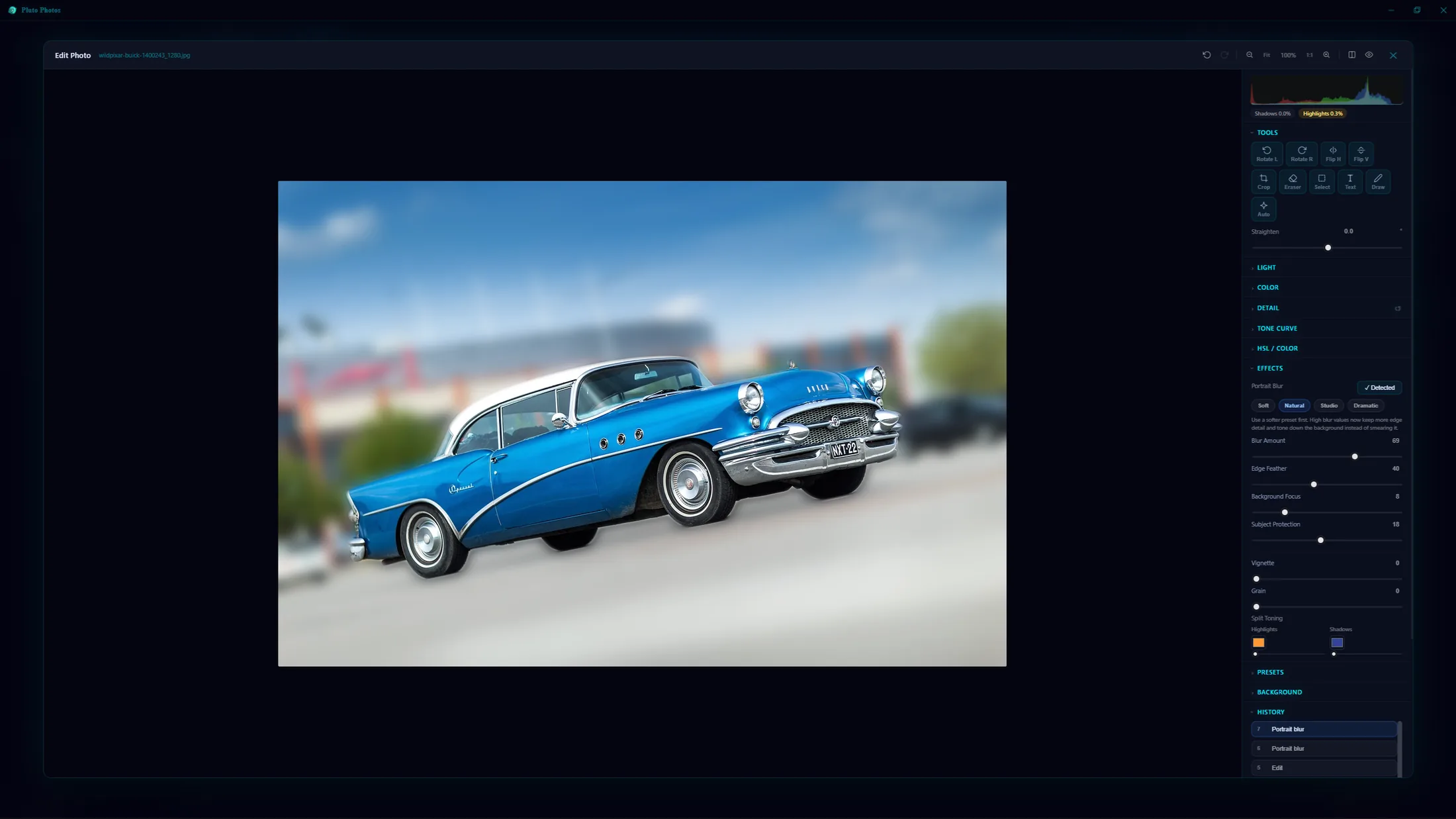
After — subject detection and the blur itself both run on your machine.
Blur faces before you share
Safe Share finds every face on-device and blurs or pixelates it with a click, and the Pixelate tool handles licence plates and paperwork. Detection never leaves your machine, and every export is a fresh copy with the original's EXIF and GPS data stripped out — which matters more than the blur, because a photo of a blurred child with the family's home coordinates still in the metadata has not been anonymised at all.
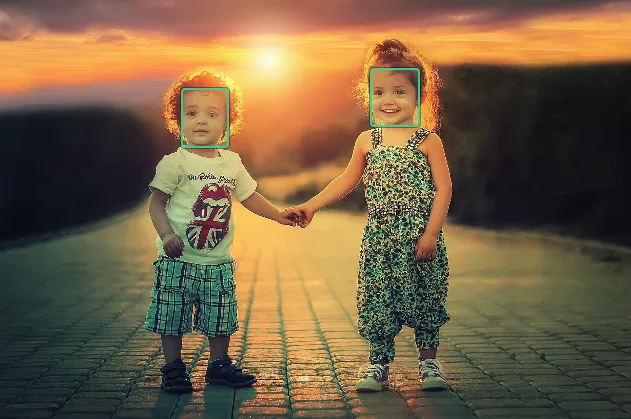
Faces found on-device — no upload, no third-party face API.
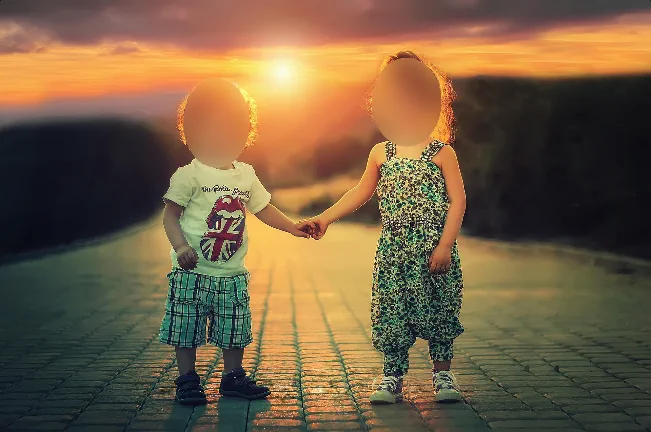
One click to blur them all, and the export carries no EXIF or GPS.
Enhance and upscale
Enhance & Upscale runs a Real-ESRGAN model locally to rebuild detail at up to 4×, with optional denoise, sharpen and auto-levels. If the model pack isn't installed it drops to a classical enhancement pass rather than failing, so the button always does something useful.
The rest of the editor is not an afterthought
The AI is the headline, but the manual toolset is where you'll spend most of your time — and it's a real editor, not three sliders.
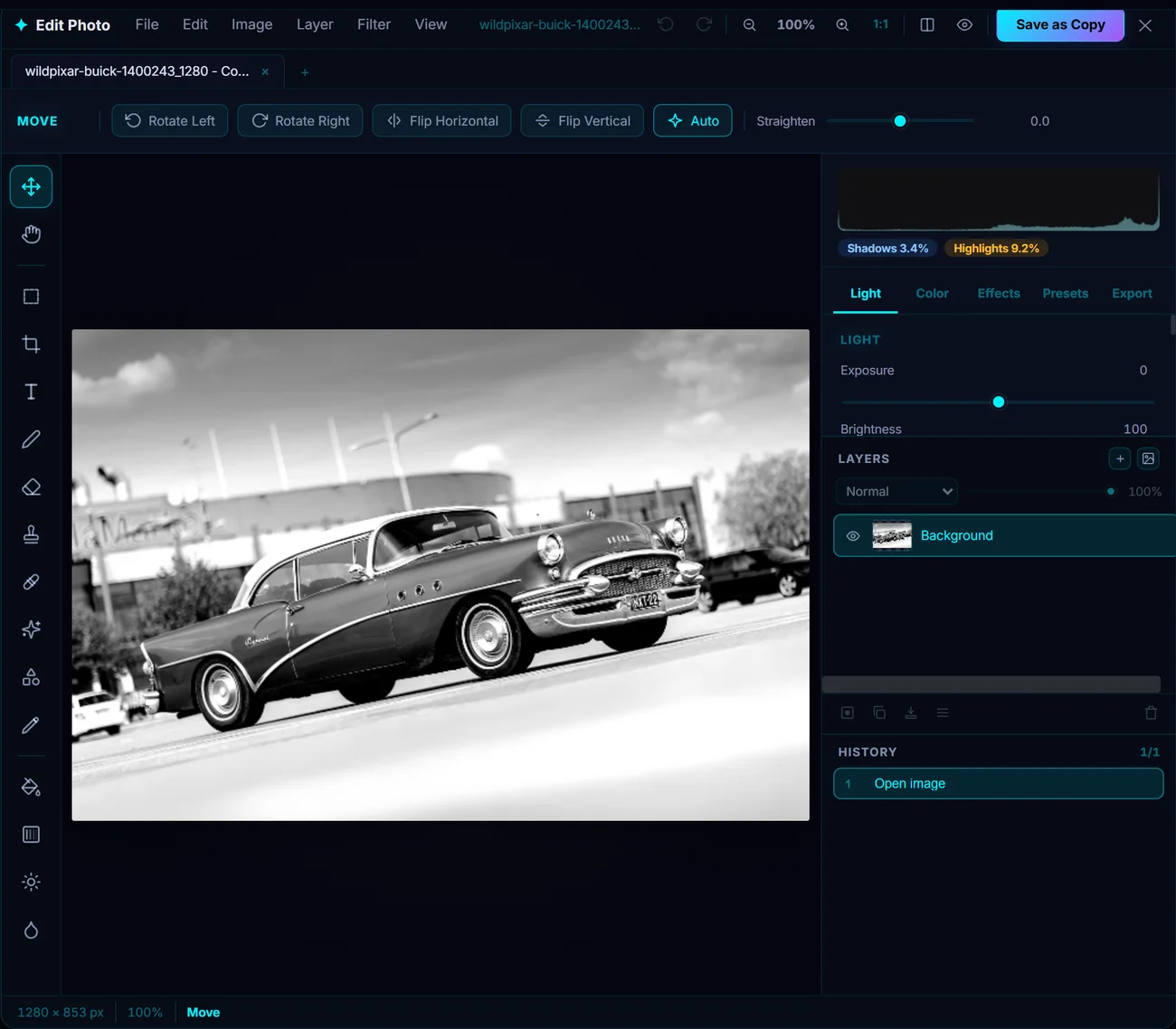
Document tabs, tool rail, contextual options bar, live histogram, layers and an always-on history panel.
- Real layers, masks and blend modes — stack images and text, paint on empty layers, hide and reveal with masks, and reorder, rename, duplicate, merge or flatten
- 57 filters in 11 groups — including a real lens blur with selectable aperture shapes, edge-weighted Smart Sharpen, and a custom 5×5 convolution kernel
- Filters that stop at your selection — rectangle, ellipse, freehand lasso, or a magnetic lasso that snaps to edges, with a feather slider so a local edit blends instead of announcing itself
- The hand tools you reach for — brush, eraser, clone stamp, spot heal, fill, gradient, dodge & burn, blur brush, shapes, text and eyedropper
- Non-destructive — every export saves a copy; your original file is never modified
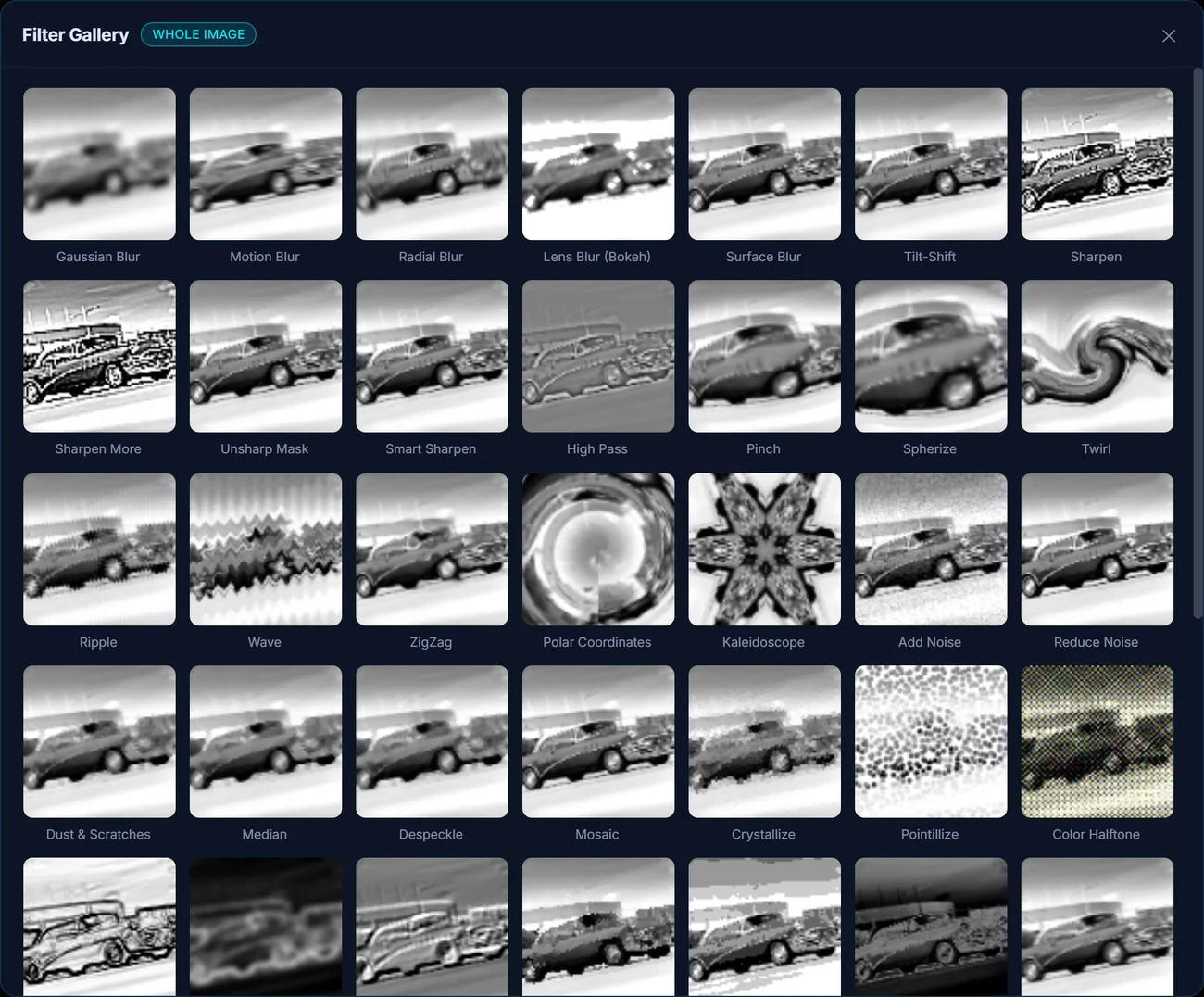
The Filter Gallery previews the whole catalogue on your own photo at once — which is how you find a look you didn't know to search for.
Grade like a colorist
A multi-channel tone curve (RGB combined, plus Red, Green and Blue independently) and 8-band HSL tuning: shift the hue, saturation and luminance of one colour range without touching the others. Bluer skies that leave skin tones alone; autumn leaves that pop without the whole frame turning warm.
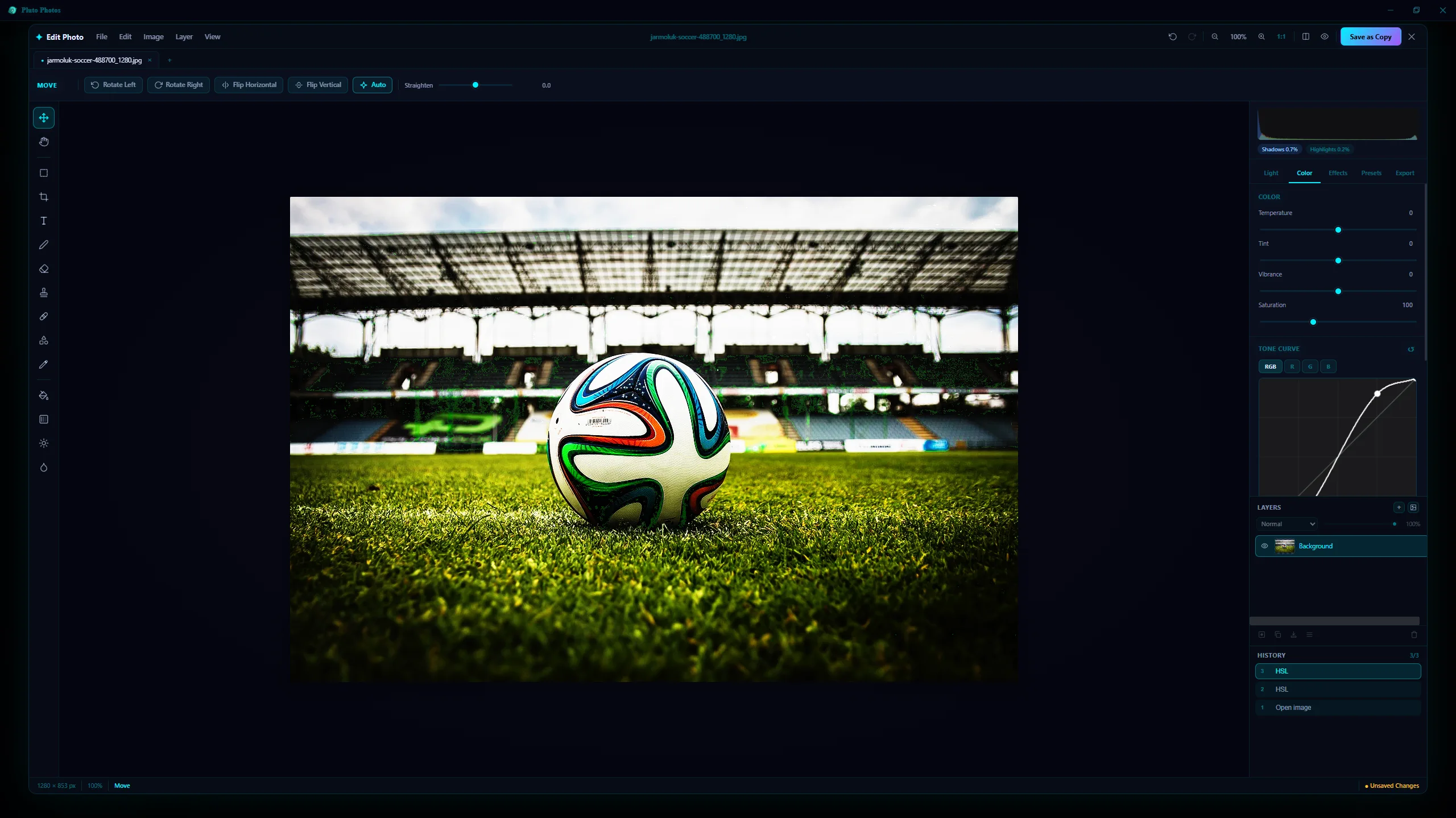
Tone curve, HSL, and the everyday sliders — exposure, contrast, highlights, shadows, temperature, vibrance, clarity, dehaze, split toning — plus twelve one-click presets that each have an intensity slider.
And when one photo is graded the way you want it, Apply LUT pushes an industry-standard .cube file across any number of images in a single pass, with a live intensity slider before you commit.
More on the image editor →
There's a full video editor in here too
Most "photo editors" stop at photos. Pluto Photos includes a multi-clip video editor working on the same library, so there's no export-and-reimport round trip between two apps.
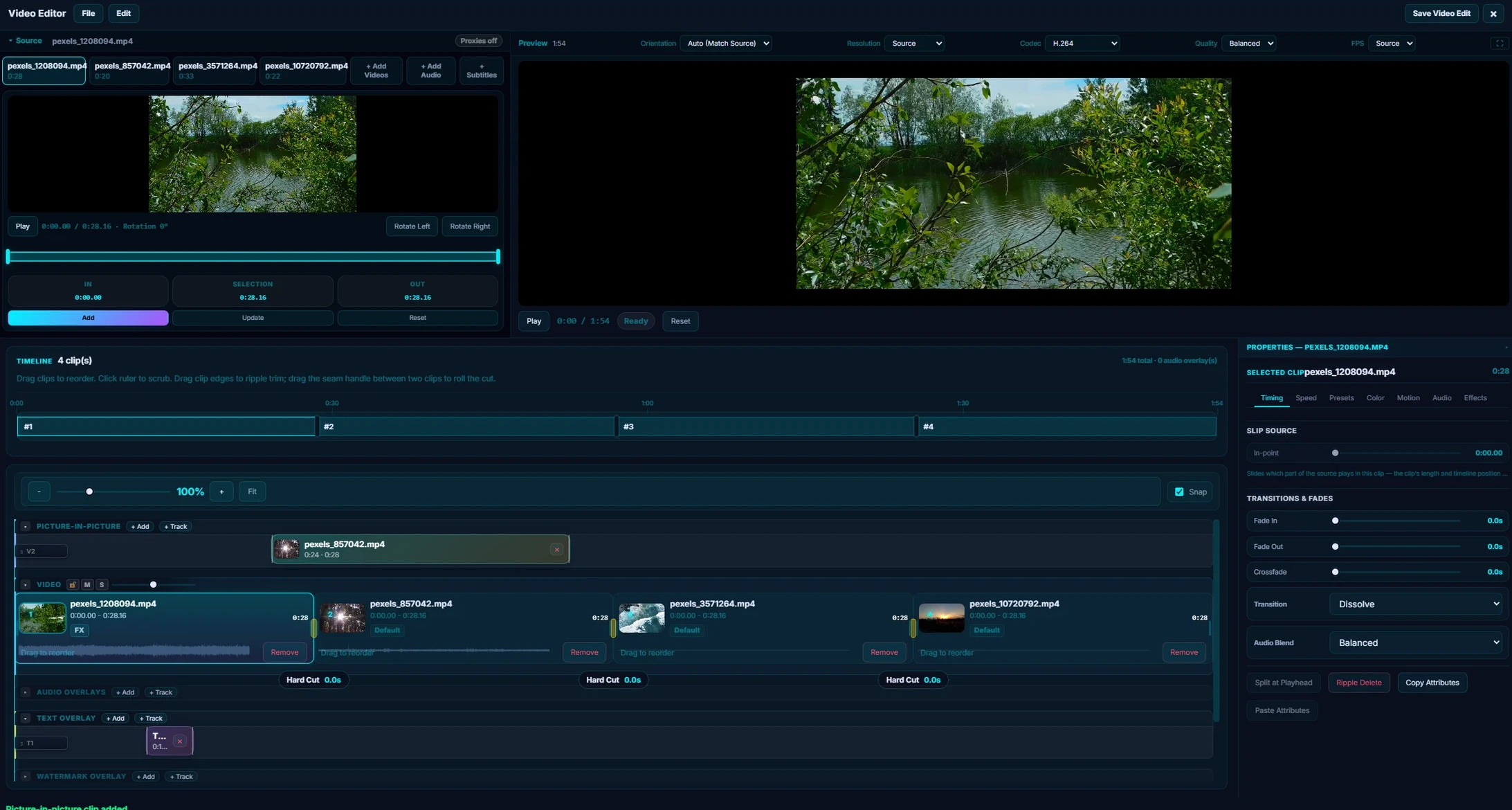
Clips with independent in/out points, draggable transition handles, picture-in-picture and text tracks, and per-clip effect controls — all previewing live.
- Storyboard timeline — drag to reorder, split at the playhead, independent in/out points per clip
- Transitions and fades — crossfade and dip-to-black, with draggable duration handles
- Cinematic effects — letterbox, vignette, film grain, blur, and chroma key with an eyedropper and a live tolerance preview
- LUT colour grading — six built-in looks plus your own
.cube files - Text and image watermarks — placed anywhere, styled, timed to specific clips
- Audio overlays — music, narration and effects on stacked tracks, with per-track volume and ducking
- Repair presets — Clean Dialogue, Low Light Rescue, Mobile Cleanup
- Exports at source resolution with no watermark, ever
There is also video face blur: the app samples frames, detects every face with an on-device detector, tracks each one through the clip with a Kalman filter — so a face stays covered when it turns away, gets briefly occluded, or the camera pans — and re-identifies a person who leaves the frame and comes back so they keep the same label. You toggle the faces you want blurred and it's baked into the export. That is a paid cloud service at most vendors.
More on the video editor →
Search your library by describing it
Type what you're looking for in plain English — "dog on a beach", "birthday cake", "sunset over mountains" — and the app ranks your whole library against it. A local CLIP ViT-B/32 model turns every photo into a 512-dimension embedding at import time, and your query into another one; the results are ranked by cosine similarity.
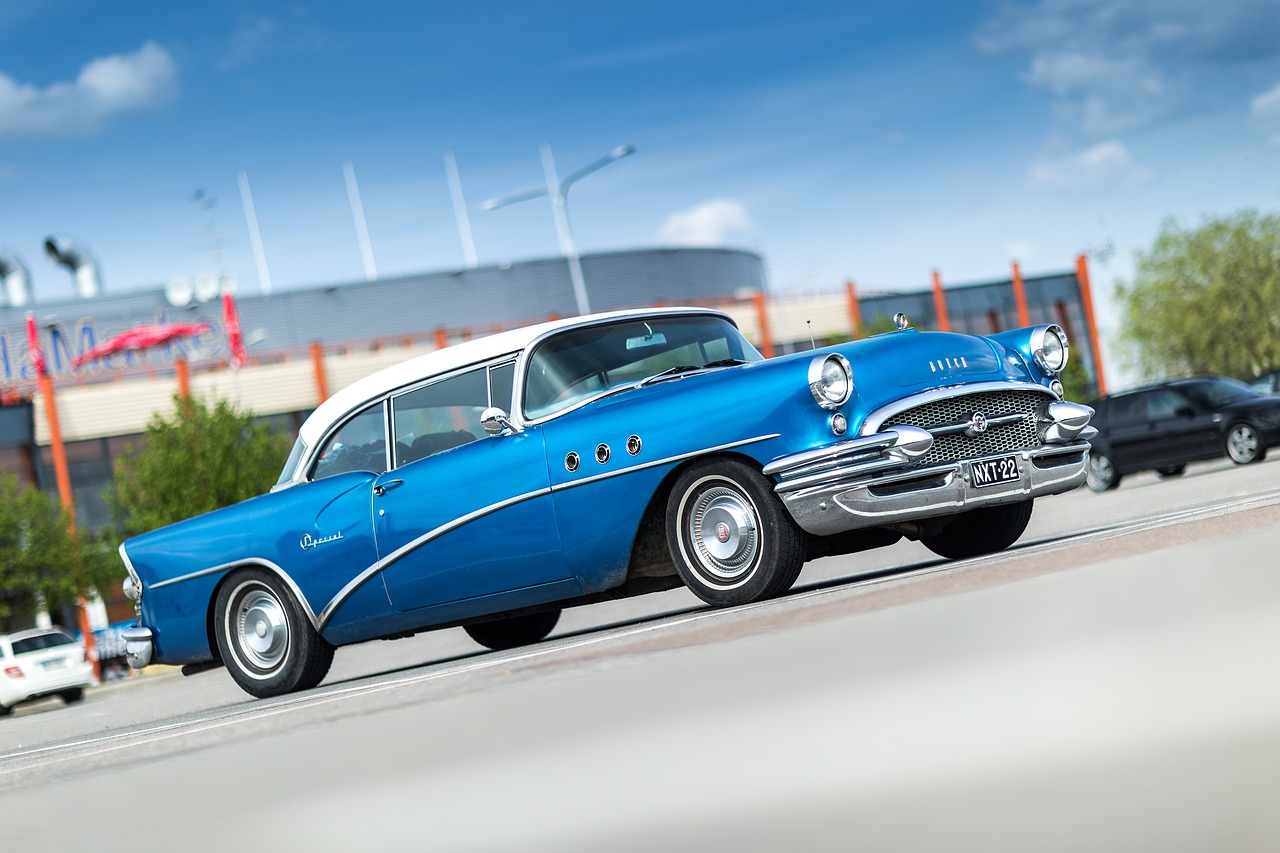
A real result for the query "classic car" — no tag and no filename had to match, just what's in the frame.
Google Photos, Apple Photos and Amazon Photos all do a version of this by uploading your images for analysis. This one indexes on your CPU, at roughly 2–4 seconds per photo, once. It also expands synonyms and stems, so "kid" matches "child" and "toddler", and "swimming" matches "swim" and "swimmer".
A separate captioning model writes a natural-language description of each photo, which powers Auto-Tag: it adds searchable keywords (dog, beach, sunset) across your whole indexed library, and can export them as XMP sidecars so Lightroom and Bridge pick up the same keywords.
More on contextual search →
Faces, on your own machine
Face detection groups the same person across your library so you can name them once and find every photo they're in. Detection and recognition are two separate on-device models — one finds faces including profiles and partial faces, the other turns each one into an embedding that gets clustered.
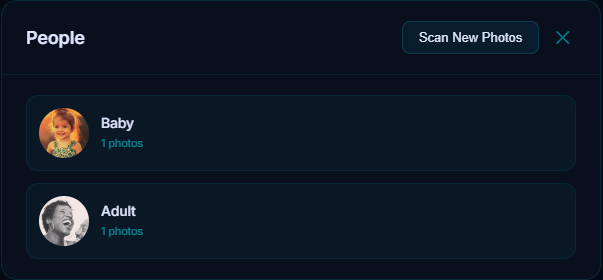
Groups form automatically; naming one person names them everywhere they appear.
There's a Pets panel that does the same thing for cats and dogs, with sensitivity and grouping controls you can tune.
More on face detection →
Albums that build themselves
Smart Albums are rule-based collections that re-evaluate every time you import a photo, change a rating or add a tag.
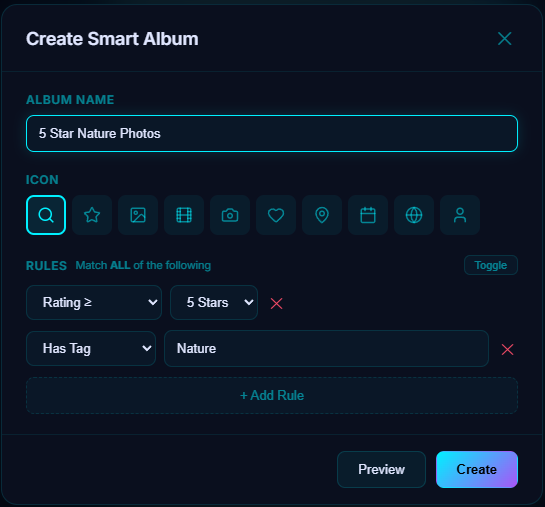
Two conditions, one album — and it stays current as the library grows.
Rules can filter on date range, camera or lens, star rating, tags, colour label, file type, GPS radius, a named person, and file size, combined with AND/OR. "Best of 2025" is rating ≥ 4 stars AND year 2025. "Needs Editing" is colour label = red. "Vacation Hawaii" is a GPS radius plus a date range.
Trips is the automatic version: it clusters photos by date and location into suggested trip and event albums, using each photo's real EXIF capture date and GPS rather than its file timestamp.
More on smart albums →
Places, duplicates, and everything else
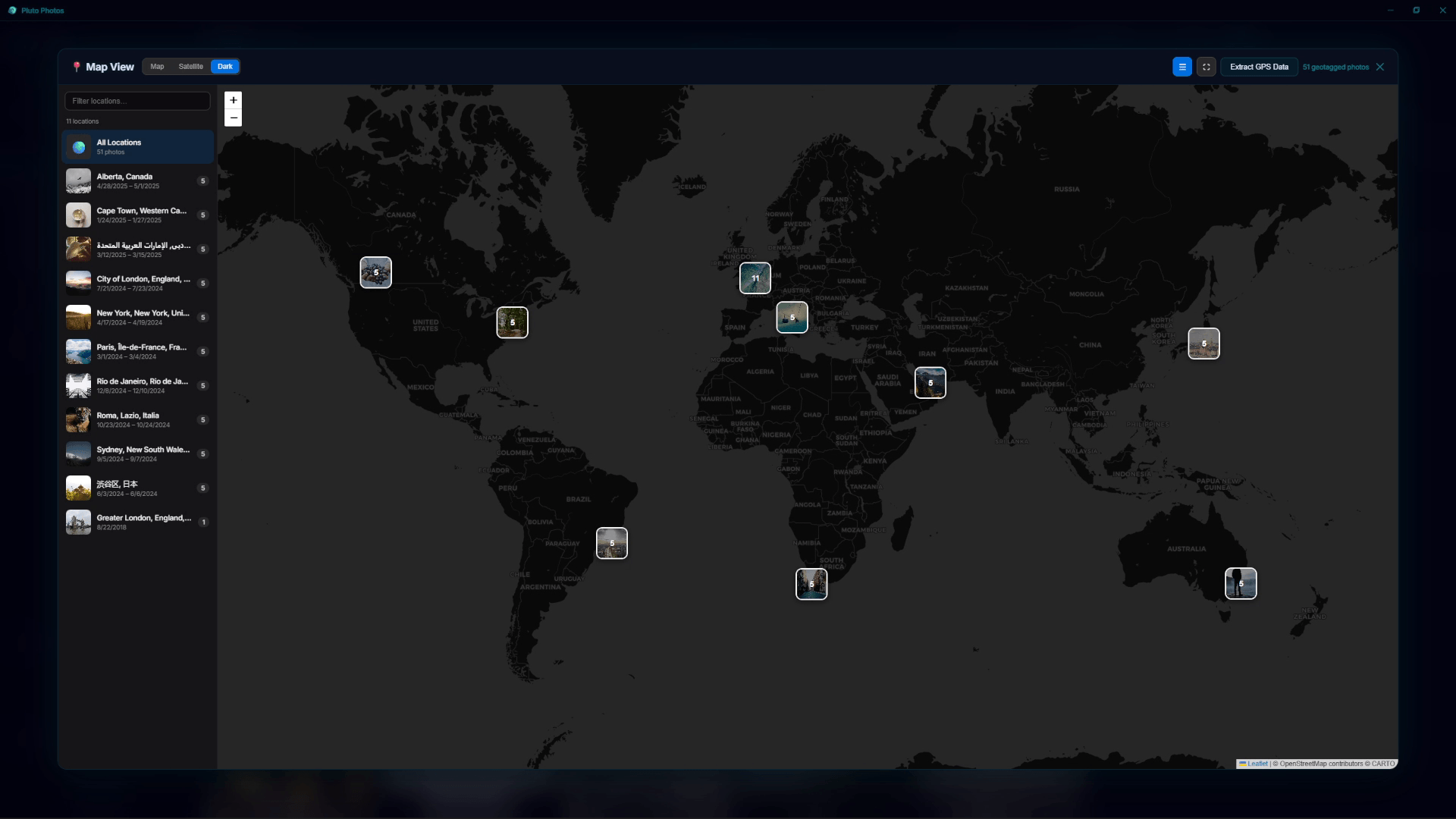
Map View — every geotagged photo pinned, clustered by place, with reverse-geocoded names.
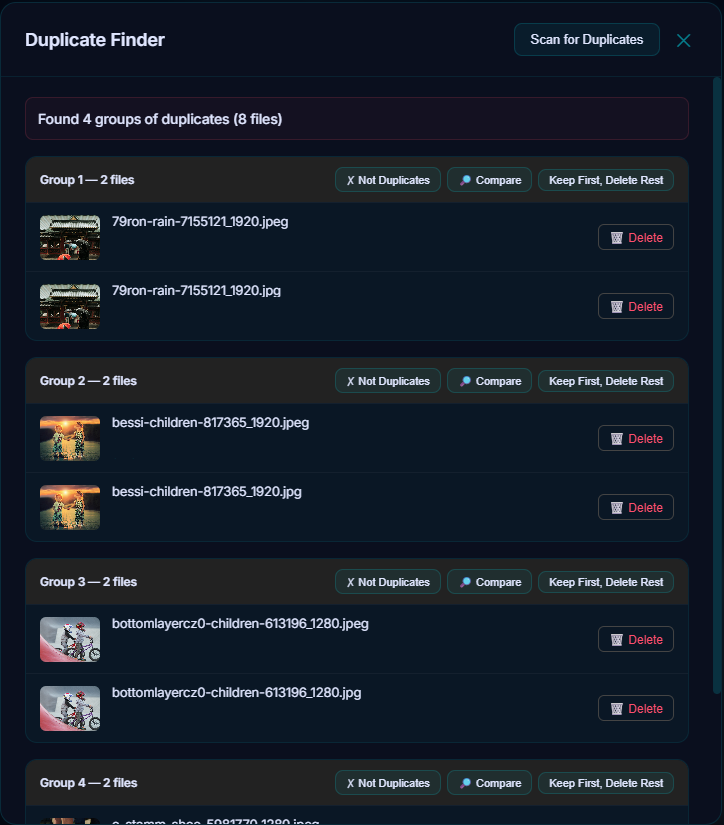
The duplicate finder groups matches and offers a compare view before anything is deleted. "Best Shots" ranks each group by measured focus, exposure, contrast and colour so you keep the sharpest frame — not just the biggest file.
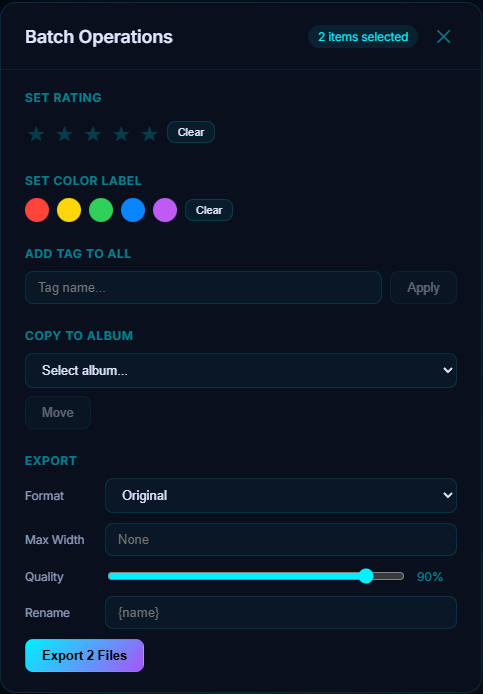
Batch operations across any selection — rate, label, tag, move, and export with resize and rename in one pass.
Also in the box: Cloud Import for Google Takeout and iCloud archives (it reads Google's sidecar JSON, so your original capture dates survive the migration), tags and star ratings, a PIN-protected vault, and a Companion Browser that serves the library to any device on your LAN.
What it costs, and what runs on what
- Free tier — up to 500 photos, one library, tags, ratings, albums and export. No editor and no AI tools.
- Pro — $29 once. Everything above, two devices, lifetime updates. Not a subscription.
- Mobile Companion — free to browse your library from a phone; $5/month adds Wi-Fi backup and the phone-side tools.
Windows 10 or 11 (64-bit), macOS 11 or later on Apple Silicon, and 64-bit Linux as an AppImage or .deb. macOS is Apple Silicon only, and that is deliberate rather than an oversight — the ONNX runtime the AI models need ships no Intel-Mac binary at all, so an Intel build would have had every AI feature in this article missing. Full system requirements →
Everything above is in the free download
No account, no card, no trial clock. The free tier covers 500 photos, so you can point Pluto Photos at a real chunk of your own library and watch the AI run on your machine with the Wi-Fi off. Pro is $29 once if you keep it.
Download Pluto Photos free See what Pro costs
The rest of the field
Three other tools genuinely run their AI on your machine. Affinity is free but its AI is not local, and the two biggest names in the category are cloud tools wearing a desktop app. Each falls down somewhere specific — expand any of them for the detail, or skip to the comparison table.
2. GIMP 3 + G'MIC — best free option
Open-source classic, and GIMP 3 finally modernised a lot of the interface. The G'MIC plugin pack includes several hundred filters, some genuinely AI-flavoured, and all of them run locally.
- Price: Free
- Strengths: Genuinely free, huge filter library, scriptable, runs everywhere
- Trade-offs: No library management — you open files one at a time. The AI-style filters are algorithmic rather than learned models, so "remove this person" is still a manual clone-stamp job. The interface remains an acquired taste.
3. Upscayl — best free local upscaler
A small, focused, open-source app that runs Real-ESRGAN and similar models on your GPU to upscale images. It does one thing and does it well.
- Price: Free
- Strengths: Truly local, GPU-accelerated, no account, cross-platform
- Trade-offs: Upscaling only. Not an editor, no library, no other AI tools.
4. Affinity — free app, subscription AI
Canva now gives Affinity away, and it is not a crippled free tier: the pixel, vector and layout tools are all there, with no restrictions, running on your machine. As a manual editor it is a serious Photoshop competitor and an outright bargain.
The catch is the exact subject of this article. Every AI feature in Affinity is gated behind a Canva premium plan — $18/month for Canva Pro, or $144/year billed annually. There are nine of them, and the list should look familiar: Remove Background, Portrait Blur, Super Resolve, Select Subject, Depth Selection, Colorize, Portrait Lighting, Generate Images, and Generative Fill and Expand.
Affinity's own documentation is careful to say your documents stay on your device, and it does not say where the AI inference itself happens. But the feature gate is a live Canva account either way, and that is enough: a tool you have to be signed in and subscribed to use is not one that works with the network off.
So: a genuinely excellent free editor, with the AI half of it sold as a Canva subscription on top. If you want a free pixel editor and nothing else, take it. If you came here for the AI, it is on the wrong side of the line this article draws.
- Price: Free app; $18/month (Canva Pro) for any AI feature
- Strengths: Professional pixel editing, excellent performance, strong selection tools — and free is hard to argue with
- Trade-offs: All nine AI tools are subscription-gated and account-bound. No photo library management, no semantic search, no face grouping.
5. Topaz Photo AI — best specialist
Genuinely impressive local AI for upscaling, denoising and sharpening, and the models really do run on your hardware. It is a specialist, not a general editor.
- Price: Around $200 one-time, plus paid upgrades for major versions
- Strengths: Best-in-class restoration and upscaling quality
- Trade-offs: Expensive, does nothing else, and needs a reasonably powerful GPU to be pleasant
What about Photoshop?
Photoshop in 2026 still requires a Creative Cloud sign-in, and its headline generative features — Generative Fill, Generative Expand, Generative Remove — call Adobe's servers. Some Neural Filters download and run locally; the ones people actually buy Photoshop for do not.
It is a superb editor. It is not a local AI photo editor, and it is $20+/month indefinitely. How Pluto Photos compares to Photoshop →
What about Google Photos and Apple Photos?
Both have real AI features, and both do the work in the cloud. Google Photos' Magic Eraser and Magic Editor upload the image. Apple does more on-device than Google — face grouping and some search genuinely run on your phone or Mac — but Clean Up and the newer generative tools still go out to Apple's servers, and the library itself is tied to iCloud storage you rent monthly.
If you're comparing on organising rather than editing, we have longer write-ups on Google Photos and Apple Photos.
Quick comparison
Common questions
Do I need a GPU?
No. Everything except object removal runs on CPU by design. Object removal uses a GPU where one is available and falls back to CPU where it isn't — it's just slower.
How much disk space do the models need?
The install-time model packs are a few hundred megabytes in total. Object removal is a separate ~2.6 GB download you only take if you want that feature, and you can delete it again from settings.
Does it work on a plane / in a cabin / behind an air-gapped firewall?
Yes, once the models are on disk. The app doesn't check in with a licence server on every launch and there is no cloud render queue.
Is anything about my photos sent anywhere?
No. The AI models are files on your machine; inference happens in a local process. There is no upload step, temporary or otherwise.
Can it read RAW files?
Yes — the library and editor handle common RAW formats alongside JPEG, PNG, WebP, HEIC and TIFF, plus MP4, MOV and MKV video. Full format list →
Recommendation
For a single local AI photo editor that covers what people actually need — erase a distraction and have the background rebuilt, cut out a subject, blur faces before sharing, find a photo by describing it, and keep tens of thousands of files organised — Pluto Photos is the most complete option in 2026 and the cheapest of the dedicated tools at $29 once.
If you only want upscaling, Upscayl is free and excellent. If you only want a pixel editor and you're happy managing files yourself, GIMP and Affinity are both free and both very good — just don't count on their AI, which in Affinity's case is an $18/month Canva subscription. If you want all of it in one place and you want it to keep working when the internet doesn't, that's the case for this one.
Download Pluto Photos free — the free tier covers 500 photos, so you can point it at a real chunk of your library before deciding.
Part of the AI Photo Management Guides guide.
Download Pluto Photos for Windows, macOS or Linux, or read more from the blog.