
Which download to pick
Pluto Photos ships for Linux in two formats, and they are the same app, same features, same editors, same AI models. The difference is how they install.
- The .deb package: for Ubuntu, Debian, Linux Mint, Pop!_OS, Zorin and anything else built on Debian. This is the one to use if you can. It adds Pluto Photos to your app menu, puts
pluto-photoson your PATH, registers the security profile that recent Ubuntu releases require for apps built on Chromium, and downloads the AI models during install so everything works the first time you open it. - The AppImage: a single portable file for every other distribution (Fedora, openSUSE and so on). Nothing is installed; you make the file executable and run it. The AI models download quietly in the background on first launch.
You need a 64-bit (x86_64) machine. There is no graphics card requirement, the AI models are sized to run on the CPU, but face scanning, captioning and background removal are memory-hungry, so 8 GB of RAM is a comfortable floor for a large library.
Install the .deb (Ubuntu, Debian, Mint)
Download it with the Linux .deb button on the download page, or from a terminal (Ctrl+Alt+T on Ubuntu), the link always points at the latest version:
cd ~/Downloads
wget -O pluto-photos.deb https://license.plutophotos.com/api/download/linux-deb
sudo apt install ./pluto-photos.deb
Use apt install with the ./ in front rather than dpkg -i: apt resolves any missing dependencies for you, and dpkg just stops.
During the install you will see Pluto Photos download its AI models, about 940 MB for face recognition, contextual search, text-in-photo search, captions, background removal and click-to-select. They go into a shared folder, /usr/local/share/pluto-photos/models, so every user account on the machine can use them without downloading them again.
If the model download fails, no network, a flaky connection, a proxy, the install still succeeds. The app checks for the models every time it starts and fetches whatever is missing, so you never have to reinstall to fix it.
When apt finishes, open Pluto Photos from your app menu, or type pluto-photos in a terminal.
Run the AppImage (any other distribution)
Download it with the Linux AppImage button on the download page, then:
mkdir -p ~/Applications
mv ~/Downloads/pluto-photos-*.AppImage ~/Applications/
chmod +x ~/Applications/pluto-photos-*.AppImage
~/Applications/pluto-photos-*.AppImage
You do not need to install libfuse2. Older AppImages needed it, and many guides still tell you to install it; Pluto Photos' AppImage carries its own runtime and starts on a stock system without it.
On the first launch the AI models download in the background while you start adding folders. Give a new machine a few minutes before the AI tools are ready, until then they say the models are still downloading rather than failing. After that, the app does not need the network again.
Your first library
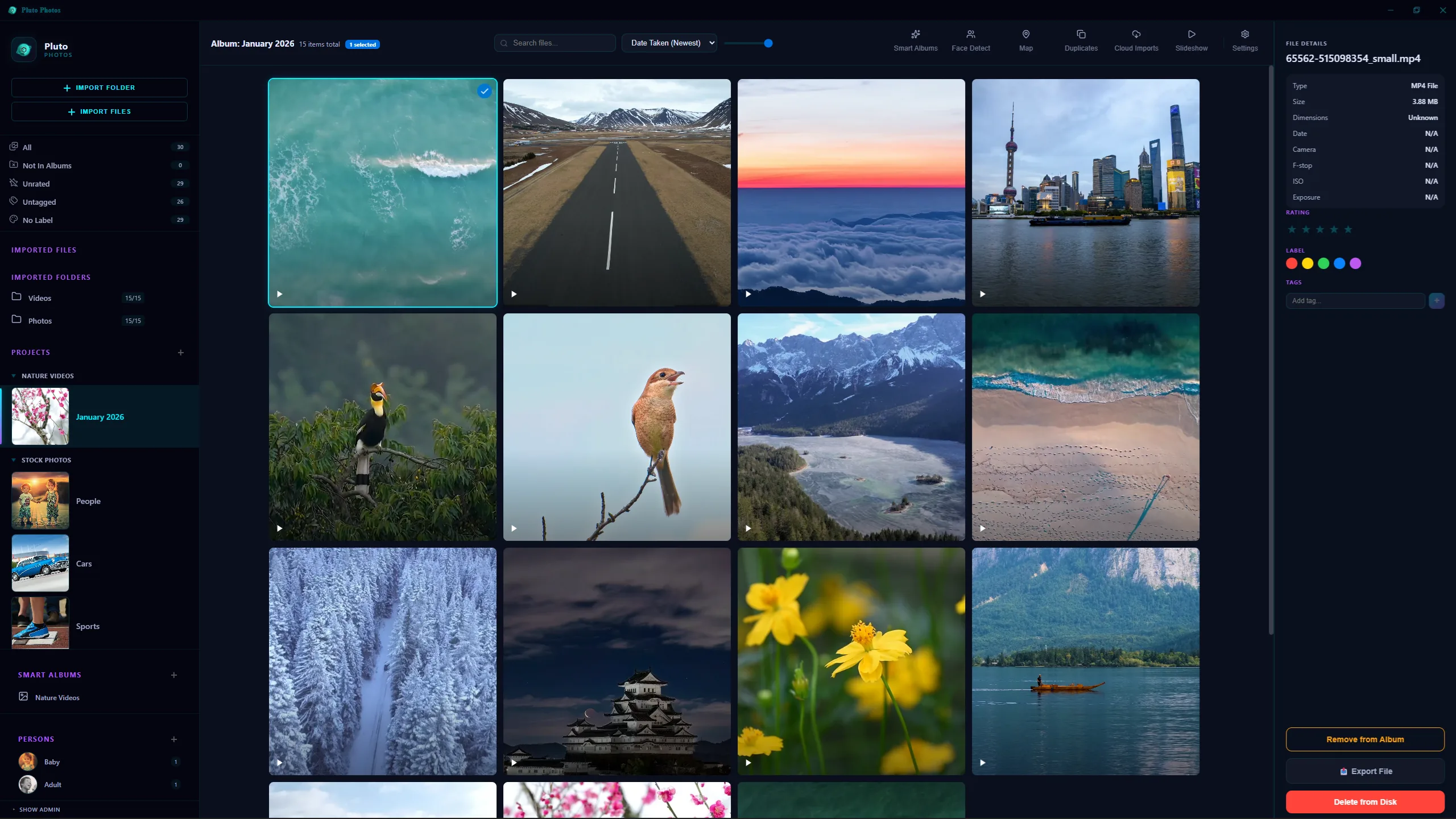
Click Import Folder and point Pluto Photos at the folder your photos live in, ~/Pictures, a second drive, a mounted NAS share. Your photos stay where they are; Pluto Photos indexes them and builds thumbnails as it goes, reading each file once.
One Linux-specific note: mount external drives the same way every time. Pluto Photos remembers folders by path, and a USB drive that shows up at /media/you/DRIVE one day and /media/you/DRIVE1 the next looks like a different folder. The external hard drive guide shows how to pin it with an /etc/fstab entry keyed on the drive's UUID.
From there it is the same app as on Windows and macOS: faces, plain-English search, the duplicate finder, smart albums and the full photo and video editors.
If it does not start
Launch it from a terminal so you can read the error, pluto-photos for the .deb, the AppImage's path for the AppImage.
- "The SUID sandbox helper binary was found, but is not configured correctly", or a message about user namespaces: recent Ubuntu releases block apps built on Chromium from using the sandbox they need unless a security profile allows it. The .deb installs that profile for you; an AppImage cannot. On Ubuntu, use the .deb.
- Nothing happens and there is no error: check the log at
~/.config/Pluto Photos/logs/error.log(also shown in Settings → Diagnostics) and send it to us.
Updating and uninstalling
Pluto Photos checks for a new version when it starts and offers to download it. To update the .deb by hand instead, run the same two commands again, apt replaces the old version in place. Either way your library, albums and people's names are kept.
To remove the .deb:
sudo apt remove pluto-photos
To remove the AppImage, delete the file. Either way your photos are untouched. They were never moved. Pluto Photos' own catalog, thumbnails and settings live in ~/.config/Pluto Photos; delete that folder too if you want a completely clean slate.
Running it on a server instead
Pluto Photos is free for up to 500 photos, with a one-time $29 licence for unlimited libraries. Download it for Linux.