
What Windows already does well
Windows is genuinely good at two things here, and it is worth using them rather than fighting them.
The filesystem is not the enemy. Unlike a phone, Windows lets you keep photos as ordinary files in ordinary folders you control, readable by every program on the machine. That is an advantage, and any organizing system that hides your photos inside a proprietary container is throwing it away.
Libraries and drive management are solid. Fixed drive letters, junctions, and Storage Spaces all work and are stable.
What Windows does not give you is a way to find anything. File Explorer's search does filenames and a little metadata; the built-in Photos app is a viewer that struggles well before 20,000 files. Neither can find "the photo of the dog on the beach" and neither can tell you which of your 6,000 apparent duplicates is the original.
So: keep the filesystem, and point Pluto Photos at it as the index on top.
Step 1: Pick one root folder and add it to Pluto Photos
Decide where photos live and put everything there. Something like:
D:\Photos\
  2024\
  2025\
  2026\
  Scans\
  Screenshots\
Deliberately shallow. Deep hierarchies like 2025\06 June\Wedding\Reception\ encode exactly one way of looking at your photos, and you will want another one inside a year. Dates, people, places and tags are what you will actually browse by; folders only need to be a sensible place to put things.
The one rule worth enforcing: one root, not five. Add it to Pluto Photos with Import Folder; a library split across D:\Photos, C:\Users\you\Pictures, and E:\Old Backup and added as three separate imports cannot be de-duplicated or backed up with a single rule.
Step 2: If it is on an external drive, pin the drive letter
This is Windows-specific and it bites people constantly. Pluto Photos stores the absolute path to every file it indexes, so plug the same external drive into a different USB port and it can come back as F: instead of E:: at which point every path Pluto Photos recorded is wrong.
Fix it once, before importing anything:
- Right-click Start, choose Disk Management.
- Right-click the drive's partition, choose Change Drive Letter and Paths.
- Assign a letter well down the alphabet,
P:for photos, say.
Letters near the start of the alphabet get handed out to whatever is plugged in first. A letter nothing else wants stays yours.
Step 3: Move photos off OneDrive's automatic folders, or understand them
If your Pictures folder is inside OneDrive, Windows may be storing your photos as placeholders: the file appears in Explorer but the bytes live in the cloud until something opens it. This is Files On-Demand, and it interacts badly with Pluto Photos' index: pointing it at a folder of placeholders makes the first import download your entire library one file at a time, or fail to read some of it at all.
Two valid choices, but pick one deliberately:
- Right-click the photos folder and choose Always keep on this device, so real files exist locally.
- Or keep the photo library somewhere outside OneDrive entirely.
What does not work is leaving it ambiguous and wondering why indexing is glacial.
Step 4: Run the first import
This is the part Windows does not supply, and it's what Pluto Photos does the moment you add the folder.
It indexes, it does not import. Your files stay where they are as ordinary JPEGs. If you uninstall Pluto Photos tomorrow, nothing about your photos changed.
It reads EXIF properly, in one pass. Capture date, camera, lens, orientation and GPS all come from a single header read per file during that first import, not Explorer's "Date modified," which is not the capture date and will be wrong for anything you have ever copied.
It handles the size. 100,000 files is not an unusual library any more. Measured against a real 21,117-file library on Windows, Pluto Photos' import reads a 64 KB header per file in about 41 ms; on an external drive that's mostly the disk seeking, not the CPU decoding, which is why a first import is a "start it and walk away" job rather than something to babysit.
It finds real duplicates, later, in the duplicate finder. Perceptual matching, not filename matching, the same photo lives on a Windows machine as IMG_4471.JPG, IMG_4471 - Copy.JPG, and a re-encoded copy some app made at 60% resolution, and Pluto Photos catches all three as one group.
Step 5: Let the automatic passes do the sorting
Once indexed, three Pluto Photos passes organize a decade of photos with almost no input:
- Faces. Cluster every face, then name the clusters in the People panel, 30 names, not 30,000 photos.
- Places. Phone photos carry GPS, so Map View is free.
- Content. Search plain-English descriptions of what is in a picture. Here is how that works.
The full method for a very large library covers the order to run these in and why the first pass is the slow one.
Step 6: Add a small amount of human structure
Five to fifteen tags, not forty. A tag is worth creating only if you can finish applying it in one sitting and will actually search for it later. Pluto Photos' star ratings beat tags for "this is the good one": rate a selection in bulk, then build a smart album like "4 stars and up" once.
Step 7: Back it up
Pluto Photos doesn't do this part for you. Windows has File History and there are plenty of third-party tools; what matters is that a second copy exists on a second physical drive, and ideally that one of them is not in your house. Consolidating fifteen years of photos onto one drive and stopping there is a worse position than the cloud service you may have just left.
What about the Windows Photos app?
It is fine as a viewer and fine for a few thousand photos. It struggles with large libraries, its organizing tools are thin, and recent versions push cloud accounts fairly hard. If your library is small and you are happy, there is no reason to change anything. This guide is for the case where you have outgrown it.
Getting started
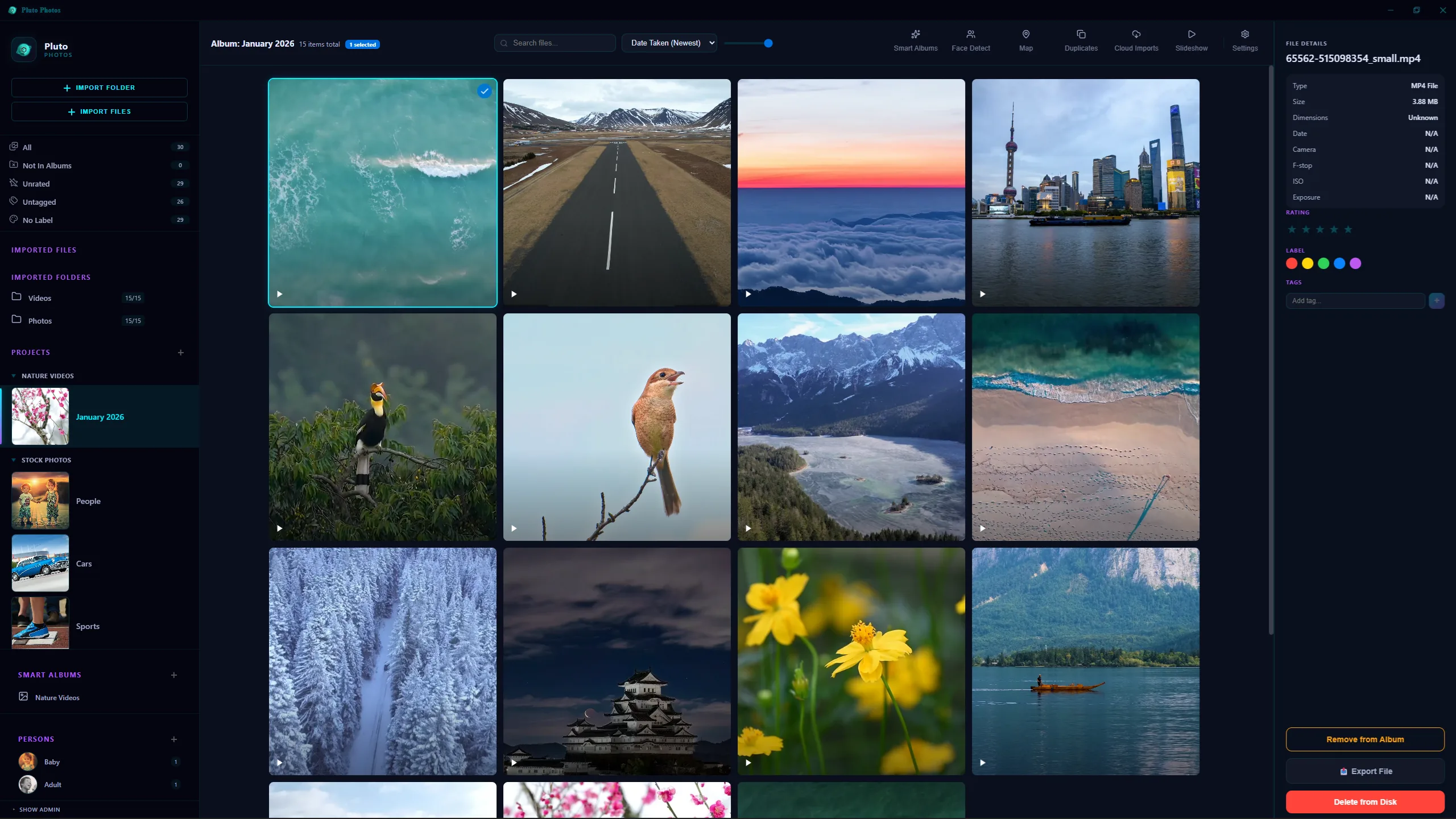
Pluto Photos installs from a normal Windows installer on Windows 10 and 11, 64-bit, see the system requirements, and it is a one-time $29 purchase with a free tier for up to 500 photos. Download Pluto Photos for Windows and point it at one year's folder to start.