
What you are actually giving up
Start with the honest version, because most writing on this subject skips it.
Leaving cloud photo services costs you three real things:
Automatic off-site backup. This is the big one. A cloud service is a second copy of your photos in a different building, maintained without you thinking about it. Going local means you now own that problem, and if you do not solve it, you have made your photos less safe, not more private.
Frictionless sharing. Sending someone a link to an album is a genuinely good feature and local software cannot match it without you running a server.
Access from anywhere on any device. A library on your desktop is on your desktop.
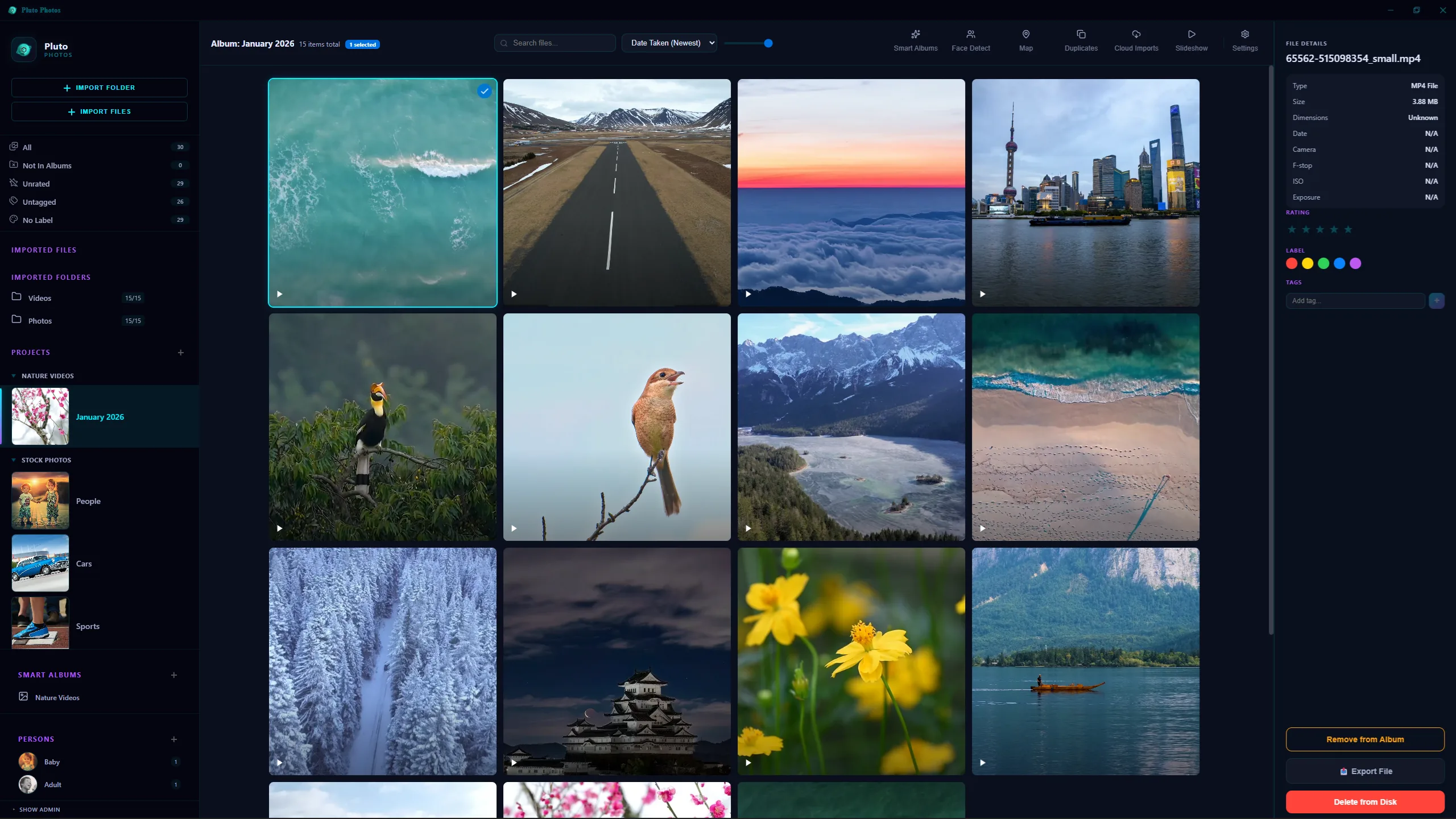
Everything else, search, face grouping, albums, maps, editing, automatic organization, is available locally and has been for a while. The list above is the actual trade, and it is worth making deliberately rather than discovering later.
What Pluto Photos needs from you to make this work
1. One place for the files
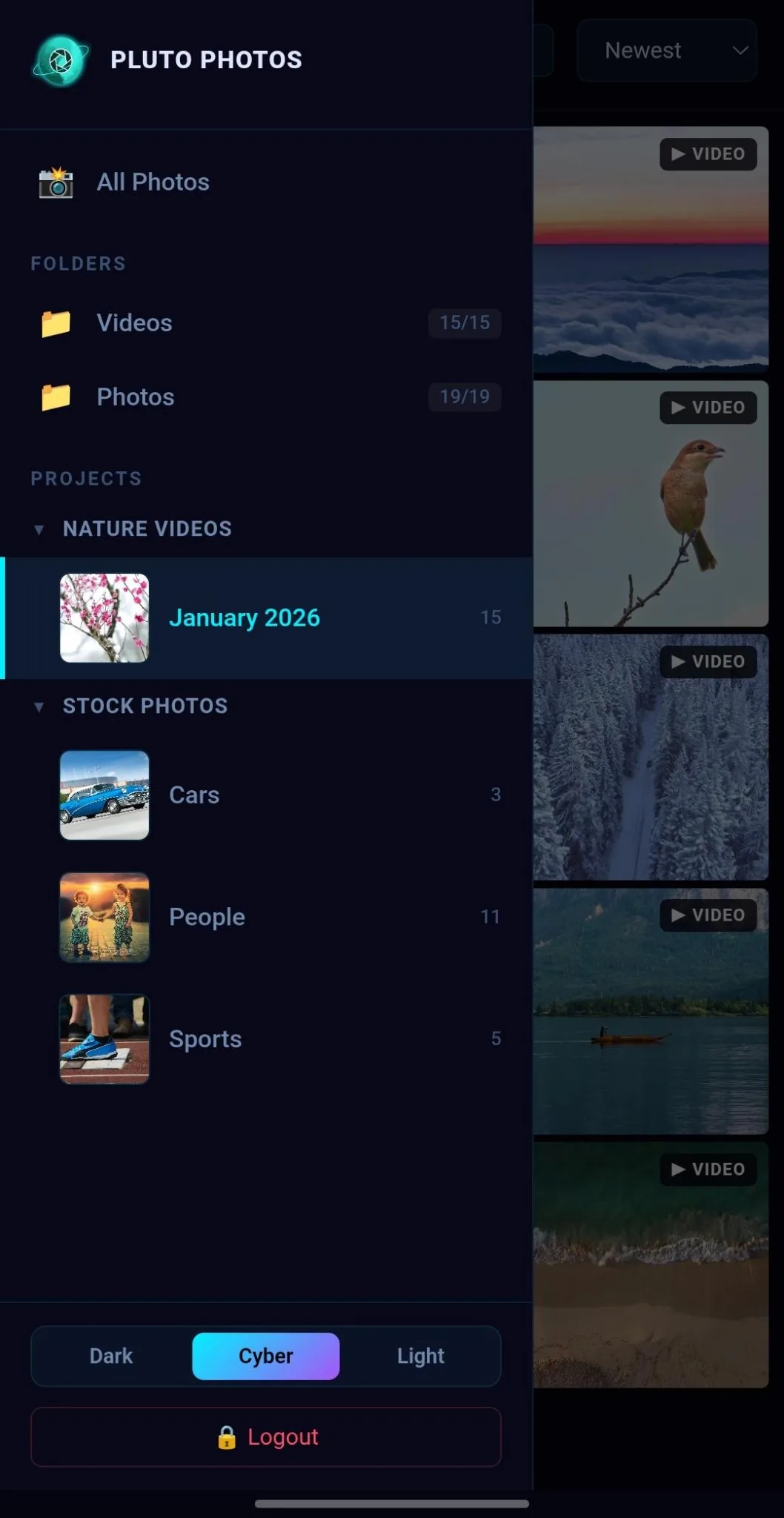
Cloud services hide the filesystem, so people arrive with photos scattered across a phone, a laptop, two old drives and a Takeout export. Pluto Photos wants a single root folder on a single drive that everything lands in, added with Import Folder. Not a clever structure, year folders are plenty, just one place.
An external drive is a perfectly good home for this provided you assign it a fixed drive letter or mount point first, so the paths do not change when you move it to another USB port.
2. It indexes rather than imports, on purpose
There is an important distinction between photo apps that index a folder and ones that import into a proprietary library, and it's the whole reason Pluto Photos is built the way it is.
Pluto Photos reads your folder, builds a database of dates, thumbnails, faces and tags alongside it, and leaves the files exactly where they are, still ordinary JPEGs you can open in anything. If you stop using it tomorrow, your photos are unaffected; nothing about them changed.
An importer, by contrast, copies your photos into a container it owns. That's a second lock-in, differing from the cloud one only in who holds the keys, and it's the thing Pluto Photos deliberately doesn't do.
3. A real backup
The minimum honest answer is two drives in two places, and a habit. Clone the library drive to a second drive periodically and keep the second one somewhere other than your desk.
If you want the off-site half back without giving a photo service access to your library, encrypted backup to cheap object storage works and costs a fraction of a photo subscription, the backup provider holds ciphertext, not your photos.
The rule of thumb worth internalising: a single drive holding the only copy of your photo history is a worse situation than the cloud service you left.
What you keep
Once those three are in place, the day-to-day experience is close to the thing you left, and better in places.
Search by description. Contextual search matches plain English against the content of a photo, "snow", "birthday cake", "someone in a red coat", without anyone tagging anything. The mechanism is straightforward and it runs on your CPU.
People. The People panel's face detection clusters every face in the library, you name the clusters, and a decade of photos organizes itself by who is in them.
Places. Phone photos carry GPS, so Map View is free.
Automatic albums. Smart album rules, this camera, this rating, this tag, this person, this date range, that keep filling themselves as new photos arrive.
No per-photo ceiling and no monthly bill. Your storage limit is the size of your drive, and Pro is a one-time $29 purchase, not a subscription.
The migration, in order
- Request your export first. Google Takeout can take days to prepare a large archive, so start it before doing anything else. Everything else can happen while you wait.
- Consolidate onto one drive, copying rather than moving.
- Import through Pluto Photos' Cloud Import, not a plain folder drag. Google puts your capture dates in sidecar JSON files rather than in the photos, and Cloud Import reads them, an importer that ignores them will date your entire history to the day you unzipped the archive.
- Run the duplicate finder. You have just merged overlapping backups. Do it safely: Exact mode first, to the recycle bin, keeping the highest-resolution copy.
- Let the automatic passes run: faces, places, content indexing all start the moment Cloud Import finishes. These are the slow ones; start them and go and do something else.
- Set up the backup. Pluto Photos doesn't do this for you. Do not skip it, and do not leave it for later, later is after the drive fails.
- Only then turn off the cloud service, and only after spot-checking several years' worth of photos in Pluto Photos.
That last point matters: keep paying for one more month. A migration you have verified is worth $10 more than a migration you assumed worked.
Where phone photos go now
The gap people notice first is that photos stop arriving on the desktop by themselves. The options, roughly in order of effort:
- Cable, periodically. Plug the phone in, copy the camera roll into your Pluto Photos folder, clear it. Boring, works, zero setup.
- Mobile Companion, automatically. Pluto Photos' own Android app pairs with the desktop and backs up new photos straight to your own computer, over your home Wi-Fi, or remotely once you switch on remote access (one switch, no router setup), with no server in the middle, the closest thing to the cloud experience without an account. It's available now on Google Play.
- The companion browser or a Docker install on a NAS. More setup, genuinely off-site if you also solve the backup, and reachable from any device on your network through a browser.
None of these need an account.
Getting started
Every AI feature covered above, search, face detection, background and object removal, runs on your own machine with no upload, and Pluto Photos is a one-time purchase rather than a subscription. The offline photo organizer and private photo organizer pages go into what "local" covers in practice, and the Google Photos alternative page is an honest comparison including the cases where staying on Google Photos is the better answer. Download Pluto Photos and try the free tier on one year's folder first.