
How to Add a Drop Shadow, Glow or Stroke to a Layer
Select the layer and choose Layer > Layer Effects…. Tick Drop Shadow and set Offset, Blur, Spread and Opacity. Other effects include Stroke, Bevel & Emboss, Outer Glow and Gradient Overlay.
Requires Pluto Photos Pro (one-time $29, no subscription). The free download includes a 30-day trial of every Pro feature.
#1. Place a cutout on a background
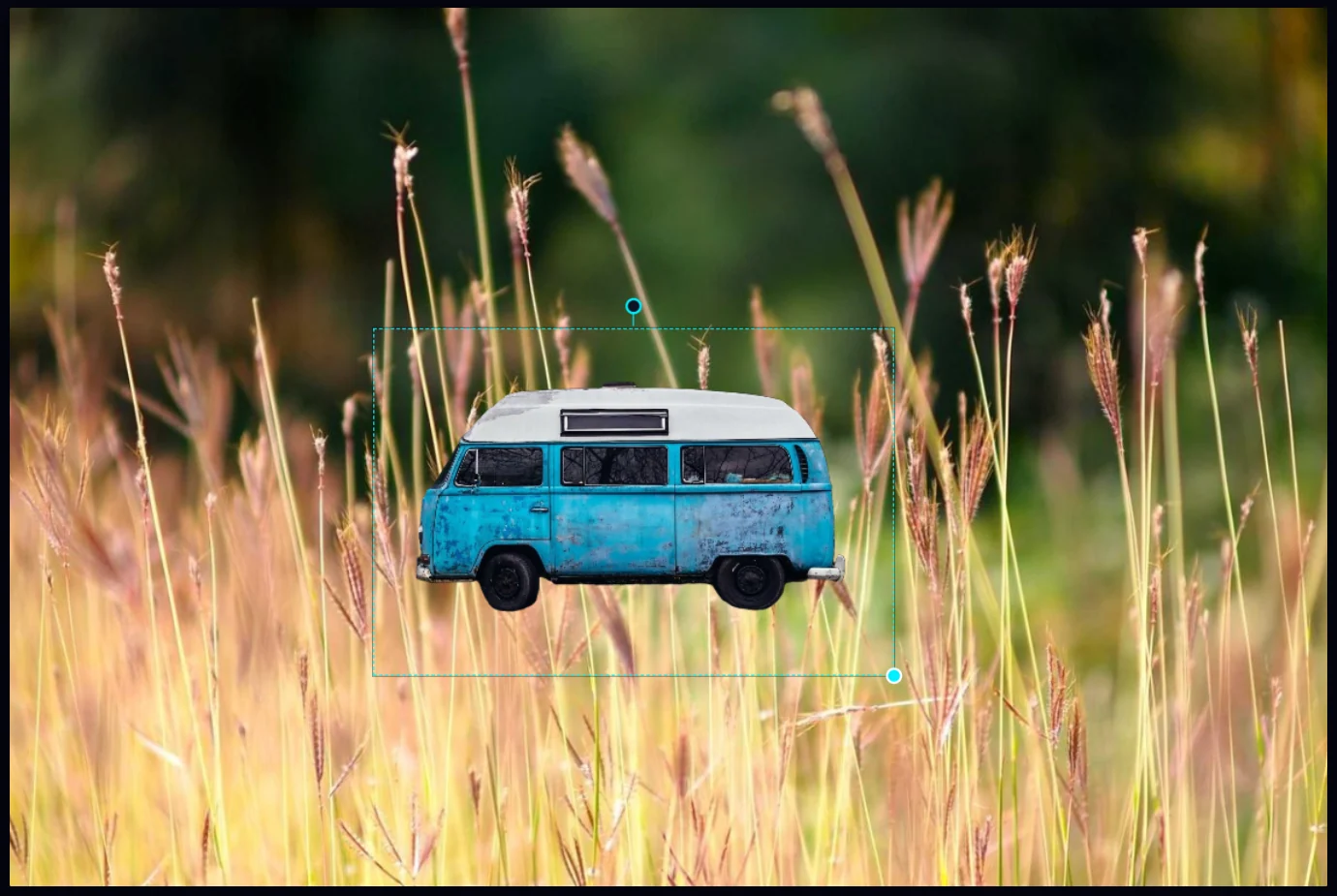
This is the camper van cutout pasted into a field of grass, scaled and moved into place. Without a shadow it looks like it's floating.
#2. Open Layer Effects
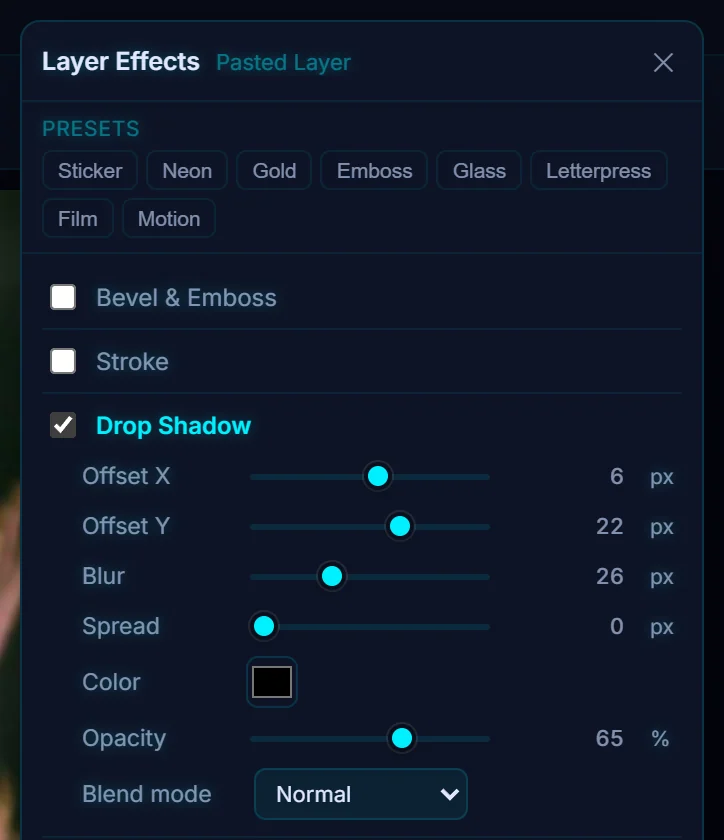
With the van layer selected, choose Layer > Layer Effects…. The panel lists the effects: Bevel & Emboss, Stroke, Drop Shadow, Inner Shadow, Outer Glow, Inner Glow, Satin, Colour Overlay, Gradient Overlay, Pattern Overlay, Blur and Grain. The Presets at the top (Sticker, Neon, Gold, Emboss, Glass, Letterpress, Film and Motion) set several at once.
#3. Tick Drop Shadow and set it
Tick Drop Shadow. Offset X and Offset Y move the shadow (6 and 22 px here), Blur softens it (26 px), Spread makes it bigger, and Opacity sets how dark it is (65%). You can also pick a Color and a Blend mode.
#4. Close the panel and check the result
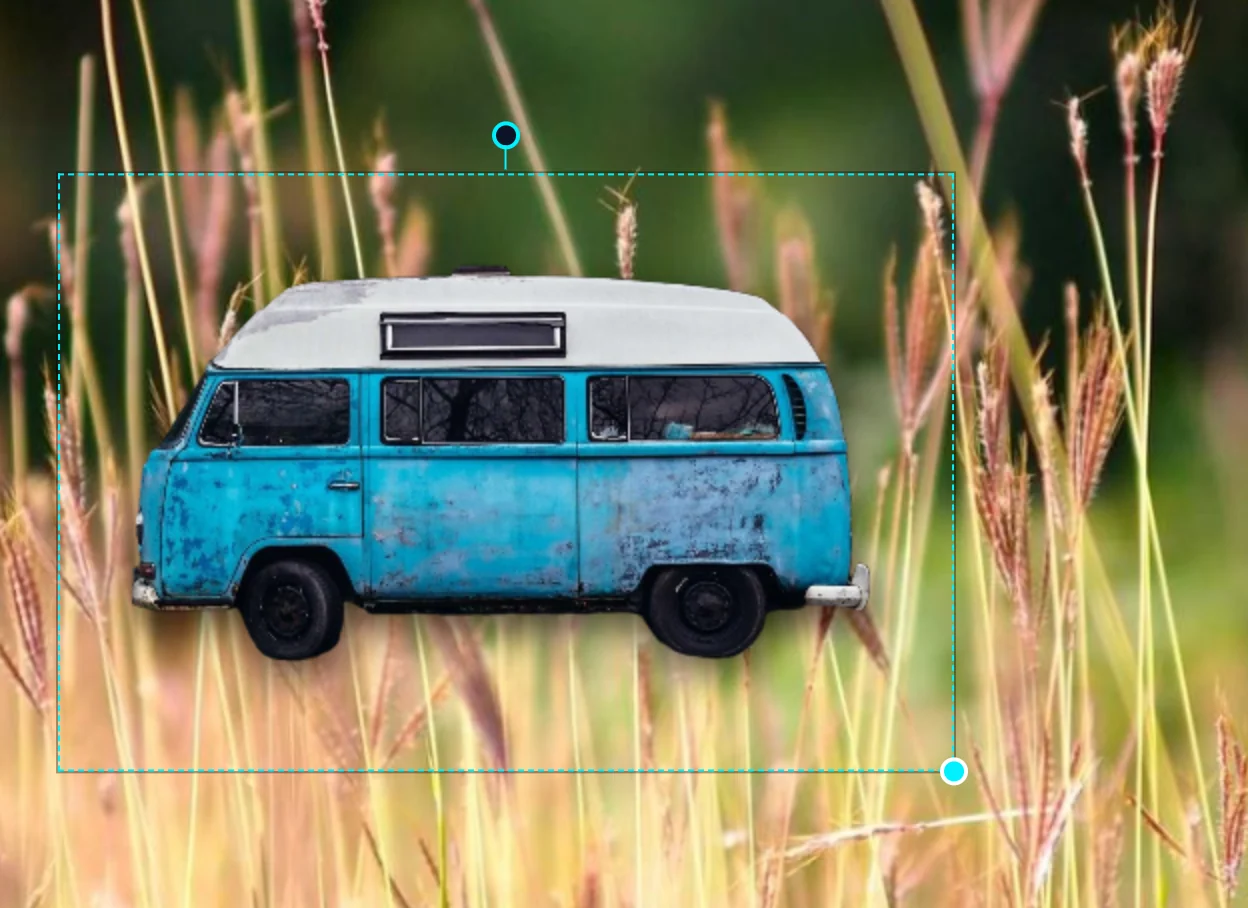
Click the ✕ at the top of the panel. The van now has a soft shadow under it and sits on the ground. The effect stays editable. Reopen Layer Effects… to change it, or choose Layer > Clear Layer Style to remove it.
#Tips
- Offset the shadow away from the scene's light source so it matches the lighting.
- A stroke around a cutout turns it into a sticker. Try the Sticker preset.
- Layer > Rasterize Layer Style bakes the effect into the pixels.
#Questions
- How do I add a shadow to a cutout?
- Select the layer, choose Layer > Layer Effects, tick Drop Shadow and set the offset, blur and opacity.
- Can I remove a layer effect later?
- Yes. Choose Layer > Clear Layer Style, or untick the effect in Layer Effects.
About the photo editor · Pricing · Download Pluto Photos · Contact support