
How to Add Text to a Photo
Press T for the Text tool, click on the photo, and type. Use the options bar to change the font, size, color, bold, italic, alignment and tracking, then click Done.
Requires Pluto Photos Pro (one-time $29, no subscription). The free download includes a 30-day trial of every Pro feature.
#1. Choose the Text tool
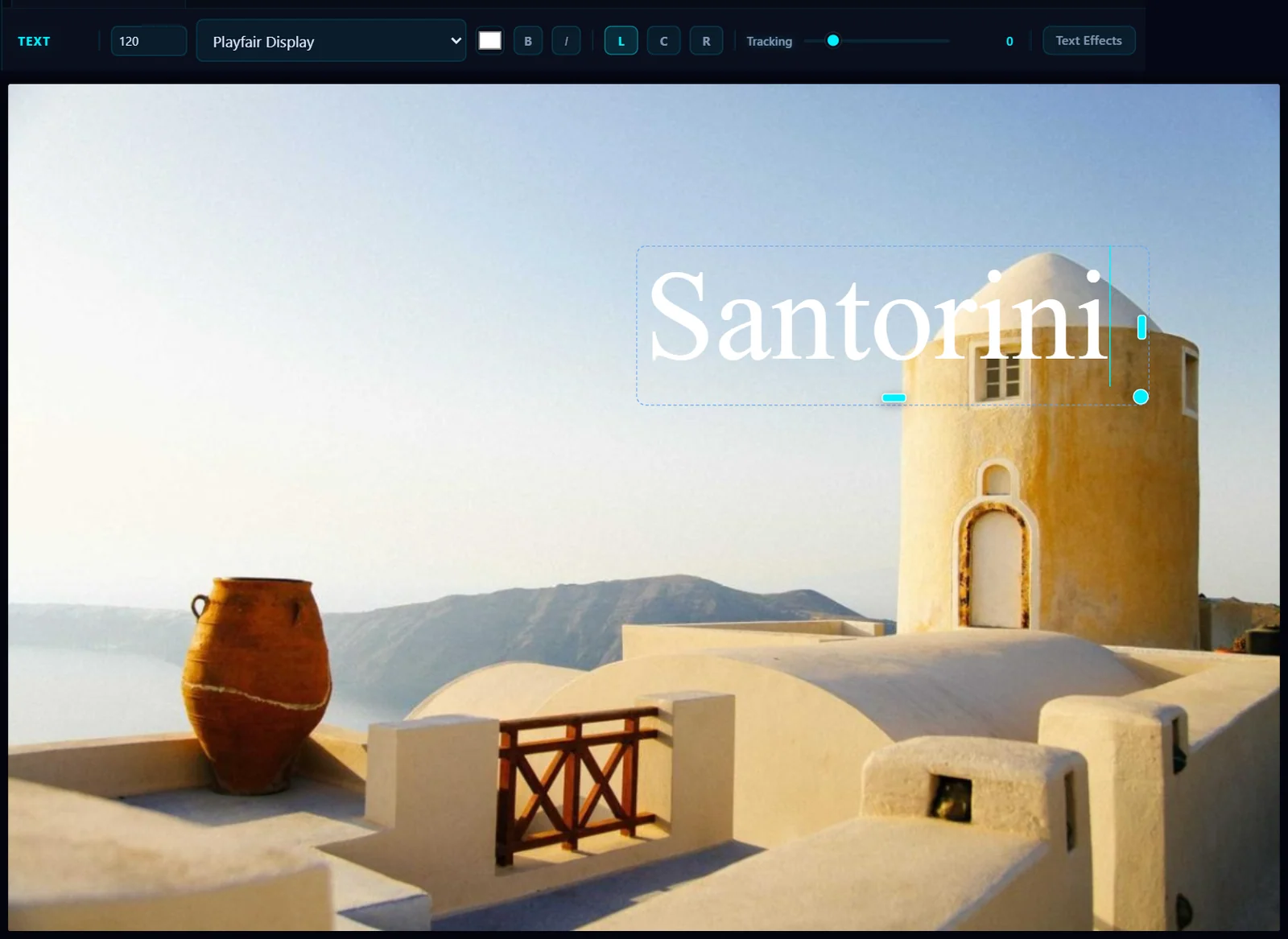
Click the T tool in the toolbar or press T. The options bar changes to the text controls: size, font, color, Bold, Italic, Left, Center and Right alignment, and Tracking, with Text Effects next to it. Add Centered, Duplicate, Delete and Done are at the far right, past the part shown below.

#2. Click the photo and type
Click where you want the text to start and type. A text box appears with handles to move, resize and rotate it. The first text you add is white Arial at size 48.
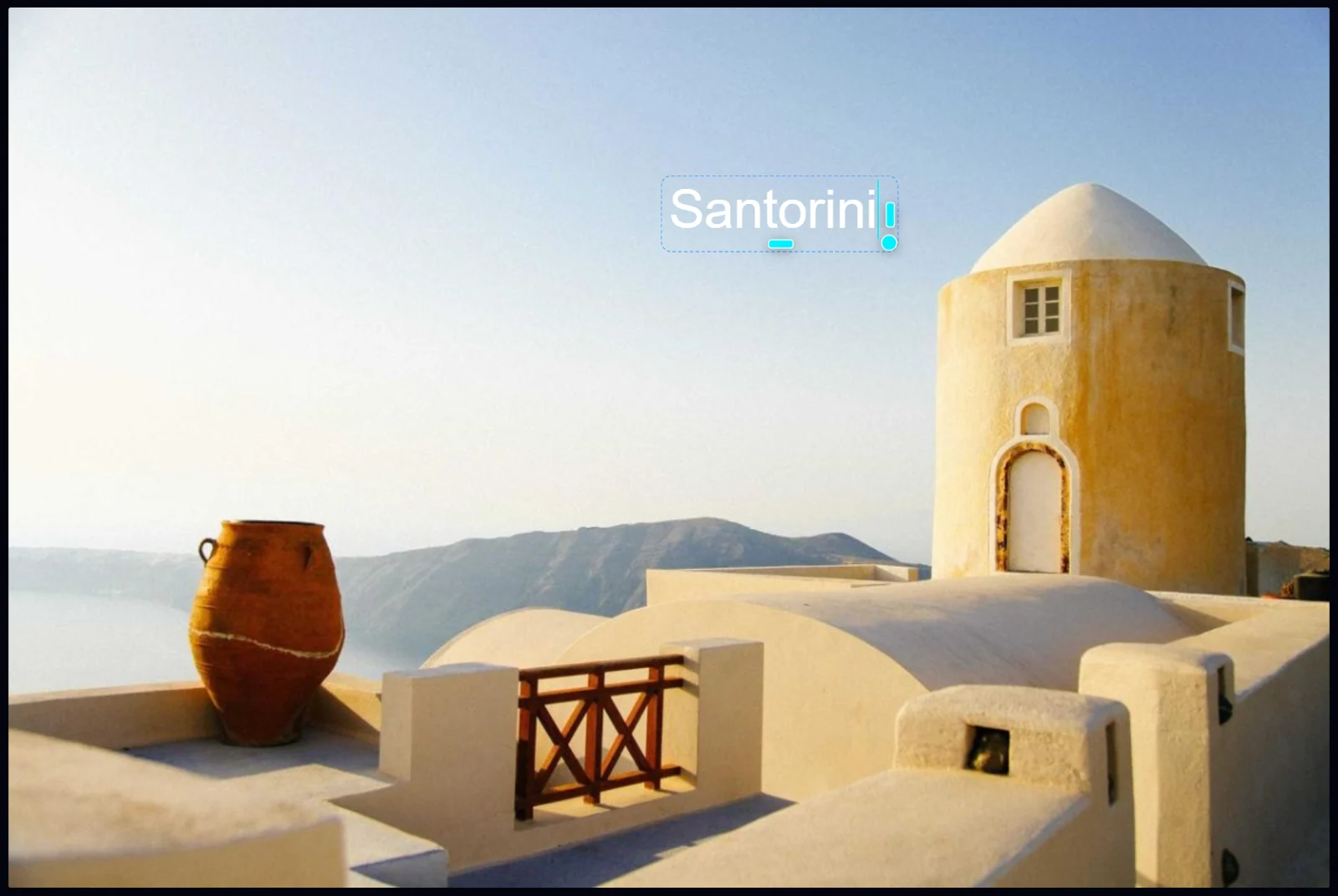
#3. Set the size and font
Type a new number in the size box (120 here) and pick a font from the menu. The list has system fonts such as Arial, Georgia and Impact, and web fonts including Inter, Montserrat, Poppins, Oswald, Playfair Display and Bebas Neue. Click the color swatch to change the color.
Tracking adds or removes space between the letters. Text Effects opens shadows, outlines and other styling.
#4. Place it, then click Done
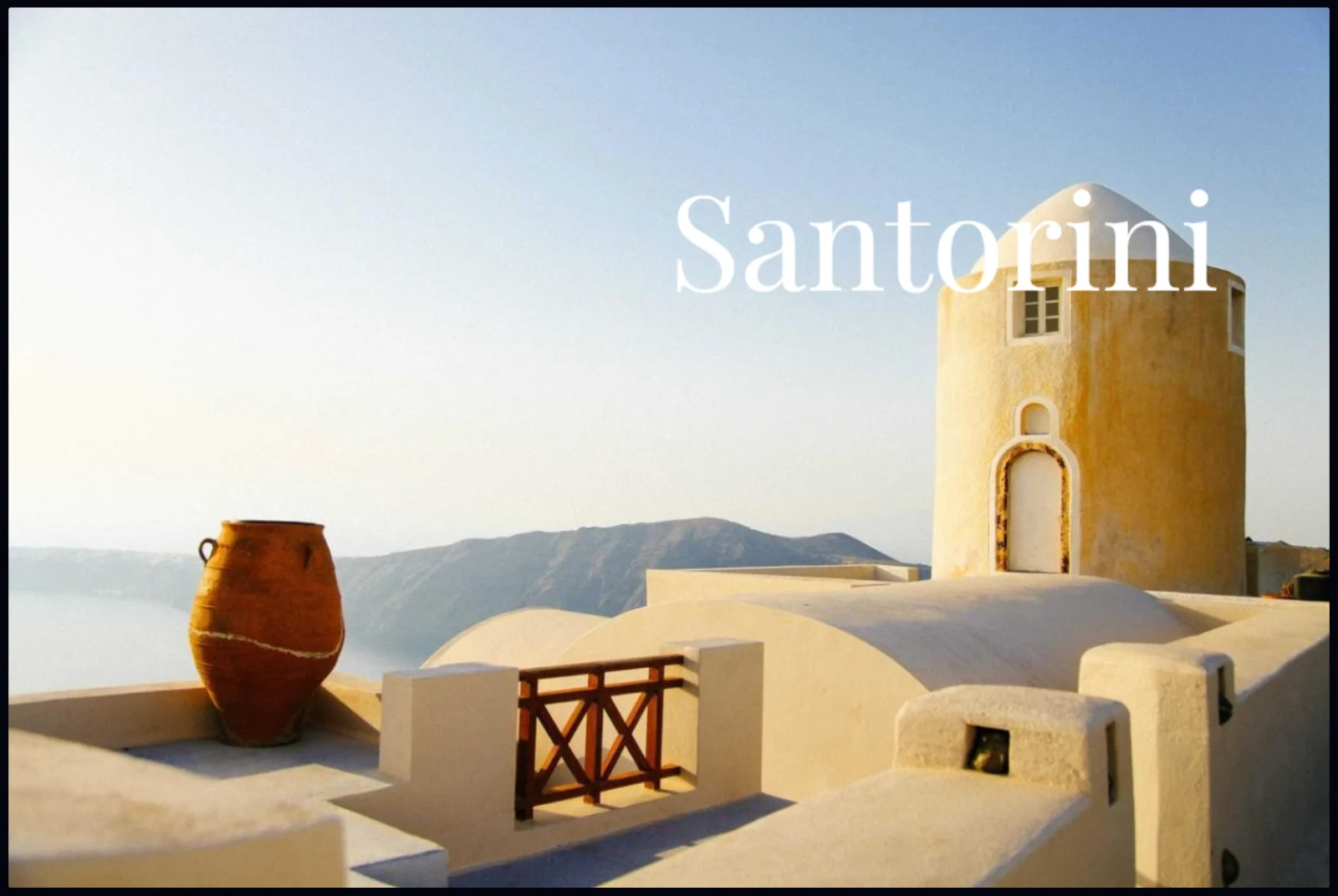
Drag the text box into position. To center text exactly, use Add Centered instead of clicking. Click Done when you're happy with it. The text stays editable until you save, so you can click it again with the Text tool to change the words.
#Tips
- Put text on a quiet area such as sky or water so it stays readable. If the background is busy, add a shadow or outline in Text Effects.
- Duplicate repeats a line with the same style.
- To keep editing later, save a project (File > Save Project) instead of a flat photo. See how to use layers.
#Questions
- How do I add text to a photo for free?
- The Pluto Photos text tool is part of the photo editor, which is included in Pro. A 30-day free trial is available.
- Can I change the font?
- Yes. Pick any font from the font menu in the Text options bar. It includes common system fonts and web fonts like Montserrat and Playfair Display.
- Can I edit the text after I click Done?
- Yes, until you save. Select the Text tool and click the text to edit it, or undo from History.
About the photo editor · Pricing · Download Pluto Photos · Contact support