
How to Straighten a Crooked Horizon (and Rotate or Flip a Photo)
With the Move tool selected, drag the Straighten slider in the options bar (it runs from -45° to +45°) until the horizon is level. Use Rotate Left, Rotate Right, Flip Horizontal and Flip Vertical for 90° turns and mirror images.
Requires Pluto Photos Pro (one-time $29, no subscription). The free download includes a 30-day trial of every Pro feature.
#1. Open the photo with the Move tool selected
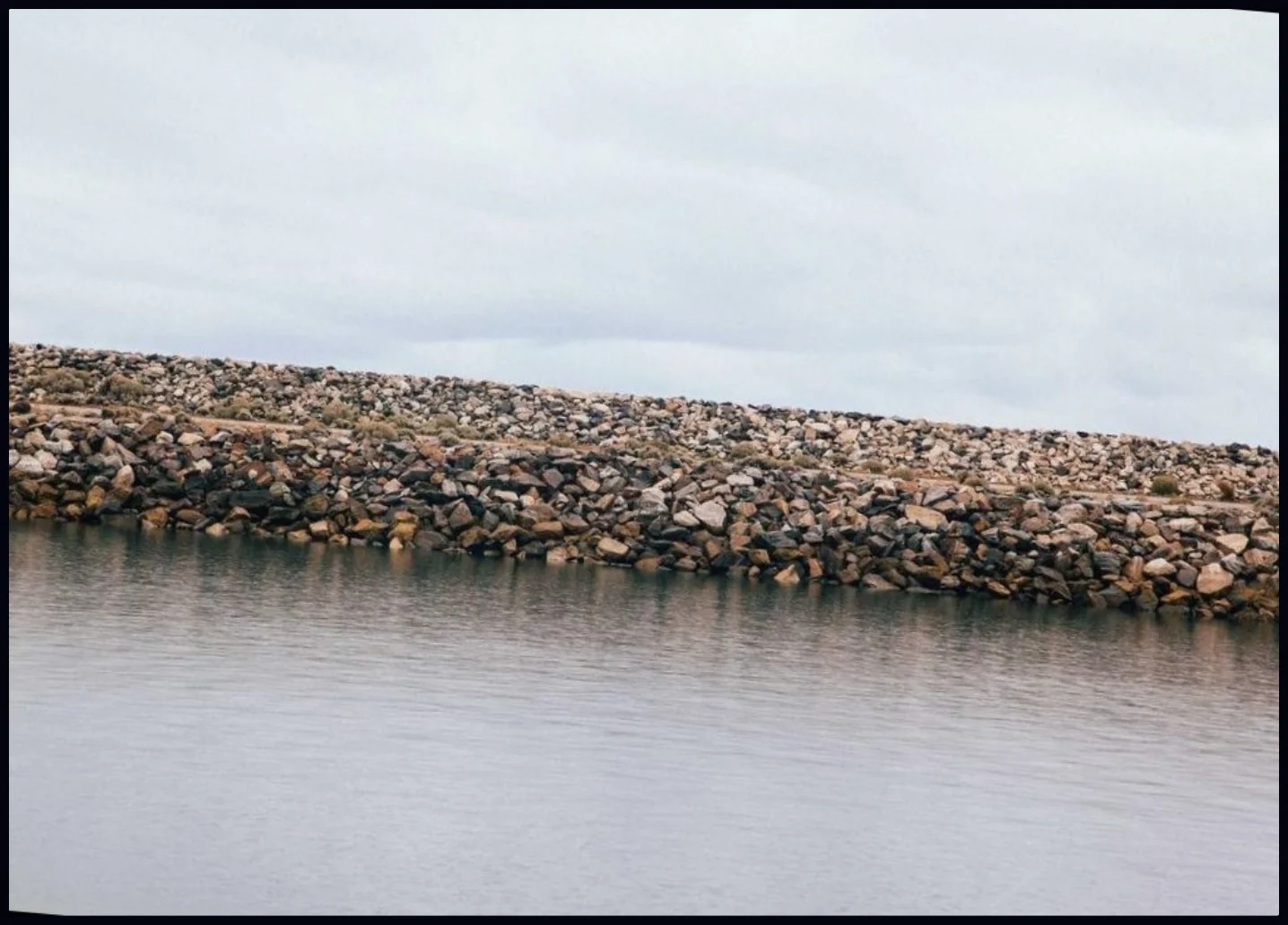
The Move tool (V) is the default when a photo opens, and its options bar has the rotate, flip and straighten controls. In this photo the rock wall slopes down to the right.
#2. Drag the Straighten slider
In the options bar, drag Straighten until the horizon is level, or type an exact value in the box beside it. It moves in steps of 0.1° between -45° and 45°. A negative number turns the photo counter-clockwise, which is what this one needs (-5.0°).
The editor scales the photo up slightly as it rotates, so the frame stays full and you don't get empty corners.

#3. Check the result
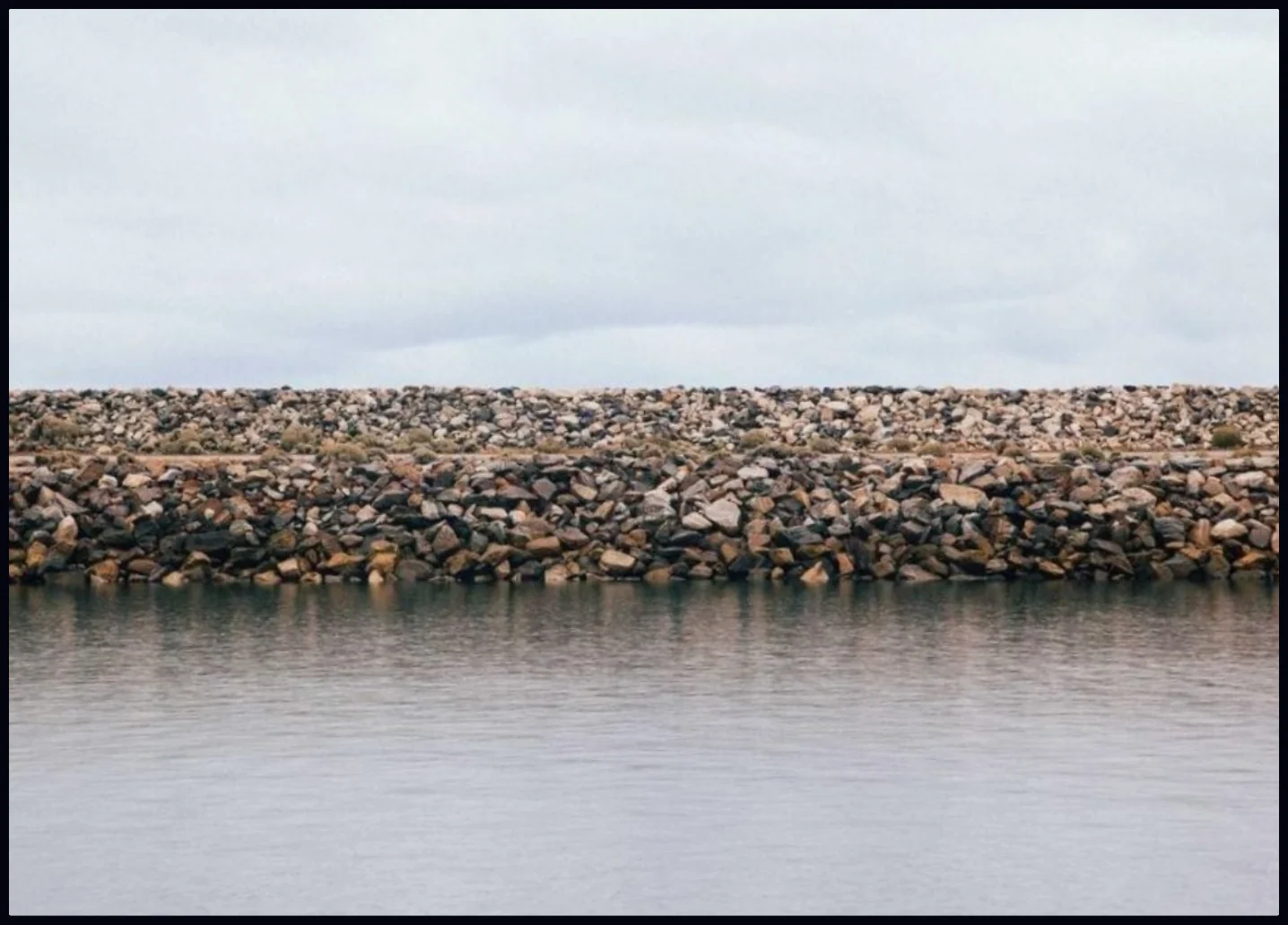
Compare the horizon with the edge of the frame. If it's still off, nudge the slider or type a new value. Double-click the slider to reset it to 0.
#4. Rotate or flip in 90° steps
The buttons beside the slider turn the whole photo. Rotate Left and Rotate Right turn it by 90°, Flip Horizontal makes a mirror image, and Flip Vertical turns it upside down. The same commands are in the Image menu.

#Tips
- Judge by a long straight line, such as a horizon, a building edge or a door frame. Look at the line near the edge of the photo, where a small tilt is easiest to see.
- Straighten before you crop. Rotating changes what is in the frame, so crop afterwards to set the final shape.
- Flip Horizontal mirrors the photo, so any text in it will read backwards. Only use it when you want that.
#Questions
- How do I fix a crooked horizon in a photo?
- Open the photo in the editor and drag the Straighten slider in the Move options bar until the horizon is level.
- Will straightening leave empty corners?
- No. The editor scales the photo slightly as it rotates so the frame stays filled.
- Does the Auto button straighten the photo?
- No. Auto runs an automatic exposure and color enhancement. Use the slider to straighten.
About the photo editor · Pricing · Download Pluto Photos · Contact support