
How to Blur Faces in a Video
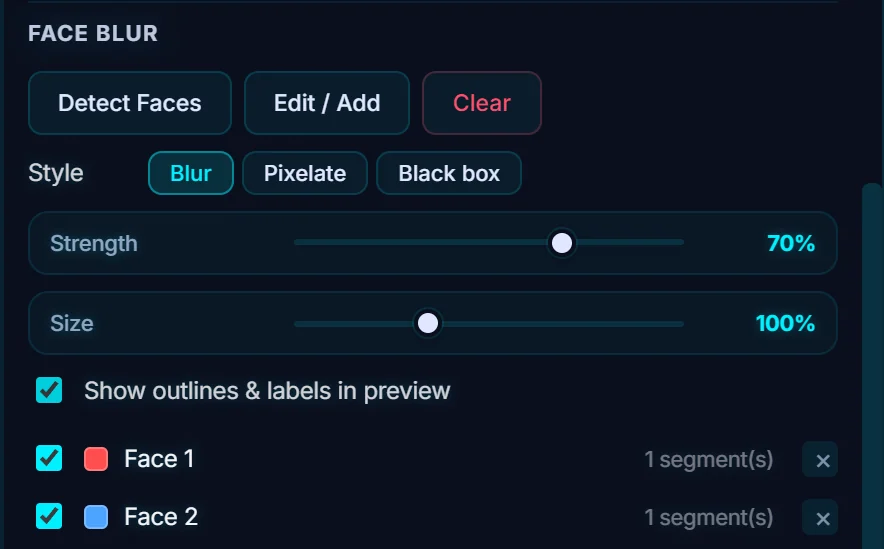
Select the clip, open the Effects tab, scroll to Face Blur and click Detect Faces. Pick Blur, Pixelate or Black box, set Strength and Size, and untick any face you want to leave visible.
Requires Pluto Photos Pro (one-time $29, no subscription). The free download includes a 30-day trial of every Pro feature.
#1. Select the clip and open the Effects tab
Add the clip to the timeline and open the Effects tab. Scroll to the bottom to find the Face Blur section, which has Detect Faces, Edit / Add and Clear.

#2. Click Detect Faces
Click Detect Faces. The editor finds the faces and tracks them through the clip, which takes a few seconds for a short clip. Each face is listed (Face 1, Face 2…) with the number of segments tracked. Untick a face to leave it unblurred, or click × to remove it.
#3. Choose a style, strength and size
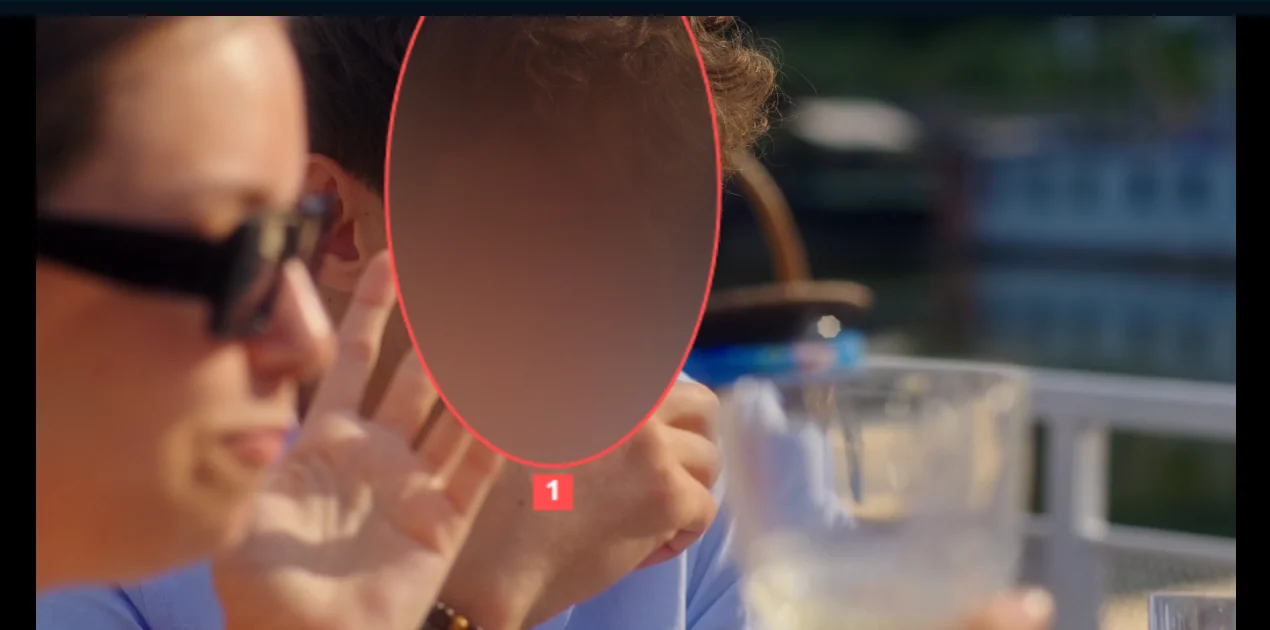
Style is Blur, Pixelate or Black box. Strength (70% by default) sets how heavy the blur is, and Size (100%) sets how much area around each face is covered. Tick Show outlines & labels in preview to see which box belongs to which face.
#4. Add a face the detector missed
Click Edit / Add to draw a blur box by hand over a face that wasn't found, such as one that's turned away or very small. The blur previews live and is baked into the video when you export. The outlines are for the preview only.
#Tips
- Play the whole clip and look for frames where a face slips out of its box.
- Pixelate and Black box are harder to reverse than a light blur.
- For a photo, use Safe Share.
#Questions
- Does face blur work offline?
- Yes. Detection and tracking run on your computer, with nothing uploaded.
- Can I blur only some of the faces?
- Yes. Untick the faces you want to leave visible in the list.
About the video editor · Pricing · Download Pluto Photos · Contact support