
How to Slow Down or Speed Up a Video
Select the clip, open the Speed tab and drag the slider between 0.25x and 4x. Below 1x is slow motion and above 1x is fast. The timeline length updates to match.
Requires Pluto Photos Pro (one-time $29, no subscription). The free download includes a 30-day trial of every Pro feature.
#1. Select the clip and open the Speed tab
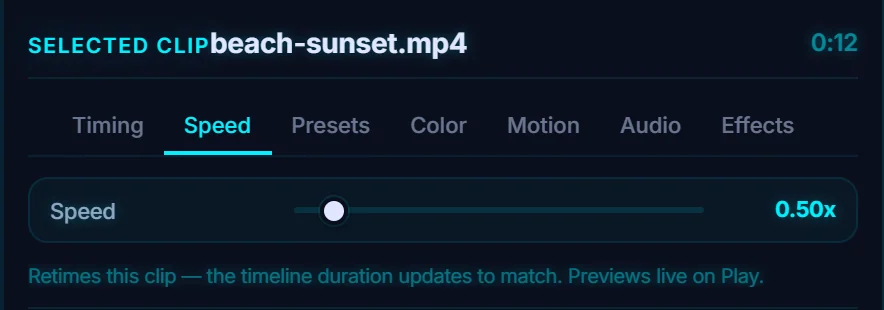
Click the clip on the timeline and open the Speed tab in the Properties panel. It has one control, Speed, set to 1.00x by default.

#2. Drag the Speed slider
The slider runs from 0.25x to 4x in steps of 0.25. Drag it to 0.50x for half speed. The note under it says the clip is retimed, the timeline duration updates to match, and you can preview the effect live by pressing Play.
#3. Check the timeline
The clip is tagged 0.50x, and the timeline header now reads 0:24 total, double the original 12 seconds. Press Play to see it in slow motion.

#Tips
- Slow motion looks smoothest from high frame rate footage. Footage shot at 50 or 60 fps slows down more cleanly than 24 or 30 fps.
- Speed applies to the whole clip. To speed up just one part, split the clip first and set the speed on that piece.
#Questions
- How do I make a video slow motion?
- Select the clip, open the Speed tab and drag the slider below 1x. 0.50x is half speed and 0.25x is quarter speed.
- How fast can I make a clip?
- Up to 4x.
About the video editor · Pricing · Download Pluto Photos · Contact support