
How to Find and Remove Duplicate Photos
Open Organize, then Duplicates, choose what to scan and click Scan for Duplicates. Compare each group, click Keep Recommended to mark the extras, then click Delete Marked and confirm. The files go to Recently Deleted, where you can restore them for 30 days.
Requires Pluto Photos Pro (one-time $29, no subscription). The free download includes a 30-day trial of every Pro feature.
#1. Open Duplicates and choose what to scan
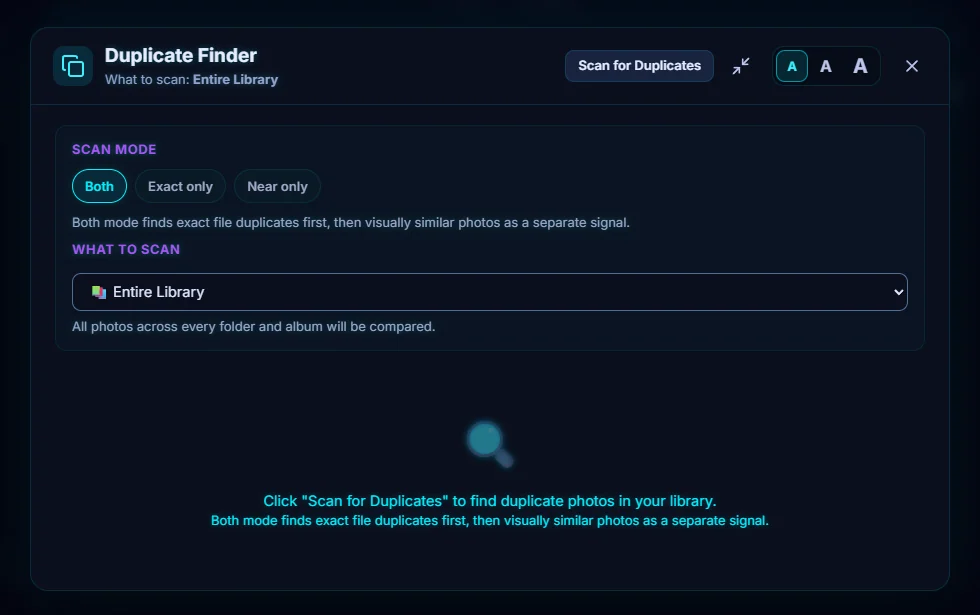
Open the Organize menu and choose Duplicates. Under Scan mode, choose Both (exact file duplicates first, then visually similar photos), Exact only or Near only. Under What to scan, choose the Entire Library or a single album or smart album.
#2. Scan
Click Scan for Duplicates. The result line sums it up, here 31 groups of duplicates · 32 extra files · 6.4 MB could be freed. Each group is labelled Exact or Near, with its files below. The results are saved, so you can close the window and come back, and the dialog tells you if new photos have been added since the scan.

#3. Compare before you decide
Click Compare on a group to look at its photos full size and page through them with the arrows. Best Shots ranks each group by focus, exposure and color, so the sharpest frame is recommended and not just the biggest file (the best shot guide shows how). Not Duplicates takes a group off the list, and Show in folder (the folder icon) opens the file's location.

#4. Mark the ones to remove
Click Keep Recommended in a group. The file with the Recommended keep label stays, and the others are marked for deletion (their button changes from Delete to Undo). Keep First, Delete Rest keeps the first file instead, and Keep All Recommended at the top does it for every group. A red Delete 2 Marked button shows the count.

#5. Move the marked files to Recently Deleted
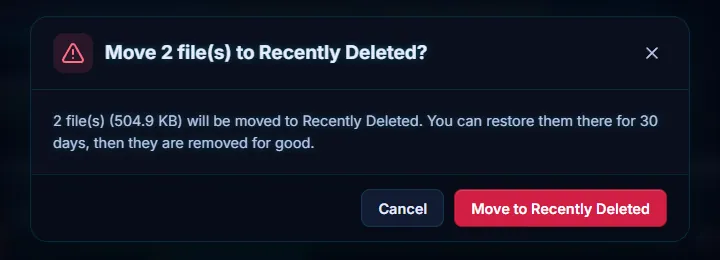
When you're happy, click Delete Marked. A confirmation asks Move N file(s) to Recently Deleted? and tells you how much space they take up. Click Move to Recently Deleted. Use Undo first on any file you want to keep.
#6. Restore anything you want back
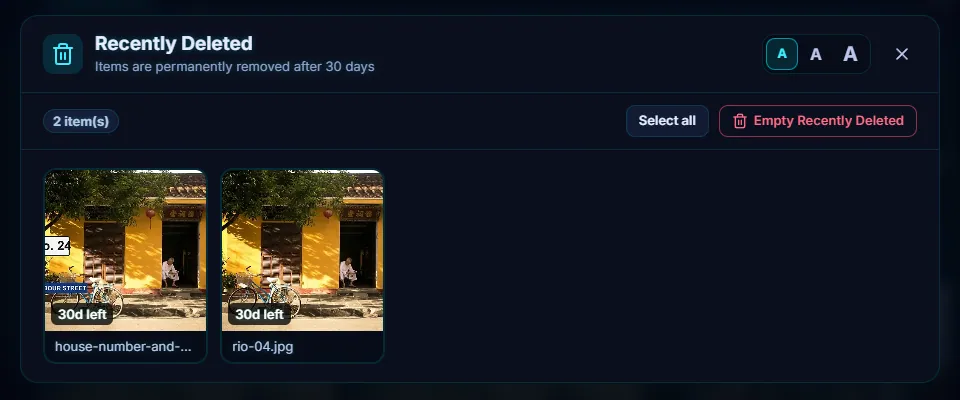
Open the Protect menu and choose Recently Deleted. The files wait there, each with a label such as 30d left. Click Select all or pick some, then click Restore to put them back in your library. After 30 days they are removed for good, and that is also when the disk space comes back. Empty Recently Deleted frees it straight away, so wait until you have checked your library.
#Tips
- Back up first. Deleted duplicates wait in Recently Deleted for 30 days, but a backup before a big clean-up is still the safe habit.
- Exact duplicates are safe to remove. Near duplicates need your eyes, because they're similar photos such as burst shots, and you may want more than one.
- Sort by Most space saved to clear the biggest wins first.
- Rescan after importing, especially after a Google Takeout, which often holds the same photo twice.
#Questions
- Does the Duplicate Finder delete anything automatically?
- No. Keep Recommended only marks files, and nothing is moved until you click Delete Marked and confirm.
- Are duplicates deleted permanently?
- No. Delete Marked moves them to Recently Deleted, where you can restore them for 30 days. After that they are removed for good.
- Does Pluto Photos upload my photos to find duplicates?
- No. The scan runs on your computer and nothing is uploaded.
- What is the difference between exact and near duplicates?
- Exact duplicates are identical files. Near duplicates are visually similar photos, such as a re-saved or resized copy or a burst of shots.
- How do I find duplicate photos in just one album?
- Open the Duplicate Finder and pick the album or smart album under What to scan, then click Scan for Duplicates. Only the photos in it are compared.
About the smart search · Pricing · Download Pluto Photos · Contact support