
How to Add a Logo or Watermark to a Video
Click the + in the Watermark lane, choose Text or Image, set the placement, opacity and margin, then set its Start and Duration. It is burned into the exported video.
Requires Pluto Photos Pro (one-time $29, no subscription). The free download includes a 30-day trial of every Pro feature.
#1. Put your clip on the timeline
Add a clip as in how to trim a video.
#2. Click + in the Watermark lane
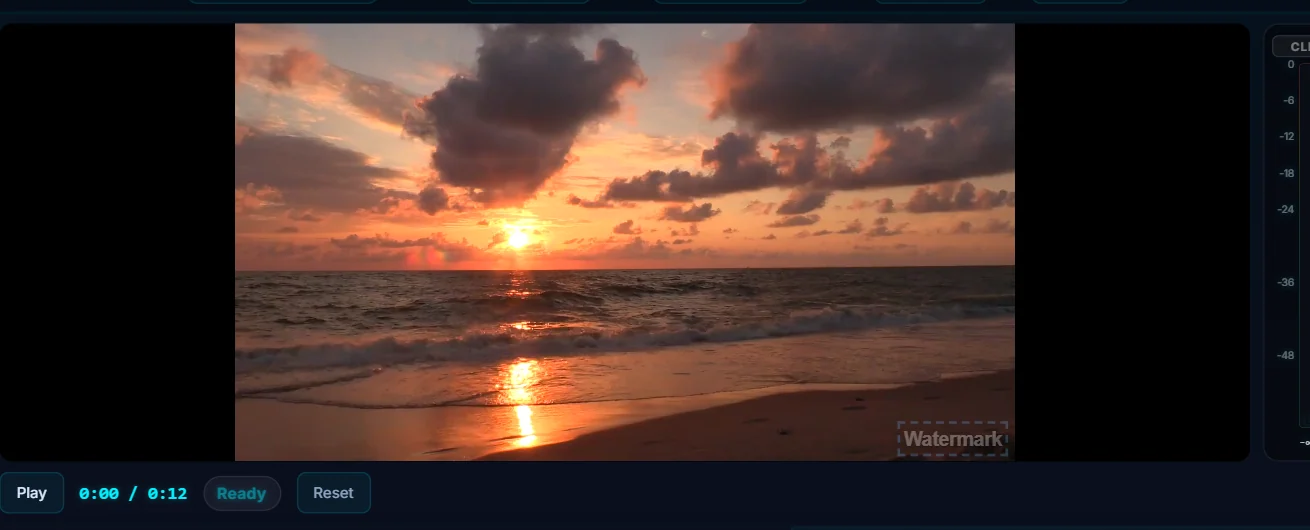
Find the Watermark lane on the timeline and click its + (Add). A text watermark reading Watermark appears in the corner of the preview at 30% opacity, and the Properties panel switches to Watermark Overlay.
#3. Choose Text or Image
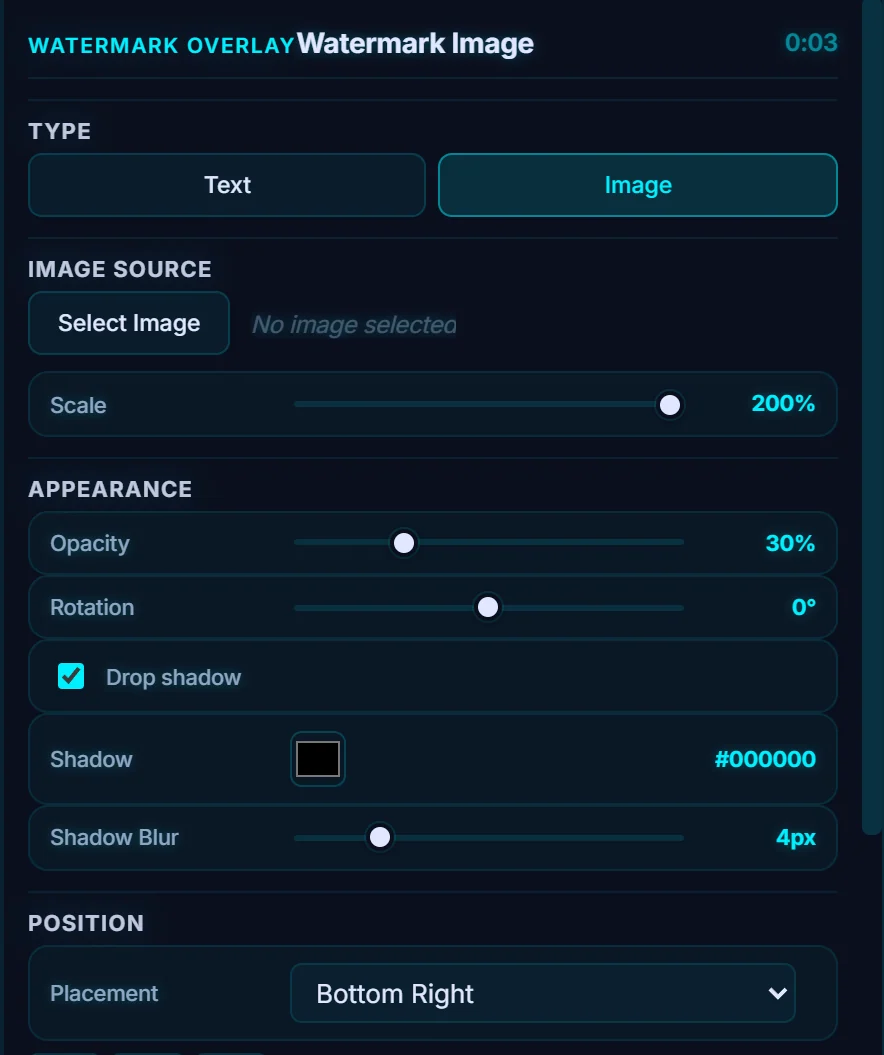
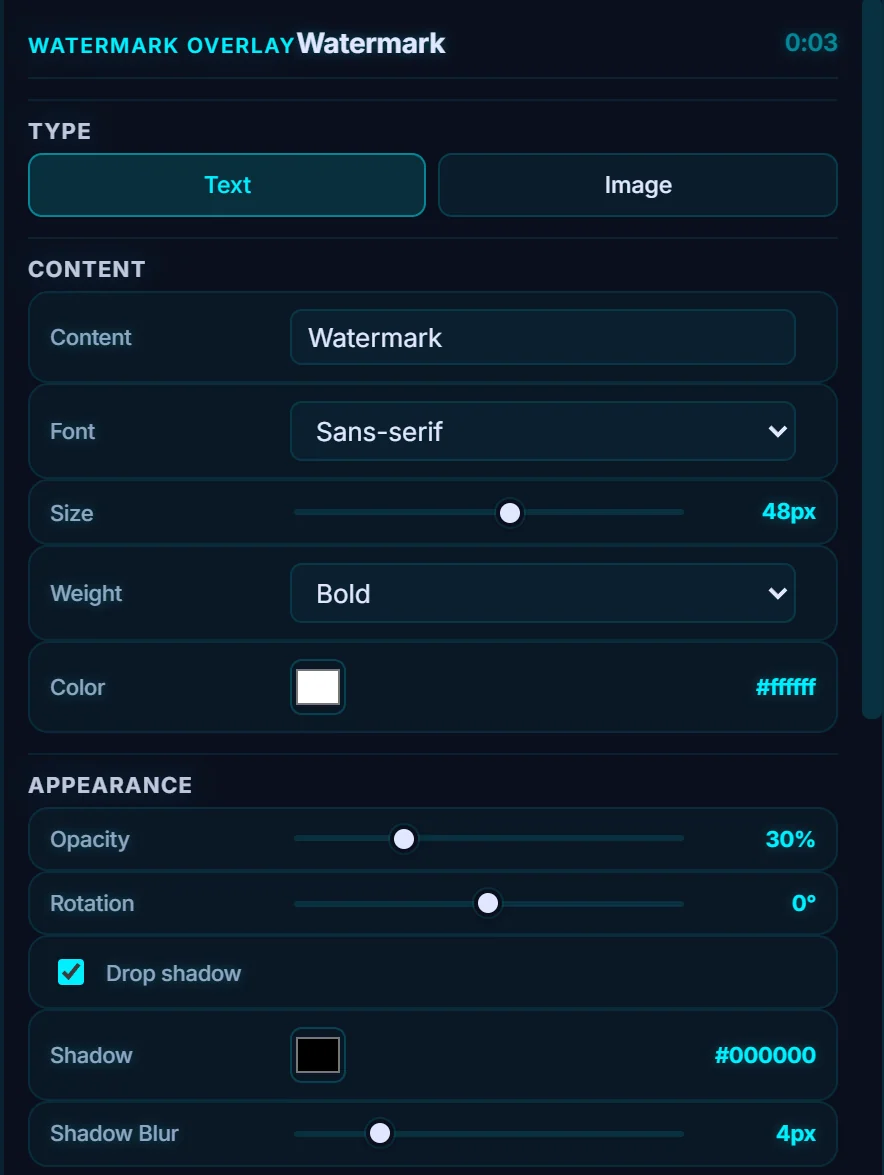
Under Type, choose Text to type your own words and set the Font, Size, Weight and Color, or Image to use a logo file. For an image, click Select Image, pick a PNG (a transparent PNG works best) and set its Scale.
#4. Set appearance, position and timing
Opacity (30% by default), Rotation and an optional Drop shadow control the look. Placement offers the four corners, the middle of each edge, the center, Tile (Repeat) across the frame, or Custom Position, and Margin sets the distance from the edge. In Timing, set Start, Duration, Fade In and Fade Out. A new watermark lasts 3 seconds, so lengthen it to cover the whole video.
#Tips
- 20 to 40% opacity in a corner is enough to brand a video without distracting from it.
- Tile repeats the mark across the frame, which makes it harder to crop out.
- Remove Overlay at the bottom of the panel deletes it at any time.
#Questions
- How do I put my logo on a video?
- Click + in the Watermark lane, choose Image, select your logo and place it in a corner.
- Does the editor add its own watermark?
- No. The only watermark is one you add yourself.
About the video editor · Pricing · Download Pluto Photos · Contact support