
How to Reduce a Photo's File Size for Email, Web and Social Posts
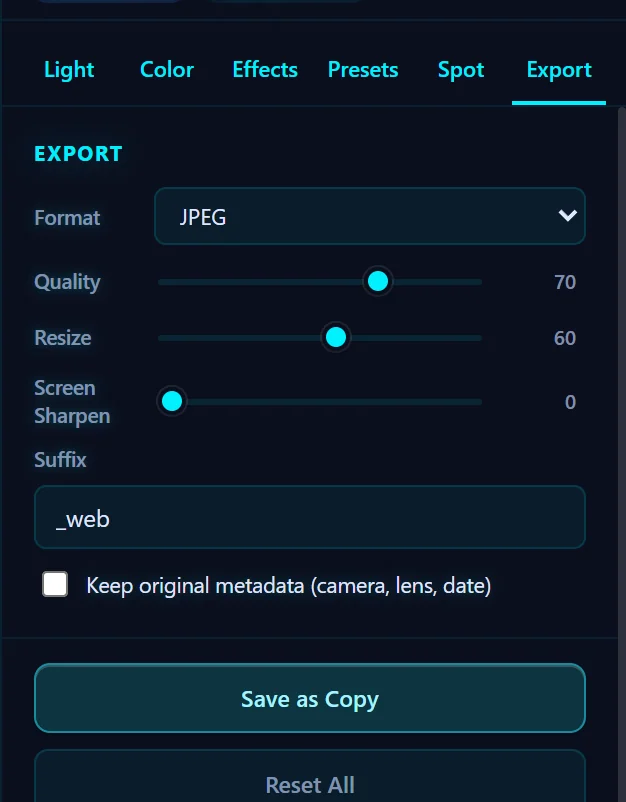
In the Export tab set Format to JPEG, drag Quality to about 70, drag Resize to 60, change the Suffix to _web and click Save as Copy. A test 1600×1200 photo went from 582 KB to 78 KB.
Requires Pluto Photos Pro (one-time $29, no subscription). The free download includes a 30-day trial of every Pro feature.
#1. Open the photo and the Export tab
Open the photo in the editor and click Export. The settings that change file size are Format, Quality and Resize.
#2. Choose JPEG and lower Quality and Resize
Set Format to JPEG. Drag Quality from 92 down to about 70. On most photos the difference is hard to see on a screen, but the file shrinks a lot. Drag Resize (a percentage of the photo, 10 to 100) to 60. Change Suffix to _web so the copy is easy to recognize.
#3. Click Save as Copy and compare
Click Save as Copy. In our test the original 1600 × 1200 photo was 582 KB, and the copy is 960 × 720 and 78 KB. The original isn't touched.
#Tips
- Resize does the most. Halving the width and height cuts the pixel count to a quarter.
- A photo shown at 1080 pixels wide doesn't need to be 4000, so don't keep pixels the screen can't show.
- Keep a full-size original and send the smaller copy.
- The copy has no camera or location data unless you tick Keep original metadata.
#Questions
- How do I make a photo smaller for email?
- Use the Export tab: JPEG, Quality around 70 and a Resize percentage below 100, then Save as Copy.
- Does compressing reduce quality?
- Lower JPEG quality removes some fine detail. Around 70 to 90 is usually hard to tell apart from the original on a screen.
About the photo editor · Pricing · Download Pluto Photos · Contact support