
How to Pick the Best Photo From a Set of Similar Shots
Open Organize, then Duplicates, choose Near only and scan. Turn on Best Shots to score each photo from 0 to 100 on focus, exposure, contrast and color, compare the group, then keep the one you like and move the rest to Recently Deleted.
Requires Pluto Photos Pro (one-time $29, no subscription). The free download includes a 30-day trial of every Pro feature.
#1. Show the similar photos
Open the Organize menu and choose Duplicates. Under Scan mode, click Near only, which finds photos that look alike even when they are different files, such as burst shots or several tries at the same picture. If you have scanned before, the list filters straight away and the summary reads something like Showing 5 of 31 groups (Near only filter). If not, click Scan for Duplicates.

#2. Turn on Best Shots
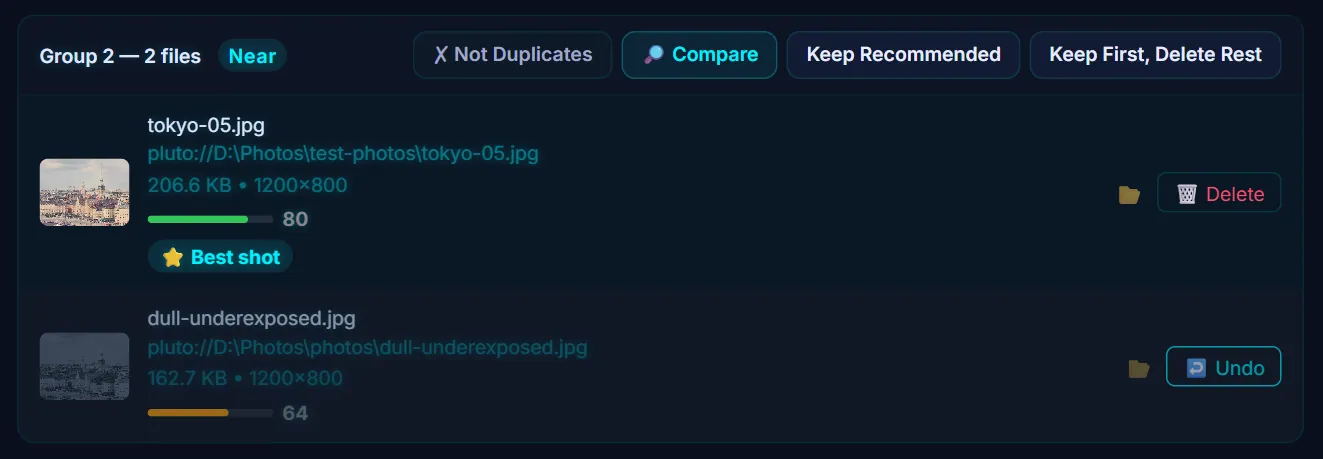
Click Best Shots above the groups. Pluto Photos scores every photo from 0 to 100 on focus, exposure, contrast and color, shows the score as a bar and a number, and puts a Best shot label on the highest one in each group. The button changes to Best Shots ✓. The scoring runs on your computer. It also marks the other photos in every group for deletion straight away, so the button at the top changes to something like Delete 6 Marked. Nothing is moved until you confirm in the last step.

#3. Read the scores
The score tells you which copy is technically better, not which you like more. Here a properly exposed photo scores 80 and a dull, underexposed copy of the same scene scores 64, so the darker one is marked. When two photos score the same, the app still names one as the best shot, so look at the pictures before you trust it.
#4. Compare the group full size
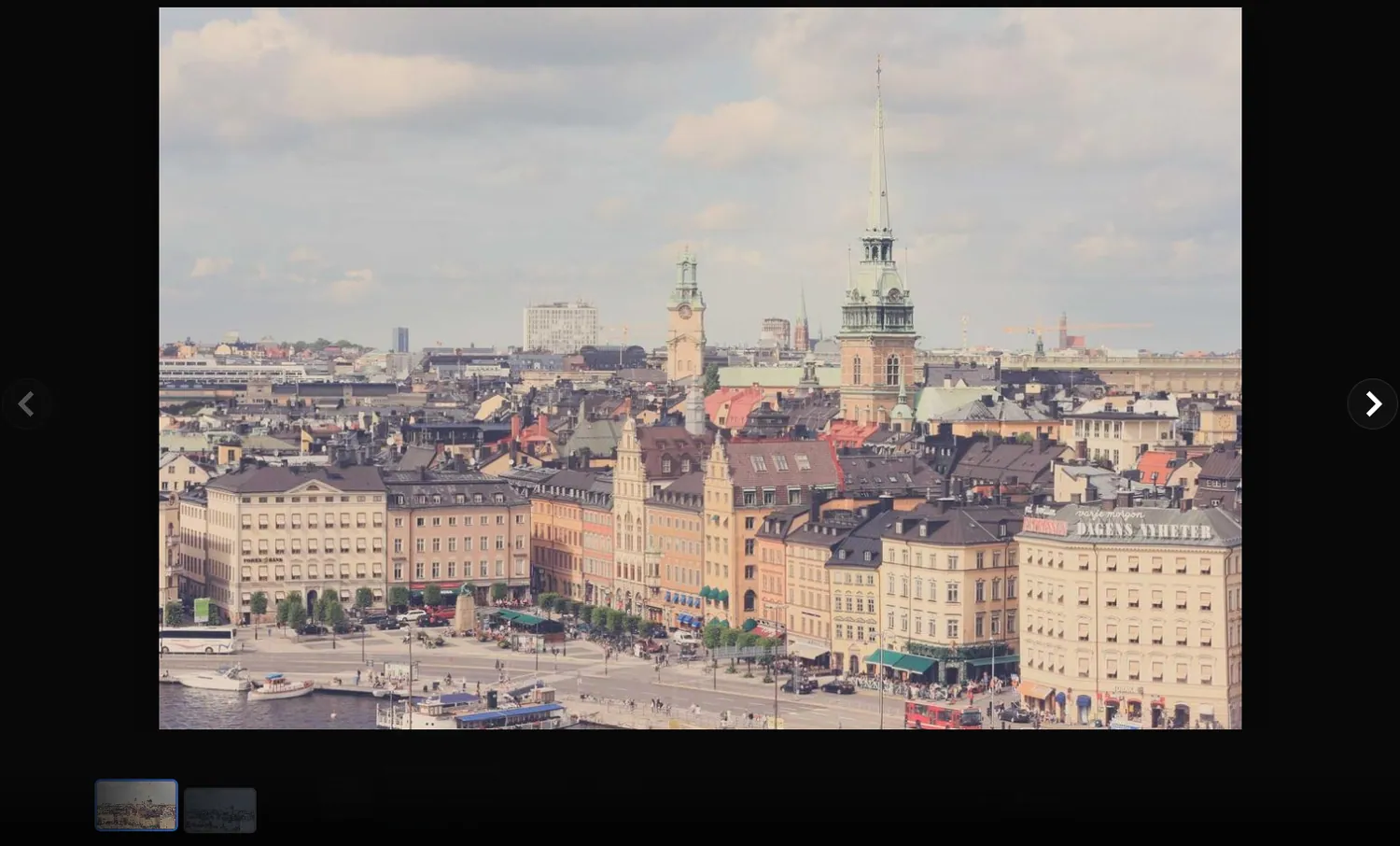
Click Compare on a group to see its photos large and page through them with the arrows or the thumbnails along the bottom. The score cannot see expressions, so open the group yourself when it holds people: a blink or a half-turned head will not lower the number.
#5. Change your mind where you need to
Click Undo on a marked photo to keep it, or Delete on the kept one to mark it instead. Keep Recommended goes back to the best shot for that group. If you want to keep every photo in a group, such as the frames of an exposure bracket, click Not Duplicates. The group leaves the list and Pluto Photos will not suggest that pairing again.
#6. Move the rest to Recently Deleted
Click Delete Marked and confirm. The files are moved to Recently Deleted, where you can restore them for 30 days. The duplicate finder guide shows that step and how to restore.
#Tips
- Turning Best Shots off again goes back to the file-size rule: the biggest, highest-resolution copy is recommended and the rest are marked.
- Run Exact only first. Identical copies are safe to remove, and clearing them leaves only real decisions in the near list.
- Rate the photos you love afterwards with ratings and flags, so the keepers are easy to find.
#Questions
- What does the Best Shots score measure?
- Focus, exposure, contrast and color, combined into a score from 0 to 100. It does not look at expressions, composition or what is in the picture.
- Does Best Shots delete my photos?
- No. It marks the lower-scoring photos in each group, and nothing is moved until you click Delete Marked and confirm. Even then the files go to Recently Deleted for 30 days.
- Can I keep more than one photo from a group?
- Yes. Click Undo on any marked photo to keep it, or click Not Duplicates to take the whole group off the list.
- Does it need an internet connection?
- No. The scoring runs on your computer and nothing is uploaded.
About the smart search · Pricing · Download Pluto Photos · Contact support