
How to Add Text, Titles and Lower Thirds to a Video
Click the + in the Text Overlay lane of the timeline, choose a Style preset (Title, Lower Third, Caption or Credit), type your text and set its timing. It is burned into the video on export.
Requires Pluto Photos Pro (one-time $29, no subscription). The free download includes a 30-day trial of every Pro feature.
#1. Put your clip on the timeline
Add a clip as in how to trim a video. A title needs at least one clip on the timeline to sit over.
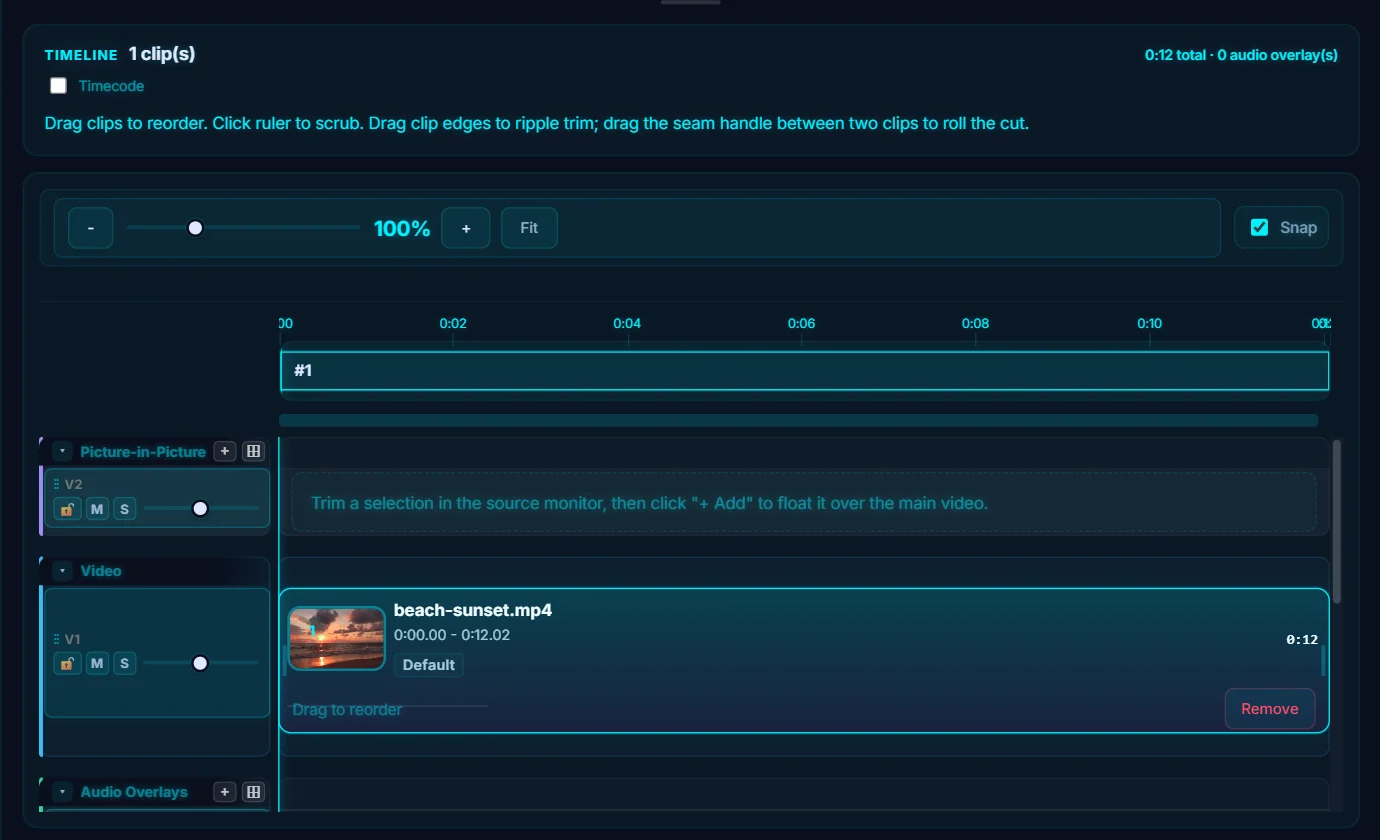
#2. Click + in the Text Overlay lane
On the left of the timeline, find the Text Overlay lane (scroll the timeline if it's short) and click its + button (tooltip: Add). A text overlay called Title appears in the preview, and the Properties panel switches to Text Overlay.
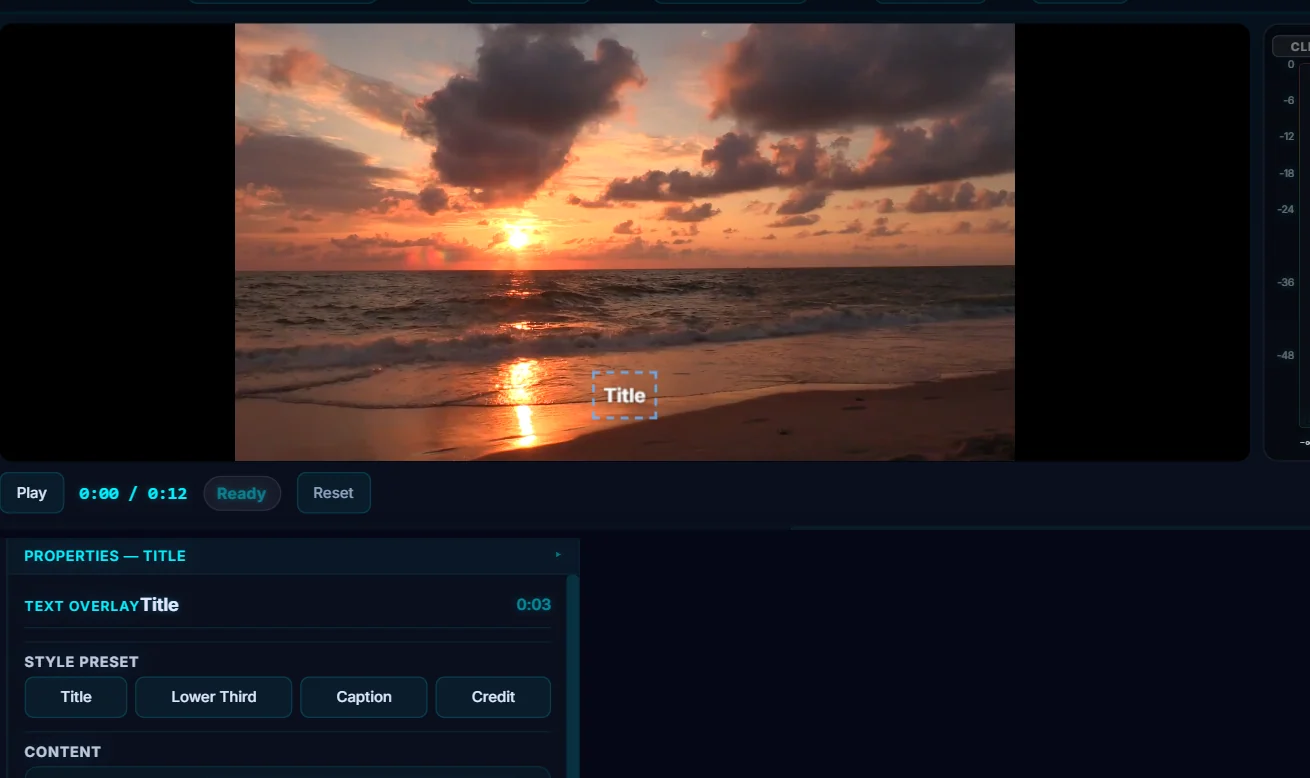
#3. Type your text and pick a style preset
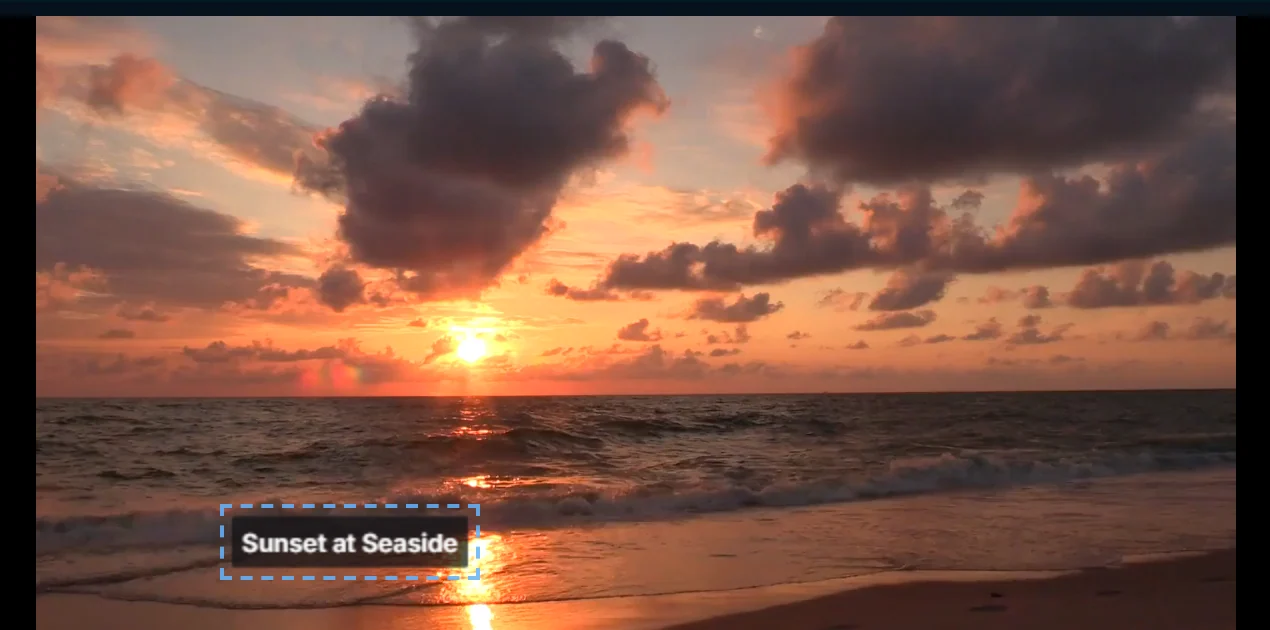
Replace the word in the Content box with your own text. The Style preset buttons (Title, Lower Third, Caption and Credit) change the size, weight, alignment and position in one click. Lower Third is the small name-tag style in the lower left.
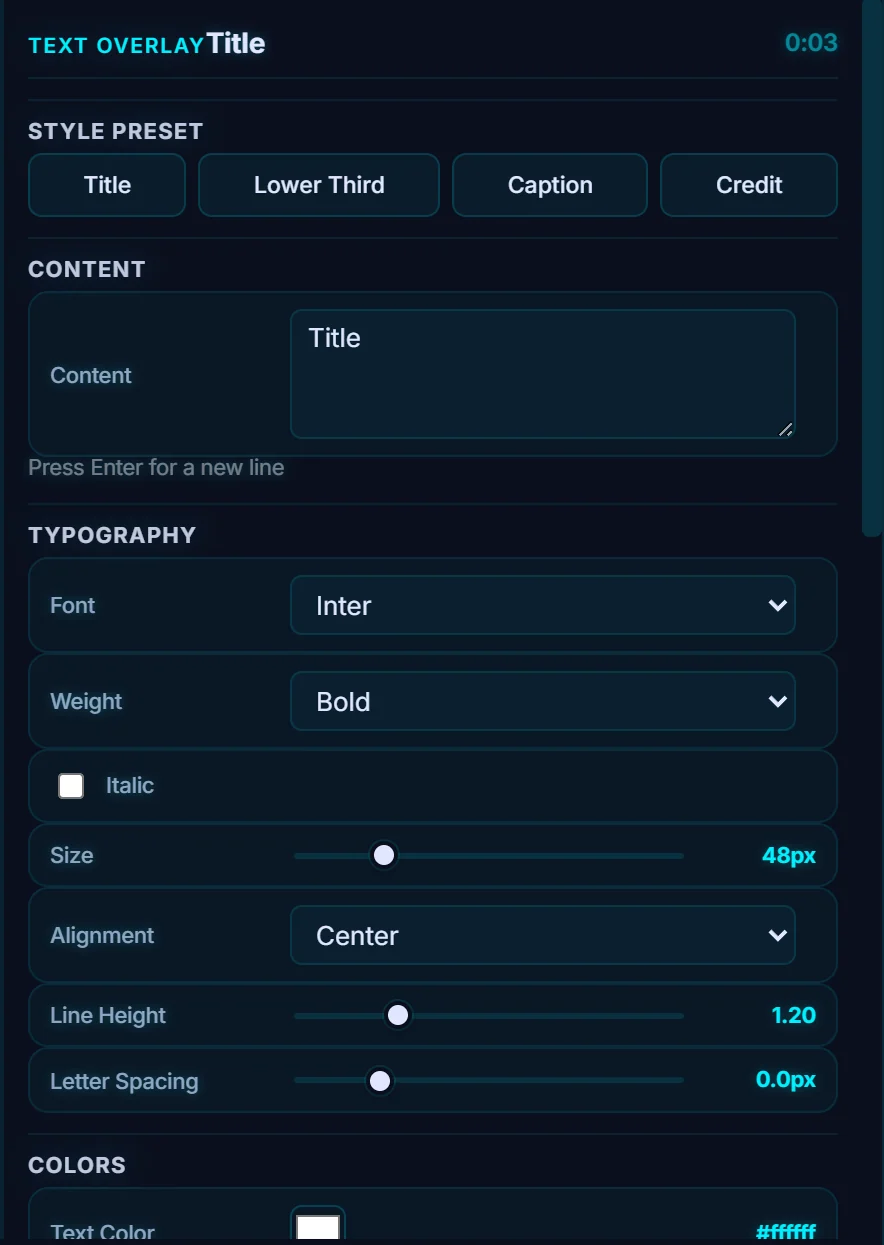
#4. Adjust font, color and position
Under Typography, choose the Font (Inter, Roboto, Montserrat, Poppins, Oswald, Playfair Display, Bebas Neue and more), Weight, Size, Alignment, Line Height and Letter Spacing. Below that are Colors, Outline, Drop Shadow, Background, Position (X and Y as percentages, plus Rotation) and Timing. You can also drag the text around in the preview.
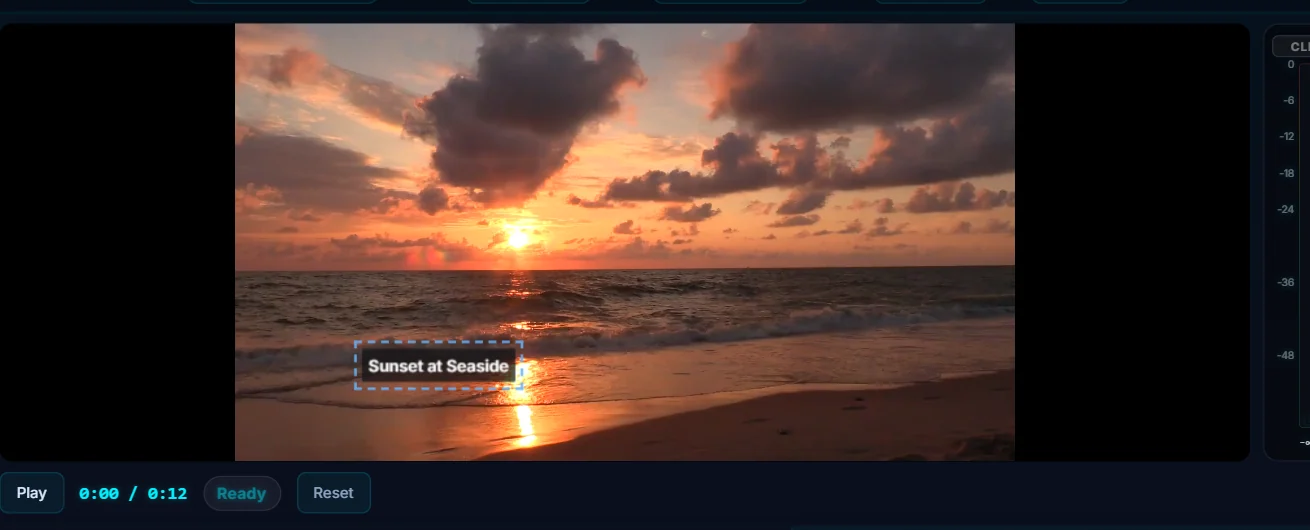
#5. Set when the text appears
In Timing, set Start and Duration, plus Fade In and Fade Out (0.30 seconds each by default). A new overlay is 3 seconds long, so lengthen it if you want it to stay on screen. You can also drag the overlay block on the timeline. Remove Overlay deletes it.
#Tips
- Keep the text readable. On bright footage, use a drop shadow or a background box, and leave a margin from the edge.
- You can add as many as you need. Each text overlay is its own block on the timeline with its own timing.
- If you have a script file, import an SRT subtitle file instead of typing each line.
#Questions
- How do I add a title to a video?
- Click + in the Text Overlay lane, type your text, pick the Title preset and set when it appears.
- What is a lower third?
- A lower third is a name or caption shown in the lower part of the screen, usually in the left corner.
- Is the text part of the exported video?
- Yes. Text overlays are baked into the video when you export.
About the video editor · Pricing · Download Pluto Photos · Contact support