
How to Blur the Background of a Photo (Portrait Mode Effect)
Open the Effects tab, click Detect Subject, then choose a Portrait Blur preset (Soft, Natural, Studio or Dramatic) and fine-tune with Blur Amount, Edge Feather, Background Focus and Subject Protection.
Requires Pluto Photos Pro (one-time $29, no subscription). The free download includes a 30-day trial of every Pro feature.
#1. Open the photo and the Effects tab
Choose a photo where the subject stands clearly apart from the background. Here a skateboarder is in mid-air in front of palm trees. Click the Effects tab, then Detect Subject under Portrait Blur.
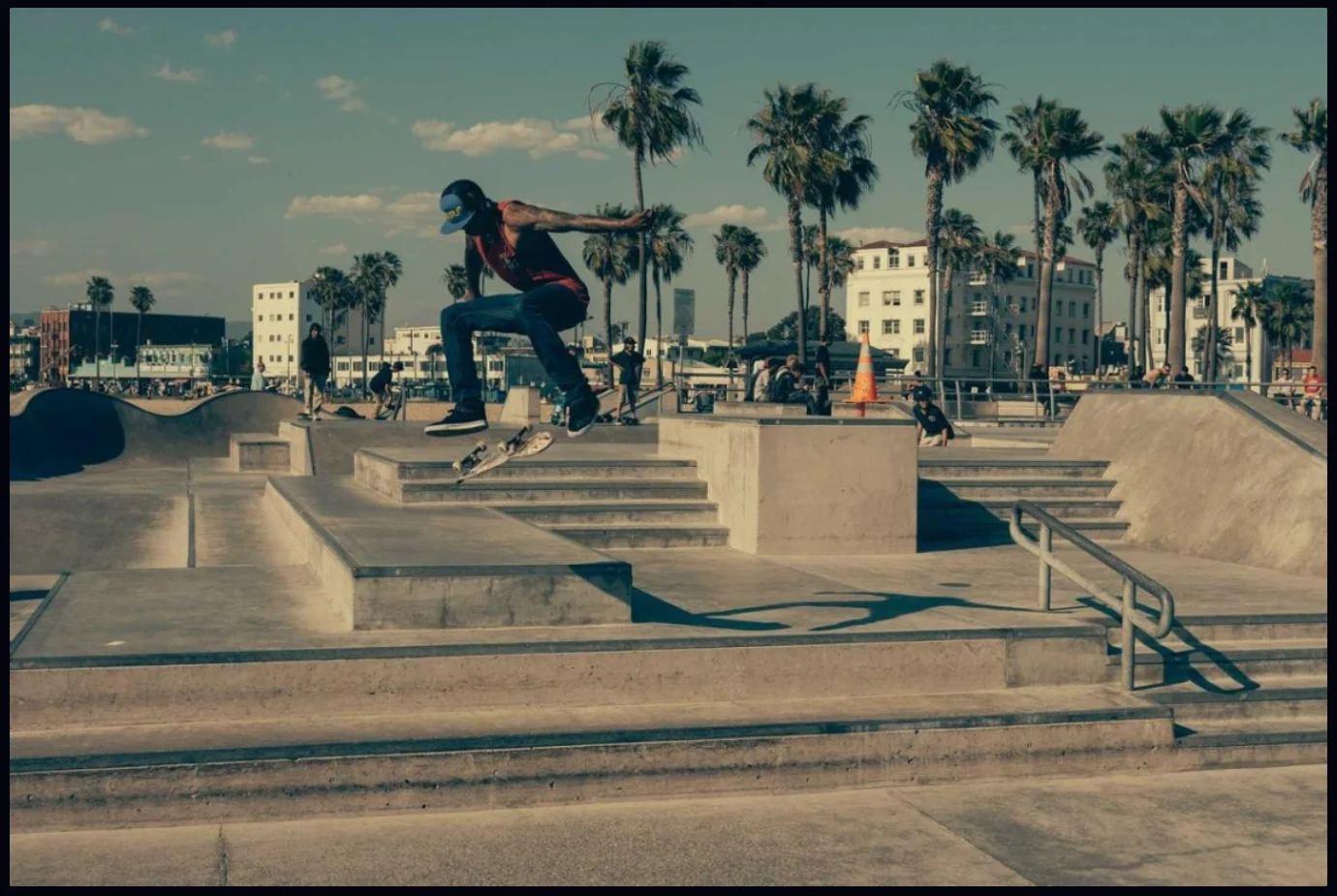
#2. Wait for the subject to be found
The button changes to Detecting… and then ✓ Detected. The first run loads the model and can take around a minute. Later runs are faster. Detection happens on your computer.
#3. Pick a preset
Four presets appear: Soft, Natural, Studio and Dramatic. The editor applies Natural first. It keeps the background recognizable but out of focus.
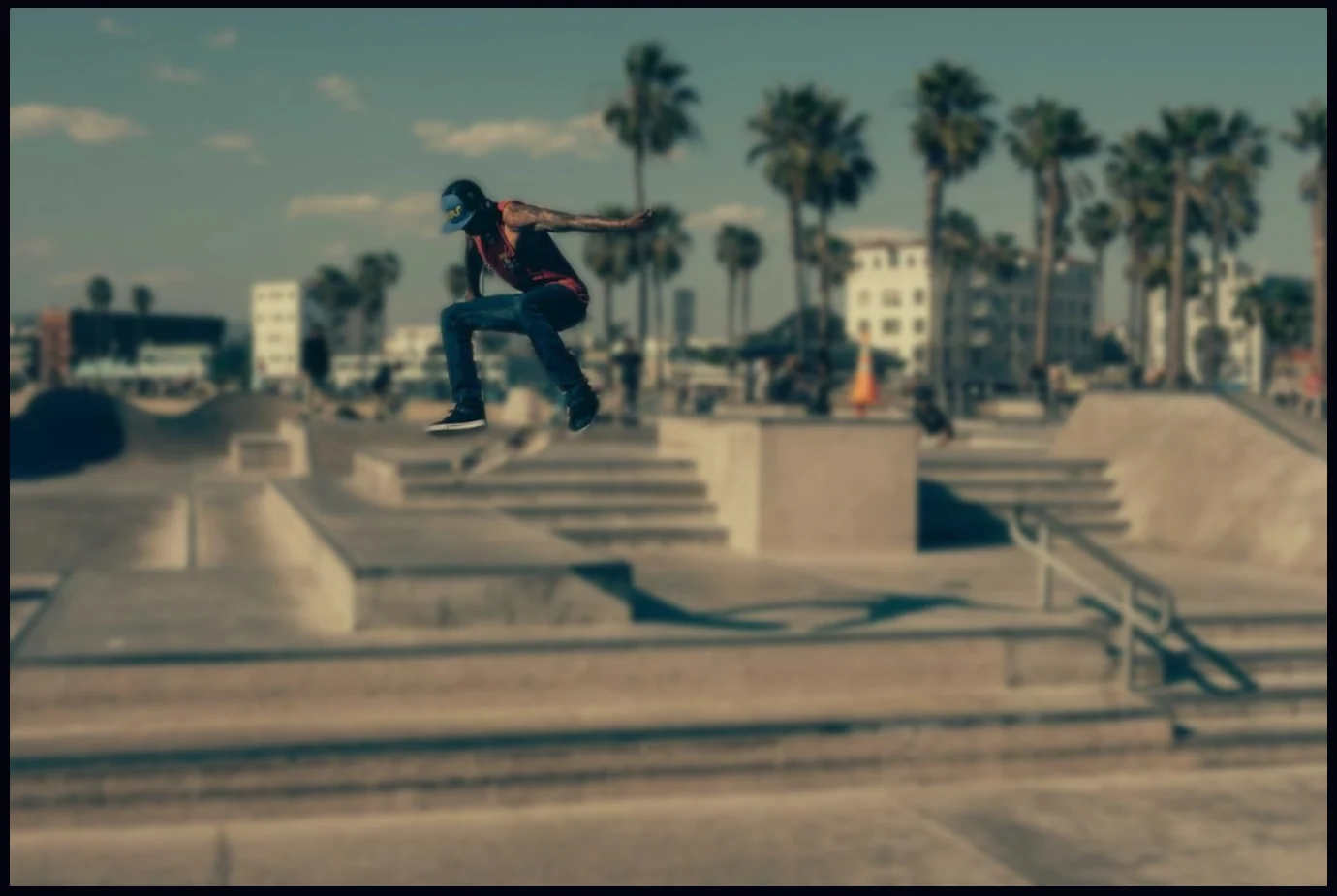
#4. Fine-tune the blur
Four sliders refine the result. Blur Amount sets how strong the blur is. Edge Feather softens the edge between the subject and the background. Background Focus sets how much of the background stays sharper. Subject Protection keeps the blur from creeping onto the subject. Click Dramatic for a heavier effect.
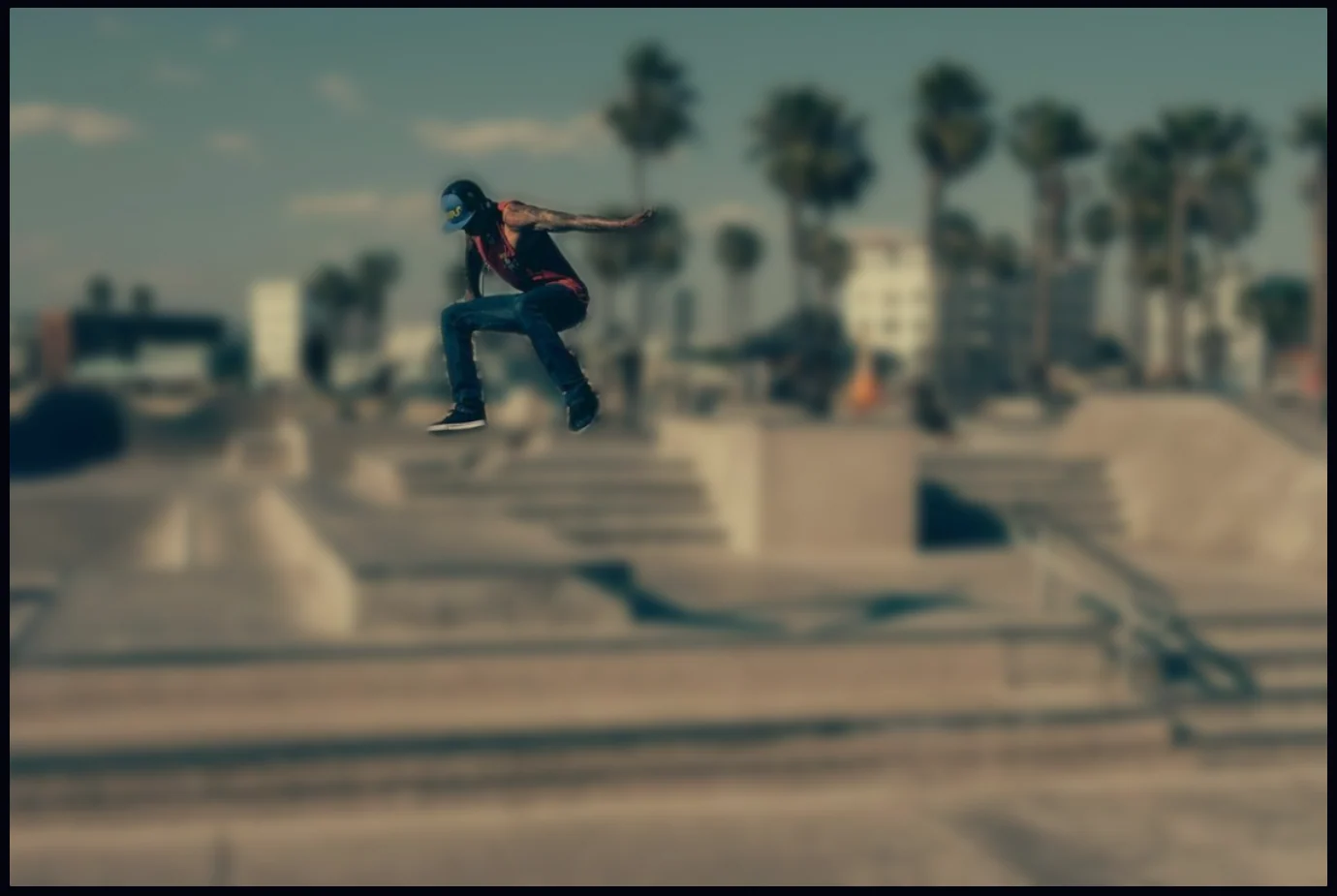
#Tips
- Check the edges. Look at hair and at any fingers or boards that overlap the background, and raise Subject Protection if the blur touches the subject.
- To blur just one area, use a selection and a Gaussian Blur instead.
#Questions
- How do I blur the background of a photo?
- In the Effects tab, click Detect Subject under Portrait Blur, then choose a preset and adjust Blur Amount.
- Does it work on photos that were not taken in portrait mode?
- Yes. It finds the subject in any photo, whatever camera took it.
- Is anything uploaded?
- No. Subject detection and the blur both run on your computer.
About the photo editor · Pricing · Download Pluto Photos · Contact support