
How to Find and Name the People in Your Photos
Open People, then Faces. Turn on face recognition when asked, click Scan New Photos, then click Add name under a group of faces and type a name. Everything stays on your computer.
Requires Pluto Photos Pro (one-time $29, no subscription). The free download includes a 30-day trial of every Pro feature.
#1. Open People and turn face recognition on
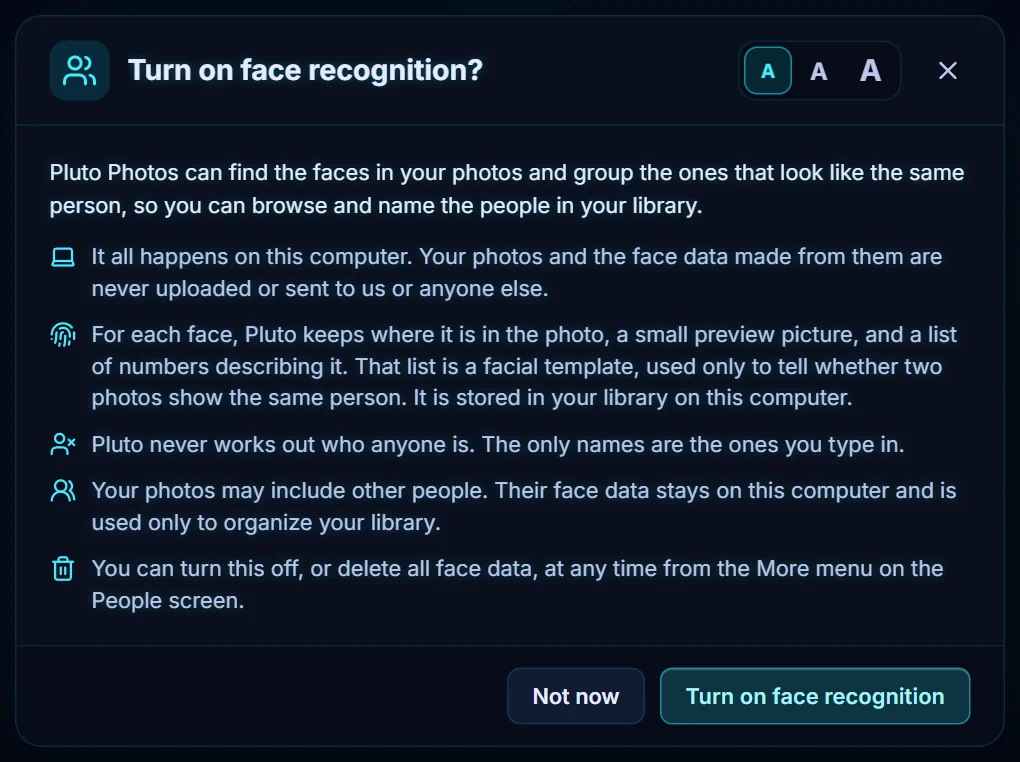
Open the People menu and choose Faces. The first time, Pluto Photos asks Turn on face recognition? The dialog explains that everything happens on your computer. It keeps each face's position, a small preview and a list of numbers used to tell whether two photos show the same person. It never works out who anyone is, and the only names are the ones you type. You can turn it off or delete all face data from the More menu. Click Turn on face recognition, or Not now to say no.
#2. Scan your photos
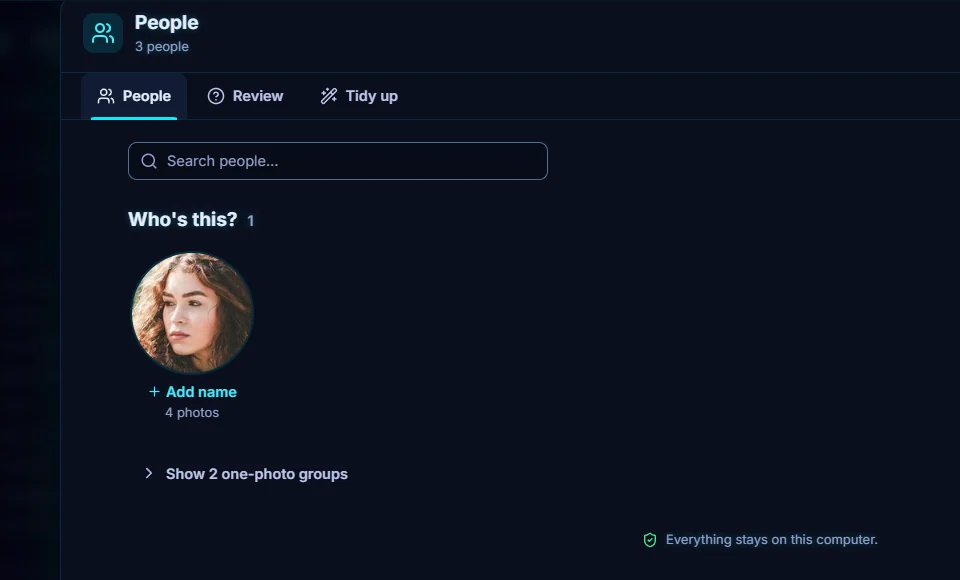
Click Scan New Photos. Faces are found and grouped by who they look like. Each group appears under Who's this? with a count of photos. Groups with a single photo are tucked under Show one-photo groups, and the screen reminds you that everything stays on this computer.
#3. Add a name
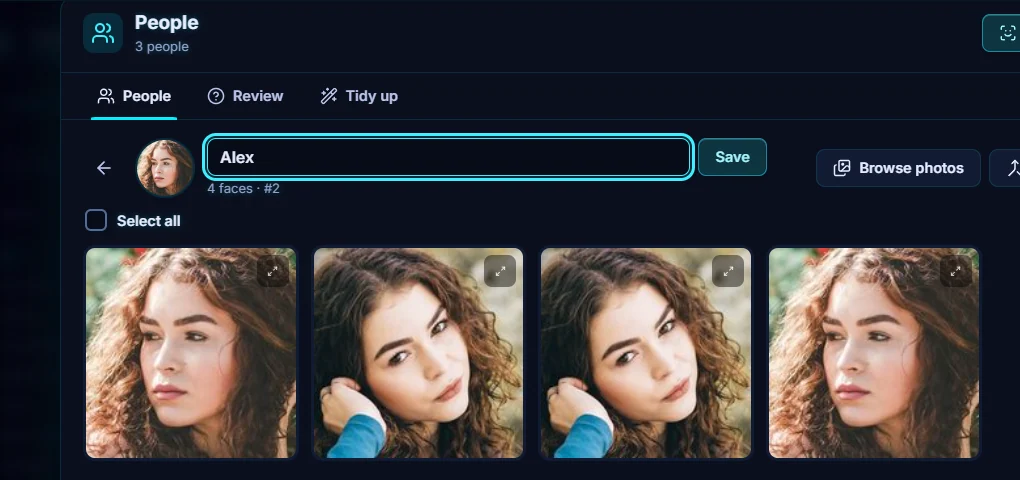
Click Add name under a group, type the name and click Save. The photos of that person are listed below.
#4. Browse that person
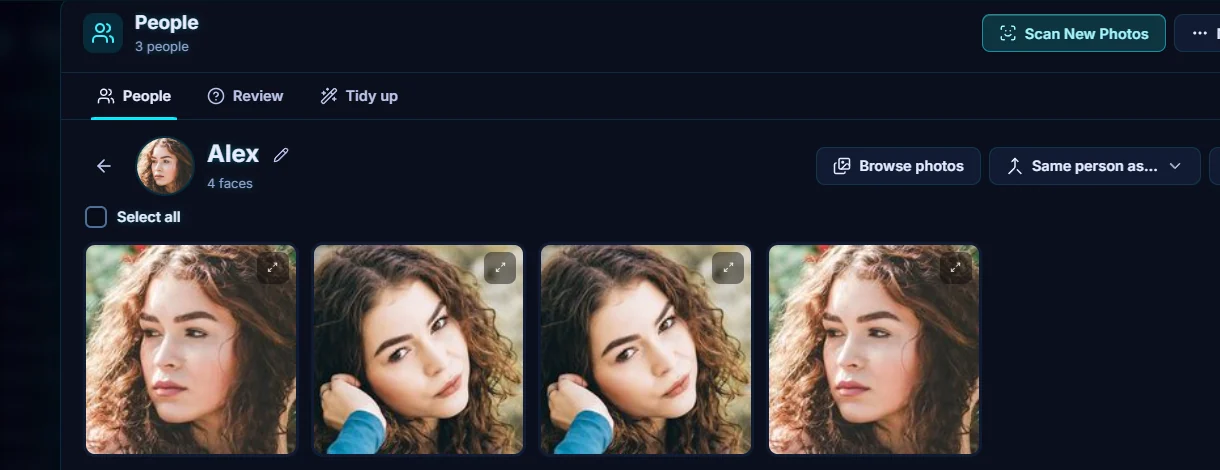
The person page shows every face found. Browse photos shows the whole photos, Same person as... merges this group with another, and More has further actions. Named people appear in the People grid and in the sidebar under Persons.
#5. Fix mistakes in Review and Tidy up
The Review tab lists faces Pluto Photos is unsure about, so you can answer them yourself (it says All done! when there are none). The Tidy up tab fixes what the scan got wrong. Same person in two groups? compares unnamed groups. Merge obvious duplicates re-runs the automatic merge. Things that aren't faces spots patterns, products and screenshots. Hidden as not a face restores anything you hid by mistake. Nothing changes until you choose, and merges can be undone.

#Tips
- Name the biggest groups first. They cover the most photos.
- The smart album rule Has Faces takes a person, so one album can follow everyone called Alex.
- Faces in other people's photos are included. The consent dialog says their data stays on your computer and is only used to organize your library.
- To stop, use More on the People screen to turn recognition off or delete all face data.
#Questions
- Does face recognition upload my photos?
- No. Pluto Photos says in its consent dialog that everything happens on your computer and your photos and face data are never uploaded.
- Does Pluto Photos identify who people are?
- No. It only groups faces that look alike. The only names are the ones you type.
- How do I delete face data?
- Open More on the People screen and turn face recognition off or delete all face data.
About the smart search · Pricing · Download Pluto Photos · Contact support