
How to Search for Text Inside Photos, Signs and Screenshots
In Contextual Search open Scan Options, click Read text in photos and wait. Then search a phrase with Text in photos selected under Match by. Reading works offline.
Requires Pluto Photos Pro (one-time $29, no subscription). The free download includes a 30-day trial of every Pro feature.
#1. Open Scan Options in Contextual Search
Open Discover, then Contextual Search, and expand Scan Options at the bottom. Next to Read text in photos it says: Find photos by the words and numbers in them, like receipts, signs and screenshots. Run it once and new photos are read automatically. Works offline.
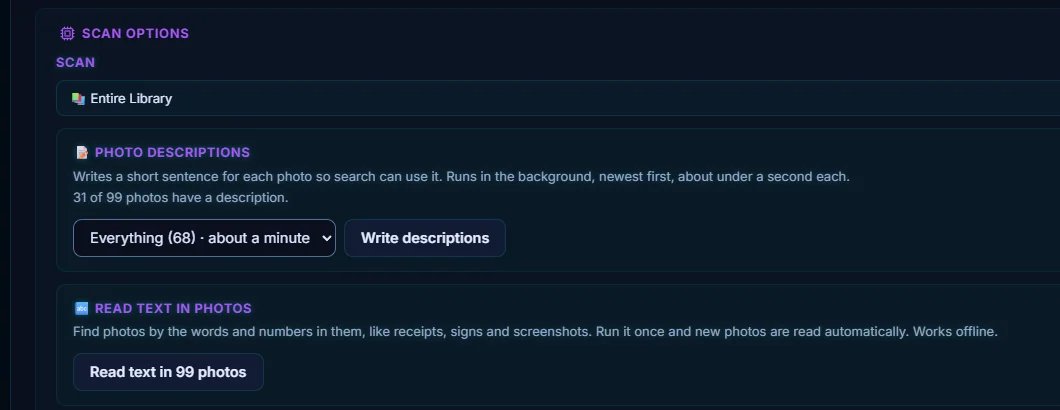
#2. Click Read text
Click Read text in 99 photos (the number is your library). A progress area says it's getting the text reader ready, and the first photo takes the longest. Cancel stops it.
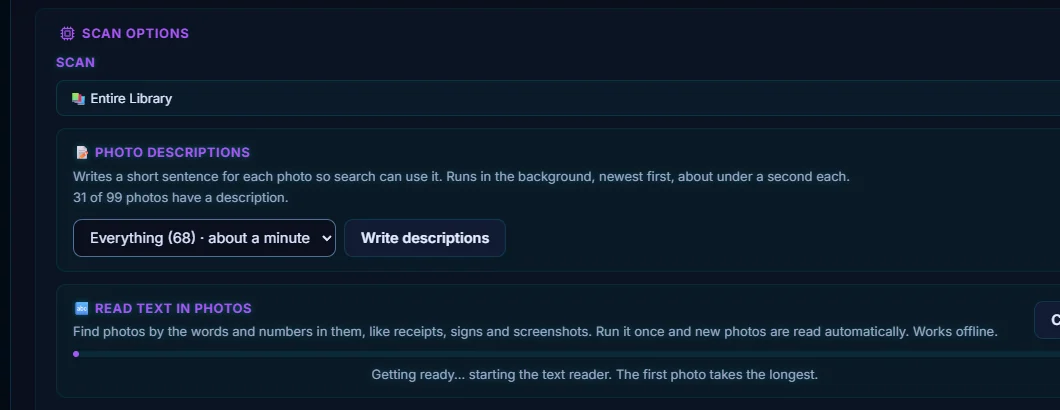
#3. Search for words in a photo
Under Match by, keep Text in photos selected, type words that appear in a photo, such as harbour street, and click Search. The photo with that sign matches, and the result shows a text on photo label and the text that was read: "No 24 HARBOUR STREET".
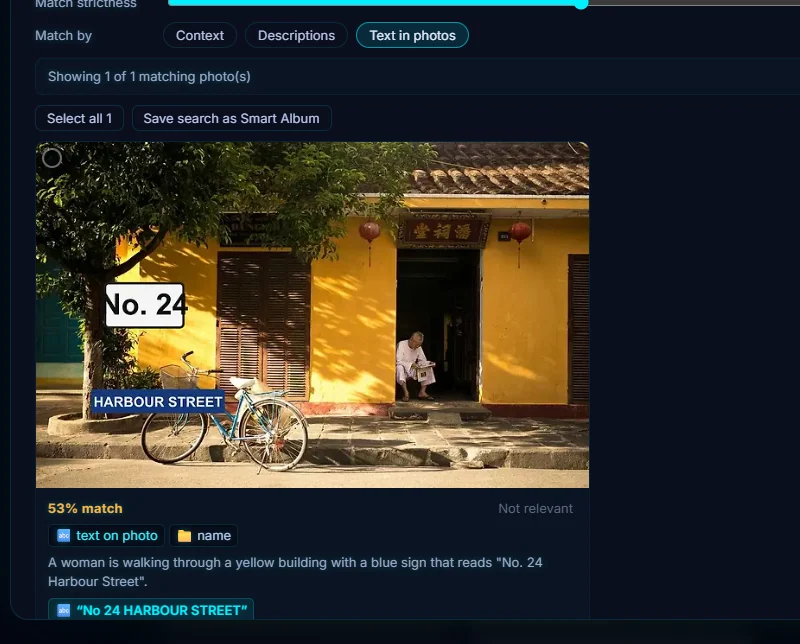
#4. If nothing matches
The app says No photos match closely enough and suggests trying different words. Text matching looks for the words that are in the photo, so use words you can read on it, not a description of the scene. Use Context and Descriptions to describe the scene, and Text in photos for the words in it.
#Tips
- You only need to run it once. After the first read, new photos are read automatically.
- Text reading happens on your computer and works offline.
- It's good for receipts, ticket stubs, whiteboards, shop signs, documents and screenshots.
- Be careful when you share photos with readable text, such as addresses. See how to hide faces, plates and addresses.
#Questions
- Does reading text need the internet?
- No. The Read text in photos option says it works offline.
- Can I search a screenshot by what it says?
- Yes. Once the text has been read, search the words with Text in photos selected under Match by.
About the smart search · Pricing · Download Pluto Photos · Contact support