
How to Apply a Photo Filter or Preset in One Click
Open the Presets tab, click a look such as Golden, Cinematic or Vivid, and use the Preset Amount slider to set how strong it is. Twelve presets are included.
Requires Pluto Photos Pro (one-time $29, no subscription). The free download includes a 30-day trial of every Pro feature.
#1. Open the Presets tab
With a photo open, click Presets in the right-hand panel. The twelve looks are HDR, B&W, Cinematic, Matte, Vivid, Dramatic, Portrait, Golden, Velvia, Noir, Cool and Vintage.
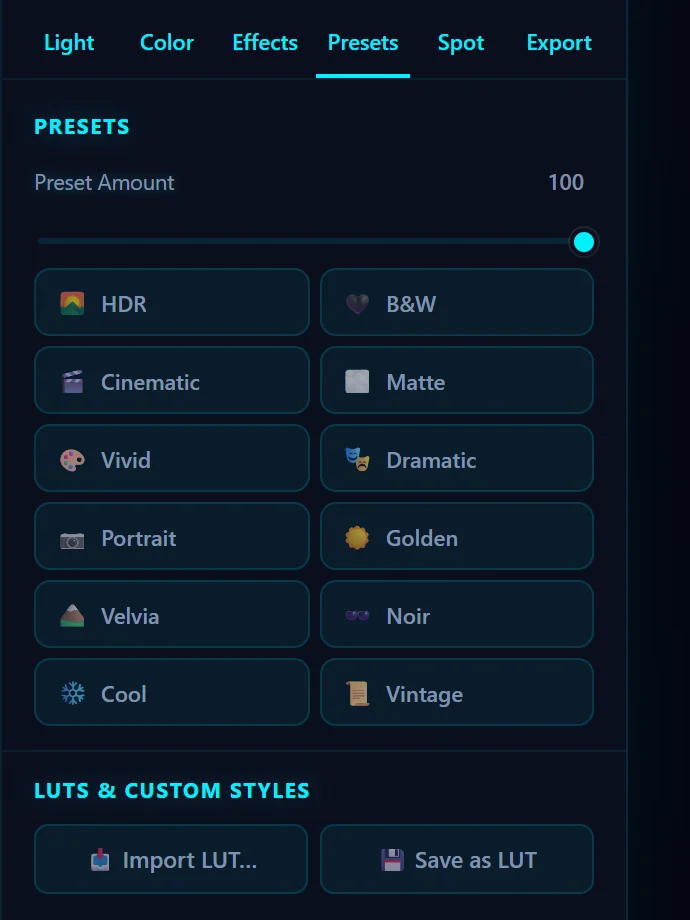
#2. Click a preset
Click a look and it's applied right away. Here Golden warms the light and deepens the colors of a mountain valley. Click a different preset to try another. Each change goes into History, so you can step back.
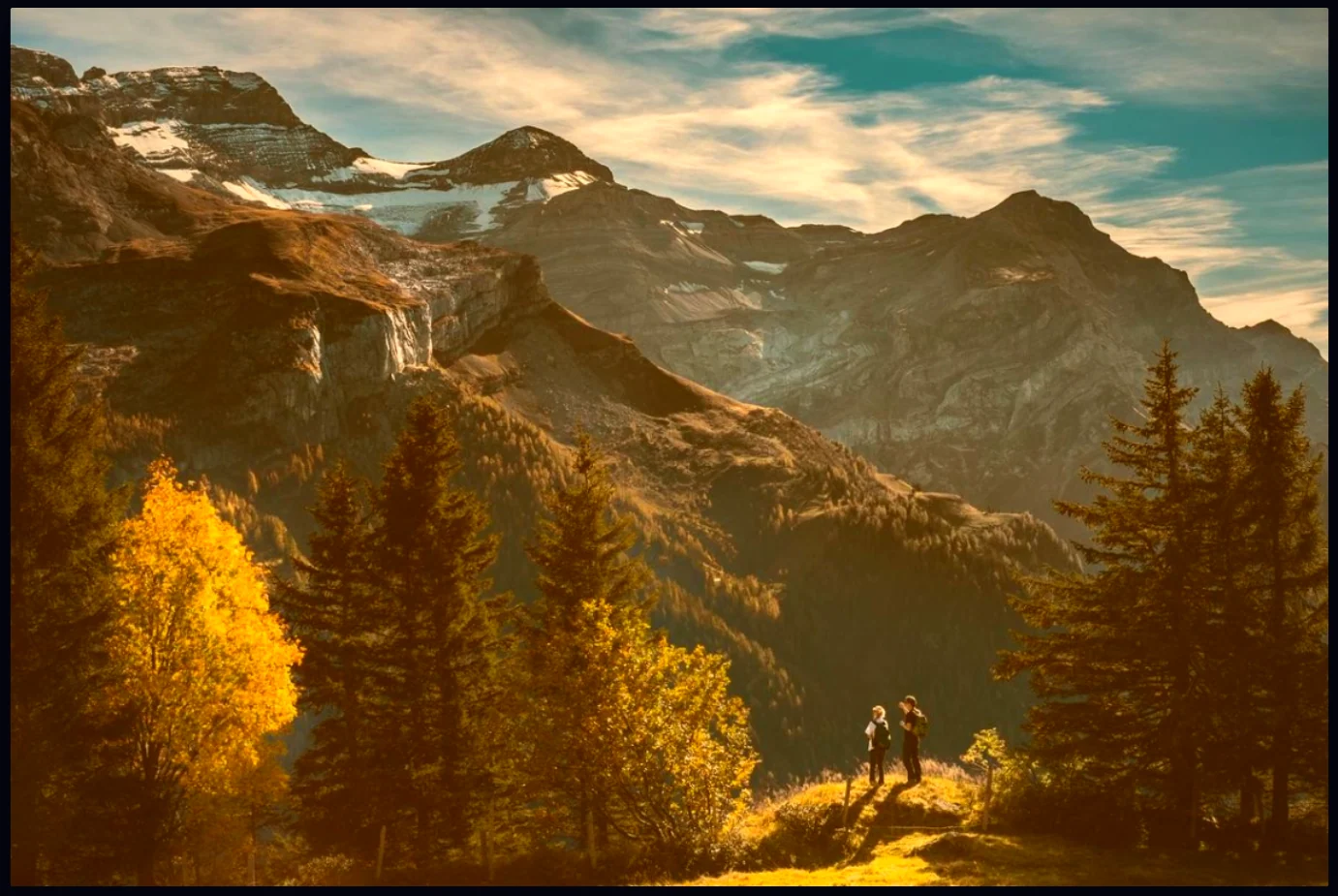
#3. Set the strength with Preset Amount
Drag Preset Amount to turn the look down. It runs from 0 to 100, and 100 is the preset at full strength. Many photos look best at around half. Double-click the slider to put it back to 100.
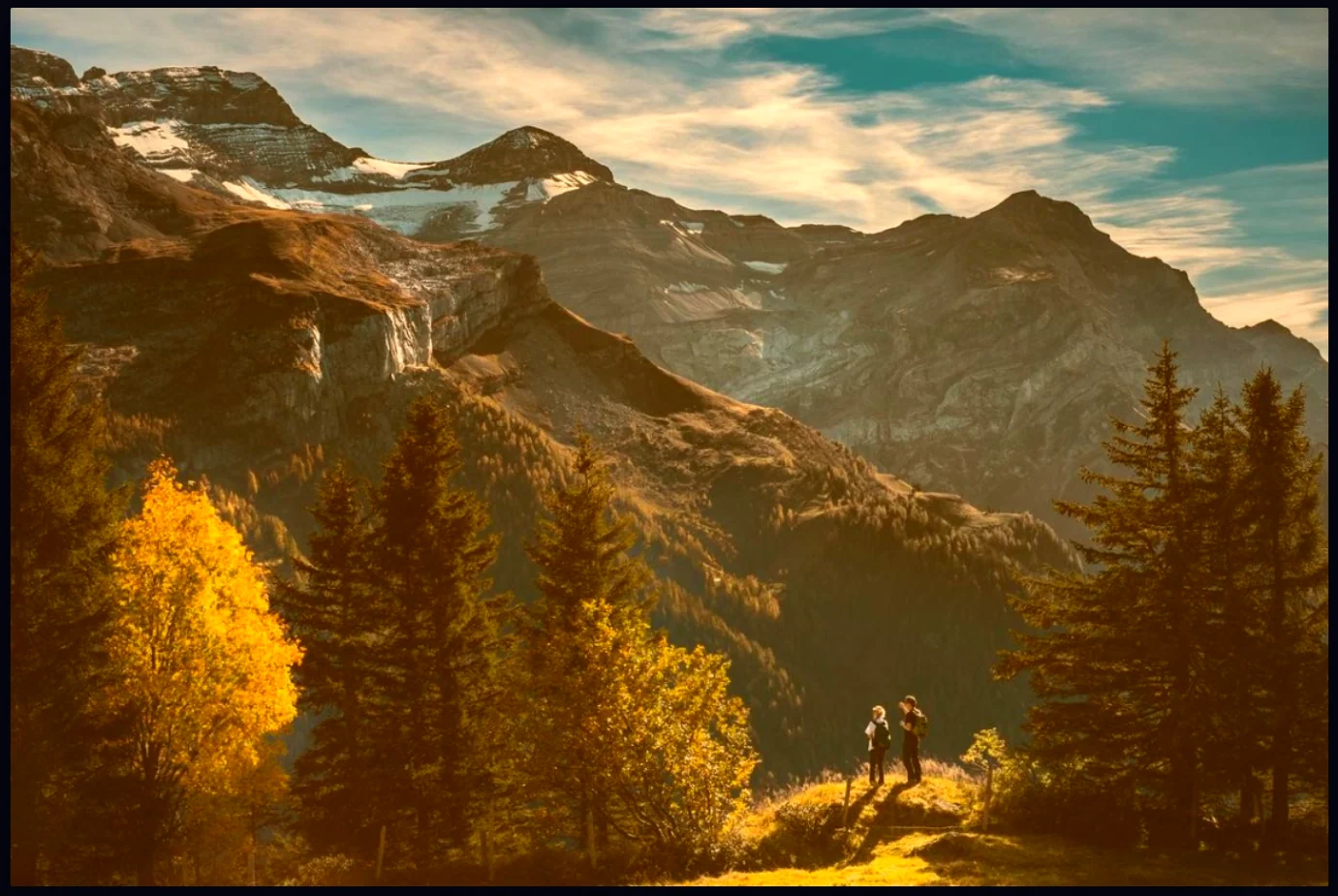
#4. Fine-tune, then save
If the preset leaves the photo a bit dark or flat, adjust exposure and contrast, then click Save as Copy. To reuse your own look on other photos, click Save as LUT at the bottom of the Presets tab. Import LUT… loads one you already have.
#Tips
- Match the preset to the photo. Golden suits sunsets, Cool suits snow and water, and Portrait suits faces.
- Compare against the original with the eye button or the B split view.
- To apply the same look to hundreds of photos, use a LUT. The video editor tutorials cover color grading, and the library has a batch LUT feature.
#Questions
- How many presets are in the Pluto Photos editor?
- There are twelve: HDR, B&W, Cinematic, Matte, Vivid, Dramatic, Portrait, Golden, Velvia, Noir, Cool and Vintage.
- Can I make a preset weaker?
- Yes. The Preset Amount slider runs from 0 to 100, so you can apply any preset at partial strength.
- Do presets change my original?
- No. Presets only change the edit in progress, and Save as Copy writes a new file.
About the photo editor · Pricing · Download Pluto Photos · Contact support