
How to Undo Edits and Compare Before and After
Press Ctrl+Z to undo and Ctrl+Y to redo. The History panel lists every step, so click an earlier one to go back. Press B for a before/after split view, or hold the eye button to flash the original.
Requires Pluto Photos Pro (one-time $29, no subscription). The free download includes a 30-day trial of every Pro feature.
#1. Undo and redo
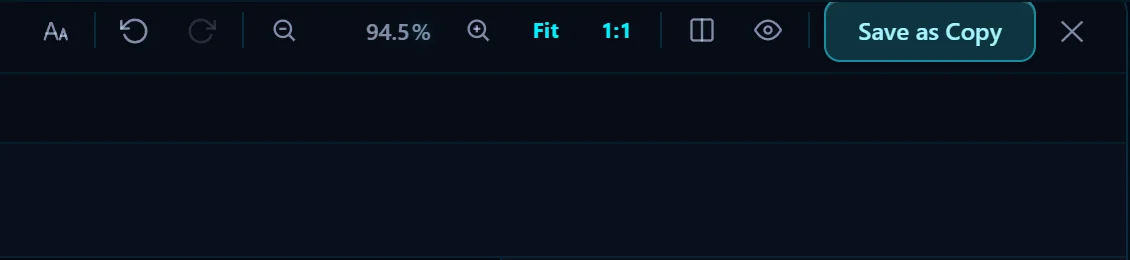
Press Ctrl+Z to undo the last step and Ctrl+Y to redo it. The same two arrows are at the top of the editor, and both commands are in the Edit menu. Edit > Reset All takes the photo back to how it was when you opened it.
#2. Read the History panel
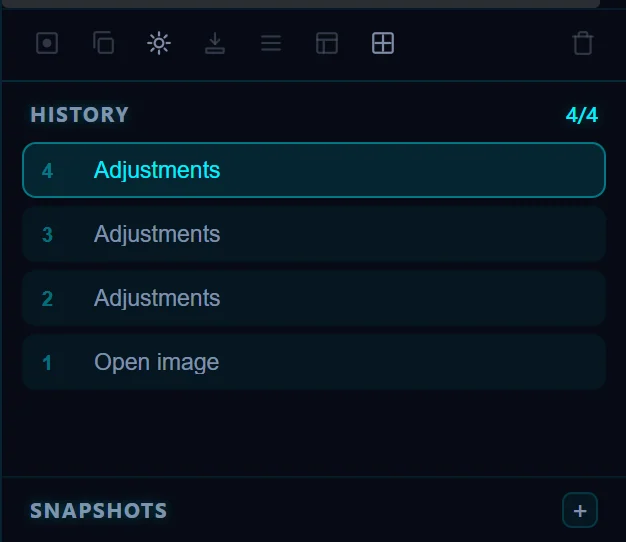
Every change you make is added to History at the bottom of the right-hand panel. The newest step is on top, and a counter such as 4/4 shows where you are. Slider moves, presets, crops and tool strokes all show up here.
#3. Jump back to any step
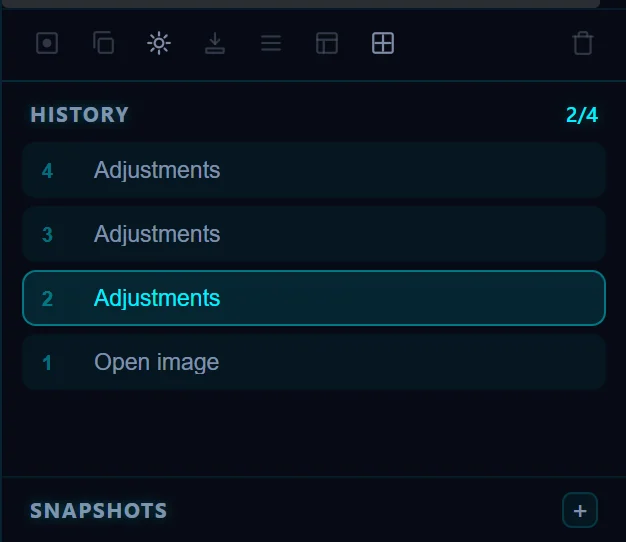
Click an earlier step to return the photo to that point. The counter shows where you are, for example 2/4. This is quicker than pressing Ctrl+Z several times, and you can click the latest step to redo everything.
#4. Compare with the original
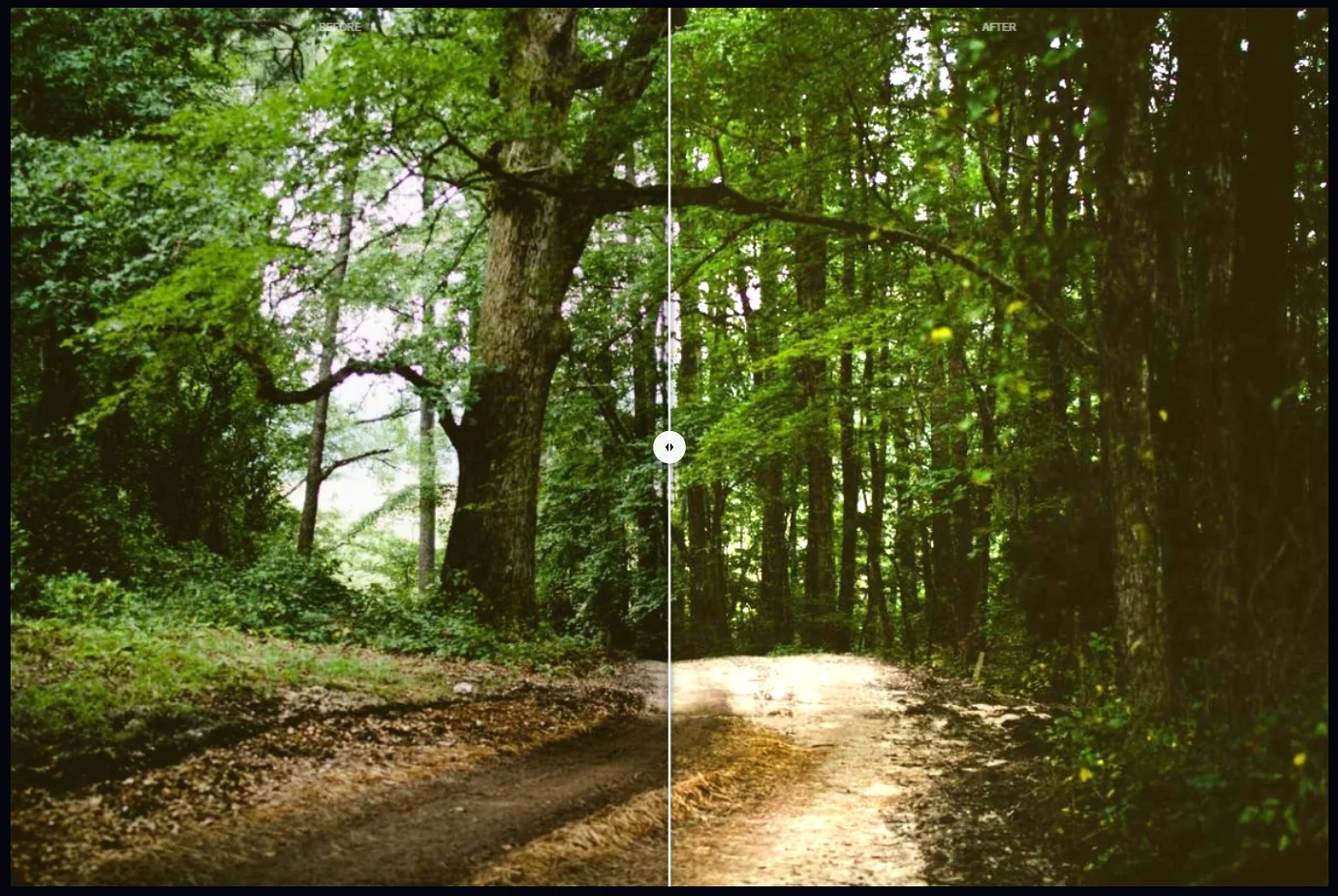
Press B, or click the split-square button at the top, for a before/after view. The original is on the left, your edit is on the right, and you can drag the handle between them. Or hold down the eye button to flash the original while you press it.
#5. Keep a version with Snapshots
Below History is Snapshots. Click the + to save the current state under a name. That lets you try a different direction and come back to this one later without scrolling through the step list.
#Tips
- Compare often. Your eyes get used to an edit quickly, and the split view shows how far you have really gone.
- Nothing is permanent until you save, and Save as Copy keeps the original even then.
#Questions
- How do I undo in the Pluto Photos editor?
- Press Ctrl+Z, click the undo arrow at the top, or click an earlier step in the History panel.
- How do I see the original while editing?
- Press B for a split view, or hold the eye button at the top of the editor to flash the original.
- Can I reset everything?
- Yes. Choose Edit > Reset All to go back to the photo as it was when you opened it.
About the photo editor · Pricing · Download Pluto Photos · Contact support