
How to Import Your Google Photos Takeout Into Pluto Photos
Export Google Photos from takeout.google.com as .zip, extract every archive into one folder, then choose Cloud Import, Google Photos, pick that folder and click Import Google Takeout.
Requires Pluto Photos Pro (one-time $29, no subscription). The free download includes a 30-day trial of every Pro feature.
#1. Open the Google Photos importer
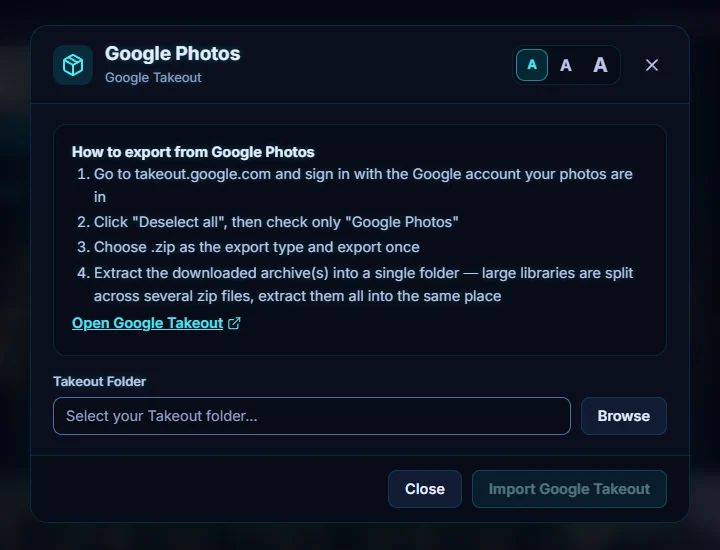
In Pluto Photos, open the Cloud Import menu and choose Google Photos. The dialog lists Google's export steps in four lines.
#2. Export your library from Google Takeout
Click Open Google Takeout (or go to takeout.google.com) and sign in. Click Deselect all, then tick only Google Photos. Choose .zip as the export type and export once. Google emails you when the files are ready. Google's own screens change from time to time.
#3. Extract every zip into one folder
Large libraries arrive as several zip files. Extract them all into the same folder, so each photo ends up next to its JSON file. That JSON file is how dates and locations are recovered.
#4. Choose the Takeout folder and import
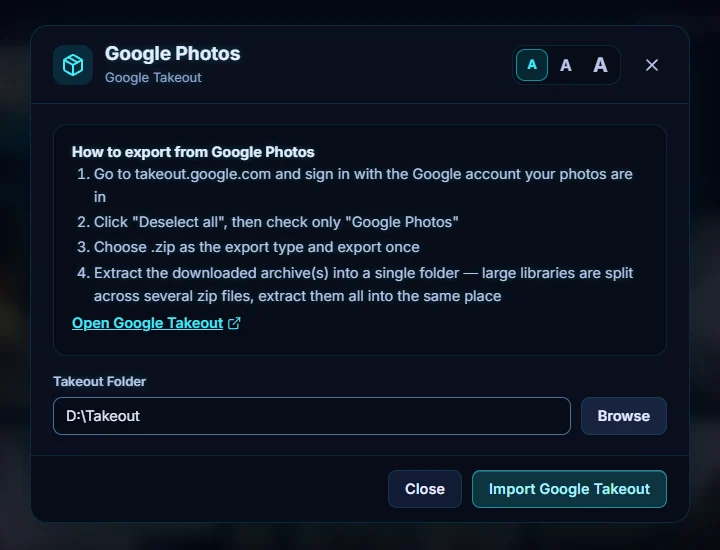
Back in the dialog, click Browse next to Takeout Folder and choose the folder you extracted into. Then click Import Google Takeout. Photos in all the subfolders are found.
#5. Check the result
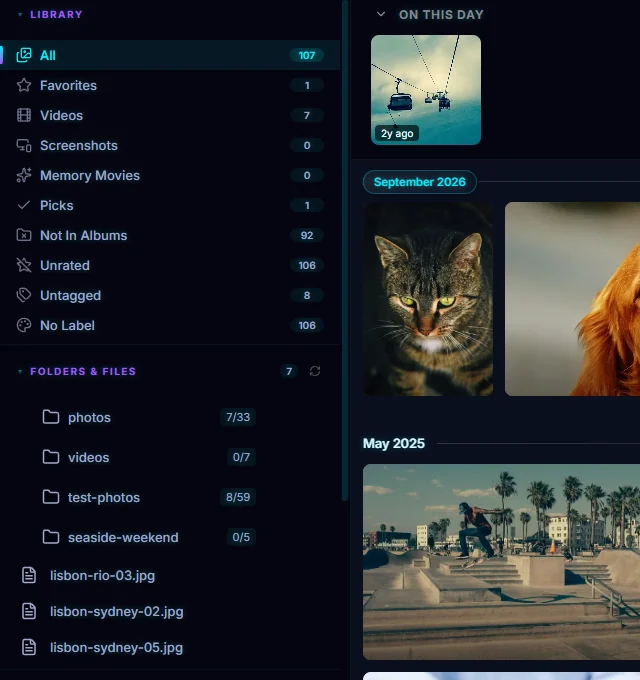
The photos join your library. The three photos in this test Takeout folder are listed under Folders & Files, and the total went up by three (107 here). Each photo uses the JSON file Google put beside it, and its own embedded data, to fill in the date taken and the location.
#Tips
- Keep the extracted folder. Photos are added from where they sit, so don't delete or move the Takeout folder afterwards.
- Takeout often contains the same photo in several albums, so run the duplicate finder afterwards.
- Check the dates, and the map, on a few photos to make sure the metadata came across.
#Questions
- What are the JSON files in a Google Takeout export?
- Each photo has a small JSON file beside it that holds its original date taken and location. The photo files themselves often show the day you exported them, so the JSON file is where the real date comes from.
- Can I delete the JSON files from Google Takeout?
- Not before you import. They hold the original dates and locations, and Pluto Photos reads them during the import. Keep them until you have checked the dates on a few photos, and leave the extracted folder where it is, because the photos are used from there.
- Why does Google Photos export in several zip files?
- Google splits large exports. Extract all of them into the same folder before importing so every photo sits next to its JSON file.
- Does importing delete anything from Google Photos?
- No. Takeout is a copy of your library on your computer, and your Google account is not changed.
About the photo organizer · Pricing · Download Pluto Photos · Contact support