
How to Trim a Video: Cut the Start and End Offline
Open the video in the editor, drag the two handles on the source bar to mark where it should start and end, click Add to put that section on the timeline, then save the edit. The original file is not changed.
Requires Pluto Photos Pro (one-time $29, no subscription). The free download includes a 30-day trial of every Pro feature.
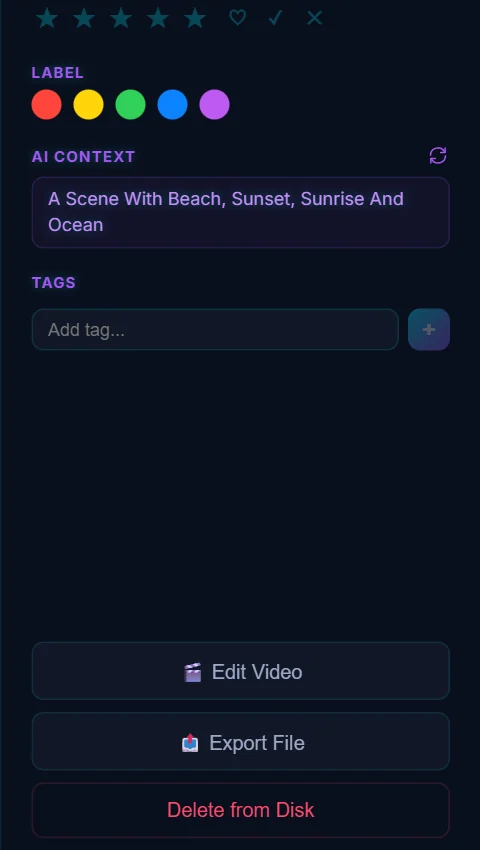
#1. Select the video and click Edit Video
In your library, click the video once. The details panel has an Edit Video button at the bottom. Click it to open the video editor with that clip loaded as a source.
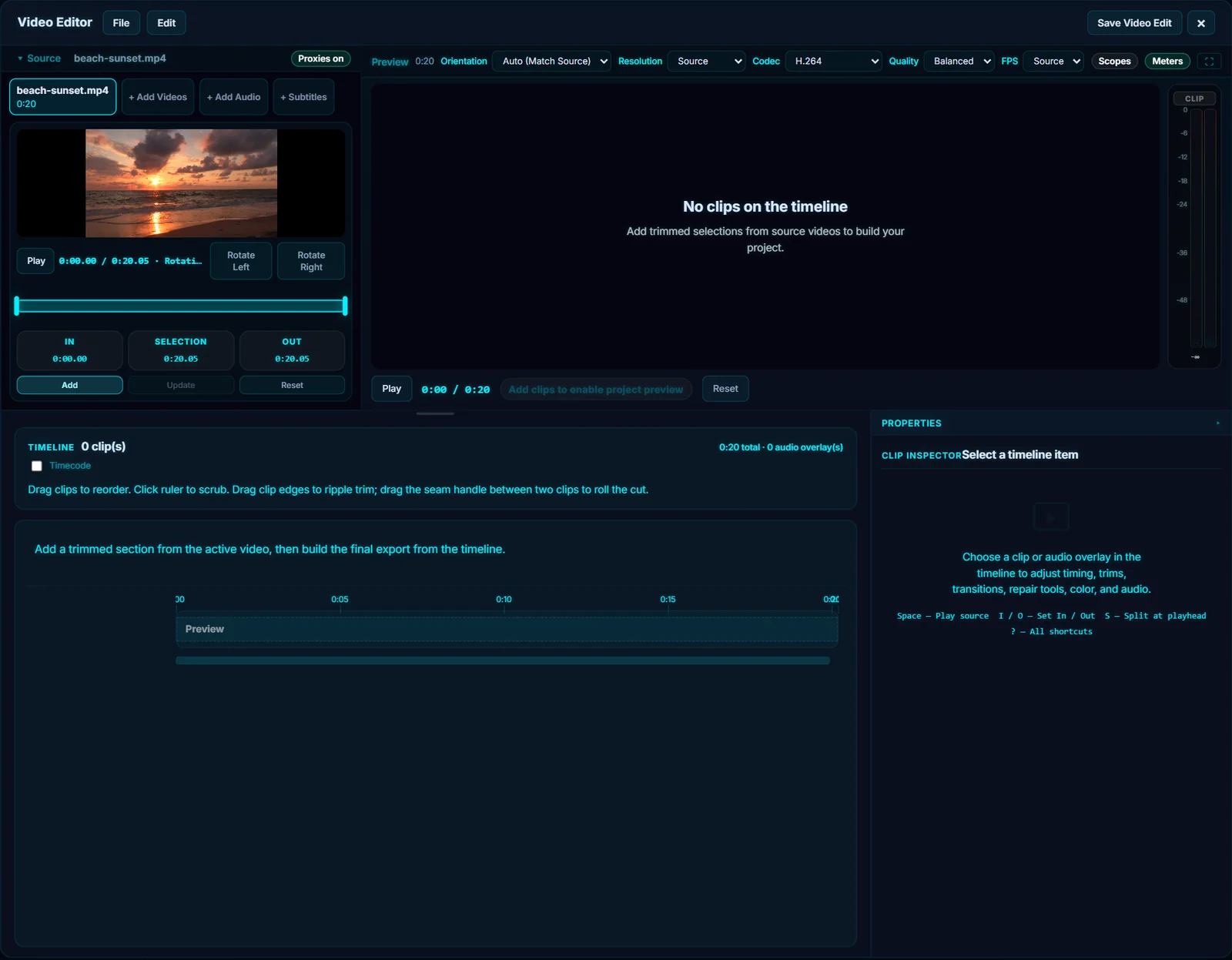
#2. Find your way around
The Source monitor at the top left plays the original clip, and the big Preview on the right plays your project. Underneath, the Timeline holds the clips you've chosen, and the Properties panel changes to match whatever is selected. A clip you open becomes a tab at the top left, and + Add Videos, + Add Audio and + Subtitles bring in more files.
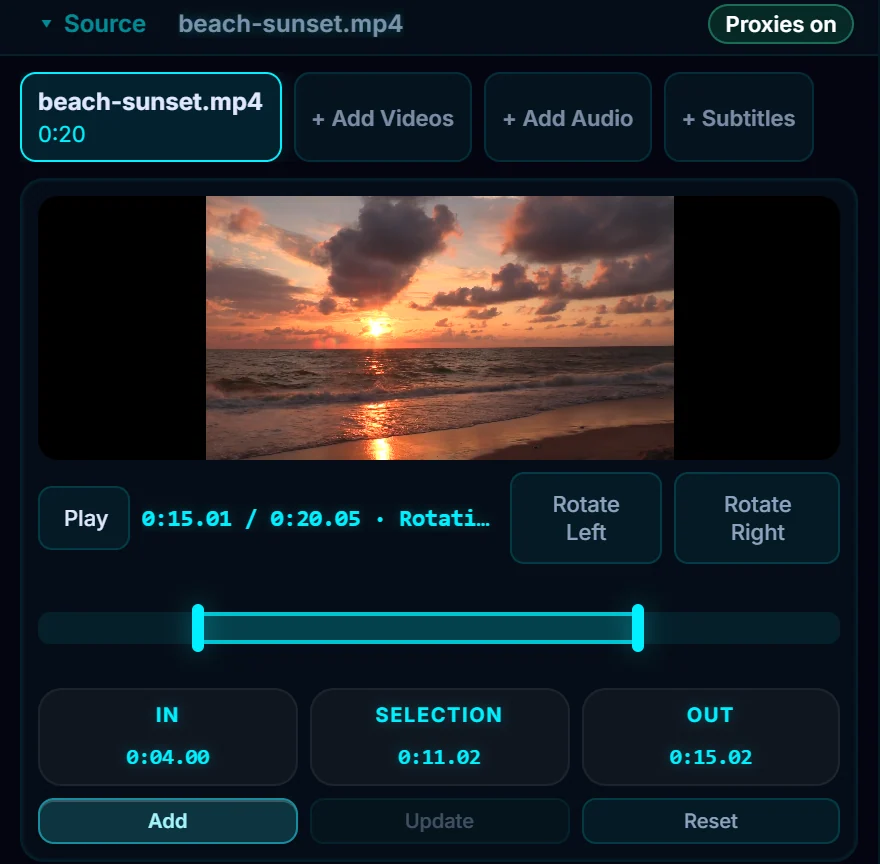
#3. Drag the handles to mark In and Out
Under the source monitor, drag the left handle to where you want the clip to start and the right handle to where it should end. The boxes underneath show In, Selection (the length) and Out. Here the selection runs from 0:04.00 to 0:15.02, which is 11 seconds. You can also play the source and press I to set the In point and O to set the Out point.
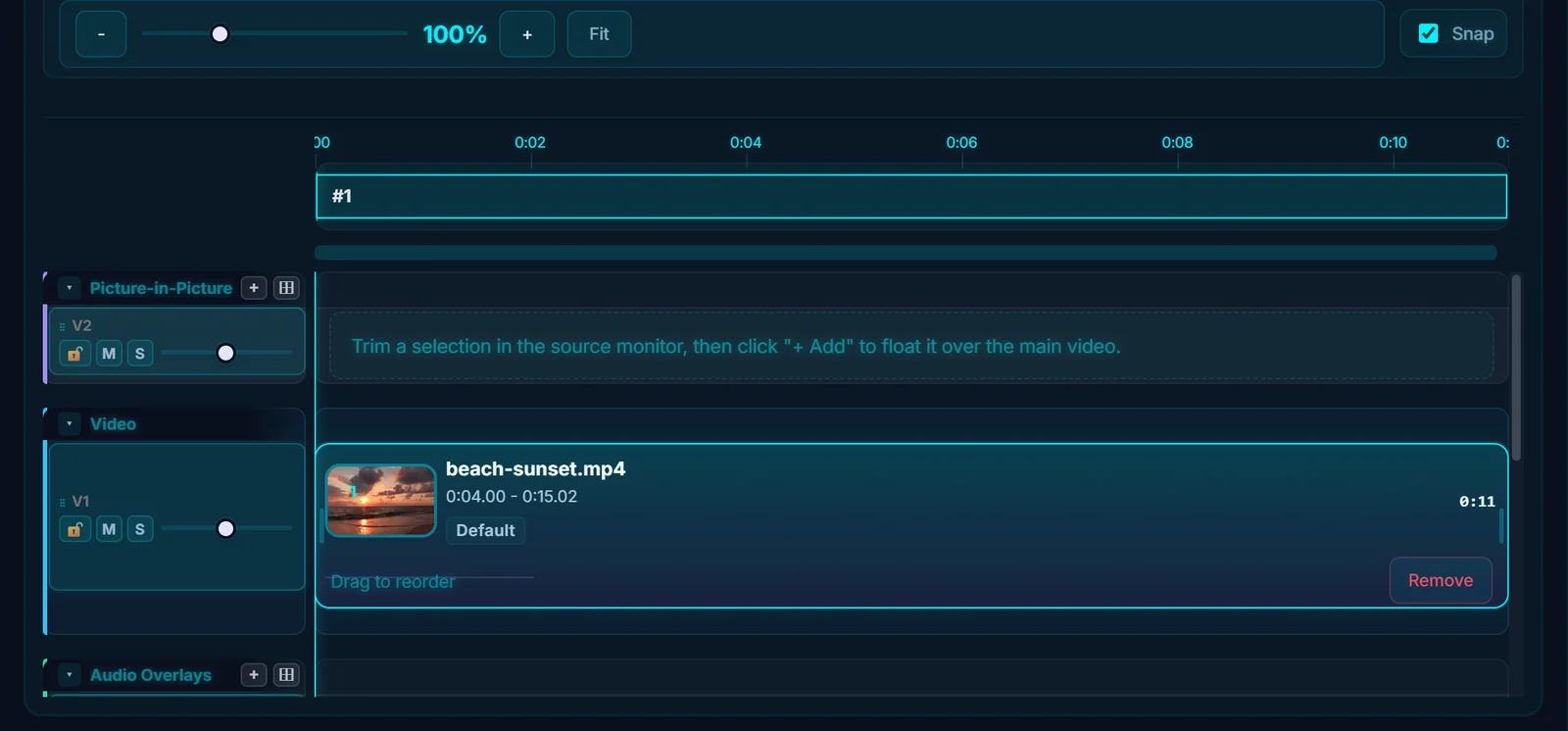
#4. Click Add
Click Add under the source monitor. The trimmed section lands on the timeline as clip #1, the Preview now shows the project, and the message Clip added to timeline confirms it. To change your mind, drag a clip edge on the timeline, or select the clip, adjust the handles and click Update.
#5. Play the preview, then save
Click Play under the Preview to watch the result. When you're happy, click Save Video Edit at the top right. The video is rendered and saved next to the original with _edit added to the name, and the Exports panel lists it as Done. For format and quality choices, see how to export a video.
#Tips
- Keyboard shortcuts: Space plays the source, Shift+Space (or P) plays the project, I and O set the In and Out points, and the arrow keys step one frame at a time. Press ? inside the editor to see them all.
- Nothing is overwritten. The original video stays exactly as it was.
- To remove a section from the middle, see how to split and delete part of a video.
#Questions
- How do I trim a video for free without a watermark?
- The Pluto Photos video editor, part of Pro, trims and exports with no watermark. There is a 30-day free trial.
- Does trimming change the original video?
- No. The editor saves a new file with _edit added to the name and leaves the original untouched.
- Does it work offline?
- Yes. Editing and exporting run on your computer, with no upload and no account.
About the video editor · Pricing · Download Pluto Photos · Contact support