
How to Join Video Clips and Add Transitions
Add each trimmed clip to the timeline in order. Select a clip, open the Timing tab, choose a Transition and drag the Crossfade slider to set its length. Drag clips to reorder them.
Requires Pluto Photos Pro (one-time $29, no subscription). The free download includes a 30-day trial of every Pro feature.
#1. Load all your clips as sources
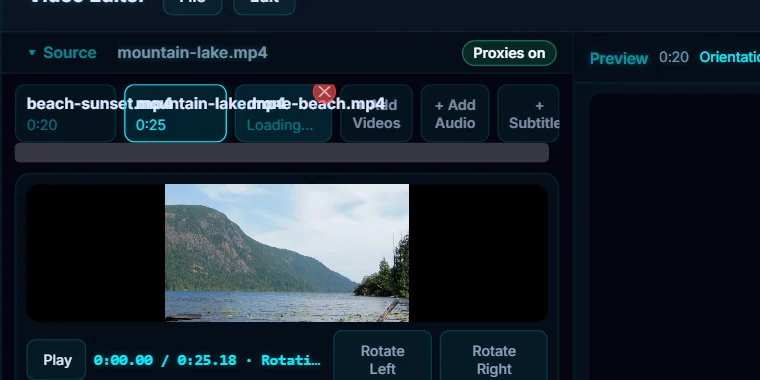
Open the first video from your library, then click + Add Videos to bring in the others. Each file becomes a tab in the Source row. These three are a beach, a mountain lake and a drone shot.
#2. Trim and Add each clip in order
For each source, click its tab, drag the handles to choose the part you want and click Add. Clips land on the timeline in the order you add them, labelled #1, #2 and #3. The timeline header shows the clip count and the total running time.

#3. Reorder if you need to
Drag a clip left or right on the timeline to change its place. The timeline gives you the rest: drag the edges to ripple trim, and drag the seam handle between two clips to roll the cut.
#4. Select a clip and open the Timing tab
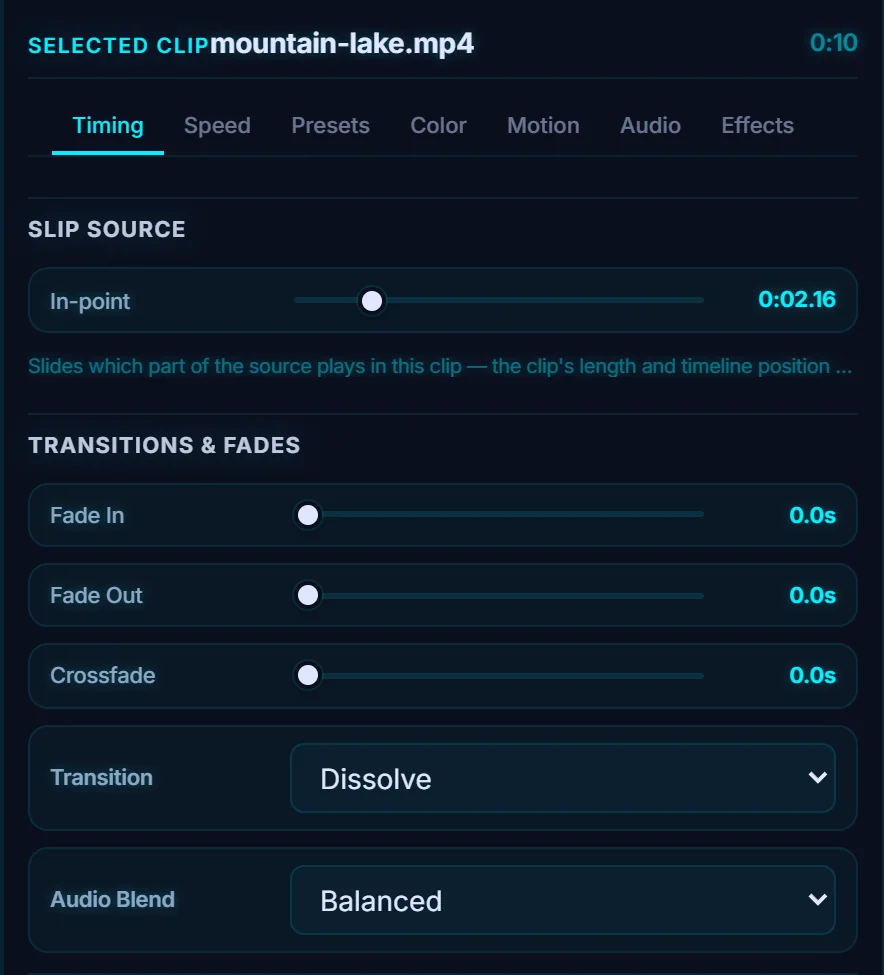
Click the clip that comes before the cut you want to soften, then open the Timing tab in the Properties panel. Under Transitions & Fades you'll find Fade In, Fade Out, Crossfade, Transition and Audio Blend.
#5. Choose a transition and set its length
Pick a Transition. The choices are Dissolve, Dip to Black, Dip to White, wipes and slides in four directions, Circle Crop/Open/Close, Vertical and Horizontal Open/Close, Dissolve (Dither), Pixelize, Radial Wipe and Zoom In. Then drag Crossfade to set how long it lasts (1.0 second here). Audio Blend (Balanced, Smooth, Soft or Sharp) shapes how the sound crosses over. The marker between the clips now reads Dip to Black - Balanced 1.0s.

#Tips
- A plain cut or a short dissolve suits most edits. Save wipes and pixelates for when you want them to be noticed.
- Fade In and Fade Out on a single clip work well at the start and end of the whole video.
- Put some music underneath to tie different clips together.
#Questions
- How do I combine multiple videos into one?
- Add each video as a source, trim the part you want and click Add so each lands on the timeline. Then export the project as one video.
- How do I add a transition between two clips?
- Select the first clip, open the Timing tab, choose a Transition and set the Crossfade length.
- How many transitions are there?
- There are 22, including dissolve, dip to black, dip to white, wipes, slides and circle effects.
About the video editor · Pricing · Download Pluto Photos · Contact support