
How to Auto-Tag Photos and Export Keywords to Lightroom as XMP
Open Discover, then Auto-Tag. Click Run auto-tagging to add keywords to every indexed photo, then Export tags to XMP to write a .xmp sidecar file next to each photo for Lightroom, Bridge or digiKam.
Requires Pluto Photos Pro (one-time $29, no subscription). The free download includes a 30-day trial of every Pro feature.
#1. Open Auto-Tag
Open the Discover menu and choose Auto-Tag. The dialog has two steps. It says the tagging runs fully offline using the same index as Contextual Search, so your photos have to be indexed first. If it says No indexed photos yet, run the Contextual Search scan first.
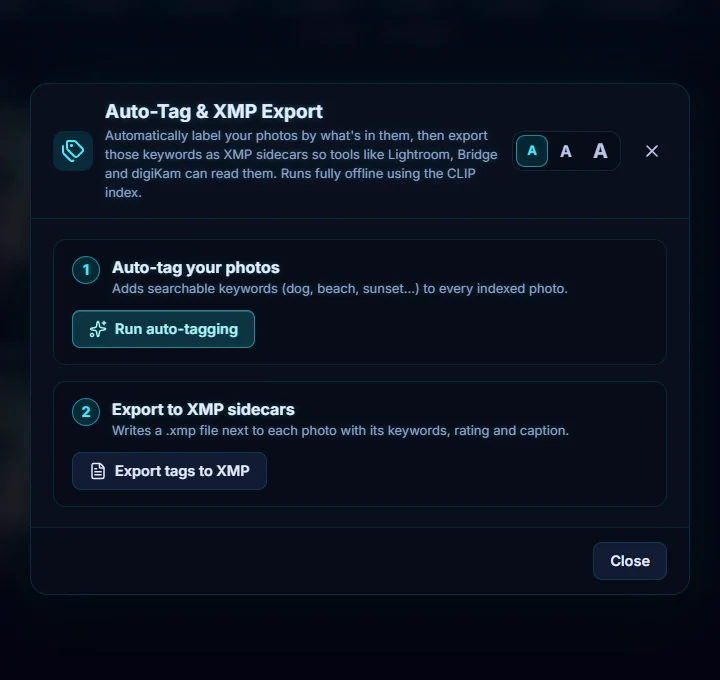
#2. Run auto-tagging
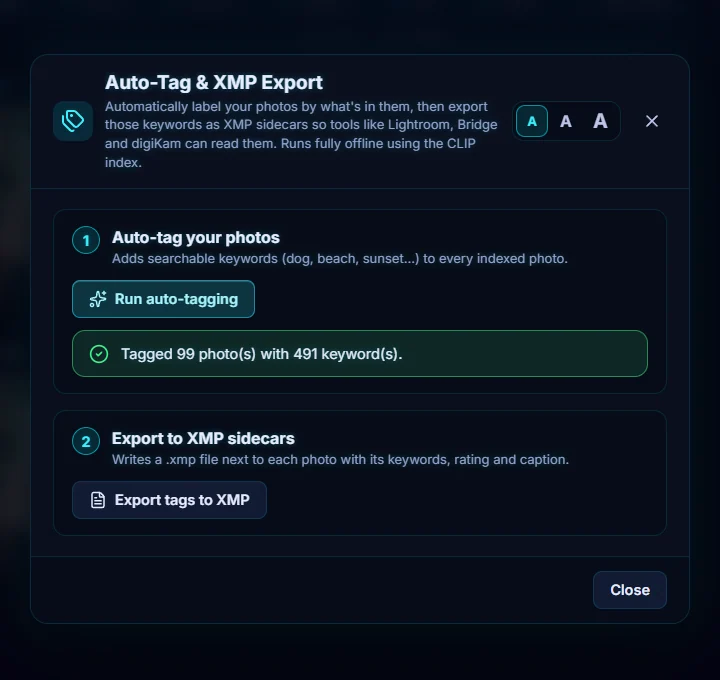
Click Run auto-tagging. It adds searchable keywords such as dog, beach or sunset to every indexed photo and shows a progress bar. When it finishes, you get a summary, here Tagged 99 photo(s) with 491 keyword(s).
#3. See the tags on a photo
Click a photo in the library. The new keywords are in the Tags section of its details panel, next to any tags you added yourself, and you can remove any you don't want. You can also use them in smart albums with Has Tag.

#4. Export the tags to XMP sidecars
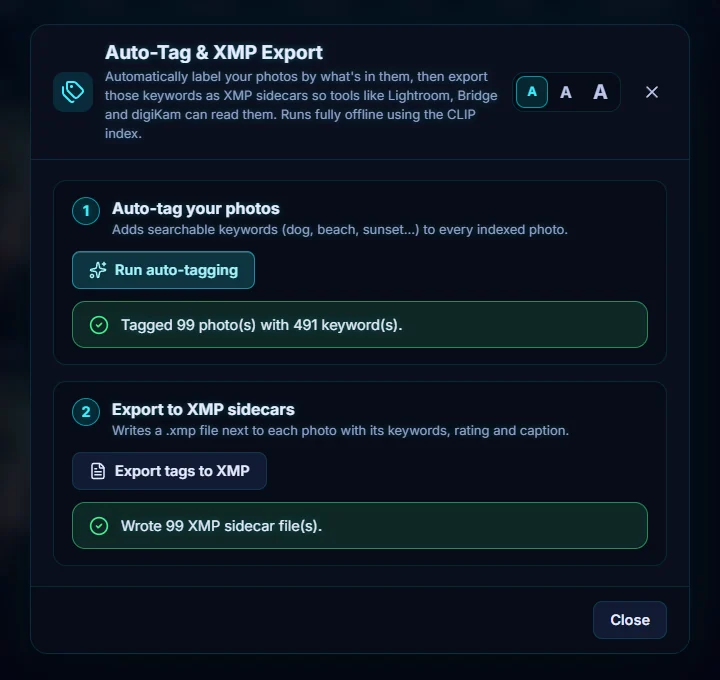
Back in the dialog, click Export tags to XMP. It writes a .xmp file next to each photo with its keywords, rating and caption, and reports it, here Wrote 99 XMP sidecar file(s). The dialog says programs such as Lightroom, Bridge and digiKam can read the sidecars, so the keywords travel with your photos.
#Tips
- Auto-tags are suggestions. Remove the ones that are wrong. They're ordinary tags.
- Add your own keywords with ratings and tags before you export, so the sidecars carry them too.
- Run it again after you import new photos, and export again to refresh the sidecars.
#Questions
- Does auto-tagging need the internet?
- No. The dialog says it runs fully offline using the index on your computer.
- Where do the XMP files go?
- Export writes a separate .xmp sidecar file next to each photo, holding its keywords, rating and caption.
About the smart search · Pricing · Download Pluto Photos · Contact support