
How to Make a Duotone or Sepia-Toned Image
Open the Spot tab, choose a Duotone preset (Black + Warm Grey, Black + Blue, Sepia Duotone or Tritone) and click Apply.
Requires Pluto Photos Pro (one-time $29, no subscription). The free download includes a 30-day trial of every Pro feature.
#1. Open the Spot tab
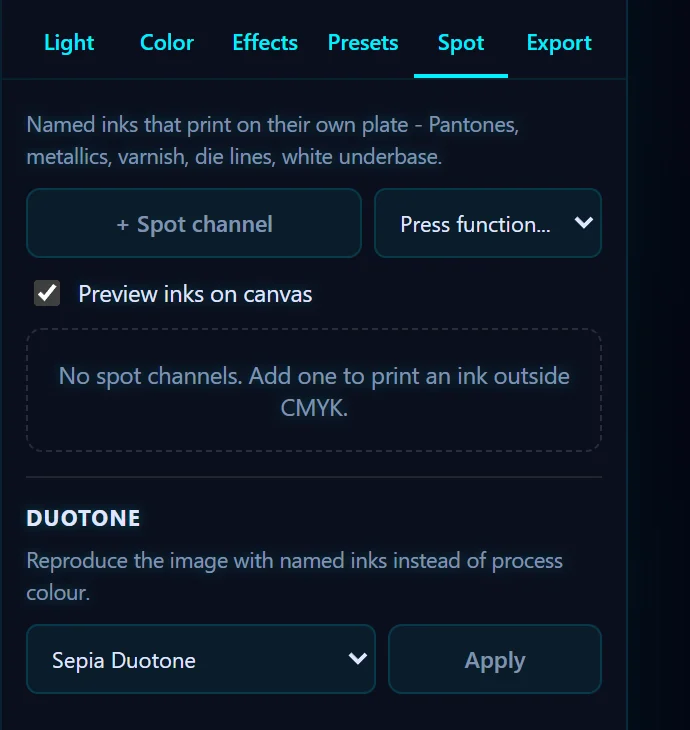
Open a photo (here a portrait in color) and click the Spot tab. It's mainly for print inks, and the Duotone section is near the bottom.

#2. Choose a duotone preset
The Duotone menu has Black + Warm Grey, Black + Blue, Sepia Duotone and Tritone (Black + Red + Grey). The panel describes it as reproducing the image with named inks instead of process color. Choose Sepia Duotone.
#3. Click Apply
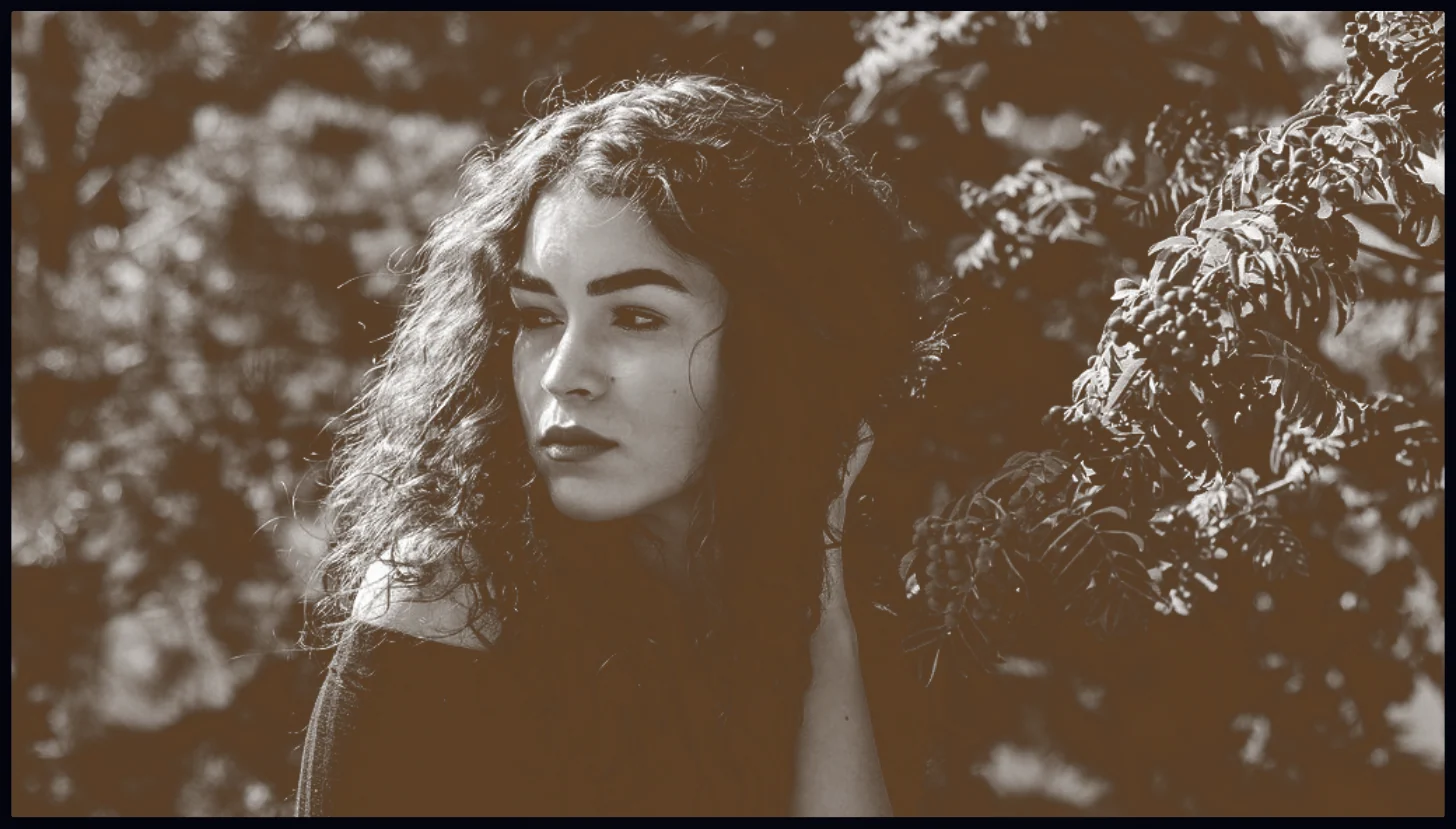
Click Apply. The photo is converted, and History shows Convert to duotone. Press Ctrl+Z to go back.
#Tips
- Contrast matters more in two colors, so set the tones before you convert.
- For a quick monochrome without the ink presets, use the B&W preset.
#Questions
- What is a duotone?
- A duotone reproduces a photo with just two colors, usually a dark color and a lighter one.
- What is the difference between sepia and black and white?
- Sepia tints the photo brown. Black and white removes color altogether.
About the photo editor · Pricing · Download Pluto Photos · Contact support