
How to Add Subtitles to a Video from an SRT File
Click + Subtitles and choose an .srt file. Each line becomes a text overlay with the right timing, which you can restyle or edit. Export with Subtitles set to Burn in.
Requires Pluto Photos Pro (one-time $29, no subscription). The free download includes a 30-day trial of every Pro feature.
#1. Put your clip on the timeline
Add the video as in how to trim a video. The timing comes from the SRT file, so the clip should cover the times in it.
#2. Click + Subtitles and choose an SRT file
Click + Subtitles in the source row and choose an .srt file. The editor shows 3 subtitle(s) imported (for a three-line file), and each subtitle appears as a block in the text lane. The export bar gets a Subtitles menu set to Burn in.

#3. Edit or restyle a line
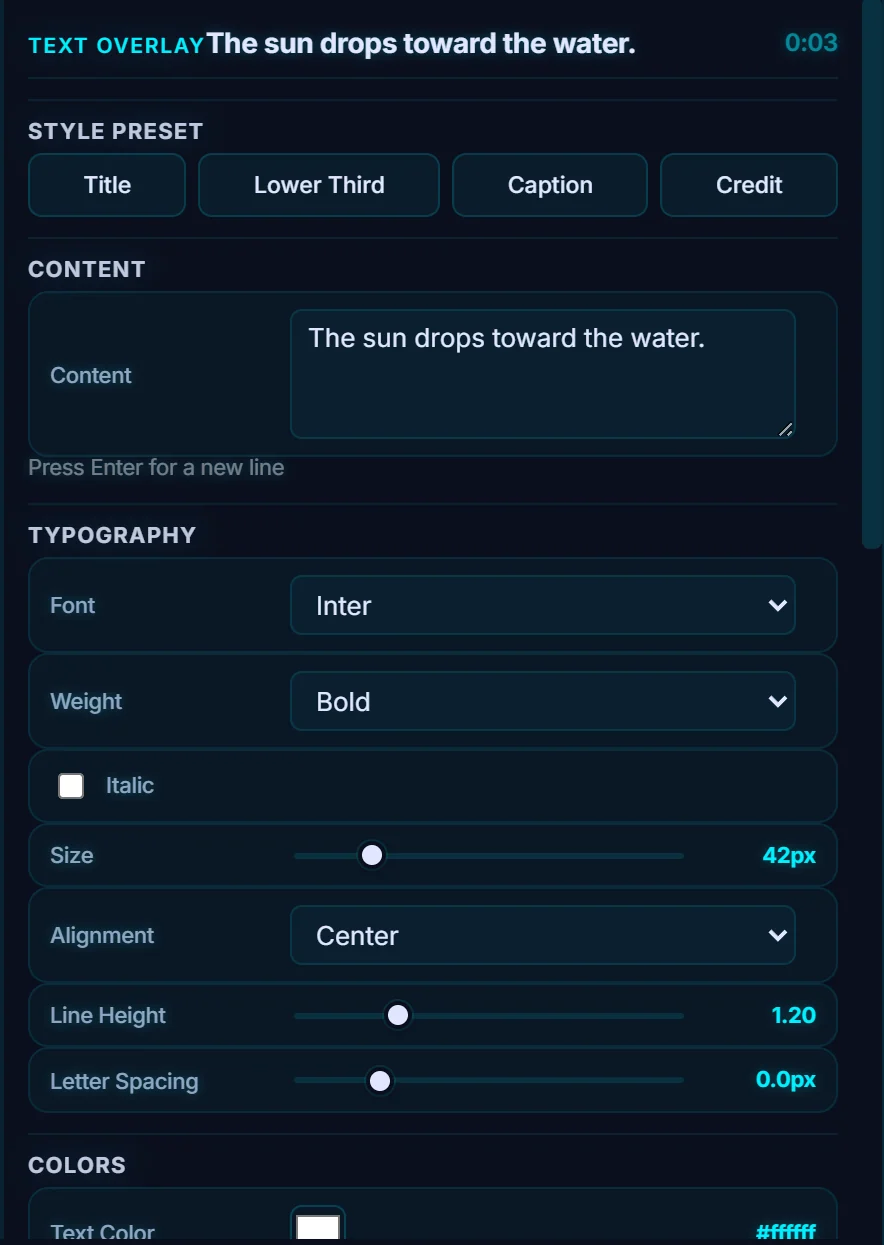
Click a subtitle block to select it. It's an ordinary text overlay, so you can change the words in Content, the Font and Size, apply a Caption preset and set the position and timing, just as in how to add text to a video.
#4. Export
Click Save Video Edit. With Subtitles: Burn in, the captions are drawn permanently onto the picture, so they show on every player. See how to export a video.
#Tips
- You can write an SRT in any text editor. Each entry has a number, a start and end time like 00:00:01,000 --> 00:00:04,500, and the text.
- Two short lines are easier to read than one long one.
- Scrub the timeline over each subtitle block to check the timing.
#Questions
- What is an SRT file?
- An SRT is a plain text subtitle file with numbered entries, each with a start time, an end time and the text to show.
- Are the subtitles permanent?
- With Subtitles set to Burn in, they are drawn onto the video, so they are always visible.
About the video editor · Pricing · Download Pluto Photos · Contact support