
How to Export a Photo as JPEG, PNG, WebP or TIFF
Open the Export tab, choose PNG, JPEG, WebP or TIFF, set the Quality and Resize sliders, and click Save as Copy. Camera and location data are left out unless you tick Keep original metadata.
Requires Pluto Photos Pro (one-time $29, no subscription). The free download includes a 30-day trial of every Pro feature.
#1. Open the Export tab
Click Export in the right-hand panel. Everything that decides how the saved file turns out is here.
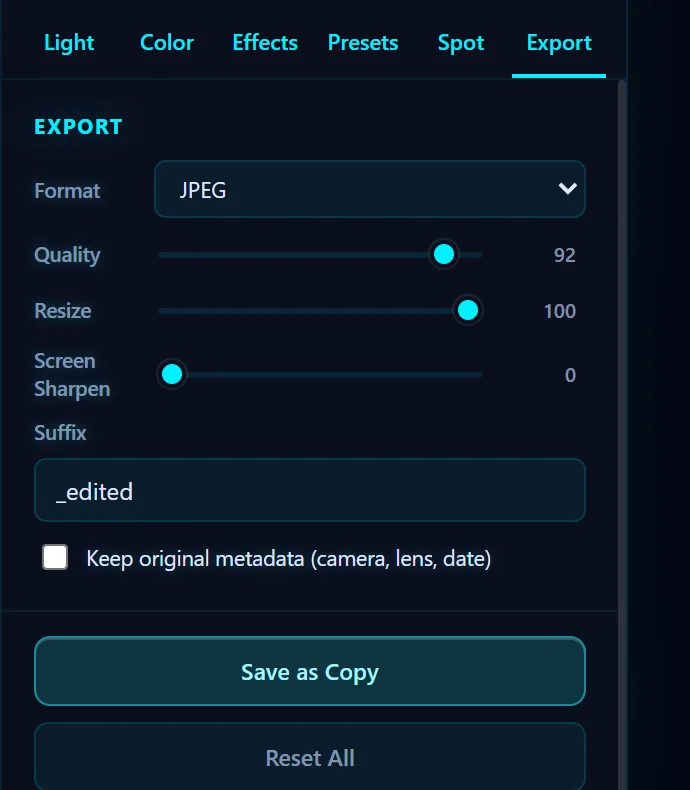
#2. Pick a format
Choose from the Format menu:
- JPEG for photographs. The files are small and work everywhere.
- PNG when you need transparency, for example after you remove a background, or when you want a lossless copy.
- WebP for smaller files on websites.
- TIFF for print or more editing at full quality.
#3. Set quality and size
Quality (1 to 100, default 92) trades file size for detail in JPEG and WebP. Around 80 to 90 is a good balance for sharing. Resize (10 to 100) scales the saved copy as a percentage of the photo, and doesn't change what you see in the editor. Screen Sharpen adds a little crispness to photos that will be viewed small on a screen.
#4. Choose the file name suffix and metadata
The Suffix field sets what gets added to the name of the copy. The default is _edited. Keep original metadata (camera, lens, date) is off by default, so a saved copy has no camera details and no GPS location. Tick it if you want them kept.
#5. Click Save as Copy
Click Save as Copy in the panel or at the top of the editor. The new file appears beside the original. Reset All puts the Export options back to their defaults.

#Tips
- If you're sharing a photo publicly, leave Keep original metadata off so your location and camera details stay private.
- To make a web version and a print version, save two copies with different suffixes, such as
_weband_print. - If a printer wants a CMYK file, see how to export a photo for print.
#Questions
- Which format should I export a photo in?
- Use JPEG for most photos, PNG when you need transparency, WebP for the smallest web files, and TIFF for print or full-quality archives.
- Does exporting remove GPS and camera data?
- By default, yes. The Keep original metadata option is off, so a saved copy has no camera details or location.
- What JPEG quality should I use?
- The default of 92 is high quality. For smaller files to share, 80 to 90 usually looks the same on screen.
About the photo editor · Pricing · Download Pluto Photos · Contact support