
How to Remove a Green Screen Background (Chroma Key)
Select the clip, open the Effects tab, find Green Screen, set the Key Color to your backdrop and click Enable. Drag Tolerance until the background disappears and the edges stay clean.
Requires Pluto Photos Pro (one-time $29, no subscription). The free download includes a 30-day trial of every Pro feature.
#1. Add the green screen clip to the timeline
Trim and Add the clip as in how to trim a video. This test clip shows a person walking in front of a green backdrop covered with tracking markers.
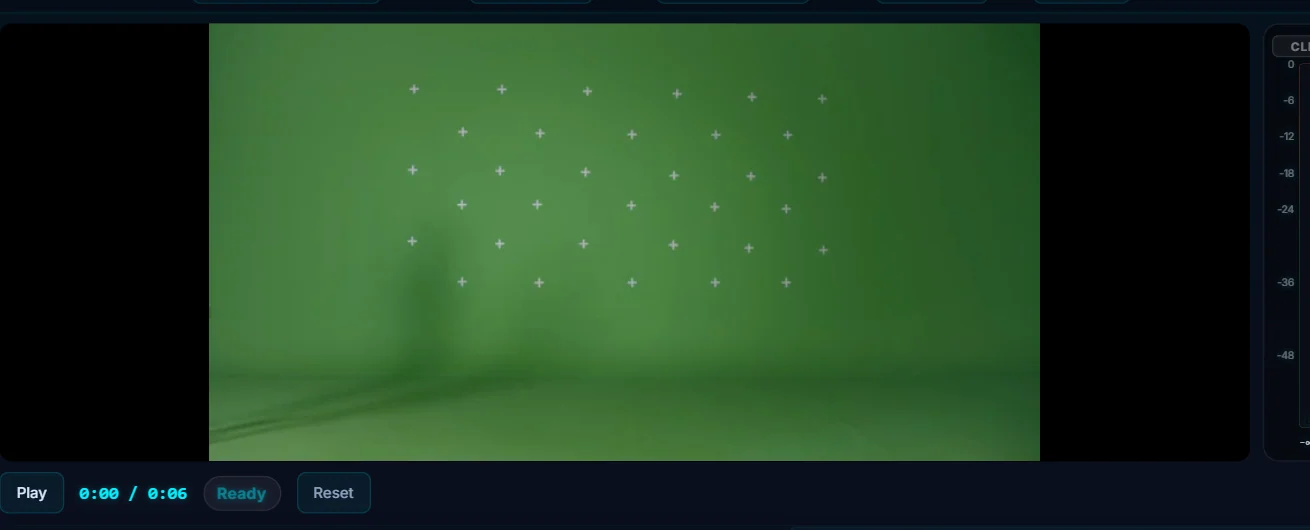
#2. Open the Effects tab and find Green Screen
Select the clip, open the Effects tab and scroll down to Green Screen. It has a Key Color swatch and an Enable button.
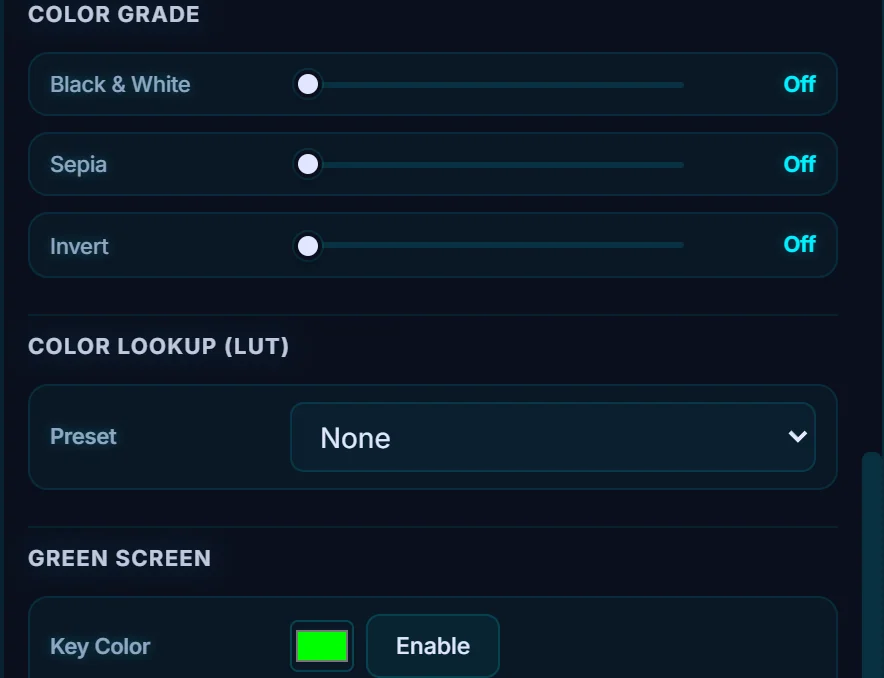
#3. Set the key color and click Enable
Click the Key Color swatch and choose the color of your backdrop. The default is a pure bright green, but a real studio wall is usually a duller green, so pick the actual shade. Then click Enable. A Clear button and a Tolerance slider (30% to start) appear.
#4. Adjust Tolerance
Drag Tolerance up until the whole backdrop is gone (45% here), but not so far that parts of your subject disappear. The preview shows the keyed clip live with the background removed. Only pixels that aren't the key color remain, and here that's just the white tracking marks.

#Tips
- Light the screen evenly. Shadows and wrinkles in the backdrop make a patchy key, and no tolerance setting fully fixes that.
- Keep the subject away from green clothes and away from the screen itself, to avoid green spill on the edges.
- Put the new background on a lower track. A picture-in-picture layer or another clip beneath your keyed one works.
- Clear removes the key.
#Questions
- Does it work with a blue screen?
- Yes. Set the Key Color to the blue of your backdrop instead.
- Why does my subject have a green edge?
- That is green spill from the backdrop. Raise or lower Tolerance a little, and light your subject further from the screen next time.
About the video editor · Pricing · Download Pluto Photos · Contact support