
How to Crop a Photo for Instagram: Square, Portrait and Story Sizes
Choose the Crop tool, hover over it to pick 1:1 for a square, 5:4 then Flip orientation for a 4:5 portrait, or 9:16 for a story, drag the frame over the part you want and click Apply Crop.
Requires Pluto Photos Pro (one-time $29, no subscription). The free download includes a 30-day trial of every Pro feature.
#1. Open the photo and choose the Crop tool
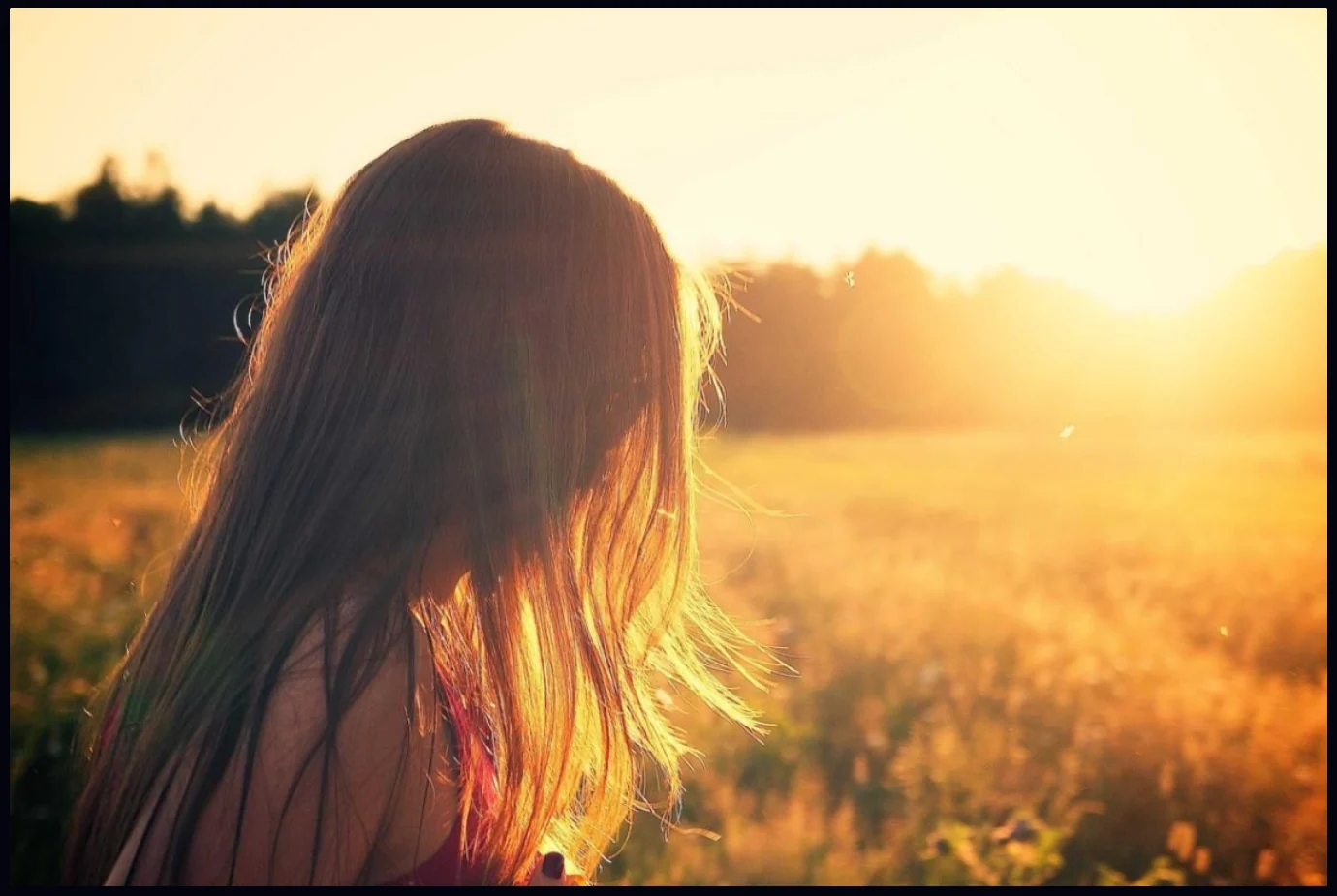
Open the photo in the editor and press C. This one is a wide landscape photo. If you post it as it is, Instagram crops it for you and you don't get a say in where.
#2. Pick a ratio from the Crop menu
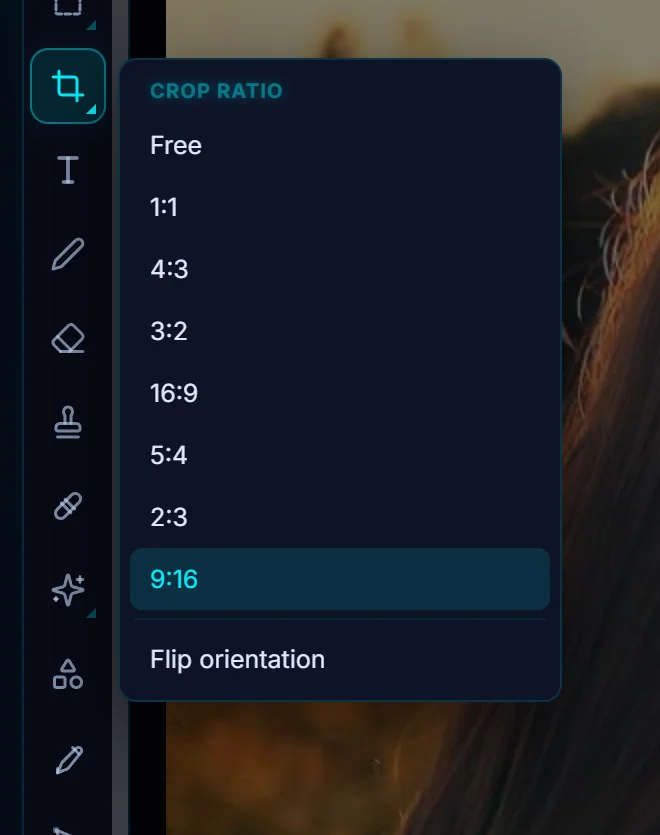
Hover over the Crop tool to open the Crop ratio menu. The ratios are Free, 1:1, 4:3, 3:2, 16:9, 5:4, 2:3 and 9:16, plus Flip orientation.
#3. Square: choose 1:1
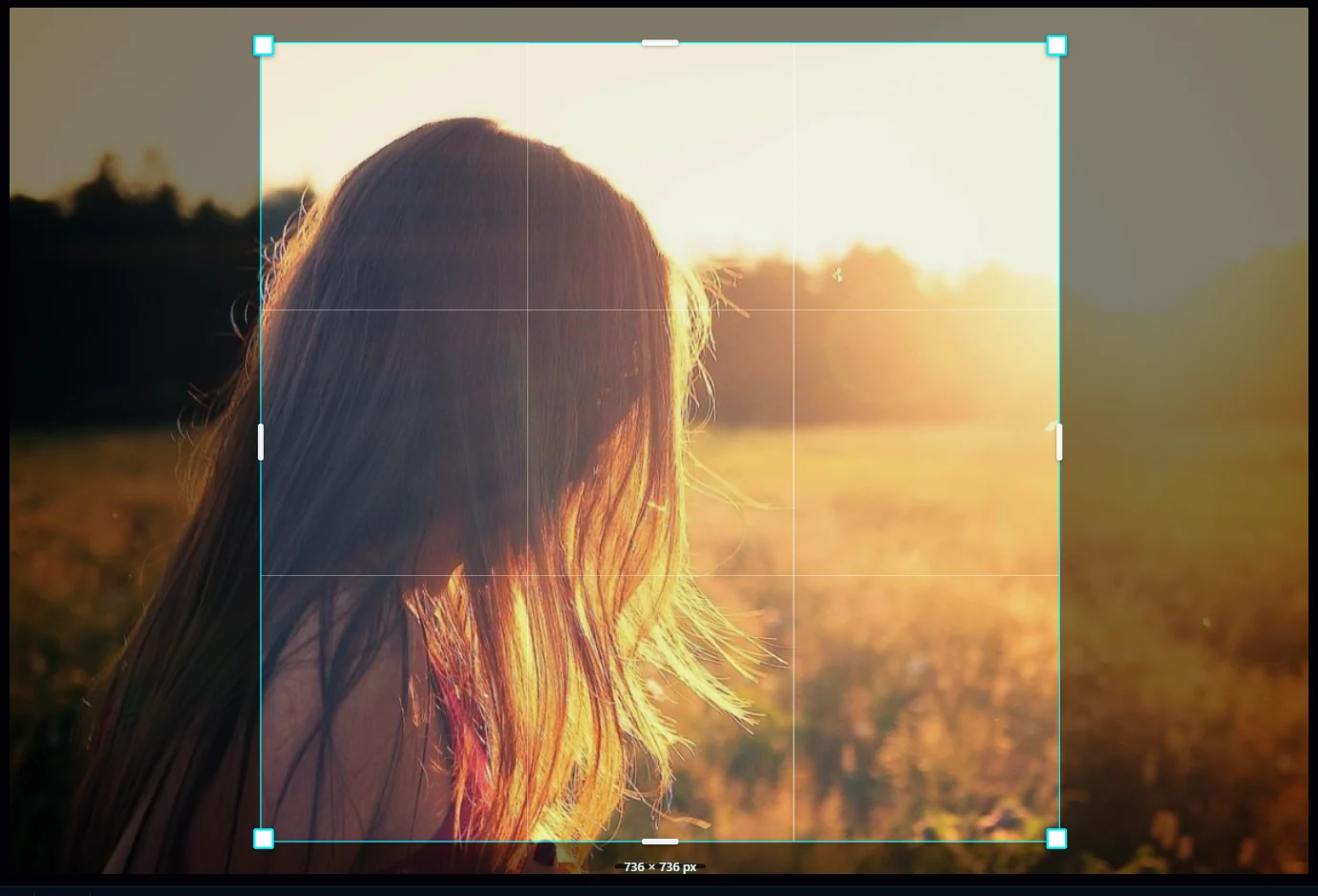
1:1 makes a square post. The options bar shows the size, 736 × 736 px here. Drag inside the frame to choose what stays in, then click Apply Crop.
#4. Portrait 4:5: choose 5:4, then Flip orientation
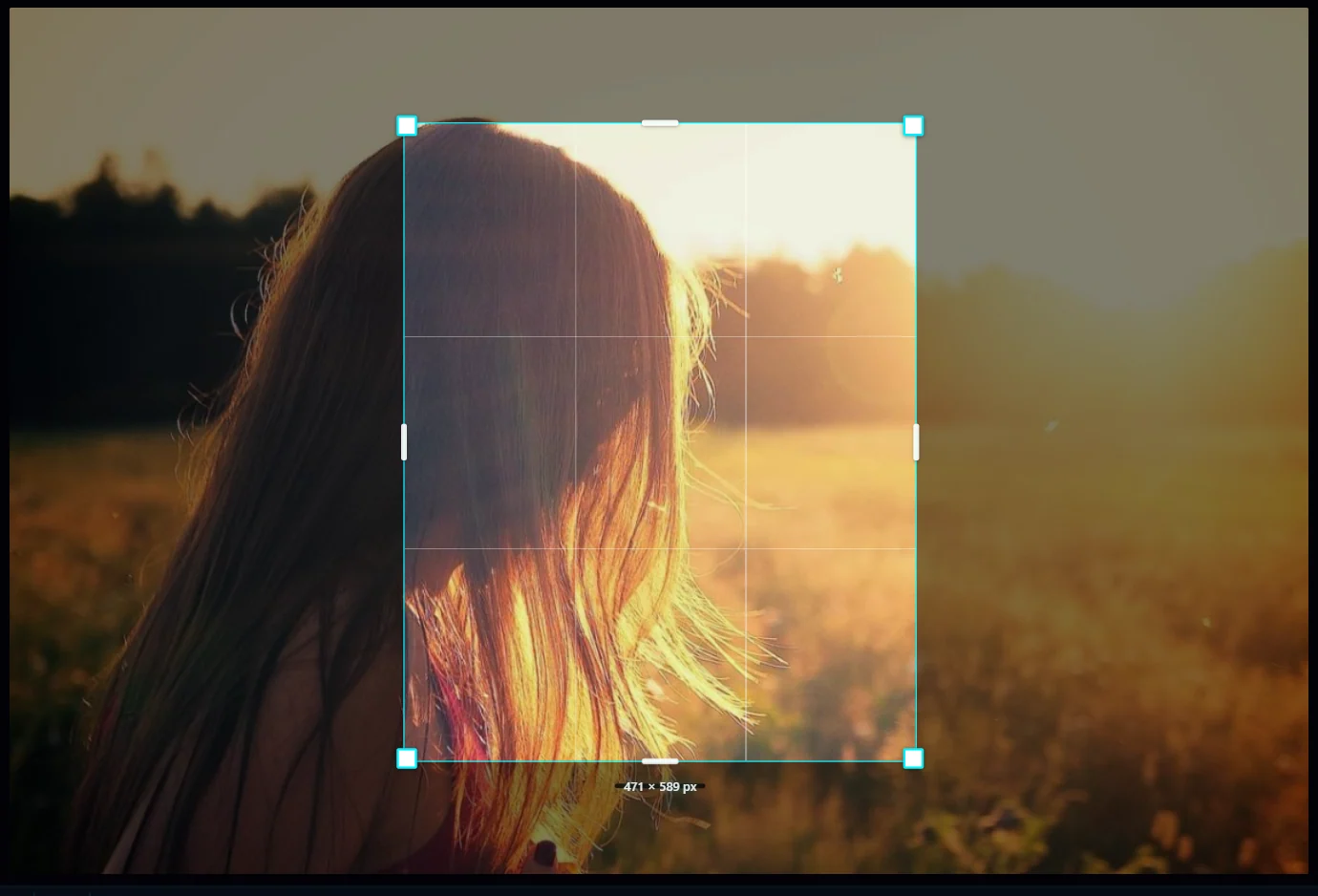
The menu has 5:4 but not 4:5, because flipping turns one into the other. Choose 5:4, then open the menu again and click Flip orientation. The label changes to 4:5 (471 × 589 px here). It's the tall shape that takes up the most room in a feed.
#5. Story or Reel: choose 9:16
9:16 is the full-screen vertical shape for stories, Reels, TikTok and Shorts. The app interface covers the top and bottom of a story, so keep the important part of the photo in the middle.
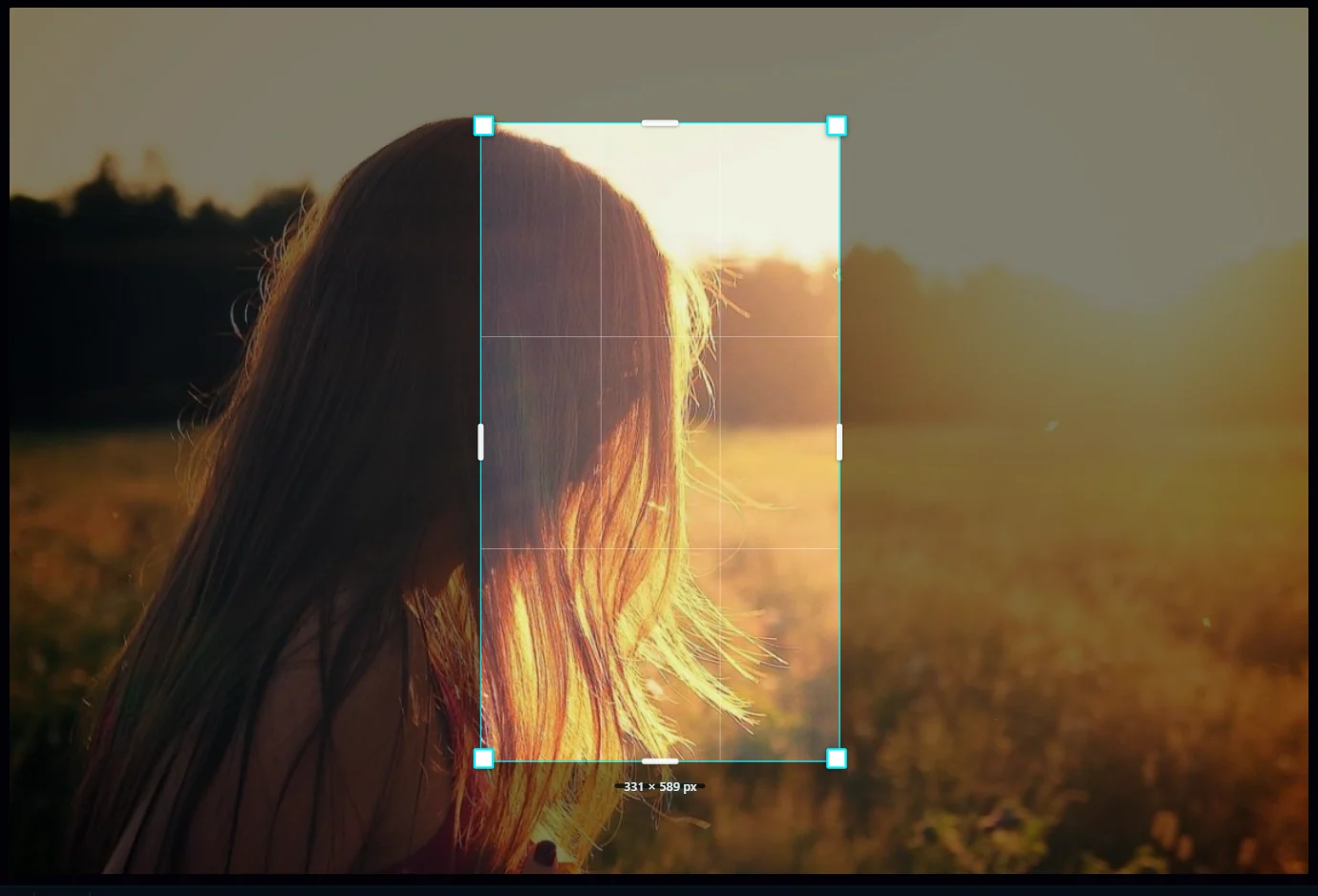
#6. Apply and save
Click Apply Crop, then Save as Copy (Ctrl+S). Your original stays untouched, so you can make a square, a 4:5 and a 9:16 from the same photo.
#Tips
- Sizes change. These are the shapes in the editor, so check the platform's current recommended size if exact pixels matter, then set them with Image Size.
- To keep the file small enough to upload quickly, save a smaller export.
- To share without your location, see how to remove location data.
#Questions
- What is the best crop ratio for Instagram?
- The editor offers 1:1 for a square post, 4:5 (5:4 flipped) for a tall portrait post, and 9:16 for stories and Reels.
- How do I crop a photo to 4:5?
- Choose 5:4 in the Crop ratio menu, then choose Flip orientation from the same menu.
About the photo editor · Pricing · Download Pluto Photos · Contact support