
How to Use Layer Masks to Blend Two Photos Smoothly
Add a mask with Layer > Add Layer Mask, then paint on the mask with the Eraser to hide parts of the layer and the Brush to reveal them. The original pixels are never deleted.
Requires Pluto Photos Pro (one-time $29, no subscription). The free download includes a 30-day trial of every Pro feature.
#1. Put two photos on separate layers
Open the base photo and paste the second one as a layer. Here a silhouette portrait sits over the fjord and covers the whole picture.
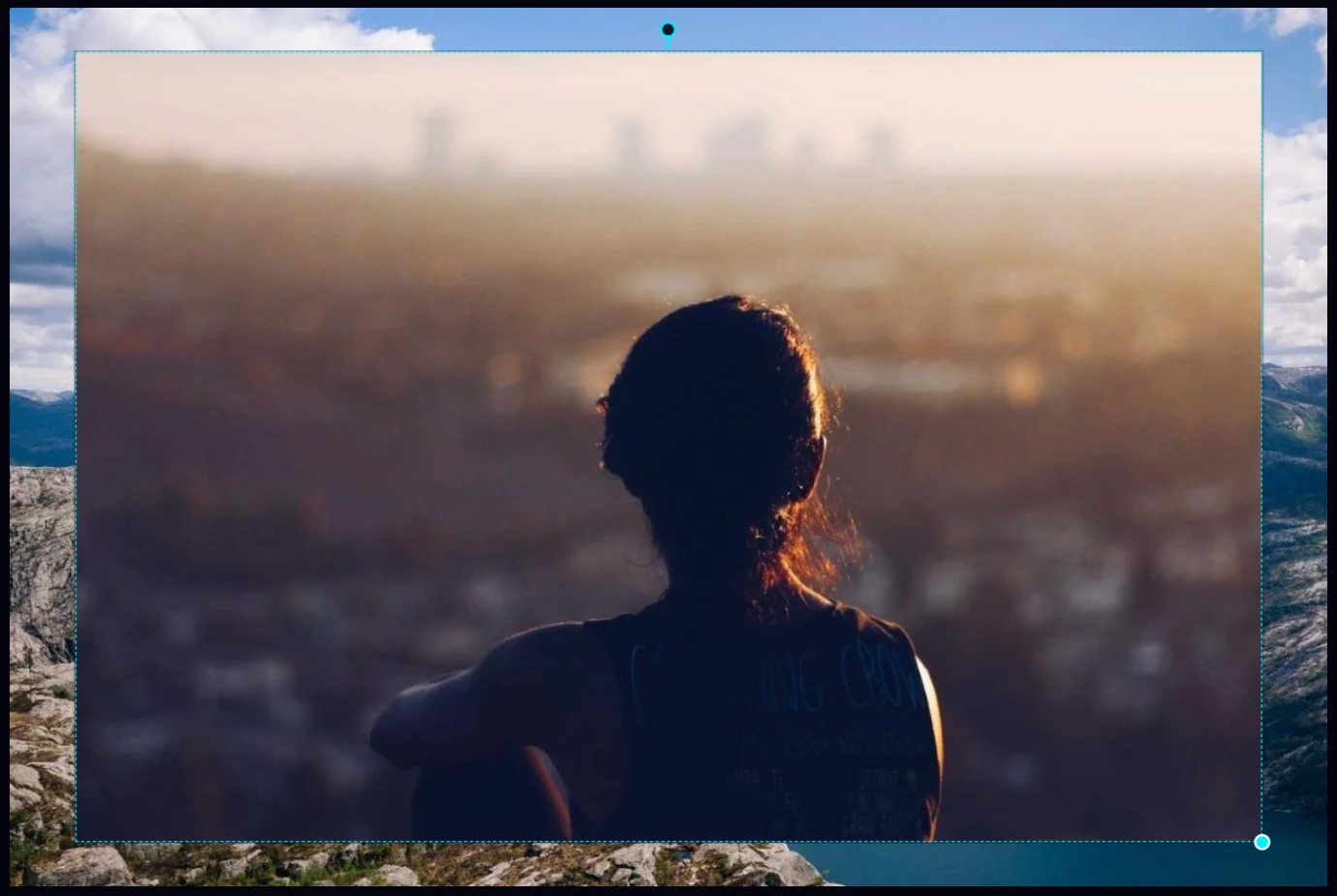
#2. Add a layer mask
With the pasted layer selected, choose Layer > Add Layer Mask. A second thumbnail, the mask, appears beside the layer in the Layers panel. White means visible. The mask is selected, and History shows Add mask.
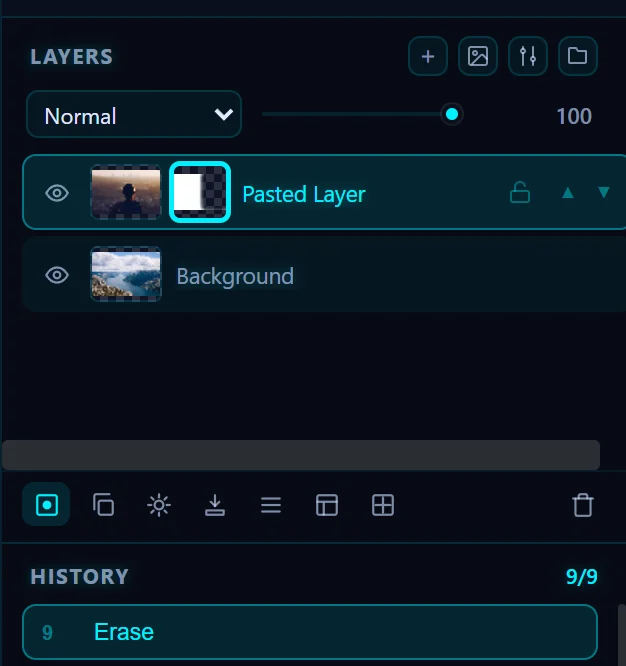
#3. Choose a large soft Eraser
Select the Eraser (E). On a mask, the eraser hides the layer, and the brush reveals it again. Set Brush Size to a large value (320 here) and Hardness to 0 so the edge is feathered.

#4. Paint to hide the layer
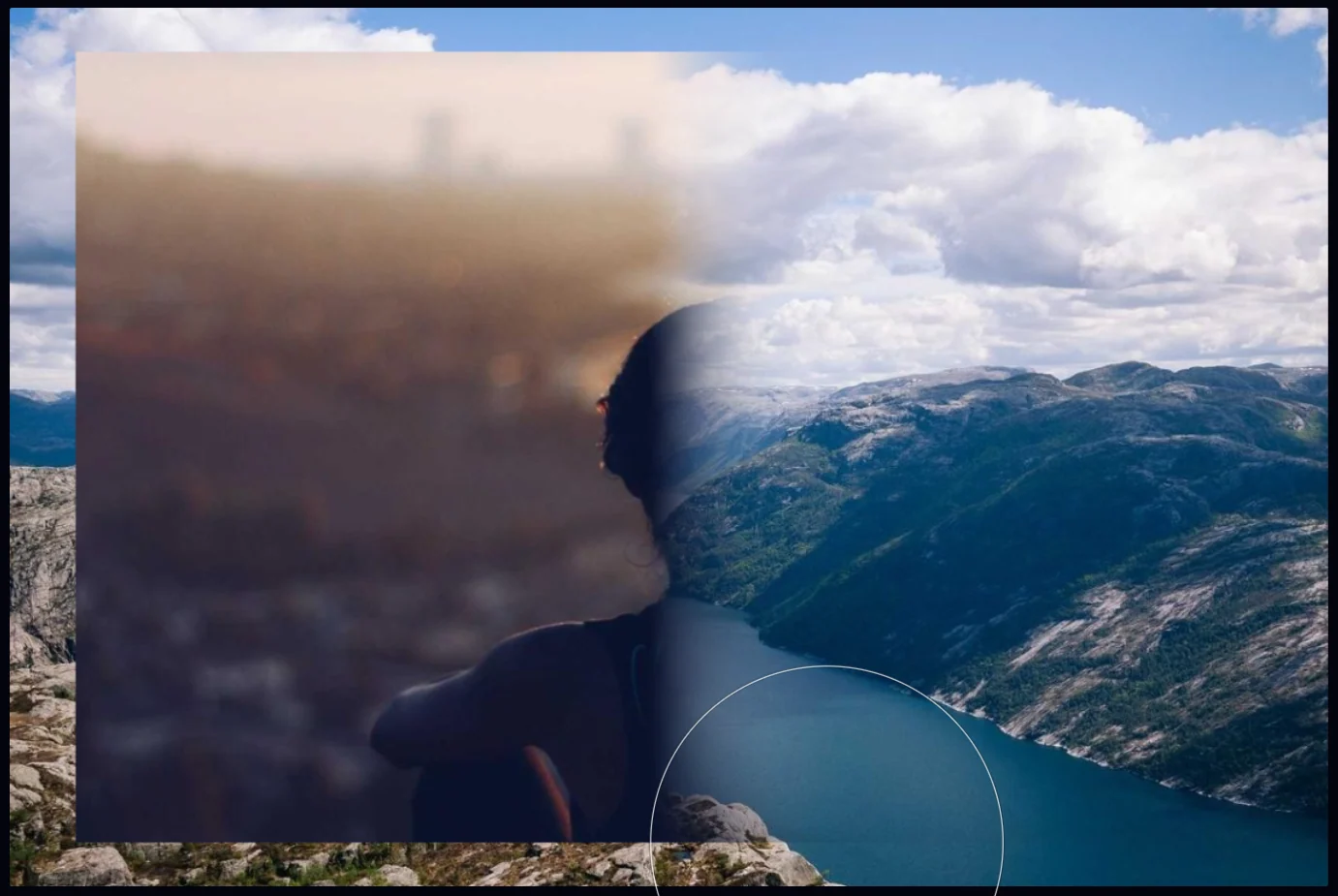
Paint down the right side of the picture with overlapping vertical strokes. Where you paint, the portrait fades away and the fjord shows through, with a soft transition. If you hide too much, switch to the Brush and paint the area back. Nothing is deleted, because the mask only controls what's visible.
#Tips
- For a more gradual fade, lower the brush opacity.
- Layer > Delete Layer Mask removes the mask.
- Masks work on any image layer, including cutouts, so you can paint a subject into or out of a scene.
#Questions
- What is a layer mask?
- A layer mask controls which parts of a layer are visible. White shows the layer, black hides it, and nothing is deleted.
- How do I bring back an area I hid?
- With the mask selected, paint over the area with the Brush.
About the photo editor · Pricing · Download Pluto Photos · Contact support