
How to Open and Save a Photo in the Pluto Photos Editor
Select one photo in your library, click Edit Photo, make your changes, then choose Save as Copy (Ctrl+S). Your original file is never changed. The edit is saved next to it as a new file ending in _edited.
Requires Pluto Photos Pro (one-time $29, no subscription). The free download includes a 30-day trial of every Pro feature.
#1. Select a photo and click Edit Photo
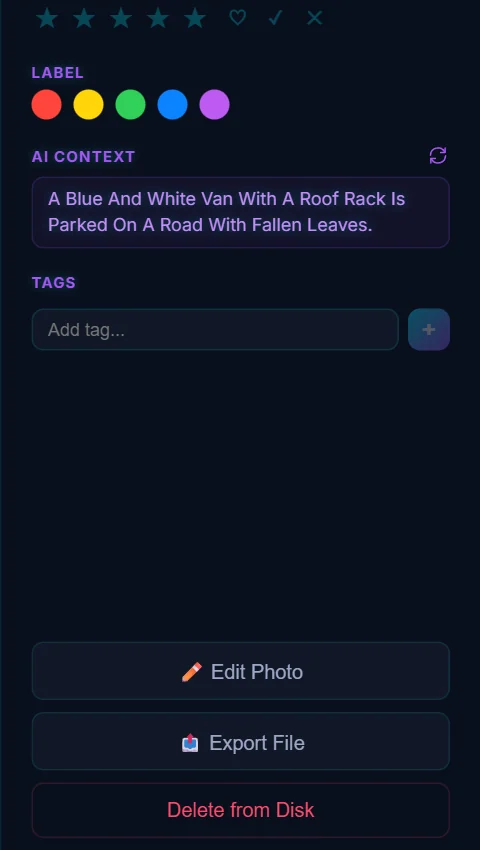
Click a photo in your library to select it. The details panel opens on the right, and Edit Photo is one of the buttons at the bottom. Click it and the photo opens in the editor. The button only shows when a single photo is selected.
#2. Make your edit
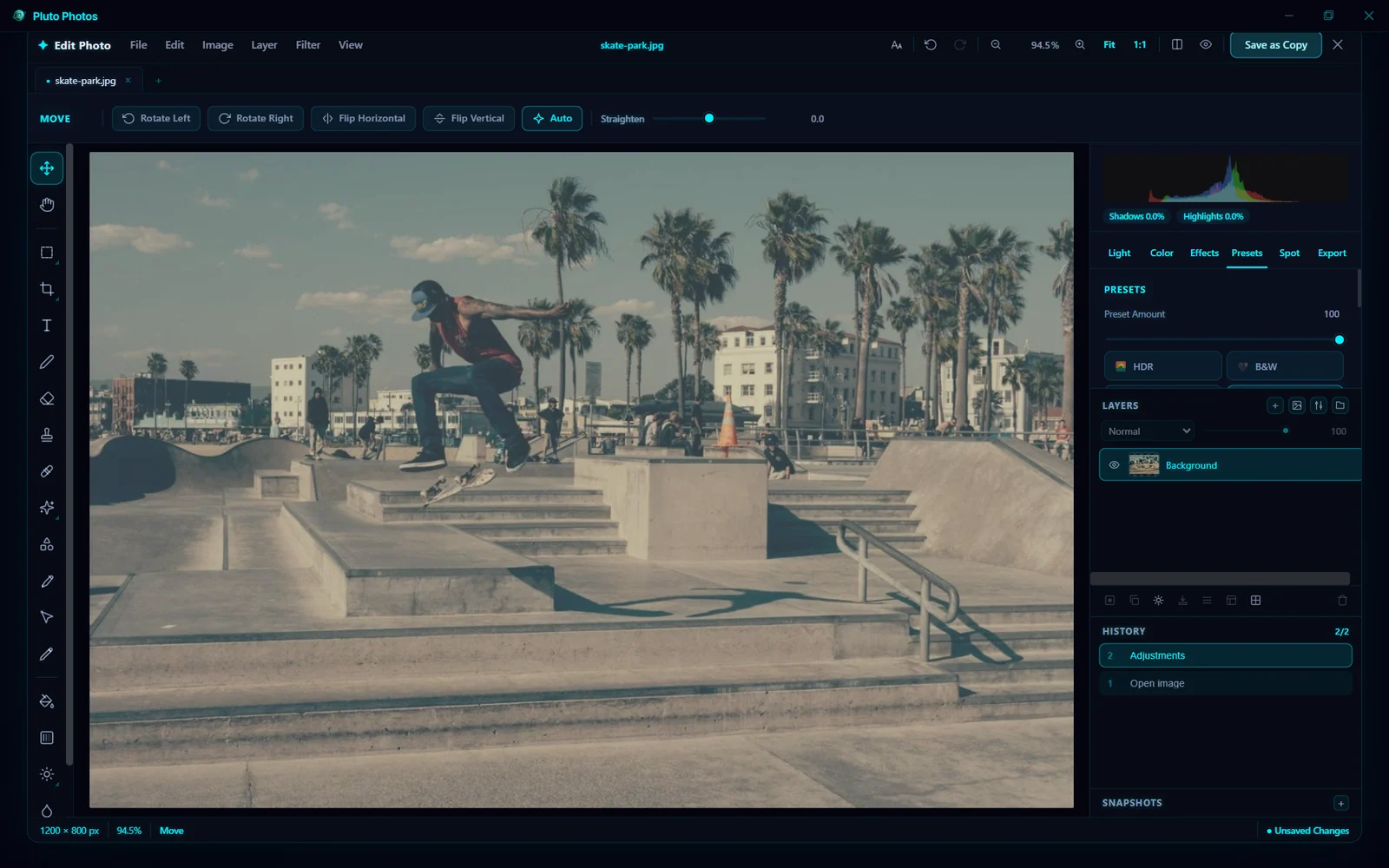
The editor fills the window. The menu bar runs across the top, the tools are down the left, your photo is in the middle, and the Light, Color, Effects, Presets, Spot and Export tabs are on the right. Everything you change is logged in the History panel, so you can step back whenever you want.
#3. Save as Copy
Click Save as Copy at the top right, or press Ctrl+S. A green "Edit saved as copy" message appears.
The new file goes next to the original with _edited added to the name, so skate-park.jpg becomes skate-park_edited.jpg. The original isn't touched, so saving can't overwrite it. The copy shows up in your library after a moment.

#4. Other ways to save
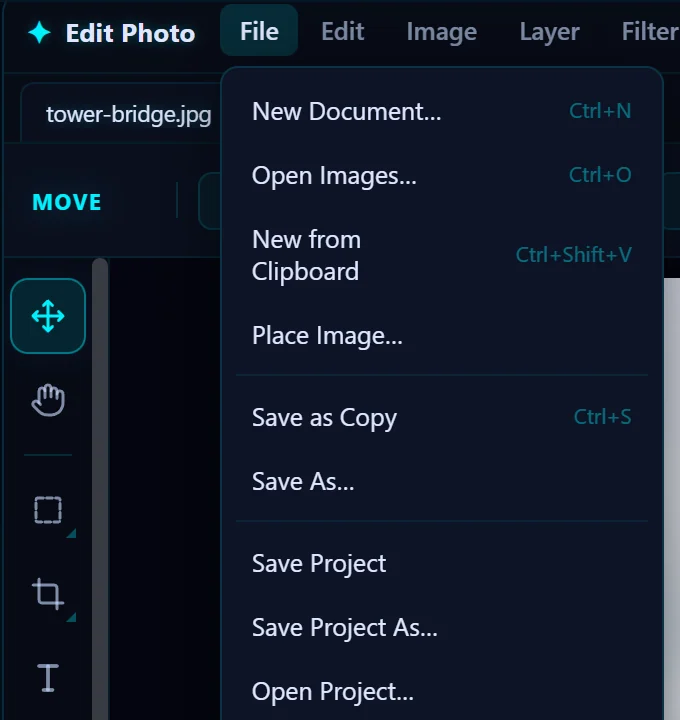
The File menu has the rest:
- Save as Copy (Ctrl+S) saves a copy beside the original, using the suffix from the Export tab.
- Save As… lets you pick the file name and folder.
- Save Project and Open Project… keep layers, masks and text editable by saving a project file instead of a flat photo. See how to use layers.
To close the editor, press Esc or click the ✕. If you have unsaved changes, it asks whether to save a copy first.
#Tips
- If the app closes while you are editing, the editor offers to restore your session the next time you open it.
- You can change the suffix in the Export tab if you want your copies to end in something other than
_edited. - To work on several photos, press Ctrl+O inside the editor to open more. Each one gets its own tab.
#Questions
- Does the editor overwrite my original photo?
- No. Save as Copy writes a new file beside the original, so the original is never modified.
- Does the photo editor work offline?
- Yes. The editor runs entirely on your computer. Nothing is uploaded, and you don't need an internet connection.
- Is the editor part of the free version?
- The photo editor is a Pro feature. Pro is a one-time $29 purchase, and a 30-day free trial is available.
About the photo editor · Pricing · Download Pluto Photos · Contact support