
How to Add a Vignette and Film Grain to a Photo
Open the Effects tab and drag Vignette (0 to 100) to darken the corners and Grain (0 to 100) to add texture. Both stack with presets and other adjustments.
Requires Pluto Photos Pro (one-time $29, no subscription). The free download includes a 30-day trial of every Pro feature.
#1. Open the Effects tab
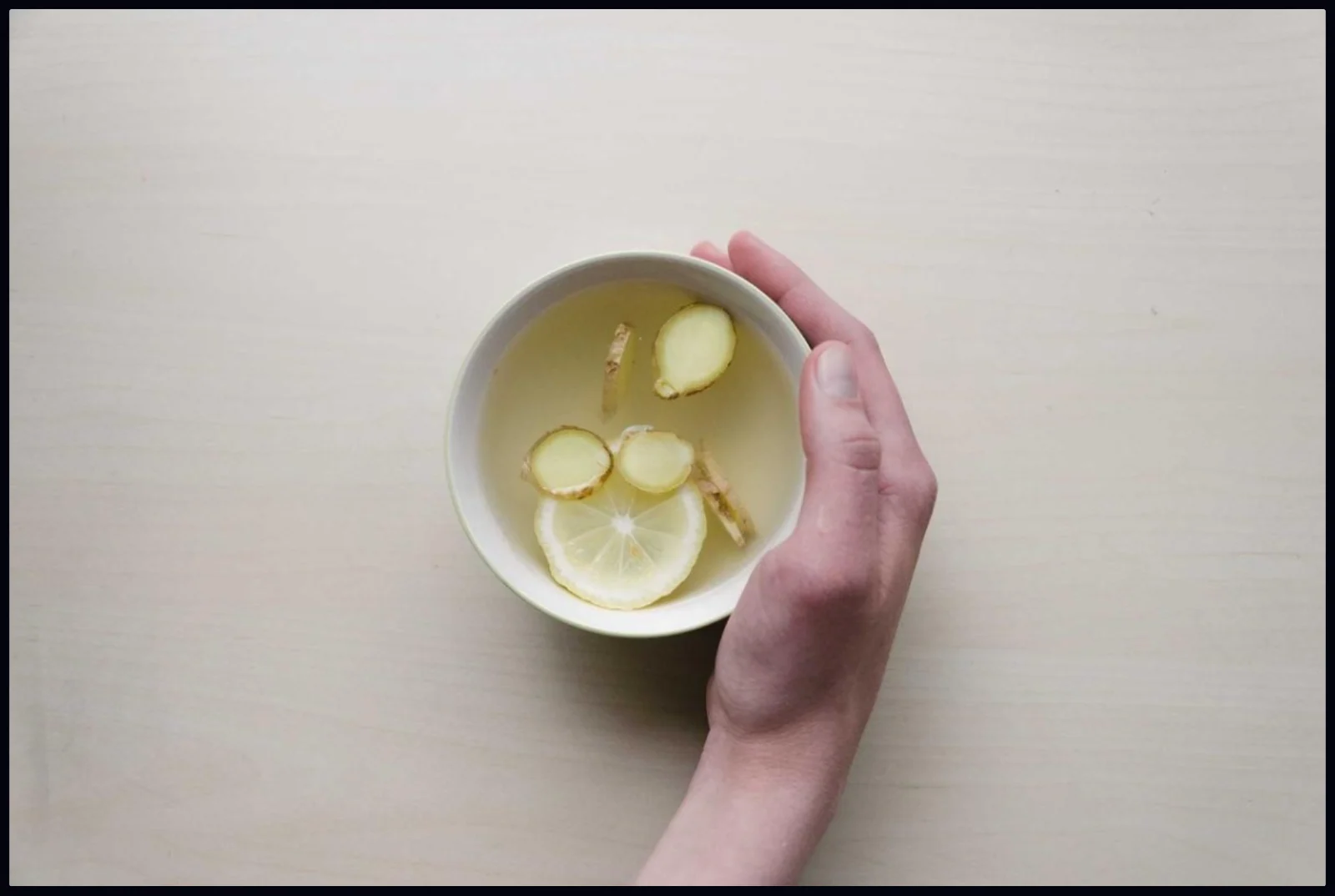
Open a photo. This one is a flat-lay of a hand holding a cup of tea. Click the Effects tab. Vignette and Grain is the second section.
#2. Drag Vignette and Grain
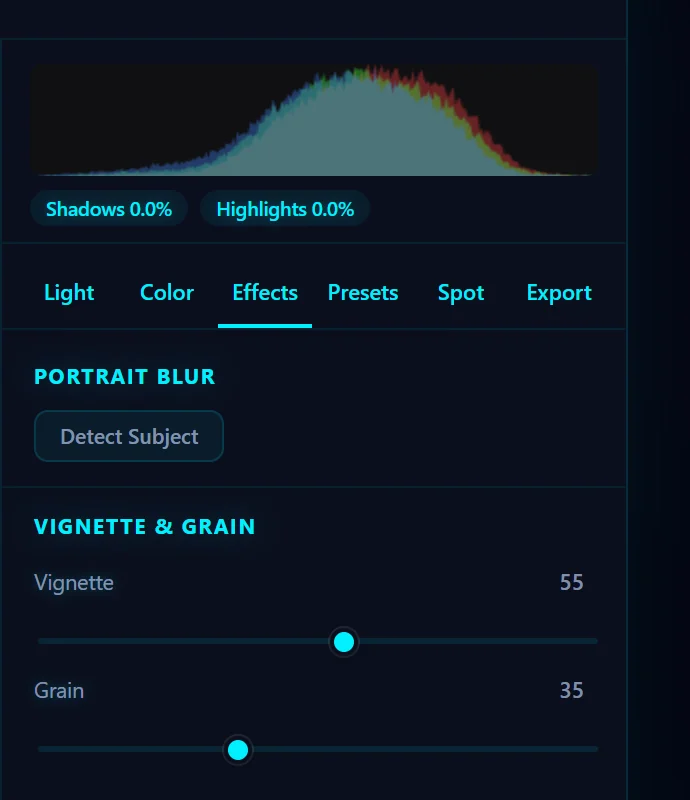
Vignette darkens the edges and corners so the eye goes to the middle. Grain adds a film-like texture. Both run from 0 to 100. Here Vignette is 55 and Grain is 35. Double-click a slider to reset it.
#3. Compare and adjust
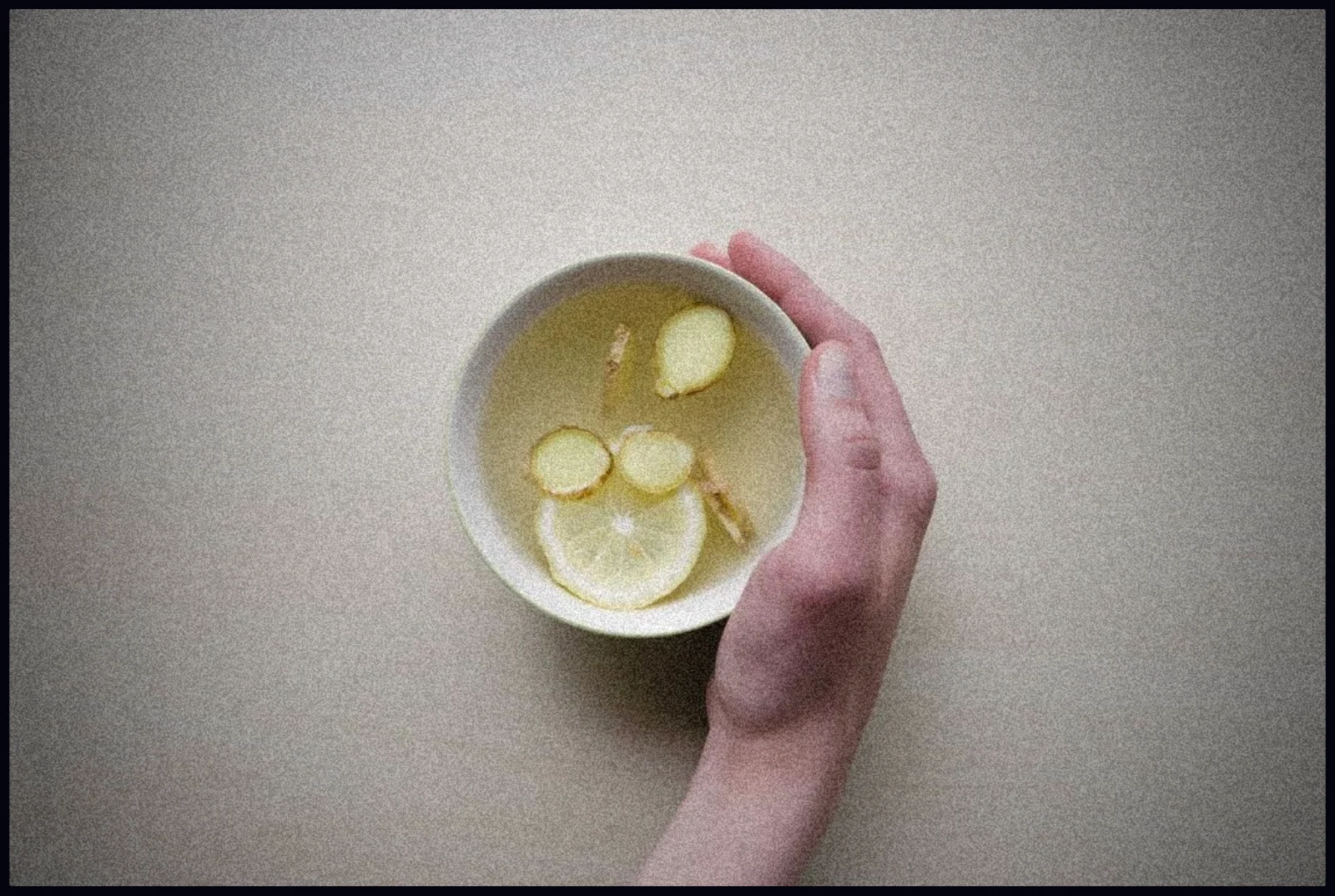
The corners are darker and the surface has a fine grain. Use the B split view to compare with the original, and pull both sliders back if the effect is obvious. A subtle effect usually looks better.
#Tips
- A Vintage or Matte preset plus grain gives a convincing film look.
- Grain is easier to see when you zoom in. Judge it at 100% and at the size people will actually view the photo.
#Questions
- What does a vignette do?
- A vignette darkens the corners of a photo to draw attention to the center.
- Does adding grain reduce quality?
- It adds texture on purpose, so the photo looks more like film. You can set it as low as you like or take it out with the slider.
About the photo editor · Pricing · Download Pluto Photos · Contact support