
How to Color Grade a Video with LUTs
Select the clip, open the Effects tab, scroll to Color Lookup (LUT) and choose a Preset, or load a custom .cube file. Fine-tune with the Color tab: exposure, contrast, saturation, white balance and more.
Requires Pluto Photos Pro (one-time $29, no subscription). The free download includes a 30-day trial of every Pro feature.
#1. Select the clip and open the Effects tab
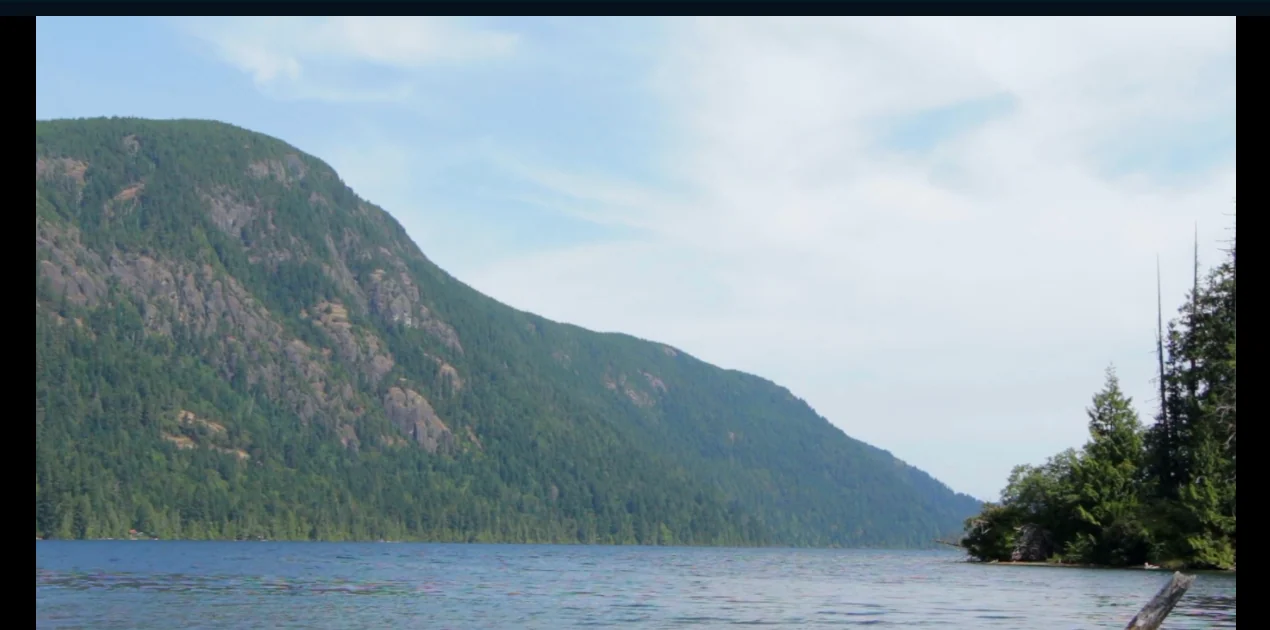
Click the clip on the timeline so the Properties panel shows Selected Clip, then open the Effects tab. Here's a lake clip before grading.
#2. Find Color Lookup (LUT)
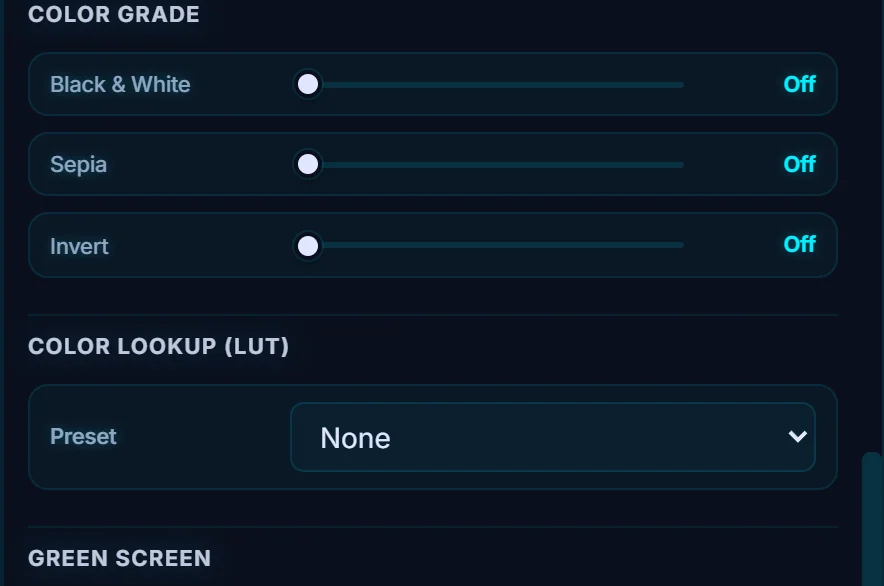
Scroll the Properties panel down to Color Lookup (LUT). A LUT is a preset color transform. It works like a film stock, or a Lightroom preset for video.
#3. Pick a preset
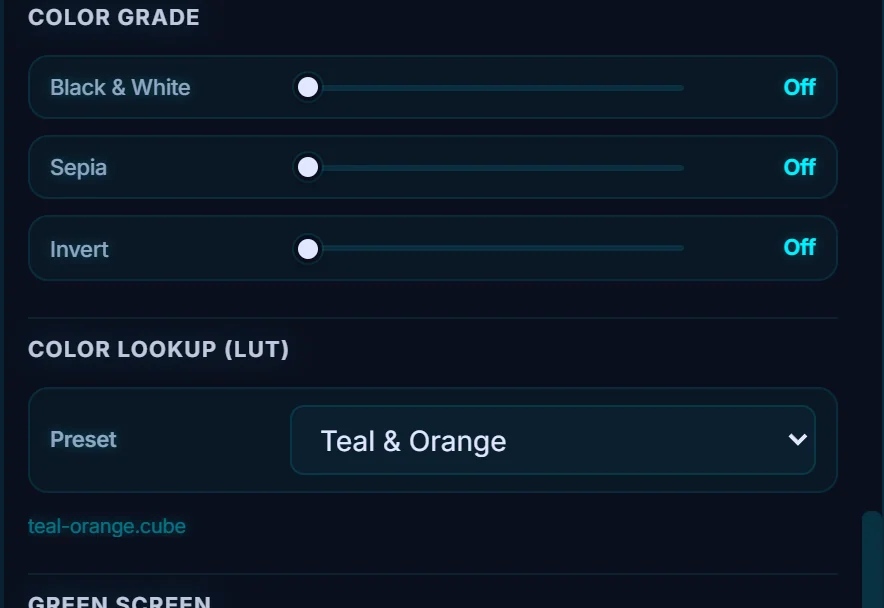
Open the Preset menu. It includes Adventure, Bleach Bypass, Cinema Verite, Cinestill 800T, Cool & Fresh, Cool Noir, Cross Process, Dark Moody, Expired Film, Faded, Forest, Fuji Pro 400H, Fuji Velvia 50, Golden Hour, Ilford HP5, Kodak Gold 200, Kodak Portra 400, Kodak Tri-X 400, Moonlight, Neon Noir, Pastel Dream, Polaroid, Summer Warm, Super 8, Teal & Orange and Vintage Film, plus Custom .cube file… for your own. Choose Teal & Orange. A LUT badge appears on the clip.
#4. Compare the result
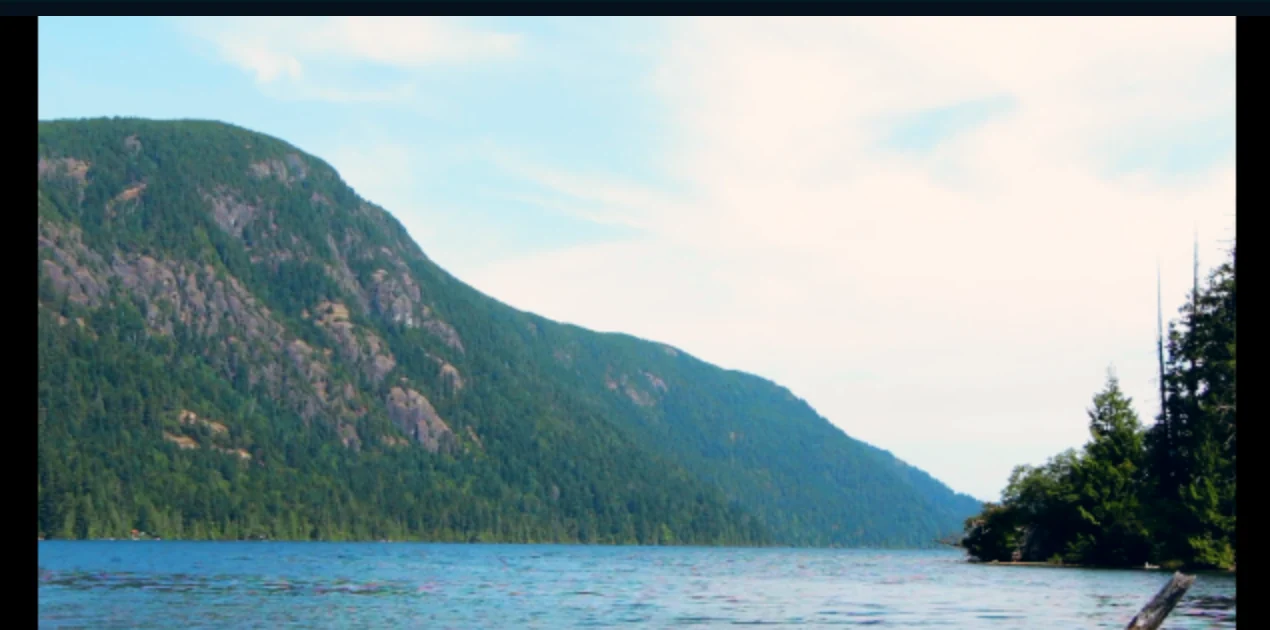
The preview updates right away. The sky has gone creamy, and the water and shadows pick up cooler tones. Play the clip to check the grade across the whole shot.
#5. Fine-tune in the Color tab
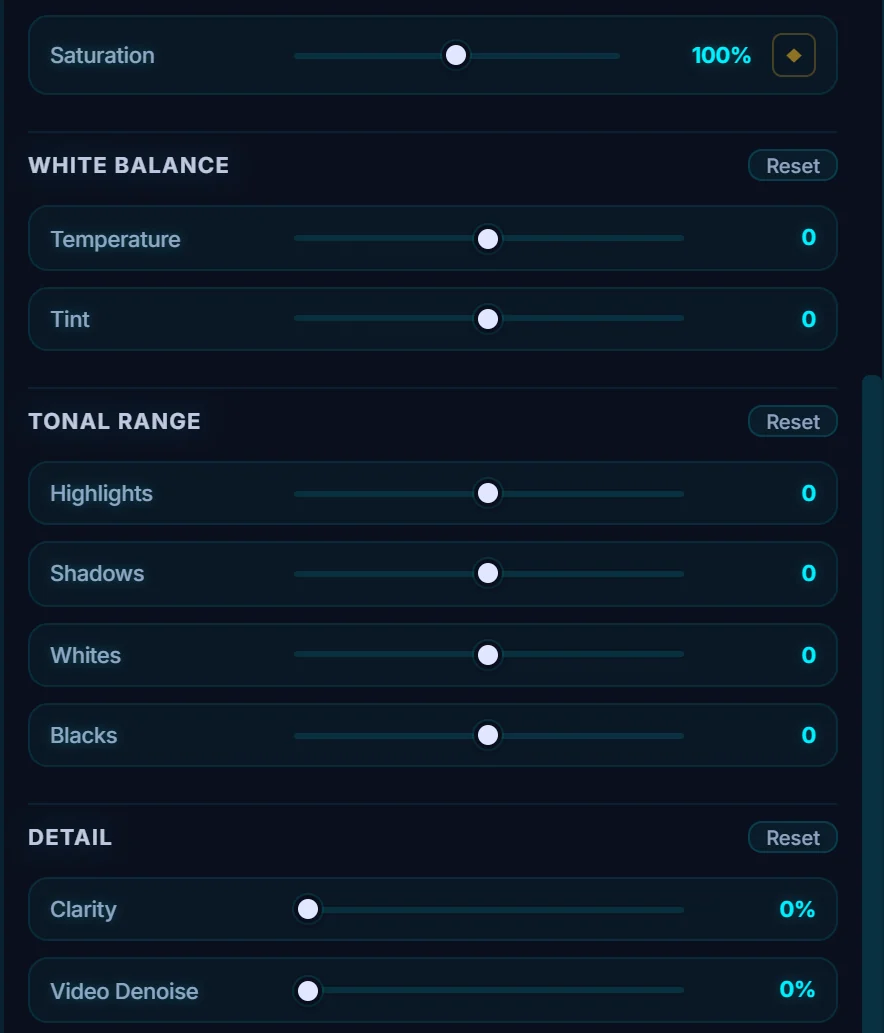
Open the Color tab for Exposure, Contrast and Saturation, White Balance (Temperature and Tint), Tonal Range (Highlights, Shadows, Whites, Blacks) and Detail (Clarity and Video Denoise). The Scopes button above the preview opens a waveform, RGB parade, vectorscope and histogram. Those are the usual tools for checking a grade.
#Tips
- Fix exposure and white balance in the Color tab before you choose a look.
- Once a clip is graded, select it and press Ctrl+C, then select another clip and press Ctrl+V to copy its attributes across.
- To use your own LUT, choose Custom .cube file… and load a standard .cube file, such as one from a camera maker.
#Questions
- What is a LUT?
- A LUT, or lookup table, is a file that maps the colors of a video to a new look, such as a film stock.
- Can I use my own LUT?
- Yes. Choose Custom .cube file… in the Preset menu to load a .cube file.
- Can I grade photos the same way?
- Yes. The photo editor has LUTs in the Presets tab, and the library can [apply a LUT to many photos at once](/features/batch-operations/).
About the video editor · Pricing · Download Pluto Photos · Contact support