
How to Crop a Photo to Any Size or Aspect Ratio
Press C to pick the Crop tool, hover over it to choose a ratio (Free, 1:1, 4:3, 3:2, 16:9, 5:4, 2:3 or 9:16), drag the frame into place, then click Apply Crop.
Requires Pluto Photos Pro (one-time $29, no subscription). The free download includes a 30-day trial of every Pro feature.
#1. Choose the Crop tool
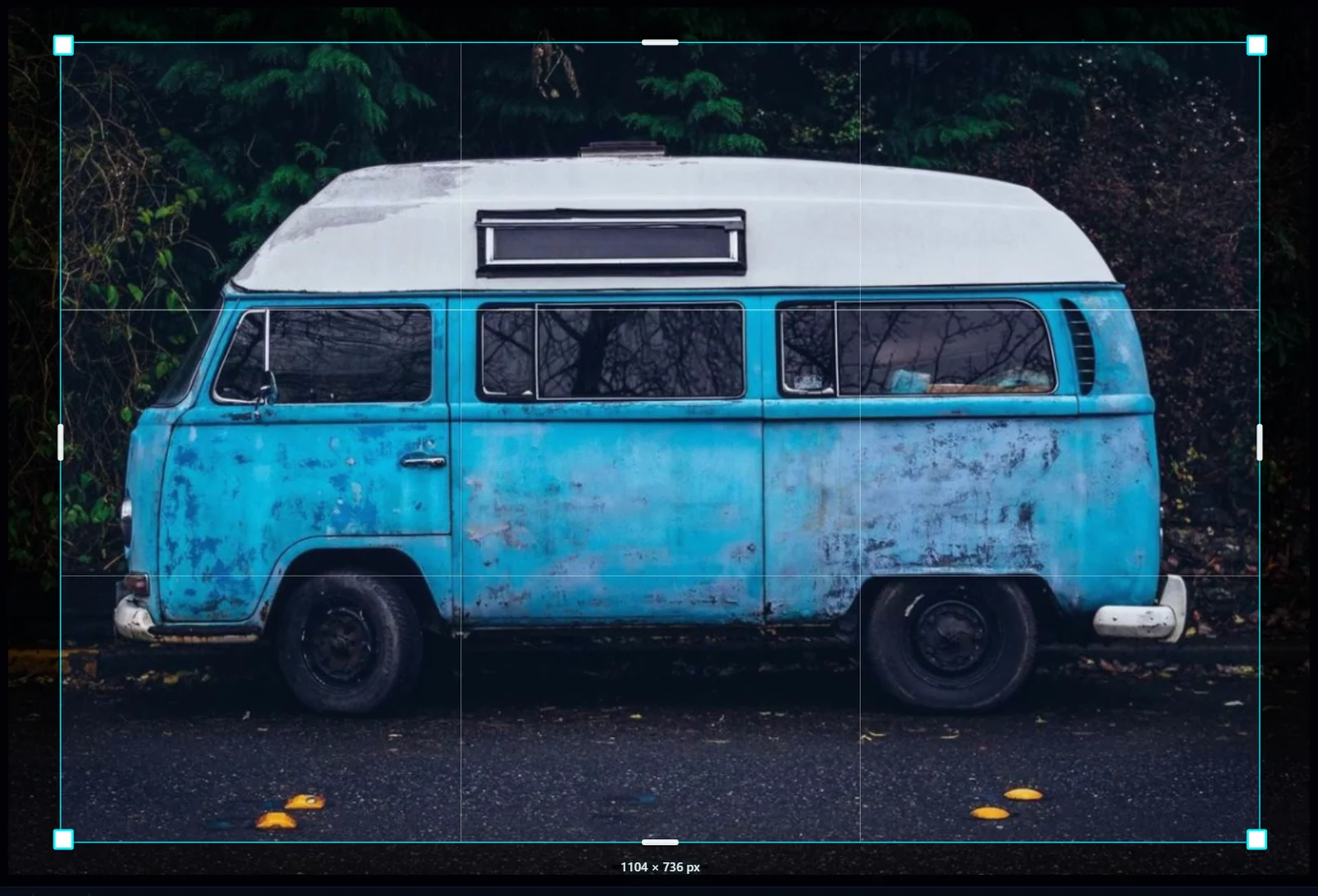
Open the photo in the editor, then click the Crop tool in the left toolbar or press C. A crop frame appears over the photo with rule-of-thirds guides, and the options bar at the top shows the frame size in pixels.
#2. Pick a ratio (optional)
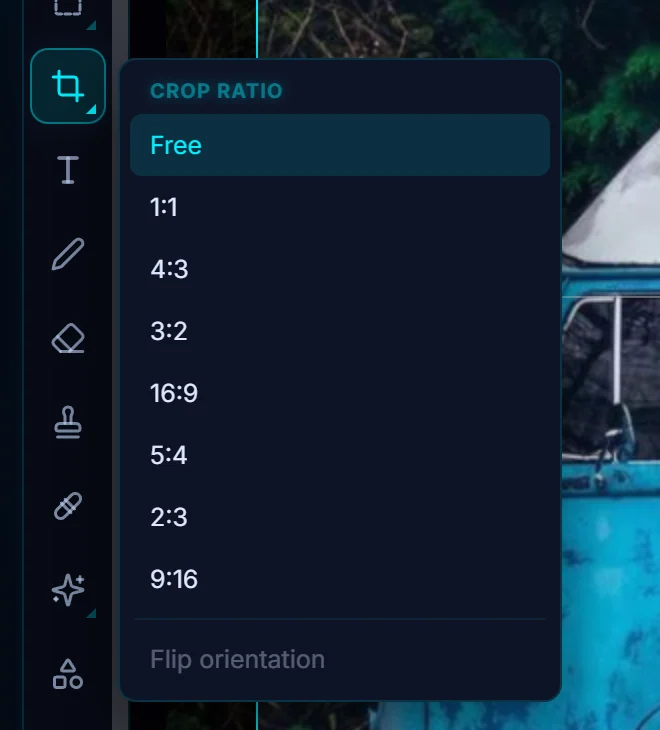
For a fixed shape, hover over the Crop tool in the toolbar to open the Crop ratio menu. Choose 1:1 for a square, 16:9 for widescreen, 9:16 for a vertical story, or one of 4:3, 3:2, 5:4 or 2:3. Pick Free to go back to any shape.
Flip orientation at the bottom of the menu swaps landscape and portrait, so 3:2 becomes 2:3.
#3. Position the frame
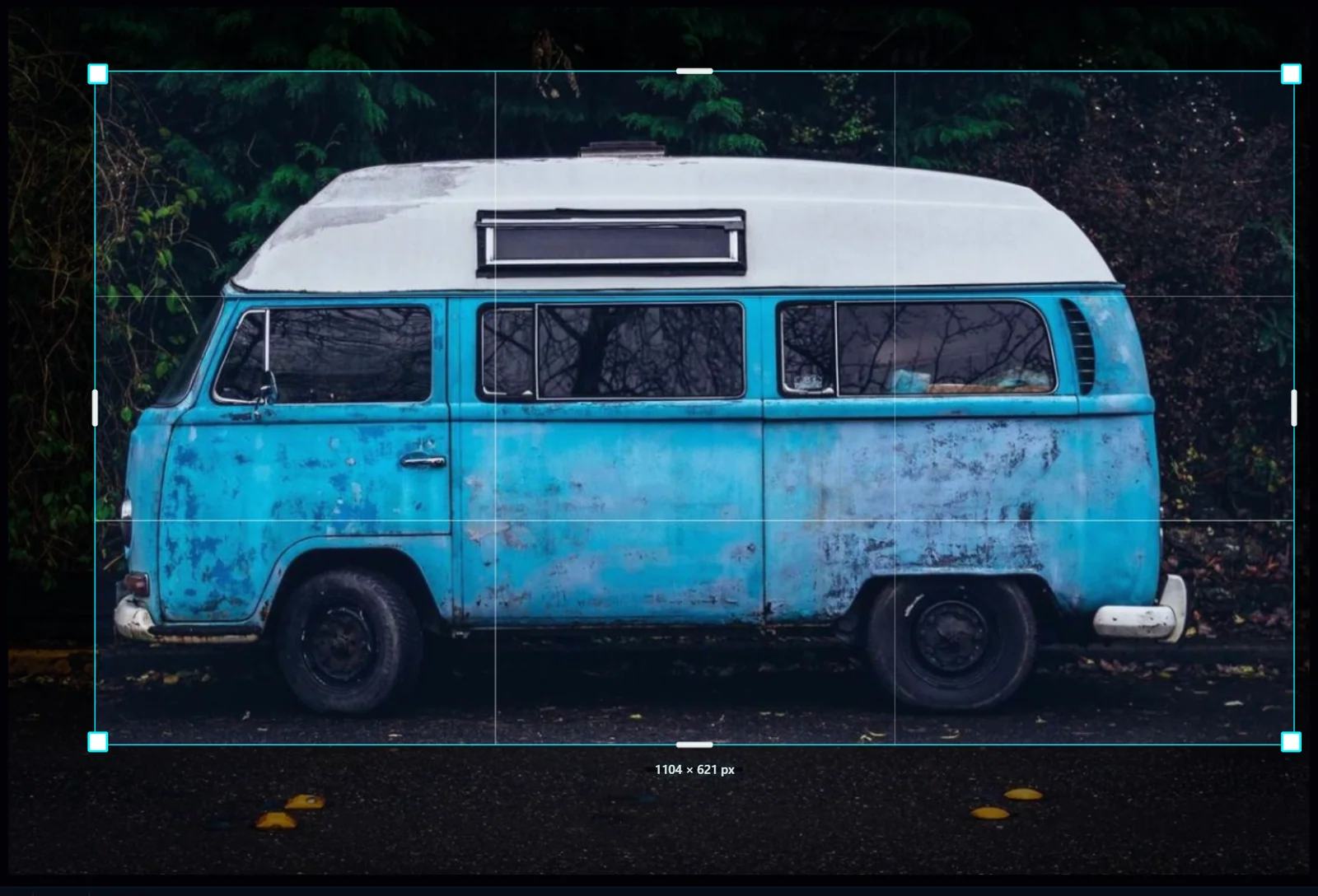
Drag a corner or edge handle to resize the frame. With a fixed ratio, the shape stays locked. Drag inside the frame to move it. The pixel size of the result shows under the frame and in the options bar.
#4. Apply the crop
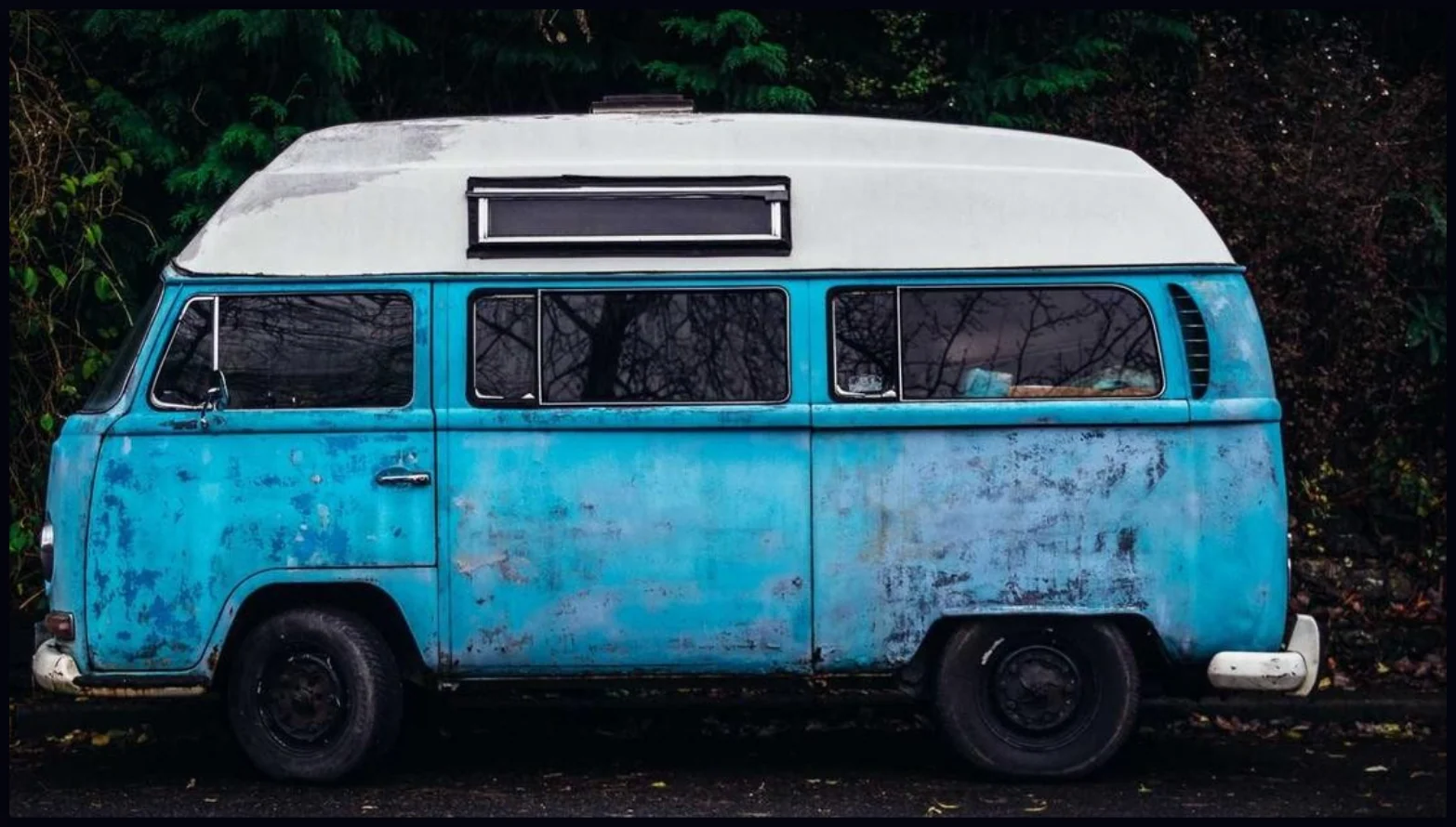
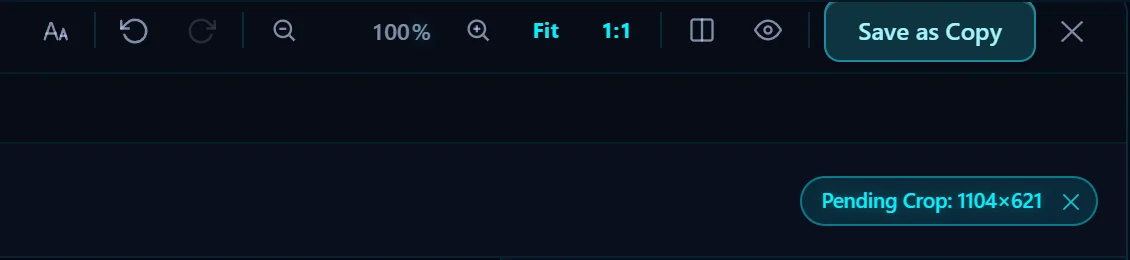
Click Apply Crop in the options bar, or Cancel to back out. The editor goes back to the Move tool and a Pending Crop chip appears at the top right with the new size. The crop is written to the file when you save. To remove it first, click the ✕ on the chip.
#5. Save the cropped photo
Click Save as Copy (Ctrl+S). Your original stays as it was, and the cropped version is saved beside it.
#Tips
- For an exact pixel size, pick a ratio here and then set the pixels with Image Size.
- Common ratios: 1:1 for a square post, 9:16 for stories and reels, 16:9 for video thumbnails and 2:3 for pins.
- If the horizon is crooked, straighten the photo before you crop.
#Questions
- How do I crop a photo to a square?
- Choose the Crop tool, hover over it and pick 1:1 from the Crop ratio menu, position the frame, then click Apply Crop.
- Does cropping reduce quality?
- No. The pixels inside the frame stay exactly as they were, so nothing gets blurry. The photo just has fewer pixels because part of it is gone.
- Can I undo a crop?
- Yes. Click the ✕ on the Pending Crop chip, press Ctrl+Z, or click an earlier step in the History panel.
About the photo editor · Pricing · Download Pluto Photos · Contact support