
How to Resize an Image (and Change the Canvas Size)
Choose Image > Image Size, type a new width or height with Constrain proportions ticked, and click Apply. To add space around a photo instead of scaling it, use Image > Canvas Size.
Requires Pluto Photos Pro (one-time $29, no subscription). The free download includes a 30-day trial of every Pro feature.
#1. Open the Image menu
With your photo open in the editor, open the Image menu. Image Size… changes how many pixels the photo has. Canvas Size… changes the size of the page the photo sits on. This tutorial uses a 1600 × 1200 photo.
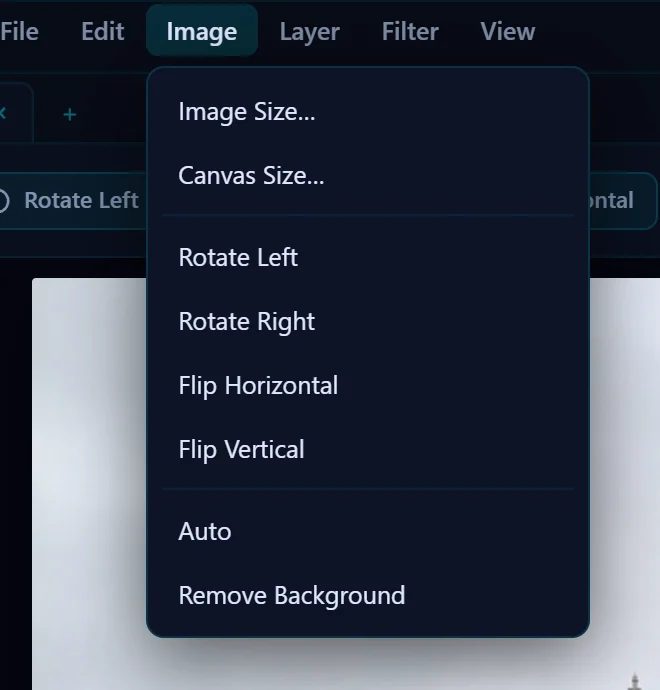
#2. Open Image Size and read the current size
The dialog shows the current Width and Height in pixels. Constrain proportions is ticked by default, which keeps the shape of the photo when you change either number.
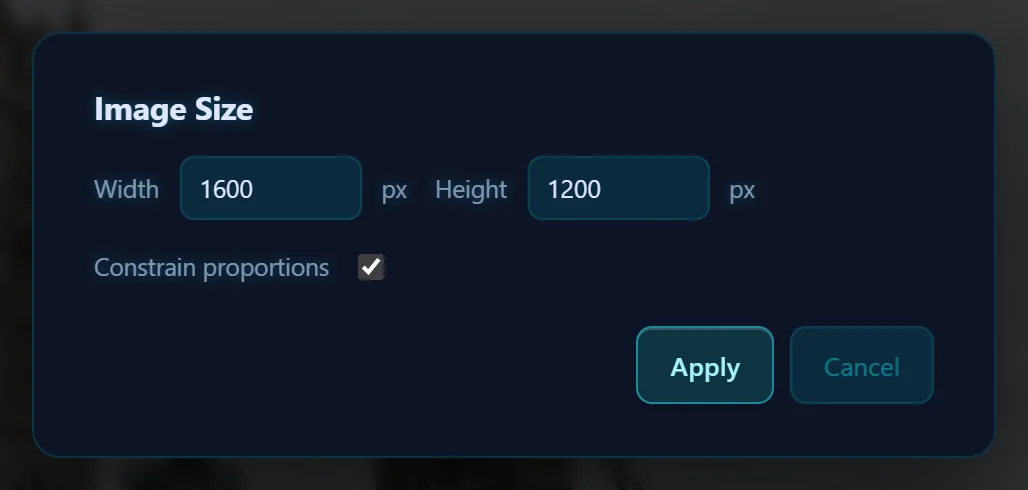
#3. Type the new width
Type the width you want and the height follows. Here, a width of 800 gives a height of 600. To set the two numbers separately, untick Constrain proportions. That will stretch the photo.
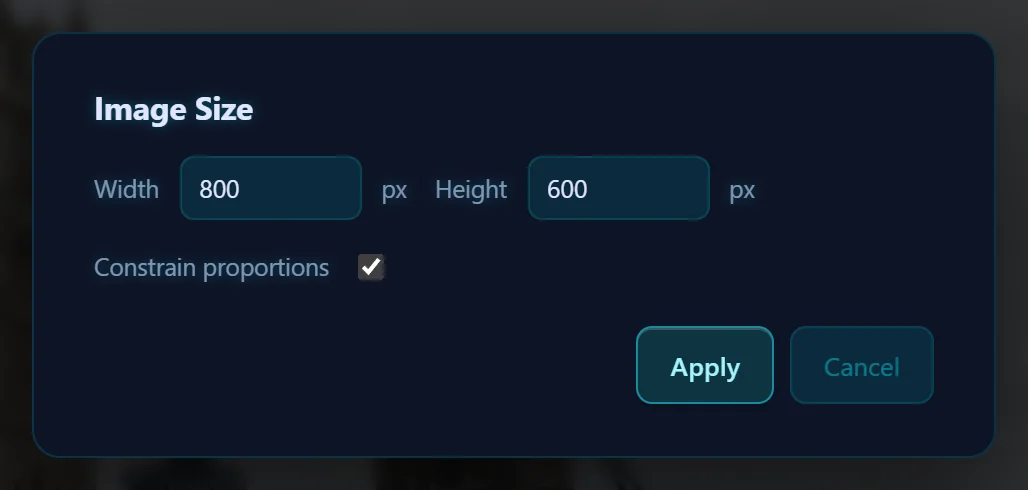
#4. Click Apply and save
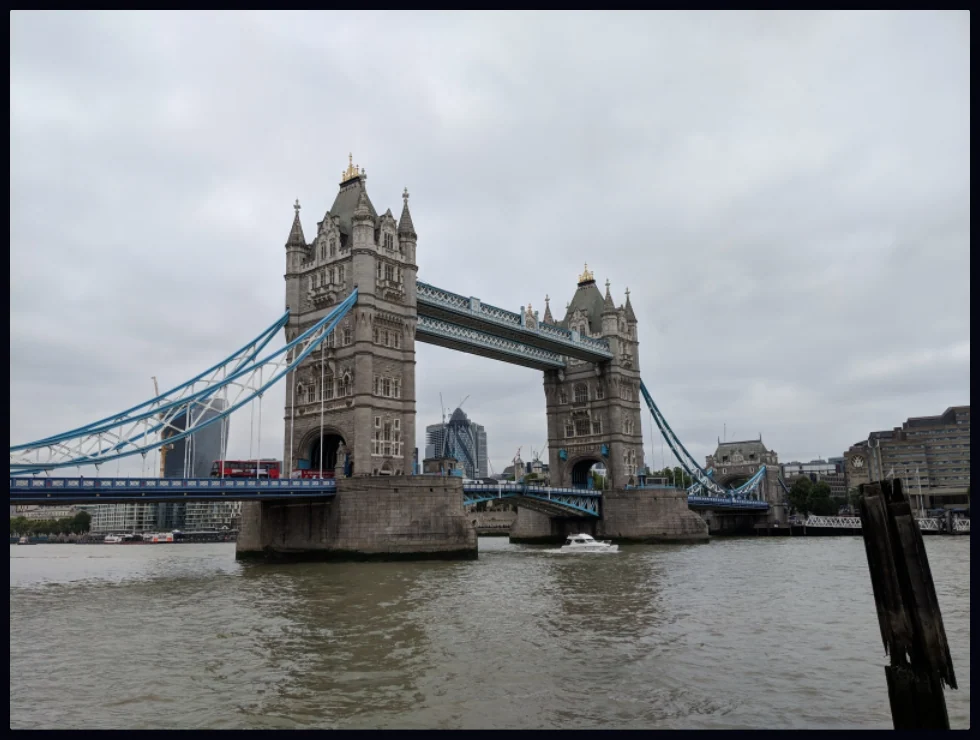
Click Apply. The status bar at the bottom left now shows the new size. Save with Save as Copy (Ctrl+S) to keep your original at full size.
#5. Or add space with Canvas Size
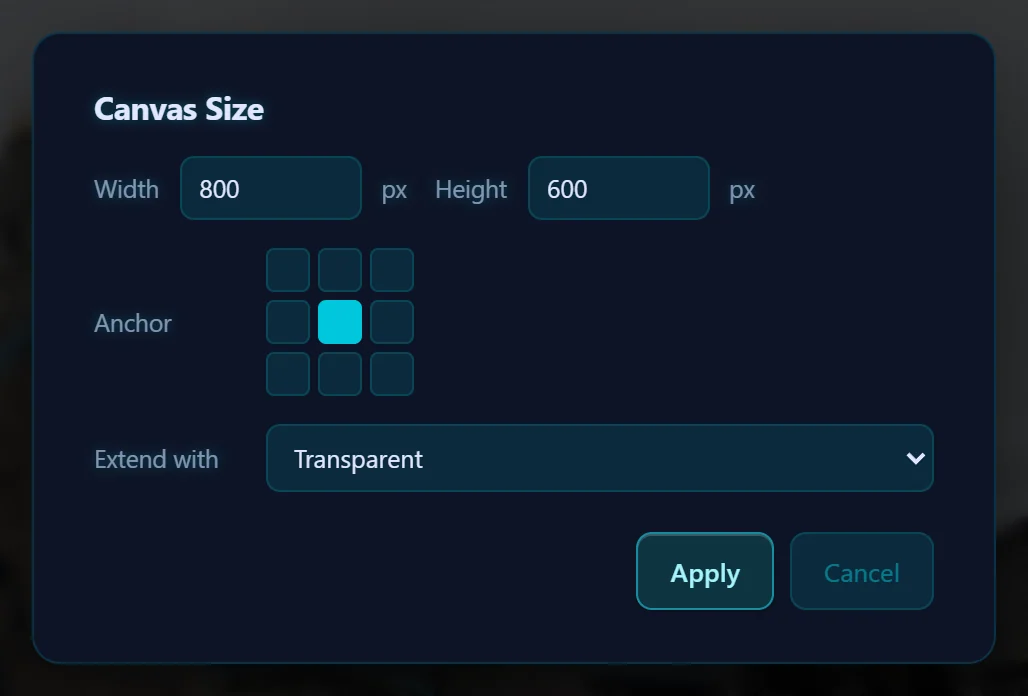
Choose Image > Canvas Size… to make the page bigger or smaller without scaling the photo. Set the new Width and Height, click a square in the Anchor grid to choose where the photo sits, and pick what fills the new space under Extend with: Transparent, White, Black or a custom color. Use it to add a border, or to turn a landscape photo into a square with room around it.
#Tips
- Making a photo smaller is safe. Making it larger isn't, because enlarging can't add detail that was never captured. A big increase looks soft.
- If you only need a smaller file to share, use the Resize slider in the Export tab. It scales the saved copy and leaves the editor untouched.
- If you need an exact shape, crop to a ratio first and then set the size.
#Questions
- What is the difference between Image Size and Canvas Size?
- Image Size scales the photo itself to a new number of pixels. Canvas Size changes the size of the page around the photo and leaves the photo at its current scale.
- How do I resize an image without stretching it?
- Leave Constrain proportions ticked in the Image Size dialog and change only the width or the height. The other number updates to keep the shape.
- Will resizing overwrite my original?
- Not unless you choose to. Save as Copy writes a new file beside the original.
About the photo editor · Pricing · Download Pluto Photos · Contact support