
How to Make a Quote Graphic for Instagram or Pinterest
Choose File > New Document, pick Instagram Post (1080×1080) and a custom background color, then add a large line in a serif font and a smaller line underneath with the Text tool.
Requires Pluto Photos Pro (one-time $29, no subscription). The free download includes a 30-day trial of every Pro feature.
#1. Create a square document with a colored background
Choose File > New Document…, select Instagram Post · 1080×1080 as the Preset, set Background to Custom color and click the swatch to choose a dark navy. Click Create.
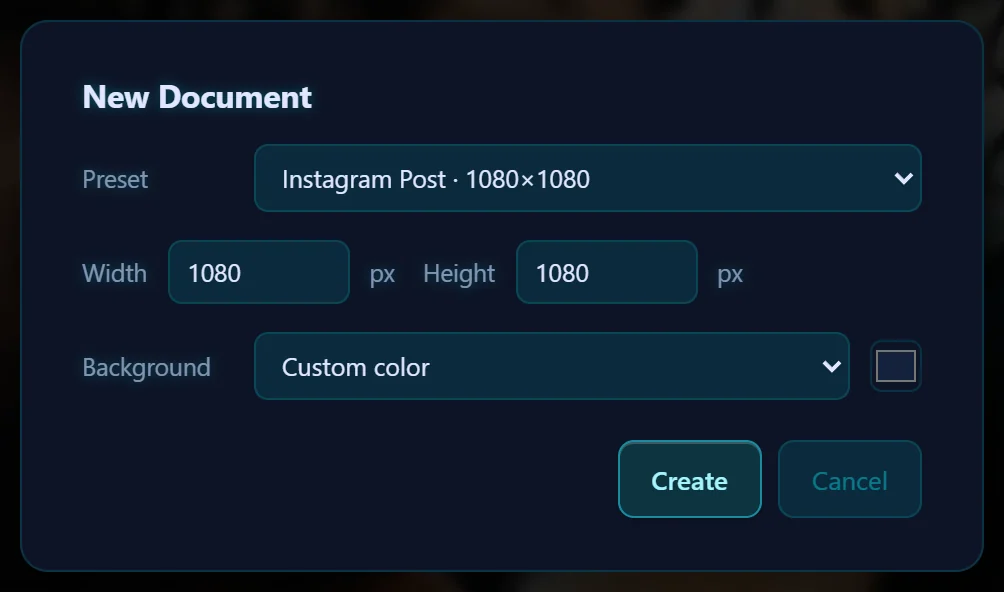
#2. Add the main line
Press T, click on the canvas and type your quote. Set a large size (130 here) and choose a serif font such as Playfair Display from the font menu. White text on a dark color is easy to read.
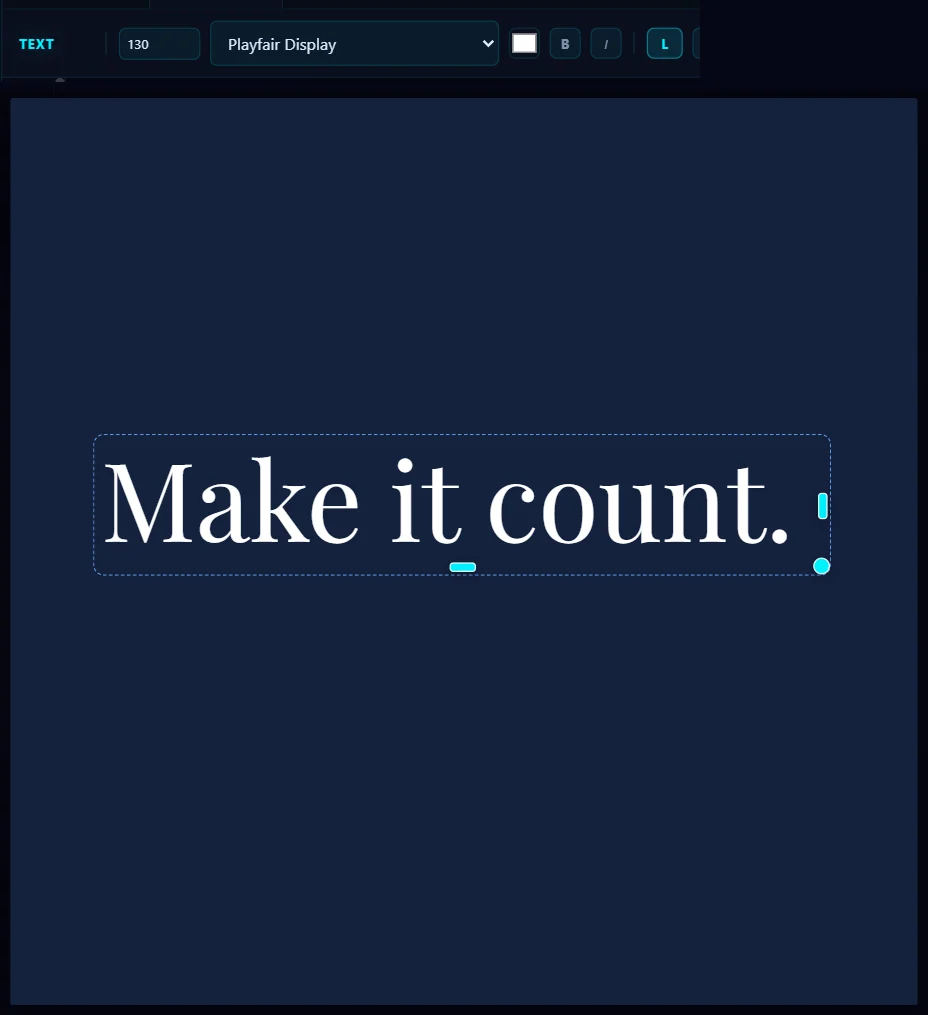
#3. Add a smaller second line
Click Done, click lower on the canvas, set a small size (40) and choose a plain font such as Inter. Two sizes and two fonts are enough to give the text some hierarchy.
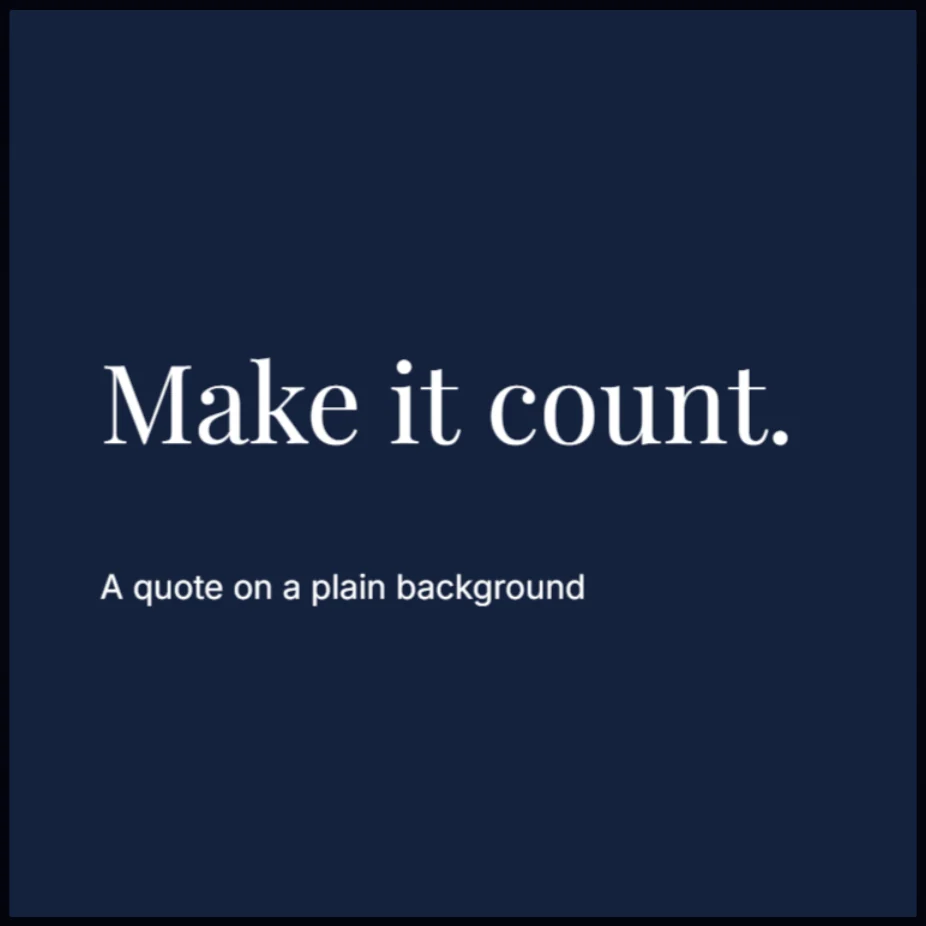
#4. Save it
Click Save as Copy and save a PNG or JPEG from the Export tab. Keep the text well inside the edges, because some feeds crop a little off the sides.
#Tips
- Use high contrast, either a dark background with light text or the reverse. Two mid tones are hard to read.
- Keep the quote short. A long one needs a smaller size and loses impact.
- To add a logo in a corner, use a watermark.
#Questions
- What size should a quote graphic be?
- A square 1080 × 1080 pixels is the editor's Instagram Post preset. Choose Instagram Portrait (1080 × 1350) for a taller post.
- Can I use my own font?
- The font menu lists the fonts installed on your computer, plus a set of web fonts built into the editor.
About the photo editor · Pricing · Download Pluto Photos · Contact support