
How to Use Layers: Combine Photos and Cutouts into One Image
Copy a photo or cutout, then choose Edit > Paste in another photo. It arrives as a movable layer. Drag its corner to resize, drag inside to move, and manage it in the Layers panel.
Requires Pluto Photos Pro (one-time $29, no subscription). The free download includes a 30-day trial of every Pro feature.
#1. Start with a background photo
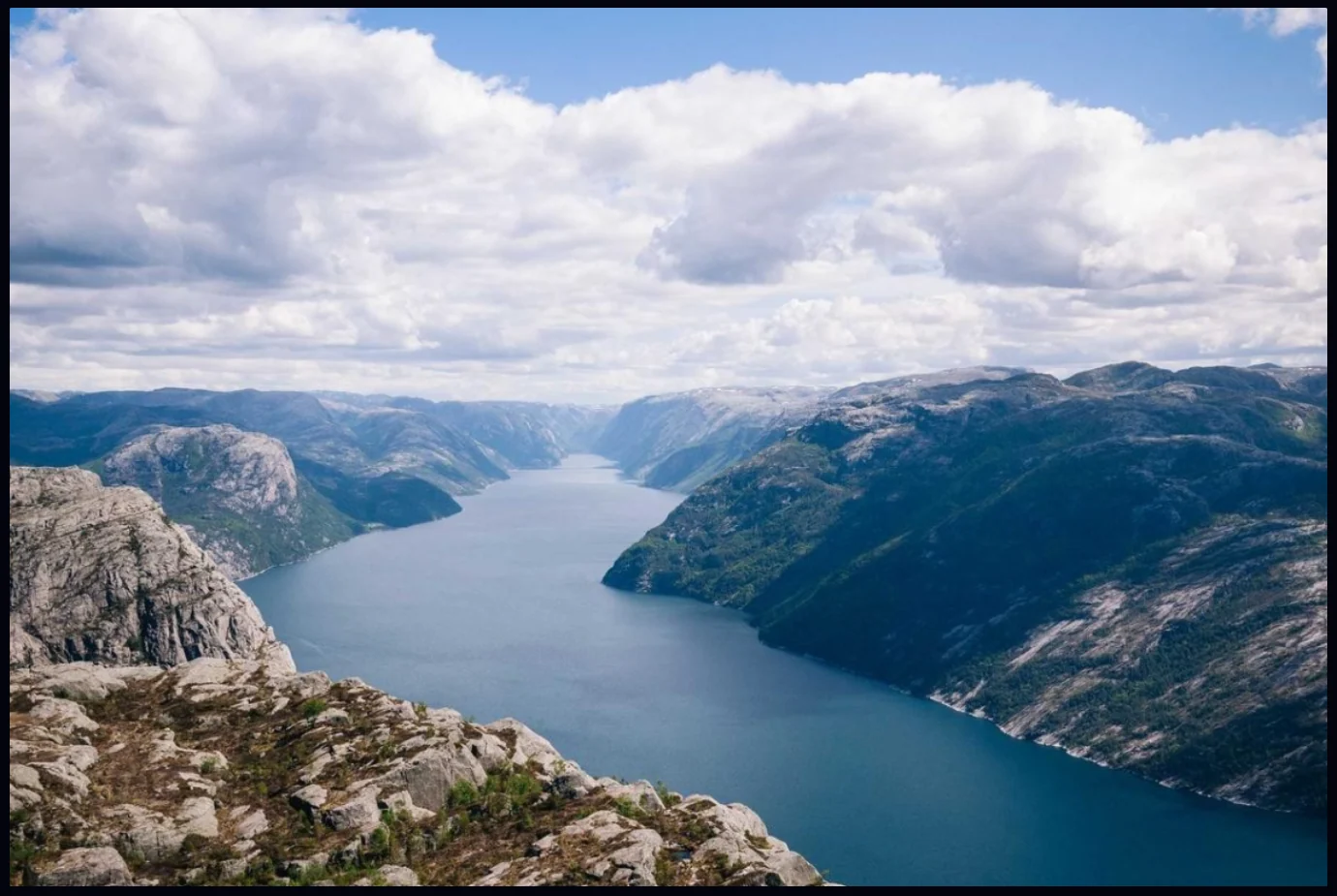
Open the photo that will be the base. It becomes the Background layer. This one is a view over a fjord.
#2. Paste another image as a layer
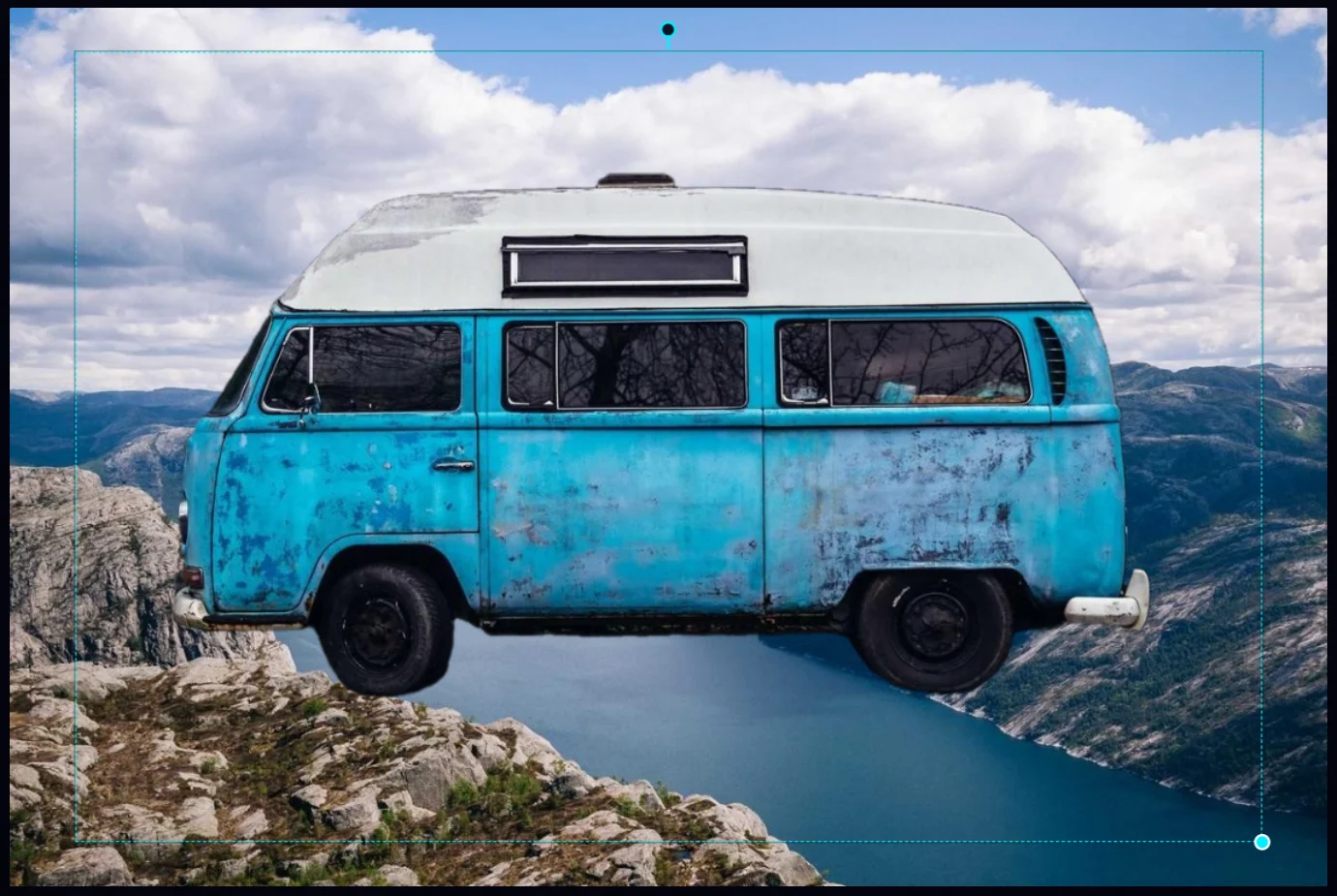
Copy an image first. It can be a cutout from another photo or a copied selection. In the editor, choose Edit > Paste (Ctrl+V). It appears as a new layer called Pasted Layer, with a dotted frame and handles. To bring in a file instead, use File > Place Image… or Layer > Place Image….
#3. Resize and move it
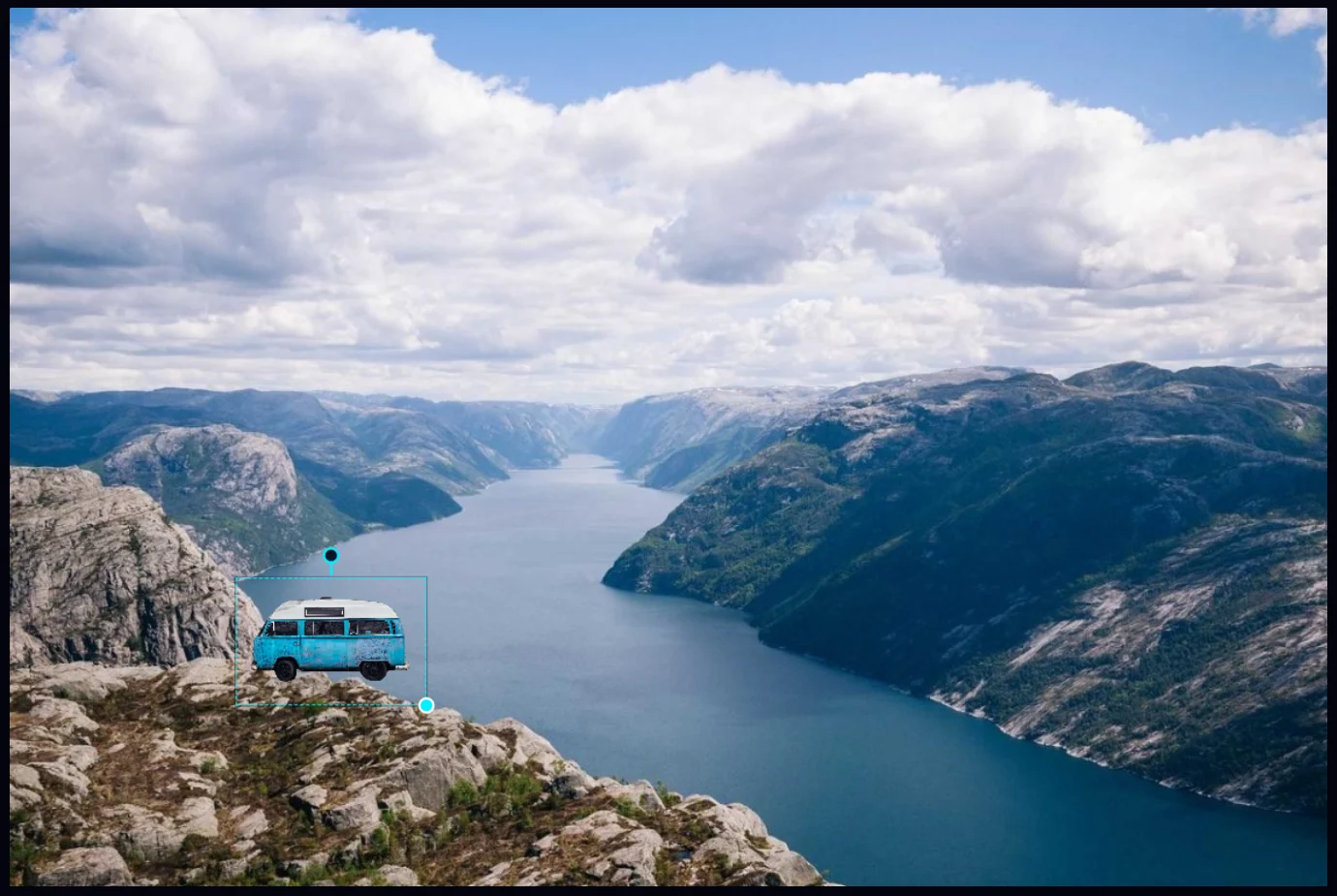
With the Move tool active, drag the round handle at the corner to resize the layer, and drag inside the frame to move it. The top handle rotates it. Each change shows up in History as Resize layer or Move layer.
#4. Use the Layers panel
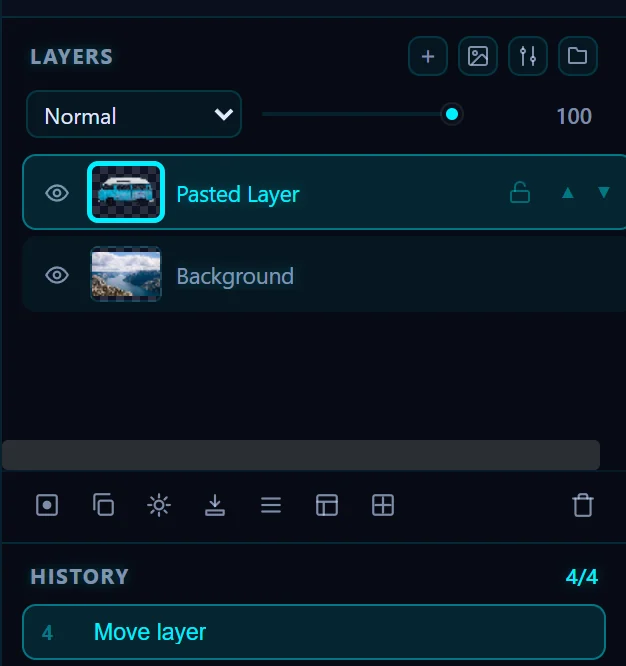
The Layers panel is on the right. Each layer has an eye to show or hide it, a lock, and up and down arrows to reorder it. At the top, the blend mode menu (Normal by default) and the opacity slider apply to the selected layer. The buttons along the top add a new layer, place an image, add an adjustment layer or add a group. The row of icons below the list handles masks, duplicates, effects, merging and deleting.
#5. Know where everything else is
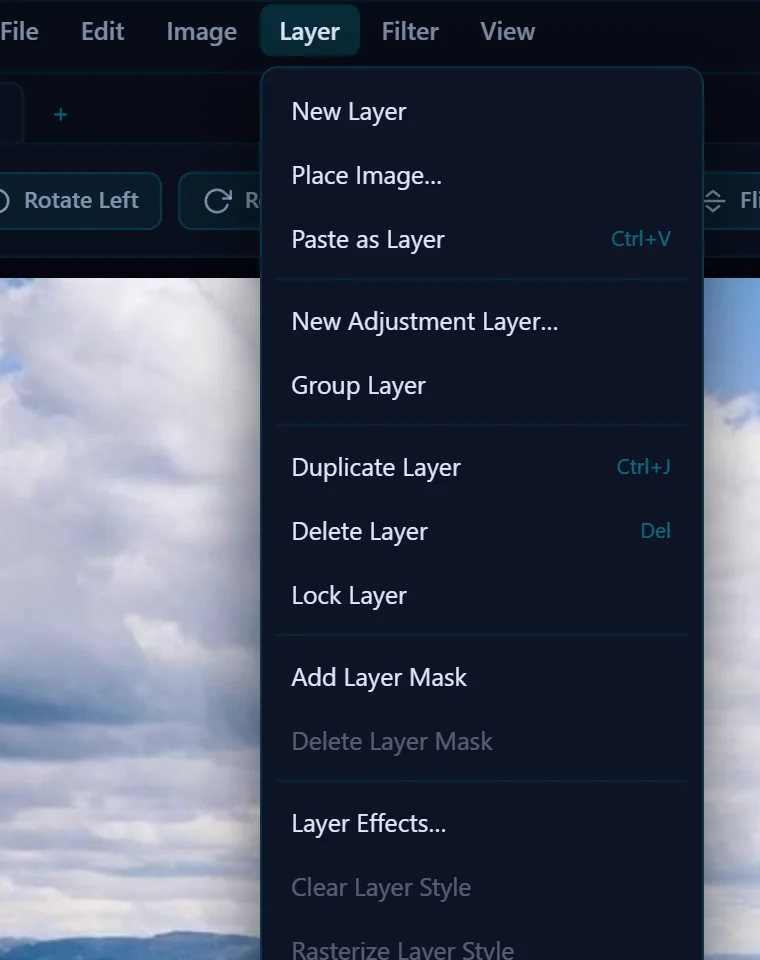
The Layer menu has the full list: New Layer, Paste as Layer, New Adjustment Layer…, Group Layer, Duplicate Layer (Ctrl+J), Delete Layer, Lock Layer, Add Layer Mask, Layer Effects…, Merge Down, Merge Visible and Flatten Layers.
#Tips
- Save a project (File > Save Project) to keep layers editable. Saving a copy as JPEG or PNG flattens them.
- To soften the join between layers, use a layer mask or a drop shadow.
- Open several photos at once. Each gets its own tab, so you can copy from one and paste into another.
#Questions
- How do I put one photo on top of another?
- Copy the first image, open the second and choose Edit > Paste. It arrives as its own layer you can move and resize.
- How do I merge layers?
- Use Layer > Merge Down to merge a layer into the one below it, or Flatten Layers to merge everything into one.
- Are layers kept when I save?
- Saving a copy as JPEG or PNG flattens them. Use File > Save Project to keep layers, masks and text editable.
About the photo editor · Pricing · Download Pluto Photos · Contact support