
How to Make a Sticker from a Photo (White Outline and Shadow)
Remove the background so you have a transparent cutout, place it on a transparent canvas, then choose Layer > Layer Effects… and click the Sticker preset. It adds a white stroke and a drop shadow. Save as PNG.
Requires Pluto Photos Pro (one-time $29, no subscription). The free download includes a 30-day trial of every Pro feature.
#1. Start with a cutout
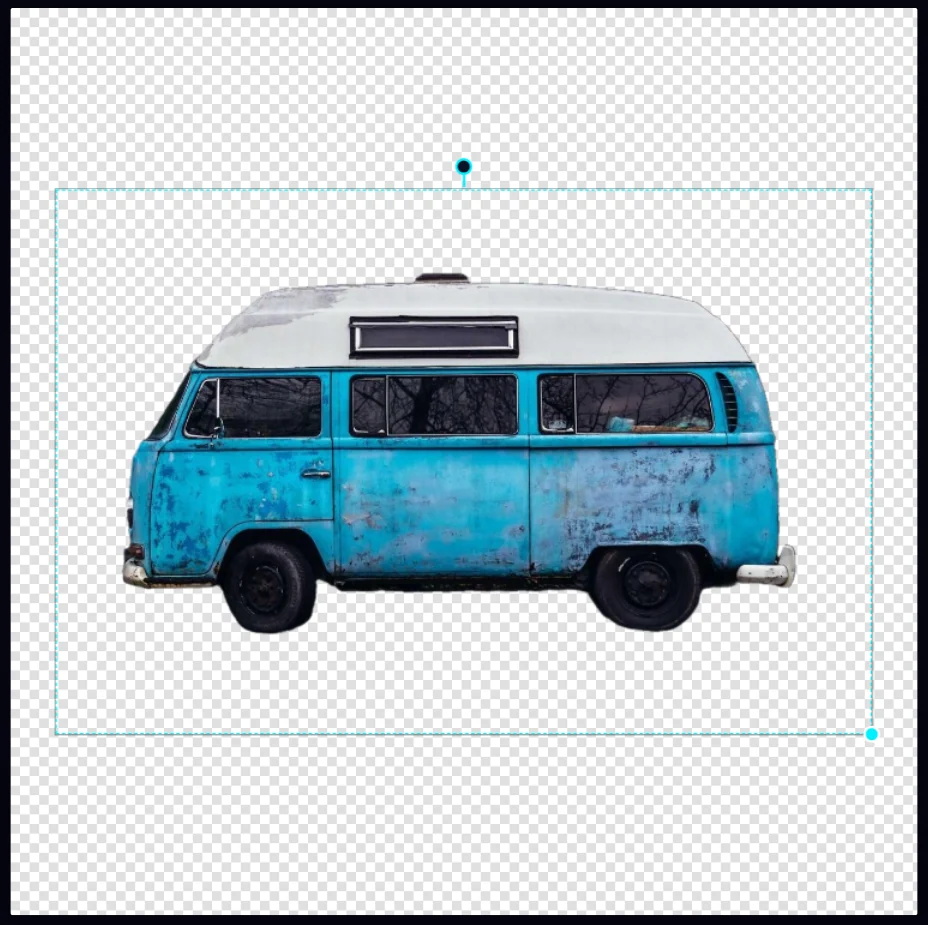
Remove the background from your photo and save it as a PNG. Then choose File > New Document…, set Background to Transparent and click Create. Use File > Place Image… to place the cutout.
#2. Open Layer Effects and click Sticker
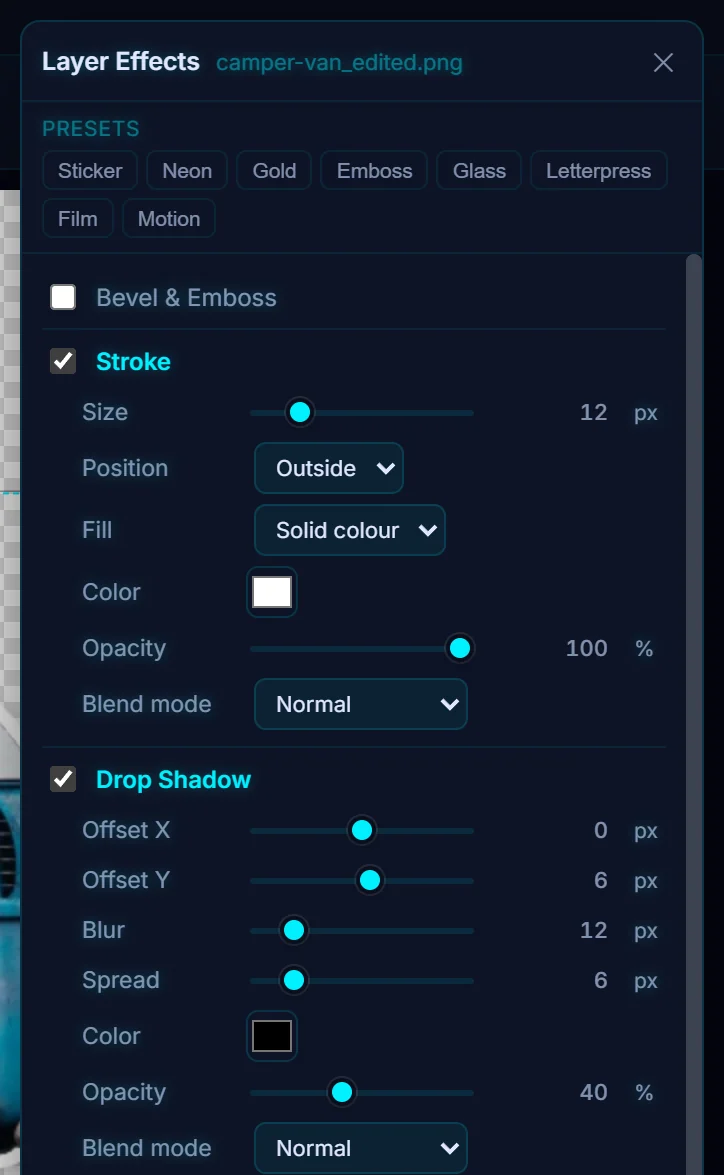
With the cutout layer selected, choose Layer > Layer Effects…. The presets are at the top: Sticker, Neon, Gold, Emboss, Glass, Letterpress, Film and Motion. Click Sticker. It ticks Stroke (outside, 12 px, white) and Drop Shadow.
#3. Check the result and save as PNG
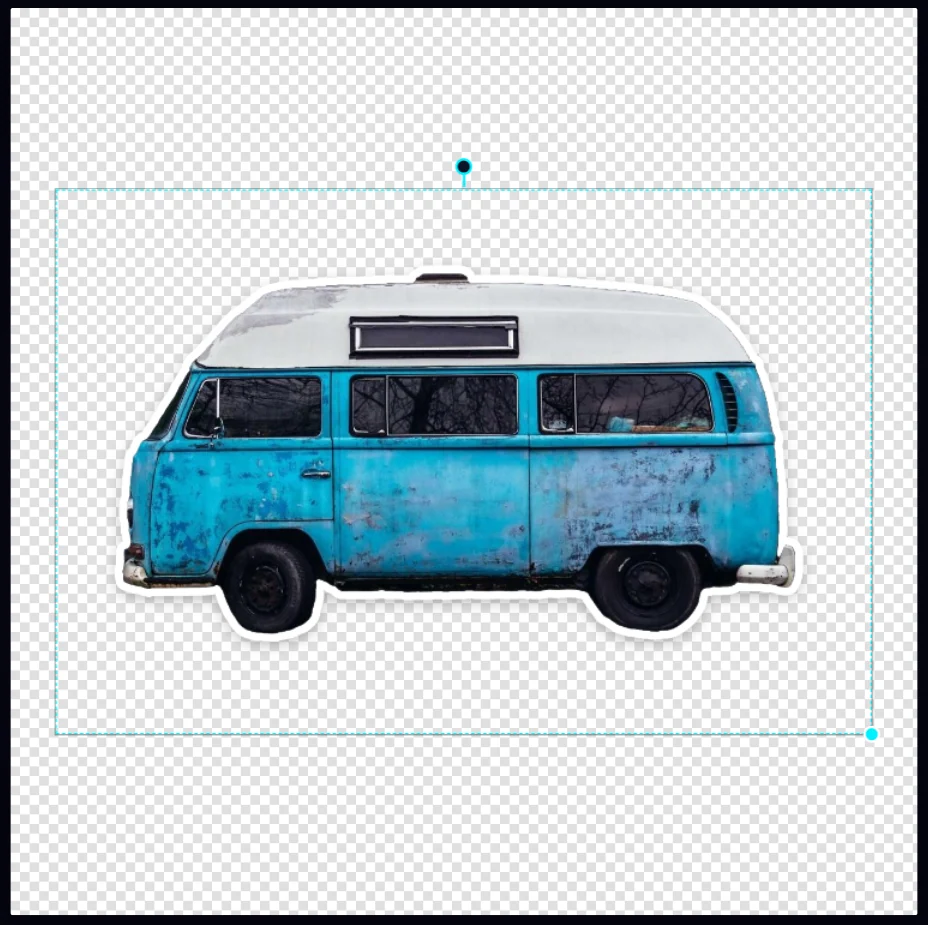
The cutout now has a thick white border and a soft shadow, like a die-cut sticker. Close the panel, then choose PNG in the Export tab and click Save as Copy so the transparent area stays transparent.
#Tips
- To widen the outline, raise the Stroke Size in Layer Effects.
- The sticker keeps its transparency, so you can place it on another photo later.
#Questions
- How do I add a white border around a cutout?
- Open Layer > Layer Effects, tick Stroke, set the position to Outside and the color to white, or click the Sticker preset.
About the photo editor · Pricing · Download Pluto Photos · Contact support