
How to Turn Your Trips and Events Into Albums Automatically
Open Places, then Trips. Pluto Photos lists trips and events it found from your photo dates and places. Click Create album on one, or Create all trips. The album appears in the sidebar under Trips.
Requires Pluto Photos Pro (one-time $29, no subscription). The free download includes a 30-day trial of every Pro feature.
#1. Open Trips & Events
Open the Places menu and choose Trips. The list says Found 12 suggested album(s) from your photos' dates and places and names your home base. Each suggestion is either a Trip (with its dates, photo count, number of days, place and distance from home, such as Trip to Cape Town, 7 photos, 4 days) or an Event (a date with its photo count). The tabs All, Trips and Events filter the list, and you can search it and change the order from Most recent.
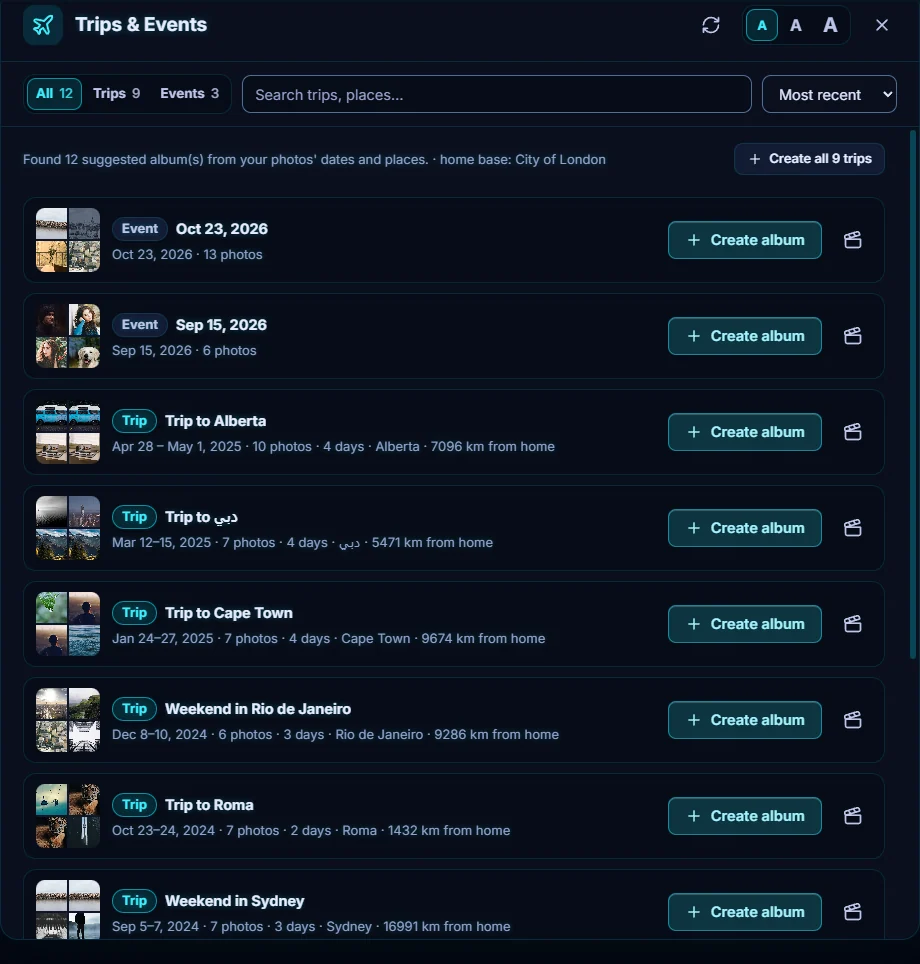
#2. Create an album
Click Create album on one suggestion. The button changes to Created and the album is added to your library. Create all 9 trips at the top does every trip in one go.
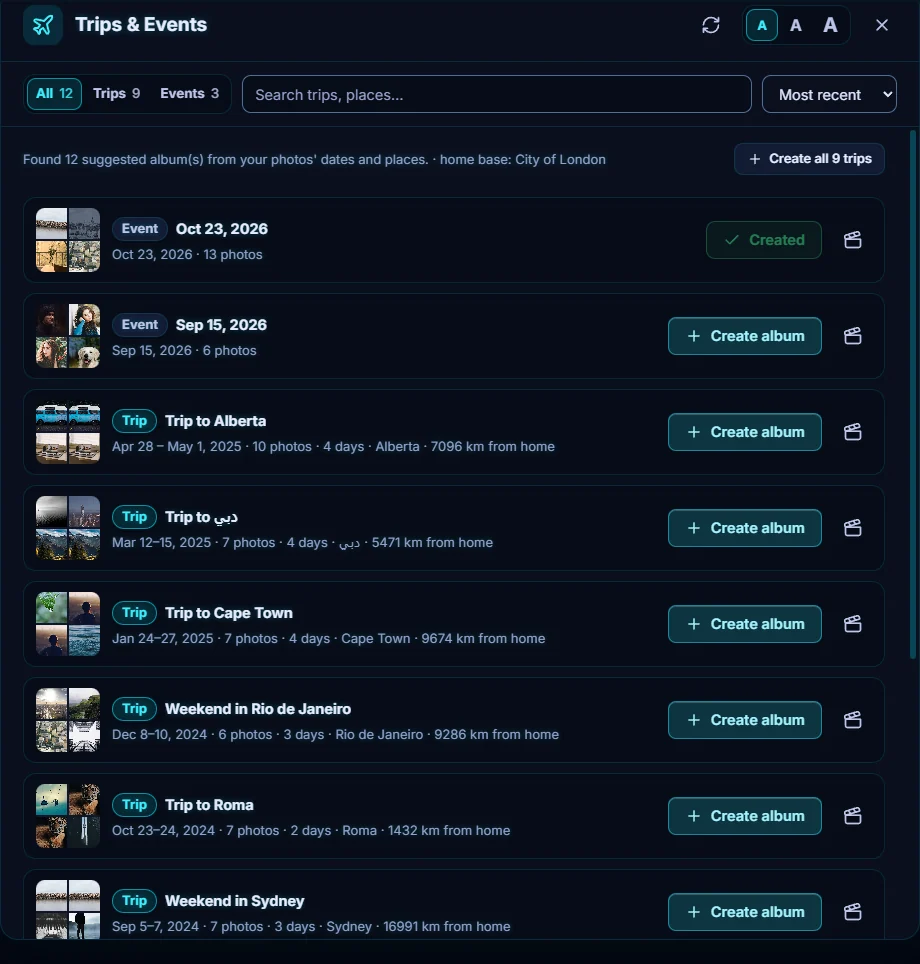
#3. Find the album in the sidebar
Albums made this way are listed under Trips in the sidebar, named for their dates (Oct 23, 2026, 13 photos). Click one to open it.
#Tips
- It uses your photos' dates and places, so the more of your photos carry GPS data, the better the trips.
- Place names come from the internet in the same way as the map, with coordinates sent to OpenStreetMap's Nominatim service.
- Nothing becomes an album until you click Create album, so you can pick just the ones you want.
#Questions
- How does Pluto Photos find trips and events?
- It looks at the dates and places of your photos and shows a home base, then lists suggested trips (with a place and distance from home) and events as albums you can create.
- Can I turn them all into albums at once?
- Yes. Create all trips at the top of the dialog makes an album for every trip in the list.
About the smart search · Pricing · Download Pluto Photos · Contact support