
How to Run Pluto Photos on a Home Server With Docker
Download docker-compose.yml and example.env, copy the env file to .env, set your photo folder and a password, then run docker compose up -d. Open https://your-server:3456 in a browser and sign in.
Running Pluto Photos in Docker gives you a server you open in a web browser. The browser viewer needs a Pro licence: you put your email and licence key in the settings file and the server activates itself when it starts.
#1. Check what you need
- A 64-bit Intel or AMD machine running Docker Engine or Docker Desktop with Compose v2.
docker compose versiontells you if you have it. - About 6 GB of free disk space. The image is a 2 GB download and takes about 6 GB once it's unpacked.
- A folder of photos on that machine.
- Your Pro licence email and key, for the browser viewer.
The image is built for x86-64 only, so it doesn't run on a Raspberry Pi or an ARM NAS.
#2. Download the two files
Make a folder for the server and download the compose file and the example settings file into it:
mkdir pluto-photos
cd pluto-photos
curl -fsSLO https://plutophotos.com/docker/docker-compose.yml
curl -fsSLO https://plutophotos.com/docker/example.env
cp example.env .env
The last line copies the example to .env, which is the name Docker Compose reads. You don't need to edit docker-compose.yml.
#3. Edit the .env file
Open .env in a text editor and set these:
UPLOAD_LOCATIONis the folder of photos on this machine, for example/mnt/photos. The server mounts it read-only, so it can read your photos but can't change or delete them.PLUTO_WEB_PASSWORDis the password for signing in from a browser. It needs at least 12 characters, one uppercase letter and one number or symbol. The container refuses to start with a weaker one, and with theCHANGE_MEplaceholder.PLUTO_WEB_USERNAMEis the sign-in name. It'sadminunless you change it.PLUTO_LICENSE_EMAILandPLUTO_LICENSE_KEYare the email you bought with and the key from your licence email. Remove the#at the start of both lines.
Leave the other lines as they are.
#4. Start the server
docker compose up -d
The first start downloads the image, so give it a few minutes. Then check on it:
docker compose ps
docker compose logs
After about a minute docker compose ps should say healthy, and the log should end with "Server ready!" and a line like "Library: 120 images in 1 folders". On the first start the server also makes its own security certificate and starts building thumbnails in the background.
#5. Open it in your browser
On the same computer, go to https://localhost:3456. From another device on your network, use the server's address instead, such as https://192.168.1.20:3456.
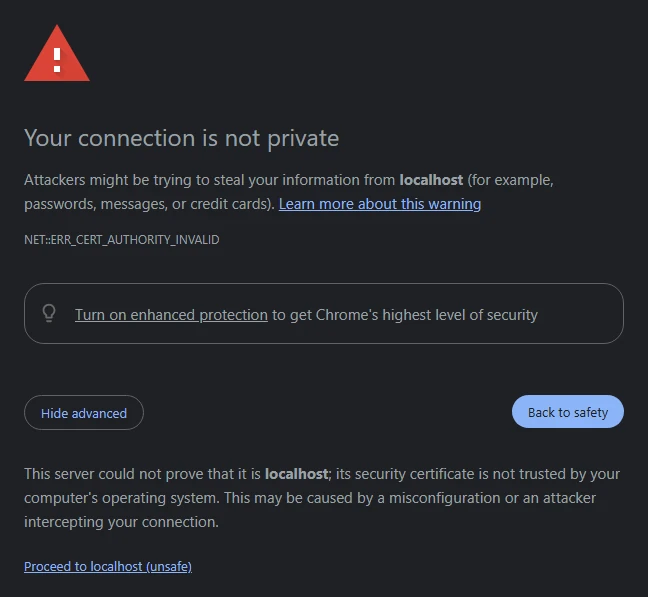
The browser warns that the connection isn't private. That's expected the first time: the server made its own certificate when it started, and no browser knows it yet. Click Advanced, then Proceed to localhost (unsafe). Other browsers word it differently, but the steps are the same. The connection is still encrypted.
Port 3457 only redirects plain http:// visits to the secure address.
#6. Sign in
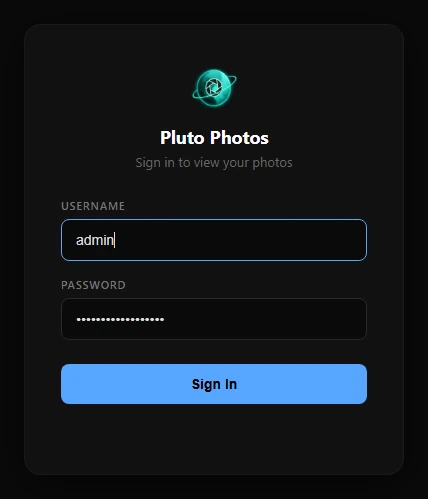
Sign in with the username and password from your .env file.
#7. Fix a licence message
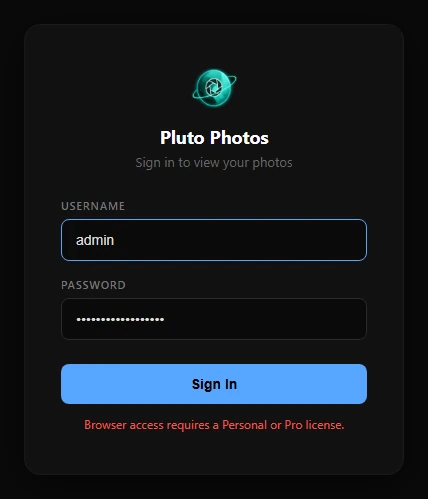
If the page says Browser access requires a Personal or Pro license, the server hasn't been licensed yet. Check that the email and key lines in .env have no # in front of them and match your licence email exactly. Save the file and run docker compose up -d again. Compose recreates the container with the new values, and the server activates the licence while it starts, so it needs an internet connection for that.
You can see how it went in the log. Look for "Licence activated for" or "Licence activation failed":
docker compose logs | grep -i licence
A licence works on up to 2 devices, and the server uses one of them.
#8. Update or stop the server
To update to the newest version:
docker compose pull
docker compose up -d
Your library lives in a Docker volume, so it survives updates and restarts. To stay on one version, add PLUTO_VERSION=v2.5.4 to .env.
To stop the server and remove its container:
docker compose down
Adding -v also deletes the library volume, which holds the database, thumbnails and certificate. Your photos are never touched, because the server only has read-only access to them.
#Tips
- The server scans your photo folder when it starts and every 60 minutes after that. Put new photos in the folder and wait, or run
docker compose restartto scan right away. AddPLUTO_SCAN_INTERVALto.envto change the 60 minutes, or set it to 0 to turn the repeat scan off. - To change the password later, edit
PLUTO_WEB_PASSWORDin.envand rundocker compose up -d. The server applies the new one when it starts. - Keep the server on your home network or behind a VPN. Don't forward port 3456 on your router to the internet unless you know what you're doing.
#Questions
- The container keeps restarting. What is wrong?
- Run docker compose logs. If it says PLUTO_WEB_PASSWORD was rejected, the password is too short or weak, or it's still the CHANGE_ME placeholder. Edit .env and run docker compose up -d again.
- Port 3456 is already in use. What do I change?
- The Pluto Photos desktop app also uses ports 3456 and 3457, so with the default settings it can't run on the same computer as the server. In docker-compose.yml, change only the first number of each ports line, for example "13456:3456" and "13457:3457", run docker compose up -d, and open https://localhost:13456 directly.
- The server shows no photos. What should I check?
- Check that UPLOAD_LOCATION in .env points at the folder on the host and that the folder is readable. The container runs as user ID 1000 by default. If your photos can only be read by another user, add PUID and PGID lines to .env with that user's IDs (the id command shows them) and run docker compose up -d again.
- Where is my library data stored?
- In a Docker volume named pluto-photos_pluto-data, which holds the database, thumbnails and certificate. Your photos stay in your own folder.
- Does it run on a Raspberry Pi, Synology or QNAP?
- Only on x86-64 hardware. The image is built for Intel and AMD processors and there is no ARM version, so ARM boards and ARM NAS models can't run it.
System requirements · Pricing · Download Pluto Photos · Contact support